
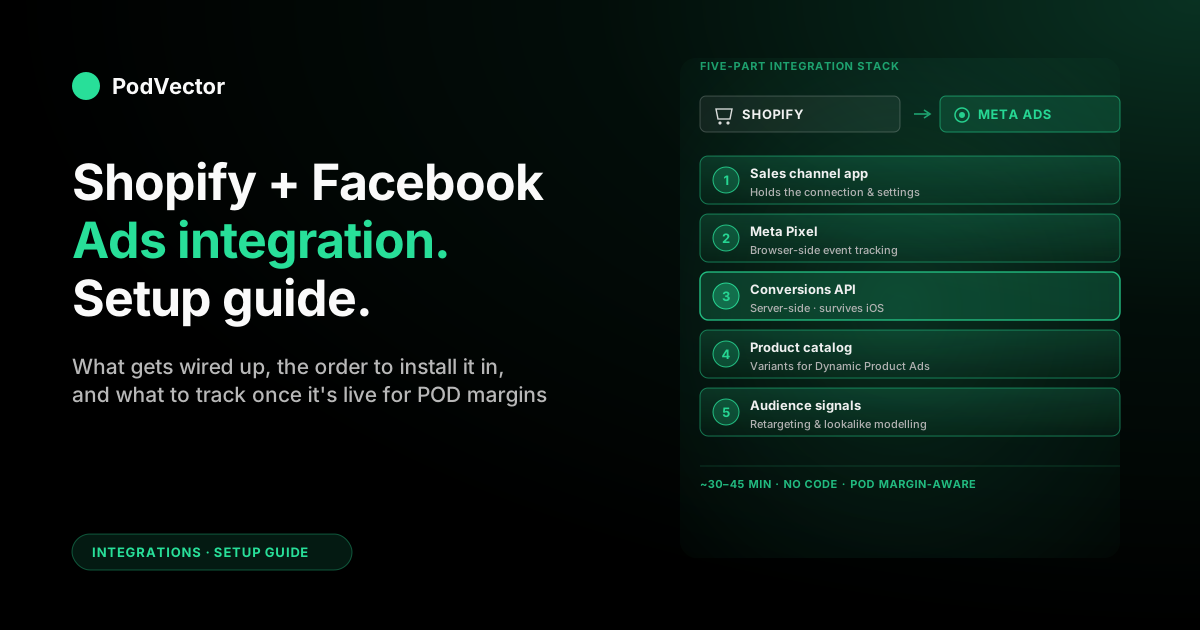
Quick Answer: The Shopify Facebook Ads integration is a five-part stack: the Facebook & Instagram by Meta sales channel, the Meta Pixel, the Conversions API (CAPI), the product catalog, and the audience signals that flow back into Ads Manager.
You install the channel, link a Meta Business Manager and Ad Account, set Shopify's data-sharing to Maximum (this is what enables CAPI), verify your domain, and configure event priorities. Total time: about 30–45 minutes.
For POD stores, the integration is the easy part. The hard part is what you do with the data once it flows — tying Meta-reported revenue back to Printify or Printful fulfillment costs so you know which campaigns are actually profitable per order, not just per ROAS column.
What the integration actually is
People say "Shopify Facebook Ads integration" as if it were a single switch. It isn't. Five distinct pieces get wired up when you install it, and each one fails differently if you skip a step. (For the architectural overview of how every piece fits together, see the complete guide to Meta Ads + Shopify integration for POD, and for adjacent integrations the Meta Ads integrations hub.)
1. The Facebook & Instagram by Meta sales channel
This is the Shopify-side app that holds the connection. It lives in your Shopify admin under Sales channels and exposes the settings that decide what data Shopify sends to Meta.
It is not the integration itself — it is the wrapper. The four signal layers below are what actually carry useful data.
2. The Meta Pixel (browser-side events)
A small JavaScript snippet that fires events from the shopper's browser: PageView, ViewContent, AddToCart, InitiateCheckout, Purchase. The integration installs it automatically. No theme edits, no copy-paste of code from old tutorials.
Pixel-only setups break on iOS, on ad blockers, and on shoppers who clear cookies between sessions. That's why the next layer matters.
3. The Conversions API (server-side events)
Shopify's server forwards the same events directly to Meta, bypassing the browser entirely. CAPI is what survives iOS 14.5+ and ad-blocker traffic. It also raises event match quality, because Shopify forwards hashed customer data (email, phone, billing) the browser-side Pixel often lacks.
CAPI is not a separate install. It switches on automatically when you set Shopify's data-sharing level to Maximum in step three of setup. (For a deeper Pixel-side walkthrough, see the Meta Pixel for Shopify Facebook ads setup guide.)
4. The product catalog
Your Shopify product feed syncs to Meta's Commerce Manager. This is what powers Dynamic Product Ads — the retargeting ads that show the exact mug or shirt a shopper looked at. Variants, prices, images, and inventory all flow through.
For POD stores, the catalog is where most operational issues start. Print-on-demand SKUs explode into hundreds of variants, and stale prices or out-of-stock states can drift between Shopify and the upstream Printify or Printful blank.
5. Audience signals back to Ads Manager
Once the Pixel and CAPI are live, Meta builds custom audiences from your traffic — past purchasers, cart abandoners, viewers of specific products. These audiences are what feed lookalike modelling and retargeting later.
If you want to layer Shopify's customer segments on top (lifetime-value tiers, repeat buyers, abandoned-checkout cohorts), that's a separate setup documented in the Shopify Audiences for Facebook Ads integration guide.
Why POD stores need this wired up correctly
For a single-product DTC brand with one cost-of-goods number, a sloppy integration is annoying but survivable. For a POD store, it's expensive.
Three reasons it matters more for print-on-demand:
Margins are thin and per-variant
An XL hoodie costs Printify or Printful materially more to fulfill than a small tee. A campaign hitting 3.0× ROAS on $20 mugs is healthy; the same 3.0× on $40 hoodies is barely break-even after fulfillment and shipping. If the integration isn't passing accurate purchase values per variant, your ROAS column is a fiction.
Catalogs are wide
POD stores routinely run 50–500+ SKUs across multiple blank types. Dynamic Product Ads only work cleanly when the catalog is healthy — every product has a price, an image, a stock state, and a stable URL. One bad sync wipes out half your retargeting efficiency.
Cross-channel attribution lies harder
Most POD operators run more than one channel — Meta plus Google plus organic plus an email list. Each platform claims credit for the same conversions. Without server-side tracking and an actual reconciliation step, you can spend on Meta to "scale" what's really being driven by your Google Brand campaigns.
Prerequisites checklist
Have these ready before you click anything. Missing one of them turns a 30-minute setup into a multi-hour rabbit hole.
A Meta Business Manager account
Sign up at business.facebook.com if you don't already have one. Do not connect Shopify to a personal Facebook ad account — it works in spurts but breaks billing, access sharing, and attribution over time.
A Facebook Page owned by that Business Manager
The Page that will show as the "advertiser" on every ad. Must be inside Business Manager, not just admin'd by you personally, for the connection wizard to succeed.
A Business Manager-owned Ad Account with payment
Fresh Ad Account, fresh payment method, both inside the same Business Manager as the Page. This is the only configuration that interoperates cleanly with Shopify.
Admin access on both sides
Your Shopify admin email needs admin rights (directly or via Business Manager) on the Facebook side. Mismatched permissions are the single most common reason "Connect account" silently fails.
Your apex domain
Know whether your store runs on yourstore.com or shop.yourstore.com. Domain verification needs the apex (root, no subdomain). Mixing the two breaks Aggregated Event Measurement (Meta's iOS workaround) later.
The five setup steps
This is the condensed version. For the full screen-by-screen walkthrough with screenshots, see connect Shopify store to Meta Ads: setup guide for POD sellers. Meta's own version is at Shopify's Facebook advertising guide.
Step 1 — Install the Facebook & Instagram by Meta sales channel
From Shopify admin: Settings → Apps and sales channels → Shopify App Store. Search for Facebook & Instagram by Meta. Install the official Meta-published app, not a look-alike from a third party.
This installs the wrapper only. Nothing is connected yet.
Step 2 — Link Business Manager, Page, Ad Account, and Pixel
Open the channel from Shopify's left nav. Click Start setup on the Facebook Marketing tile. The Shop and Marketplace tiles are separate decisions — for ads you only need the Marketing tile.
Sign in to Facebook, then select your Business Manager, Page, Ad Account, and Pixel. If no Pixel exists yet, the wizard will create one — name it explicitly (something like Yourstore Pixel) so it's identifiable in Events Manager later.
Step 3 — Set data-sharing to Maximum
This is the step generic tutorials skip and the one that decides whether your Pixel post-iOS even works. The wizard offers three data-sharing levels:
- Standard: browser-side Pixel only. iOS and ad blockers strip events.
- Enhanced: browser-side with hashed customer data added. Better matching, still browser-only.
- Maximum: Shopify server forwards events via CAPI. Survives iOS, ad blockers, cross-device.
Pick Maximum. Always. If you missed it during initial setup, change it now: Facebook & Instagram channel → Settings → Data sharing → Maximum → Save.
Step 4 — Verify your domain in Business Manager
One-time, five-minute step. Without it, you cannot configure event priorities for iOS, which means a meaningful slice of your conversions won't report.
In Business Manager, go to Settings → Brand safety → Domains. Add your apex domain. Pick the DNS-TXT method — it's the most reliable. Add the TXT record to your domain's DNS panel, wait around 10 minutes, click verify.
Step 5 — Configure Aggregated Event Measurement (AEM)
AEM is Meta's iOS workaround. You rank up to eight events by importance per verified domain, and iOS attributions only flow for events on that ranked list.
For a POD store, the ranking is almost always: Purchase → InitiateCheckout → AddToCart → ViewContent → PageView. The other slots can stay empty unless you also track lead-gen forms or subscriptions on the same domain.
Set this in Events Manager → Data sources → your Pixel → Aggregated Event Measurement → Configure web events.
Post-install verification
Five minutes of checking now saves a week of "why is my campaign not optimizing?" later. Run all four of these before you turn on spend.
Pixel and CAPI both firing
In Events Manager, open your Pixel → Test events. Paste your store URL, then run through ViewContent, AddToCart, InitiateCheckout, and Purchase yourself.
Each event should appear twice: once tagged "Browser" (Pixel) and once tagged "Server" (CAPI). Two-channel firing per event is the proof your CAPI is live. Browser-only firing means data-sharing isn't actually on Maximum — go back and re-save it.
Catalog item count matches Shopify
Open Commerce Manager, find your catalog, check the item count. It should match your published Shopify SKUs, give or take products excluded for missing fields.
If it's materially lower, you likely have variants without prices, products without images, or items in a Shopify status that excludes them from sales channels. Spot-check three or four items: confirm the price, image, and link match what's on the storefront.
Domain verification status is "Verified"
Business Manager → Settings → Brand safety → Domains. Status should be Verified, not Pending. If it's stuck on pending, the TXT record didn't propagate — wait another 30 minutes or re-paste the record.
AEM ranking is saved
Events Manager → AEM tab. The eight-event list should show Purchase in slot 1. If the slots are empty, iOS conversions will silently not report and your campaigns will look worse than they are.
Ongoing integration health
The integration isn't a one-time setup. It's a system that drifts. Three things to monitor weekly.
Event match quality
Inside Events Manager, each event has a match quality score from 0 to 10. Anything under 6 means Meta can't reliably tie events to user identities, which silently degrades optimization. The fix is almost always: confirm Maximum data-sharing is on, and make sure your checkout collects email and phone (which Shopify hashes and forwards via CAPI).
Catalog freshness
Republish your Facebook channel feed if you've added or removed products. Shopify usually syncs automatically, but POD product imports from Printify or Printful can occasionally land in a half-published state where Shopify shows the product but the channel sync skipped it.
iOS opt-in rate
Meta's reporting includes a metric called "modeled conversions" — these are iOS conversions Meta inferred rather than directly tracked. If modeled conversions are a large share of your Purchase events, your real attribution is thinner than it looks. Healthy POD stores typically see 60–75% directly tracked, the rest modeled.
What to track once it's live
Connection is the easy half. The harder half is doing something useful with the data the integration is now producing.
Meta's Ads Manager will give you ROAS at the campaign level. For POD, that number is misleading on its own. You're paying per-product fulfillment costs that change with every variant, and Meta has no idea what you actually netted on each order.
Profit-per-order, not just ROAS
Meta reports revenue. Your real number is revenue minus Printify or Printful fulfillment, minus Shopify transaction fees, minus ad spend. The same campaign at 3.0× ROAS is healthy on a $20 mug and bleeding on a $40 hoodie.
The cleanest way to track this: land Shopify orders, Printify or Printful fulfillment costs, and Meta spend in one place where they can be joined per order. A live data warehouse lets you ask "what's my contribution margin per order on the spring tee campaign?" and get an answer that nets out fulfillment and refunds.
Cross-channel attribution
If you also run Google Ads, TikTok, or organic, Meta will claim conversions other channels touched first. This is normal — every ad platform claims credit for the same conversion.
What matters is reconciling them. A simple weekly sanity check: total Shopify revenue vs the sum of platform-claimed revenue across Meta + Google + TikTok. If the platforms together claim 140% of your actual revenue, you're double-counting somewhere. (For the deeper version of this, see the complete guide to Meta Ads ROAS and attribution for POD.)
Catalog-level performance
Once Dynamic Product Ads are running, look at performance per product, not just per campaign. POD catalogs are wide and uneven — the bottom 50% of SKUs usually contributes the bottom 5% of revenue. Pause the dead weight from your Meta catalog feed so it's not chewing impressions on losers.
Refund-adjusted ROAS
POD has higher than DTC-average return rates because customers can't try the print before buying. Meta credits the conversion immediately; the refund hits weeks later. Your Meta-reported revenue will run roughly 5–10% hot for the first 30 days of any campaign. Adjust target ROAS upward to compensate, or pull refund data into the same view as ad spend.
POD-specific gotchas (Printify, Printful)
Generic Shopify-to-Meta guides assume a small SKU count and one cost-of-goods number. Print-on-demand breaks both assumptions.
Variants explode catalog size
A single t-shirt design with 5 colors and 6 sizes is one product to a shopper but 30 variants in your catalog. Meta sees 30 items in Dynamic Product Ads. Without proper Shopify variant grouping, Meta can show the same shopper "their" mug in five different colors back-to-back, training them to ignore your retargeting.
Group color and size under one product, not five separate products. Use Shopify product variants properly.
Per-variant fulfillment cost
Meta's reported ROAS averages across all sizes; your real margin can swing 15–20 points between the cheapest and most expensive variant on the same product. If a campaign looks marginal on average, segment by variant before pausing — the medium tees may be making money while the 2XL hoodies are bleeding.
Stock and price drift
Printify and Printful occasionally shuffle blank availability or push small price changes upstream. Your Shopify catalog might say "in stock" while the upstream blank is on backorder. Meta's catalog reflects Shopify, not the actual fulfillment state, so an ad can spend on a SKU that won't ship.
Spot-check stock once a week against the Printify or Printful dashboards. (For the broader campaign-strategy view, see the complete Meta Ads playbook for print-on-demand sellers and the Meta Ads for POD topic hub.)
Refunds and chargebacks lag
Conversion fires immediately; refund hits in 2–6 weeks. If you optimize on the first week's reported ROAS, you'll over-allocate to campaigns that look good before the refund tail comes in. Build a 30-day lag into how you read campaign performance.
Troubleshooting
"Permission denied" or "asset not eligible" in step 2
Almost always a Business Manager permissions issue. The Facebook account you signed in with isn't an admin of one or more of: the Page, the Ad Account, or the Pixel.
Open Business Manager → Users → People, confirm your role on each asset, fix permissions, retry the connection.
Pixel fires but CAPI doesn't
Data-sharing isn't on Maximum. Open the Facebook & Instagram channel in Shopify → Settings → Data sharing, toggle to Maximum, save. Wait a few minutes and re-test.
Test events show no Purchase event
Two common causes: you used a test card the checkout flow rejected (Purchase only fires on a complete order), or you have an alternate checkout path (Shop Pay express, accelerated checkouts) that bypasses the standard event hook. Re-test with a real card and a normal checkout flow.
Catalog item count is lower than Shopify SKU count
Variants without prices, products without images, and products in a non-active Shopify status all get filtered out. Open the missing SKUs in Shopify, add the missing fields, and re-publish to the Facebook channel.
Domain verification stuck on "Pending"
The TXT record hasn't propagated, or you added it to the wrong domain (subdomain vs apex). Verify the apex domain that matches where your store actually lives, then wait up to 30 minutes for DNS to propagate.
iOS conversions look low after launch
AEM isn't configured. Without an event ranking on your domain, iOS users won't report any conversion. Configure the eight-event ranking in Events Manager (Purchase in slot 1), and give it 24–48 hours to flow.
FAQs
How long does the full Shopify Facebook Ads integration take to set up?
Around 30–45 minutes if you have admin access on both platforms. Add 10–30 minutes for domain verification (DNS propagation), and another 24–48 hours for event match quality scores to stabilize once data starts flowing.
Do I need both the Meta Pixel and the Conversions API?
Yes. The Pixel handles browser-side events; CAPI handles server-side. Together they cover what iOS, ad blockers, and cross-device sessions break apart. Shopify's "Maximum" data-sharing setting wires both up — you don't install them separately.
Can I use a personal Facebook ad account instead of Business Manager?
Technically yes, practically no. Personal ad accounts limit access sharing, complicate billing, and don't interoperate with Shopify's integration cleanly. Migrate to Business Manager before connecting — it's a one-time pain that pays back fast.
Do I need to add the Meta Pixel code to my Shopify theme manually?
No. The integration installs it automatically. Manual installs from older tutorials are obsolete and will conflict with the official channel. If you find a hard-coded Pixel snippet from a previous setup, remove it.
What if I already have a Pixel from a different setup?
Pick the existing Pixel during the wizard rather than letting Shopify create a new one. Two Pixels on the same store double-count events and confuse optimization. If you accidentally created a duplicate, deactivate the new one in Events Manager and re-link Shopify to the original.
What's the difference between Meta Pixel and Facebook Pixel?
Same thing. Meta rebranded "Facebook Pixel" to "Meta Pixel" in 2022. Older articles still use the old name, but they're describing the same JavaScript event tracker.
Will the integration slow down my Shopify store?
Marginally. The Meta Pixel adds a small JavaScript payload (around 30KB) on every page load. CAPI runs server-side and adds zero browser weight. If you already run other tracking pixels (Google Analytics, TikTok), the Meta one is in line with industry-standard sizes.
Can I connect multiple Shopify stores to the same Ad Account?
Yes — but use a separate Pixel per store. Multiple stores sharing one Pixel pollutes audience-building and conversion attribution. Inside Business Manager, each store should have its own Pixel and its own catalog, all assigned to the same Ad Account if you're running them under one P&L.
Does the integration handle Instagram ads too?
Yes. The Facebook & Instagram by Meta channel covers both surfaces. Ads run on either or both depending on your placement settings inside the campaign. You only need a separate Instagram setup if you want Instagram Shopping (selling natively inside the app), which is a different decision from running ads.
How do I know if my Conversions API is actually working?
Open Events Manager → your Pixel → Test events, run through your store, and look for events tagged "Server" alongside the "Browser" ones. Two-channel firing per event = CAPI is live. Browser-only = data-sharing isn't on Maximum.
What's the most common reason POD stores see Meta-reported revenue diverge from Shopify revenue?
Three causes, in order of frequency: (1) refunds — Meta books the conversion at checkout, refund hits weeks later; (2) duplicate Pixels firing both events for the same purchase; (3) cross-channel double-counting where Meta and Google both claim the same conversion. The fix is reconciling order-level data weekly rather than trusting any single platform's revenue column.
Integration done. The bit that decides your margin?
The Shopify Facebook Ads integration is the wiring. The harder question — "is this campaign actually making me money once Printify or Printful fulfillment, refunds, and cross-channel double-counting are netted out?" — is the one that decides whether you scale or quietly bleed.
Victor is an AI employee built for POD operators. Connect your Shopify, Printify or Printful, and Meta Ads accounts, and ask in plain English: "What's my profit per order on the spring tee campaign after fulfillment?" or "Which Meta ads are losing money once refunds are netted?"
No spreadsheets. No SQL. Live data warehouse, plain-English answers.
Try Victor free