
Quick Answer: Install the Meta Pixel on Shopify by adding the Facebook & Instagram by Meta sales channel, linking your Business Manager, and setting Customer Data-Sharing to Maximum. That single toggle activates both the browser-side Pixel and the server-side Conversions API simultaneously — no theme code needed.
If you already have a Pixel ID, paste it into the channel's Settings field instead of letting the wizard create a new one. Preserve existing Pixel history; don't start fresh unless your store is brand new.
Once the Pixel fires, the harder problem starts: a Pixel reports revenue, but POD margin lives in supplier cost. This guide covers the install, the verification, the post-install tracking layer Printify and Printful sellers need, and a new 2026 consideration — Safari's advanced fingerprinting protection — that's quietly widening attribution gaps even for stores that already have CAPI running.
What the ads pixel actually is
The "ads pixel" most Shopify sellers mean is the Meta Pixel — formerly the Facebook Pixel. According to Shopify's 2026 guide, Meta renamed it from "the Facebook pixel" to "the Meta pixel" in February 2022, and it now supports both Facebook and Instagram advertising.
It's a small JavaScript snippet that fires on your storefront whenever a shopper does something Meta cares about: views a product, adds to cart, starts checkout, completes a purchase. Each event reports back to Meta with the product, the price, and (if you've configured it) hashed customer details.
That data does three jobs at once.
1. It tells Meta who converted
Meta's algorithm needs conversion signals to learn which audiences buy. Without a Pixel, Meta sees clicks but not outcomes — it can't optimize toward purchases because it doesn't know they happened.
2. It builds your retargeting audiences
Every ViewContent and AddToCart event quietly adds that visitor to a remarketable audience. The Pixel is what makes "people who viewed this mug" a targetable segment. According to Merch Titans' 2026 POD ads guide, once you have enough purchase events tracked, you can build lookalike audiences — Meta finds people who resemble your existing buyers in behavior and interests.
3. It measures attribution back to ads
When someone clicks an ad and buys later, the Pixel's purchase event closes the loop in Ads Manager. That's how you get your reported ROAS — and how Meta picks which creative to scale.
For POD operators, the Pixel matters slightly differently than it does for a unit-cost-stable DTC brand. We'll come back to that in the what-to-track section. First, what's changed in 2026.
What's changed in 2026 (Safari fingerprinting + Event Match Quality)
Two developments in 2026 make a correctly configured Pixel more critical than ever — and make a Pixel-only setup more dangerous than ever.
Safari's advanced fingerprinting protection
Shopify's updated 2026 guide notes that Safari's advanced fingerprinting protection — released with the iOS 26 update in late 2025 — blocks technical fallbacks used to recognize users when cookies fail. Combined with the continued growth of private browsing, this is creating an attribution blind spot where conversions happen but go unrecorded by the browser. Meta is responding by relying more on conversion modeling to estimate results.
The practical consequence: PodVector's dynamic ads guide notes that a Pixel-only setup on a 2026 Shopify POD store reports only 60–70% of true event volume because of iOS ATT opt-outs, ad-blocker prevalence, and Safari ITP cookie expiration. Conversions API is no longer optional — it's the minimum viable tracking stack.
Event Match Quality now gates meaningful budget
According to 27five's 2026 Meta Ads setup guide, stores running both Meta Pixel and Conversions API see a measurable improvement in cost per result compared to Pixel alone, and getting your Event Match Quality score above 6.0 before spending meaningful budget is essential — anything lower means Meta can't reliably match your events to real users. This guide covers exactly how to check and fix that score in the verification section.
Prerequisites: what you need before you start
Have these in place before you touch Shopify. Skipping one of them is the #1 reason setup stalls halfway.
A Meta Business Manager account
Sign up at business.facebook.com if you don't have one. Personal Facebook accounts technically run ads, but Pixels created on personal accounts are painful to share with a freelancer or VA later. Start in Business Manager.
A Facebook Page owned by that Business Manager
The Page that will appear as the advertiser on every ad. The Page must sit inside Business Manager — not just be admin'd by your personal account — for the Shopify wizard to find it cleanly.
An Ad Account inside Business Manager (with payment)
Don't reuse a personal ad account. Personal ad accounts work in spurts but break attribution and access permissions over time. A Business Manager Ad Account with a working card is the only configuration that interoperates cleanly with Shopify long-term.
Admin access to your Shopify store
Staff accounts can install apps but often can't approve the data-sharing permissions Meta requests. Sign in as the store owner for the install, then hand off afterwards.
If you're missing the Business Manager piece entirely, our walkthrough on connecting Shopify to Meta Ads covers the Business Manager hierarchy in more detail before you wire up the Pixel.
Method 1: Install via the Facebook & Instagram sales channel (recommended)
This is the path Meta and Shopify both endorse, and it's also the path that handles the Pixel and the Conversions API in a single flow. Use it unless you have a specific reason not to.
Step 1: Add the Facebook & Instagram by Meta sales channel
In your Shopify admin, go to Settings → Apps and sales channels → Shopify App Store. Search for "Facebook & Instagram by Meta" and install the official app published by Meta Platforms, Inc. Once installed, click the channel to open the setup wizard. Shopify will walk you through connecting your Facebook account, Business Manager, Page, Pixel, and Ad Account in sequence.
Step 2: Connect a Pixel
The wizard will ask whether to create a new Pixel or connect an existing one. If you already have a Pixel with event history, connect it — don't create a new one. Pixel learning history is genuinely valuable, and starting fresh wastes weeks of optimization data.
If you don't have a Pixel yet, let Shopify create one. The wizard names it after your store and registers it inside the Business Manager you connected.
Step 3: Set Customer Data-Sharing to "Maximum"
This is the most important step in the entire setup. Shopify gives you three data-sharing levels:
- Standard — Pixel only, browser-side events. iOS and ad blockers strip a meaningful share of these.
- Enhanced — Pixel + advanced matching (hashed customer data attached to events). Better, but still browser-only.
- Maximum — Pixel + advanced matching + the Conversions API firing server-side. This is what survives iOS 14.5+ ATT opt-outs, Safari's advanced fingerprinting protection, and ad blockers.
Pick Maximum. There's no real downside for a Shopify-managed integration — the customer data Meta receives is hashed, the configuration is one toggle, and your match rates jump materially. Go back and check that domain verification is also complete, or the match quality improvement is partial.
Step 4: Confirm the Pixel ID and finish
Before clicking Finish, double-check the Pixel ID Shopify is about to use. It's a 15- or 16-digit number visible at the top of the wizard's review page. Match it against the Pixel ID in Meta Events Manager to confirm you connected the right one.
Click Finish. The Pixel is now installed on every page of your storefront, and Conversions API events will start flowing within a few minutes.
Method 2: Manual theme install (when you'd actually use it)
The manual install path used to mean pasting the Pixel base code into theme.liquid. In 2026, Shopify has deprecated most of those use cases — duplicate firing is the most common consequence of doing it the old way.
The modern manual path is simpler: install the Facebook & Instagram channel as in Method 1, but instead of letting it create a Pixel, paste your existing Pixel ID directly into the channel's Settings > Pixel field. Same outcome, no theme edits.
When you actually need theme code
Three real reasons remain to add Pixel code manually:
- Custom event tracking. You want to fire a
Leadevent when someone signs up for a quiz, or a customStyleViewedevent when shoppers tab through product variants. Standard Shopify events don't cover these. - Multiple Pixels for testing. You're running two Pixels in parallel to compare attribution windows. Shopify's channel only supports one at a time, so the second has to be added by code or by a multi-Pixel app.
- Headless storefront. Your store runs Hydrogen or another headless setup where the standard sales channel can't auto-inject the Pixel.
Most POD stores need none of these. If you're not sure whether you do, you don't.
If you do need to add code
Place custom Pixel events in Shopify's Customer events section (Settings > Customer events > Add custom pixel) rather than theme.liquid. This is Shopify's modern, GDPR-aware home for tracking code. It runs in a sandbox, gets the right consent signals, and survives theme updates without breaking.
Turn on the Conversions API (essential in 2026)
If you set Data-Sharing to Maximum in Method 1, the Conversions API is already on. Skip ahead to domain verification.
If you didn't — or you're upgrading from a Pixel-only setup — turning on the Conversions API is the single biggest tracking improvement available to a Shopify POD store right now.
Why it matters for POD specifically
POD margins are thin. According to PodVector's dynamic ads analysis, a Pixel-only setup on a 2026 Shopify POD store reports only 60–70% of true event volume because of iOS ATT opt-outs, ad-blocker prevalence, and Safari ITP cookie expiration. Custom Audiences populate at the same reduced rate; dynamic ad ranking is starved of behavioral signal; and CPA looks worse than reality — causing operators to scale down or pause campaigns that would actually be profitable with full data.
iOS users skew higher-AOV in apparel and home decor — the two biggest POD categories. Losing their conversion signals is exactly the segment a POD seller can least afford to mis-measure.
Conversions API recovers most of that data. It sends events server-side from Shopify directly to Meta, bypassing the browser entirely.
Confirming it's working
Open Events Manager, pick your Pixel, and look at the Overview tab. You should see two columns of events: one labeled "Browser" (the Pixel) and one labeled "Server" (the Conversions API). Both should show recent activity.
If only Browser is populated, the Conversions API isn't connected yet. Go back to Shopify > Facebook & Instagram channel > Settings and set Data-Sharing to Maximum.
Domain verification and Aggregated Event Measurement
This step is frequently skipped and frequently the reason Event Match Quality stays low even after CAPI is on.
Why domain verification matters
Meta's Aggregated Event Measurement (AEM) lets you control which 8 conversion events Meta prioritizes for your domain. Without verification, Meta picks the order for you and you can't change it. More critically, unverified domains can have their event priority overridden by other Pixels — including old agency Pixels or apps that share your domain.
Verification is a one-time step: Business Manager > Brand Safety > Domains > Add a Domain. You can verify via DNS record or a meta-tag in your theme's <head>. Shopify makes the meta-tag route straightforward from Online Store > Preferences.
Setting your 8 prioritized events
After verification, go to Events Manager > your Pixel > Aggregated Event Measurement > Configure Web Events. Set your event priority order with Purchase as #1, then InitiateCheckout, AddToCart, and ViewContent in descending priority. For most POD stores those four are sufficient — you won't need all 8 slots. This configuration survives iOS ATT opt-outs where the others don't.
Connecting your POD product catalog for Dynamic Ads
This section is new to this guide and covers a gap top-ranking 2026 results now address specifically for POD sellers.
According to Merch Titans' 2026 POD Facebook ads guide, for POD sellers with a large catalog, Dynamic Catalog Ads (Meta's Advantage+ Catalog Ads) are the highest-leverage approach — Meta automatically shows the right product to the right interested buyer. But they only work when the Pixel and the catalog are correctly wired together.
Sync your catalog via the Facebook & Instagram channel
The same channel that handles your Pixel also syncs your Shopify product catalog to Meta's Commerce Manager. Once the channel is connected, products sync automatically. Before running Dynamic Ads, confirm each product has a title, description, price, availability, and at least one image — incomplete catalog entries cause ads to fail delivery.
Fix the variant ID mismatch (critical for Printify/Printful sellers)
Printify and Printful product variants sync to Meta with their full variant IDs (e.g. shopify_US_1234567_98765432), but the Pixel's ViewContent event sometimes fires the parent product ID instead of the variant. Under your Facebook & Instagram channel's Catalog Settings, ensure "Use variant IDs" is enabled. Without it, Dynamic Product Ads won't know which variant the shopper looked at — retargeting shows the wrong product, and catalog match rates tank.
Use Product Sets for campaign structure
Rather than running one Dynamic Ad against your entire catalog, create Product Sets in Commerce Manager grouped by niche or margin tier (e.g. "High-margin mugs," "Apparel — Spring"). This lets you set different budgets for high-margin vs. low-margin product groups and avoids Meta spending your budget promoting your least profitable SKUs. See the guide on comparing POD fulfillment providers for how margin differs across suppliers when building these tiers.
Verify the Pixel fires correctly
Don't skip verification. The most expensive Pixel mistake is assuming it works because Shopify said "Connected" — and only finding out two weeks later that Purchase events were missing the entire time.
Install the Meta Pixel Helper
The Meta Pixel Helper is a free Chrome extension. Install it, then visit your storefront. The icon turns blue when Pixels are detected.
Click the icon. You should see exactly one Pixel firing, with your Pixel ID, a PageView event, and a green checkmark. Multiple Pixels firing here means you have duplicate tracking — fix it before going further.
Walk through every standard event
This is the verification most operators skip. Visit each step in the funnel and check the Helper:
- Homepage — fires
PageView - Product page — fires
PageView+ViewContent(with the right product ID and price) - Add to cart — fires
AddToCart - Cart page — fires
PageView - Begin checkout — fires
InitiateCheckout - Order confirmation page — fires
Purchasewith the correct value and currency
If Purchase doesn't fire, nothing else matters — that's the event Meta optimizes against. Fix it before turning on spend.
Check Test Events in Events Manager
Events Manager > your Pixel > Test Events tab lets you watch events arrive in real time. Paste your storefront URL, click Open Website, and walk through a test purchase using a real product. Watch each event appear in the Test Events panel as you go. If Purchase doesn't show up within a minute of order confirmation, something is broken.
Confirm event match quality
Inside Events Manager, look at Event Match Quality for the Purchase event. According to 27five's 2026 Meta Ads guide, you want a score above 6.0 before spending meaningful budget — anything lower means Meta can't reliably match your events to real users. If your score is below that threshold, it's usually because Conversions API isn't on, or because Shopify isn't passing customer email and phone to the event.
Both fix to the same place: Settings > Customer Data-Sharing > Maximum, combined with completed domain verification.
Troubleshooting: the issues POD sellers hit most
Pixel fires but Purchase events are missing
Cause is usually one of two things: a third-party app is overriding the order confirmation page, or a custom checkout extension is blocking the event. Check your installed Shopify apps for anything that touches checkout — upsell apps, post-purchase popups, custom thank-you pages — and disable them temporarily to see if Purchase returns.
Duplicate events firing
Almost always caused by having both the sales channel and manual code in theme.liquid. Pick one. Remove the manual code unless you have a real reason to keep it. Shopify's deduplication only works when the channel manages the install.
Pixel ID showing as "Inactive"
Inactive in Events Manager means no events have arrived in the last several hours. If your store has traffic, the Pixel isn't connected to that ID. Recheck the Pixel ID in Shopify's channel settings against the ID in Events Manager — they often differ by one digit when copy-paste goes wrong.
Catalog products not matching Pixel events
This is POD-specific. See the catalog section above for the full fix. Short version: under Catalog Settings in the Facebook & Instagram channel, ensure "Use variant IDs" is enabled. Without it, Dynamic Product Ads can't match the variant the shopper viewed.
iOS purchases under-counted
Symptom: your Shopify orders report shows more sales than Meta reports in the same window. Cause is iOS ATT opt-outs combined with attribution windows. As PodVector's dynamic ads analysis notes, Pixel-only setups report 60–70% of true event volume on a 2026 POD store — the Conversions API recovers most of the gap. Confirm it's on, then expect Meta's count to be closer but still not identical to Shopify's actual number; the remaining gap is a measurement reality to account for in your budgeting.
Our breakdown of Meta Ads ROAS and attribution for POD covers how to handle that gap when planning spend. And if you're comparing Meta to other paid channels, see the Bing Ads vs. Google Ads vs. Facebook Ads comparison for POD sellers.
Low Event Match Quality despite CAPI being on
This is the new issue in 2026. CAPI being "on" via Shopify's Maximum setting is necessary but not sufficient if domain verification is incomplete. Meta can't confidently attribute server-side events to your domain without verification. Complete domain verification in Business Manager > Brand Safety > Domains, then re-check Event Match Quality within 24 hours.
What POD sellers should track once it's live
This is where generic tutorials stop. They tell you the Pixel is installed and wave you off to Ads Manager. For POD, the more important question is what to track after the Pixel is firing — because Pixel data alone doesn't tell you what's making money.
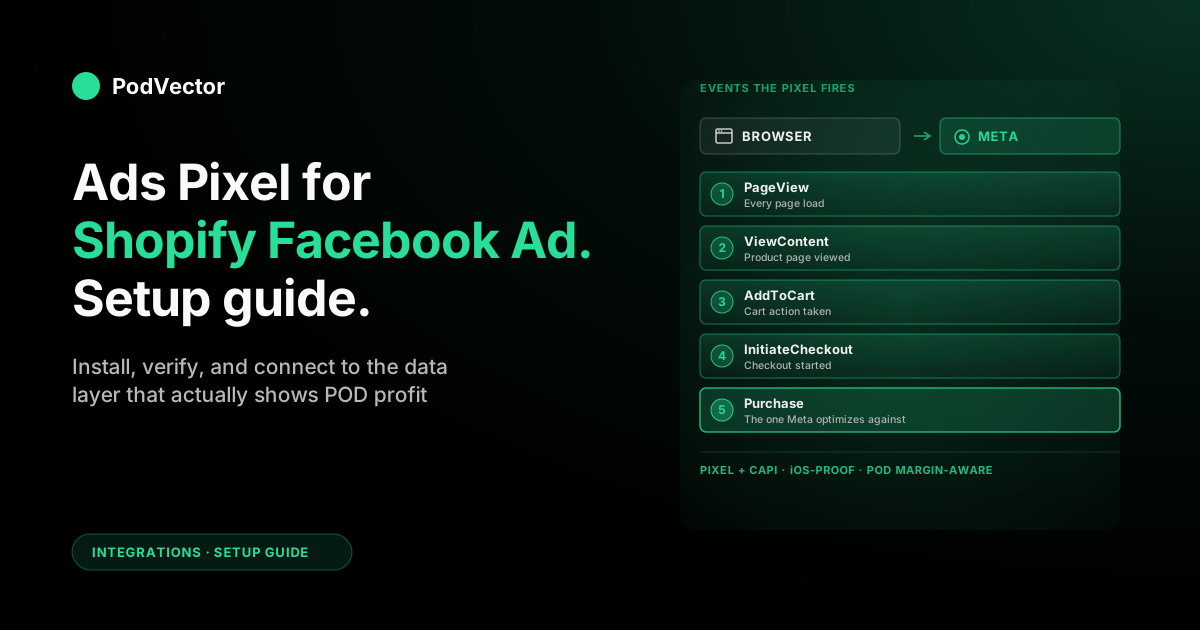
The standard events the Pixel reports
For a standard Shopify checkout, the Meta Pixel reports:
- PageView — every page load
- ViewContent — product page views
- AddToCart — add-to-cart clicks
- InitiateCheckout — checkout started
- Purchase — order placed, with revenue and currency
That's everything Meta needs to optimize. But it's not everything you need to know whether the spend was profitable.
What the Pixel doesn't track (and why it matters for POD)
The Pixel reports gross order revenue. It doesn't know:
- Your Printify or Printful unit cost for the variant the shopper bought
- Shipping fees the supplier charged you (which often differ from what the shopper paid)
- Refunds and returns that get processed days or weeks later
- Cross-channel attribution when the shopper saw organic content first, then converted via Meta
Optimizing on Pixel revenue alone — as most beginner Meta tutorials advise — scales the products with the highest revenue rather than the highest profit. For POD that's exactly the wrong direction. See Printful's Bella+Canvas 3001 shipping cost breakdown for a concrete example of how supplier shipping eats into what looks like a winning ad set.
The metrics worth watching
Once the Pixel is firing cleanly, anchor your weekly review on these instead of raw ROAS:
- Profit per order, by ad set — revenue minus Printify/Printful unit cost minus supplier shipping
- Profit-adjusted ROAS — (revenue − fulfillment cost) / ad spend, not revenue / ad spend
- 30-day return rate by product — apparel returns on POD can erode "winning" ad sets you'd otherwise scale
- Ad creative frequency — according to Merch Titans' 2026 POD guide, above 3.0 frequency, creative fatigue starts degrading performance; refresh creative every 2–3 weeks
- Cross-channel assist rate — what share of "Meta-attributed" purchases were actually first-touch organic or Google
For the Google side of the attribution picture, see our guide on connecting your Shopify store to Google Merchant Center.
From Pixel data to actual POD profit
Tracking profit per ad set sounds straightforward until you try to do it. The blocker is that the data lives in different systems that don't talk to each other.
Pixel data lives in Meta. Order data lives in Shopify. Fulfillment cost lives in Printify or Printful. Refunds live in Shopify but show up days later. Each platform has its own definition of a "conversion" and its own attribution window. As PodVector's dynamic ads analysis notes, Meta-reported Purchase ROAS on a Shopify POD store can significantly overstate contribution-margin ROAS — the configuration in this guide treats that gap as the central problem to solve, not an afterthought.
Stitching them together by hand — exporting CSVs, joining on order ID, filtering refunds, subtracting supplier costs by variant SKU — is the analyst week most POD operators don't have time for. So most operators just don't, and run on Pixel-reported ROAS until something obviously breaks.
The structural fix is to land all the relevant data sources in one place: Shopify orders, Meta ad spend and Pixel events, and your Printify/Printful itemized fulfillment cost. Once they're in a single live data warehouse, "what's my profit-adjusted ROAS by Meta ad set this week" becomes a question that gets answered, not a question that gets postponed.
That's the layer Victor sits on — a unified live data warehouse that joins your Shopify orders, ad spend, and Printify/Printful supplier costs, then answers profit and attribution questions in plain English. Victor reads your Meta Ads data and proposes moves; the Shopify-side actions (repricing to a target margin, adjusting your free-shipping threshold, creating promotions) he can execute with your approval. The Pixel install in this guide is the prerequisite. The data layer above it is where decisions actually get made.
Worth reading next: Printify's Shopify app setup guide covers the integration that feeds fulfillment cost data into that picture, and our comparison of AI tools for e-commerce covers what to look for when evaluating AI-powered analytics for your POD operation.
FAQs
Do I need both the Pixel and the Conversions API?
Yes. The Pixel covers browser-side events; the Conversions API covers server-side events. Meta deduplicates them automatically when both are configured correctly. According to PodVector's own dynamic ads analysis, a Pixel-only setup on a 2026 Shopify POD store captures only 60–70% of true event volume — that gap means your optimization, audiences, and cost-per-result metrics are all based on incomplete data.
Will Shopify install the Pixel without my theme being touched?
Yes. The Facebook & Instagram by Meta sales channel injects the Pixel through Shopify's Customer Events framework, not through your theme code. Theme updates won't break it, and switching themes won't strip it.
Can I use a Pixel from my old store on a new Shopify store?
Technically yes — paste the existing Pixel ID into the new store's channel settings — but it's almost always a bad idea. The old Pixel's learning is tied to a different domain, different products, and different audience signals. Mixing them muddies optimization. Start fresh on a new store.
How long does it take Meta to start optimizing?
According to Merch Titans' 2026 POD ads guide, Meta's algorithm needs 50 conversions per ad set in a 7-day period to fully optimize. On a new Pixel that's usually 2–4 weeks of meaningful spend. Don't change ad sets aggressively in week one — you'll reset learning every time. And don't duplicate successful ad sets to scale: duplication resets the algorithm's learning. Instead, increase budgets on winning ad sets incrementally.
Why is my Pixel ROAS lower than my Shopify ROAS?
It usually isn't — it's higher. Meta over-attributes by default because it counts view-through conversions (someone saw your ad, then bought later through any channel). Shopify only counts last-click. The two reports almost never match. The truth lives between them, which is why a unified warehouse view is necessary for real decision-making.
Do I need to verify my domain in Business Manager?
Yes. Without verification, Meta picks your Aggregated Event Measurement priority for you and you can't change it. More importantly in 2026, unverified domains can have lower Event Match Quality even when CAPI is running — which degrades optimization. Verification is a one-time DNS or meta-tag step in Business Manager > Brand Safety > Domains.
Can I install multiple Pixels on the same Shopify store?
The Facebook & Instagram channel supports one Pixel at a time. To run two in parallel — usually for testing or for an agency handover — you'll need a multi-Pixel app from the Shopify App Store, or to add the second Pixel as a custom event in Settings > Customer events.
What's the difference between the Meta Pixel and Google's tag for Shopify?
The Meta Pixel reports to Meta's ad system; Google's tag (sitewide tag, gtag.js) reports to Google Ads and GA4. They serve the same purpose for different ad platforms and don't replace each other. Most POD stores run both. See our guide on connecting Shopify to Google Merchant Center for the Google-side setup.
How does the Meta Pixel interact with my Printify or Printful catalog sync?
The Pixel fires events based on the variant IDs in your Shopify storefront. The catalog sync (handled by the Facebook & Instagram channel) passes those same variant IDs to Meta's Commerce Manager. When both are configured correctly and "Use variant IDs" is enabled, Dynamic Ads can match the exact variant a shopper viewed and retarget them with the right product. If the variant IDs don't match between the Pixel event and the catalog, Dynamic Ads break. See the catalog section above.
The Pixel is the wiring. Profit is the question.
You can install a Pixel in 30 minutes. Knowing whether your Meta spend is actually profitable on Printify and Printful margins takes a data layer the Pixel can't see.
Victor reads your Shopify orders, Meta ad data, and Printify/Printful supplier costs from a live data warehouse, then answers profit and attribution questions in plain English. "Which ad set has the highest profit-per-order this week?" becomes a question you ask — not a spreadsheet you build. Shopify-side actions like repricing to a target margin or adjusting your free-shipping threshold he executes with your approval.
Try Victor free