
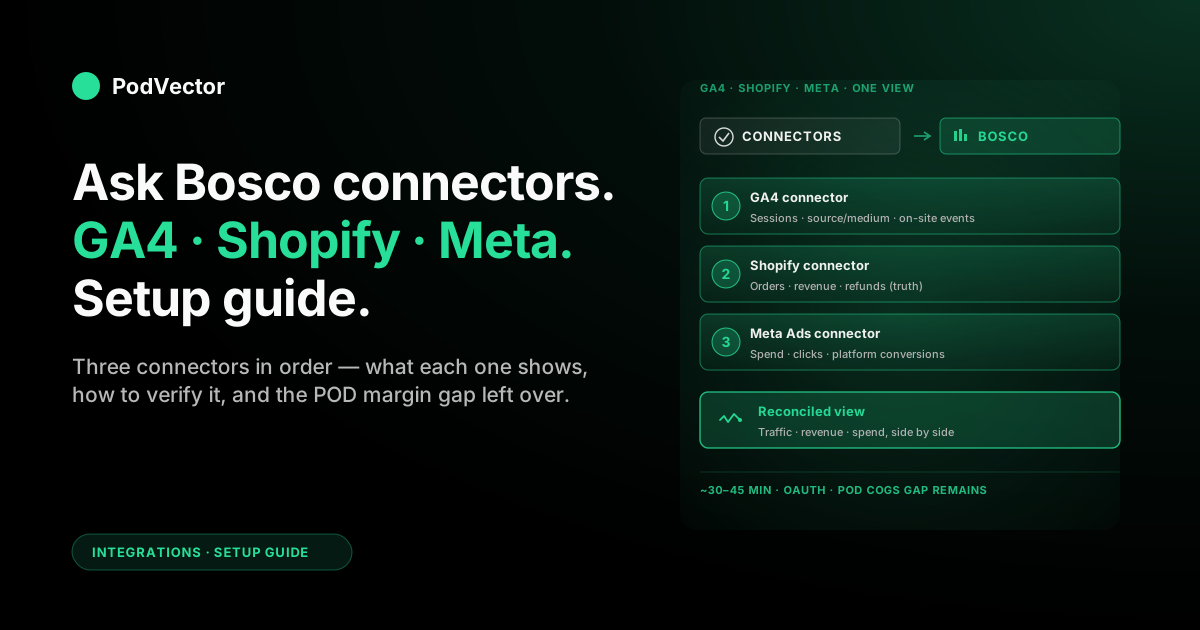
Quick Answer: Ask Bosco pulls GA4, Shopify, and Meta Ads through three OAuth connectors inside the Bosco dashboard. End to end, expect 30–45 minutes if your three logins, time zones, and admin permissions are already in order.
For a Shopify-based POD store, the practical order is GA4 → Shopify → Meta Ads. GA4 anchors the traffic side, Shopify anchors revenue, Meta slots in last with spend.
This guide walks the three connectors in that order, the verification check after each one, and the POD-specific cost gap (Printify and Printful per-order fulfillment) that no Bosco connector closes.
What three connected sources actually show you
Before you spend an hour wiring connectors, it helps to know what the dashboard looks like once they're all in. Three sources, three different jobs.
GA4 → the traffic and behaviour layer
GA4 tells you where shoppers came from and what they did before checkout. Source/medium, landing page, sessions, and on-site events like add_to_cart or begin_checkout all live here.
GA4 is not a revenue source of truth. Treat it as the journey layer — useful for understanding behaviour, not for arguing about today's sales number.
Shopify → the revenue source of truth
Shopify reports the actual orders, line items, refunds, and gross revenue. When GA4 and Meta disagree about a sale, Shopify wins.
For POD specifically, Shopify is also where your variant catalog lives. Mug, tee, hoodie — same product, different SKUs and different print costs.
Meta Ads → the spend and platform-attribution layer
Meta Ads gives you spend, impressions, clicks, and Meta-attributed conversions. Spend is reliable. Conversions are Meta's self-report and routinely disagree with Shopify by 10–40% post-iOS.
That gap is a feature, not a connector bug. Our Meta Ads ROAS and attribution guide walks through why the numbers diverge and how to read them.
Prerequisites: what to line up first
Five things to check before you click anything in Bosco. Missing one turns 30 minutes into half a day.
Bosco plan that includes all three connectors
Free trials usually allow one or two sources. Confirm your plan covers GA4, Shopify, and Meta Ads connectors before starting — Bosco's pricing page lists what's bundled.
GA4 property with Editor access
Read-only Viewer access lets you see reports but won't let Bosco subscribe via the Google Analytics Data API. You need Editor or higher on the property itself.
Shopify owner or full-admin login
Shopify's OAuth scopes for Bosco require admin permissions. A staff account with limited scopes silently fails at the consent screen.
Meta Business Manager admin on the Ad Account
Bosco connects to the Ad Account inside a Business Manager, not to a personal Page. You need Business admin rights on the Business that owns the Ad Account.
Time zones aligned across all three
Confirm your GA4 property, Shopify store, and Meta Ad Account are all on the same time zone. If they aren't, every "today" comparison Bosco produces will be a few hours off.
Fix this in each platform first. Bosco can't reconcile a mismatch for you.
Step 1 — Connect GA4
Lead with GA4. The traffic layer is the cheapest to debug if something goes wrong, and confirming GA4 is wired up first means later mismatches are easier to localise.
1.1 Open Connectors in Bosco
From the Bosco dashboard, navigate to Settings → Connectors (label varies — sometimes "Data sources" or "Integrations"). Locate the Google Analytics 4 tile and click Connect.
1.2 Authorise the right Google account
Google's OAuth flow opens. Sign in with the account that has Editor access on the GA4 property of your live store. If your browser has multiple Google accounts logged in, watch the picker — authorising the wrong one is the most common GA4 connector ticket.
Bosco asks for read access to the Analytics Data API and Admin API. Approve both.
1.3 Pick the GA4 property
Bosco lists every GA4 property your account can read. Pick the one matching your live Shopify store. If you migrated from Universal Analytics in 2023 and never archived the old property, both may show — pick the GA4 one (its property ID is purely numeric, never starts with "UA-").
1.4 Pick the data stream
Most Shopify stores have one web data stream named after the storefront URL. Pick that. If you added GA4 manually via Google Tag Manager, the stream may be custom-named — pick whichever one is firing on your live store.
1.5 Confirm Key Events are mapped in GA4
Bosco pulls every event GA4 records, but it's worth opening GA4 itself to confirm at least purchase, add_to_cart, and begin_checkout are marked as Key Events under Admin → Events. Bosco can't promote events for you.
For the GA4-to-Meta source/medium parameter mapping that decides whether Meta-tagged traffic actually shows up cleanly, Ask Bosco's own write-up on getting GA and GA4 tracking right for Facebook (Meta) is the cleanest reference.
Step 2 — Connect Shopify
With GA4 in, add Shopify. Once revenue is in the dashboard, GA4's traffic numbers gain meaning — sessions become "sessions that drove $X."
2.1 Click Connect on the Shopify tile
Same Connectors page. Find Shopify, click Connect.
2.2 Enter your myshopify URL
Bosco asks for the yourstore.myshopify.com URL — not your custom domain. The myshopify URL is the API-level identifier Shopify's OAuth flow expects. Find it under Shopify Settings → Domains if you're not sure.
2.3 Approve the Shopify OAuth scopes
Shopify shows a permission screen listing scopes — orders, products, customers, refunds, reports. Approve. Bosco gets read-only API access. It cannot edit your store, modify orders, or change your catalog.
Back in Bosco, the Shopify tile flips from "Disconnected" to "Connecting" then "Connected" once the first sync runs. First sync typically takes 5–20 minutes depending on order history depth.
2.4 Set the historical backfill window
Most plans allow 12–24 months of order history. Default to the maximum. Year-over-year comparisons depend on it, and you only get one clean shot at the backfill.
If your store predates the backfill window, Bosco pulls what it can. The earliest months may show partial data — that's a Shopify API limit, not a connector bug.
2.5 Confirm the variant rollup matches how you think about products
For POD, this is where the Printify or Printful catalog logic matters. A "vintage tee" with five colours and four sizes is one product or twenty SKUs depending on the lens.
Bosco's default is to roll variants up to product level. Decide whether that's what you want for campaign reporting before you start segmenting. If you'd rather see SKU-level performance, that's a settings tweak inside Bosco's product reports.
Step 3 — Connect Meta Ads
Last connector. Now Bosco can show spend next to the revenue Shopify reports — the comparison every Meta dashboard ultimately exists for.
3.1 Click Connect on the Meta Ads tile
Connectors page → Meta Ads (older Bosco UI may label it "Facebook Ads" — same connector). Click Connect.
3.2 Sign in with the Business Manager admin
You're authorising a third-party app against the Ad Account, not the Page. Use the Facebook account that's an admin on the Business Manager that owns your Ad Account. A personal account with only Page admin rights will see no Ad Accounts when Bosco asks.
3.3 Select the Business and Ad Account
Meta's permission flow asks which Business Manager and Ad Accounts Bosco can read. Pick the Business that runs your store's spend, and check only the relevant Ad Account.
Granting access to every Ad Account you can see is fine if you only run one — sloppy if you manage multiple, since Bosco will list all of them in the workspace dashboard.
3.4 Pick the Ad Account inside Bosco
Back in Bosco, you'll be prompted to assign one Ad Account to this workspace. One workspace, one Ad Account is the cleanest setup for a single POD store.
3.5 Match the attribution window to your Ad Account
Bosco asks which Meta attribution window to apply — typically 7-day click + 1-day view (the current Meta default). Match this to whatever the Ad Account is configured for. Mismatches are the top reason Bosco's reported ROAS differs from what you see inside Meta Ads Manager itself.
If Pixel and Conversions API aren't yet wired into your store, do that first. Our Meta Pixel for Shopify setup guide walks the four pieces (Pixel, CAPI, catalog, Page) and the order they need to be in.
Verifying the three sources reconcile
Once all three tiles say "Connected," wait 24 hours for a full day of data, then run three quick checks. If any check fails, fix it before trusting any Bosco report.
Check 1 — GA4 sessions look sane
Open GA4 directly. Pick yesterday. Note the session count from your storefront's web stream. Now open the same date in Bosco's GA4 panel. The numbers should match within a percentage point.
If Bosco shows zero or wildly off numbers, you likely picked the wrong data stream during setup, or Editor access wasn't actually granted. Recheck Step 1.4 and 1.2.
Check 2 — Shopify revenue matches yesterday's order page
Open Shopify Orders, filter to yesterday, sum the revenue. Compare to Bosco's revenue card for yesterday. They should match exactly — Shopify is the source of truth on both sides.
If Bosco is short, the backfill probably didn't finish. Wait another hour and recheck. If it's still off, look for time-zone mismatch between Shopify and Bosco's workspace setting.
Check 3 — Meta spend matches Ads Manager
Open Meta Ads Manager, set the same yesterday window, note total spend. Compare to Bosco's Meta spend card. Spend should match within a few cents (currency conversion rounding).
If spend is off by more than a percent, the attribution window is likely mismatched. Recheck Step 3.5. Conversions in Bosco can legitimately differ from Ads Manager — but spend should not.
A 5-minute daily check once it's live
Three connectors live means three places things can drift. A short morning routine catches connector failures before they distort a week of decisions.
Look for any "Disconnected" status
OAuth tokens can expire — usually after a password reset on Google, Shopify, or Facebook. Bosco's connectors page shows status at a glance. Reconnect immediately when one drops; gaps in spend or revenue data appear as suspicious dips later.
Spot-check one revenue number
Take yesterday's Shopify number from your phone, glance at Bosco's revenue card. If they disagree, something between Shopify and Bosco broke overnight. The quickest fix is reconnecting the Shopify tile.
Watch the spend-to-revenue ratio
If Meta spend is in but yesterday's Shopify revenue isn't, the ratio looks awful and you make panicked campaign changes for no reason. Always confirm both sources are current before you touch a budget.
For broader Meta integration context, see our Meta Ads integrations hub and the Meta Ads for POD topic hub.
The POD cost gap Bosco can't close
Three connectors give you spend, traffic, and revenue. They do not give you profit. For POD specifically, that's because the per-order Printify or Printful fulfillment cost — base print, shipping, surcharges — never enters the connector pipeline.
What Bosco's "cost" actually is
Bosco's cost columns mean ad cost. They reflect Meta spend (and Google Ads, TikTok, etc., if connected). They do not reflect cost of goods sold.
So a campaign with 4× ROAS in Bosco may still be a loser once you subtract the ~$11 print and ship cost on a $25 mug.
Why Shopify alone doesn't fix this
Shopify's order export shows the customer-paid total, not what Printify or Printful charged you to fulfill. The fulfillment cost lives in the POD provider's order export — a separate file, on a separate cadence, in a separate format.
Reconciling Shopify orders against Printify and Printful order-by-order is the work no off-the-shelf marketing connector does. It's why most POD operators run with rough rules of thumb ("assume 45% margin on tees") rather than per-order truth.
How POD operators close the gap
The three options, ordered by effort:
1. A spreadsheet rule of thumb. Apply an average product-level margin to Bosco's revenue. Fast, directionally useful, wrong on bestsellers and seasonal SKUs.
2. A custom data warehouse. Pipe Shopify, Meta, and Printify or Printful exports into Snowflake, Databricks, or an equivalent warehouse, join them on order ID, compute true profit per order. Accurate, expensive to build and maintain.
3. A POD-native AI employee. Tools like Victor connect Shopify, Meta, and Printify or Printful into a unified data warehouse — then answer plain-English questions about per-order profit, true ROAS, and which campaigns actually paid the rent.
FAQs
Do I need to connect GA4 first, or can I start with Shopify?
Either works — Bosco's connectors are independent. We lead with GA4 because if GA4 doesn't reconcile, you'd rather know early before adding the noise of two more sources. Shopify-first works fine if you'd rather anchor on revenue from the start.
Will Bosco's GA4 numbers match GA4 itself exactly?
For sessions and events, yes — within rounding. Bosco reads through the same Google Analytics Data API that GA4's UI uses. The places they sometimes drift are GA4's modeled (estimated) conversions for low-volume properties, where the model can shift between API calls.
Why does Meta-attributed revenue in Bosco look higher than Shopify revenue from Meta in Bosco?
Because they're measuring different things. Meta's number is what Meta's view-through-and-click attribution model claims credit for. Shopify's number is actual orders. Post-iOS, Meta's claimed conversions usually exceed Shopify-tracked revenue by 10–40%. Both are "real" — they just answer different questions. See our Meta Ads ROAS and attribution guide for the mechanics.
Can Bosco pull Printify or Printful order costs?
Not natively. Bosco's connector library focuses on ad platforms, store platforms, and analytics — not POD provider fulfillment data. You'd need a separate ETL step (or a POD-aware analytics tool) to bring per-order COGS in.
What happens to my Bosco data if I add a second Shopify store later?
You can either add it to the same workspace (data lives side by side, segmentable by store) or spin up a new workspace. Same-workspace is fine for two related stores. Separate workspaces are cleaner if the two stores have nothing to do with each other operationally.
How long does the full GA4 + Shopify + Meta Ads setup actually take?
30–45 minutes if your three logins, time zones, and admin permissions are already in order. Add an hour or two if you have to chase down GA4 Editor access or untangle a Business Manager that's missing the Ad Account.
Does Bosco replace Shopify Reports, GA4, or Meta Ads Manager?
No. It aggregates them. You'll still open the underlying platforms when you need their full feature set — GA4 for path analysis, Meta Ads Manager for campaign editing, Shopify for order operations. Bosco's role is the one-pane-of-glass view across all three.
Connectors get the data in. The POD margin question still needs an answer.
Bosco shows you spend, traffic, and revenue across GA4, Shopify, and Meta. It can't show you per-order profit on a Printify mug or a Printful hoodie — that data lives in your POD provider's order export, not in any ad platform.
Victor is a POD-native AI employee that connects Shopify, Meta, and Printify or Printful into a single live data warehouse. Ask "which Meta campaign drove the most actual profit last week, after Printify's print and shipping costs?" and get the answer in plain English.
Try Victor free