
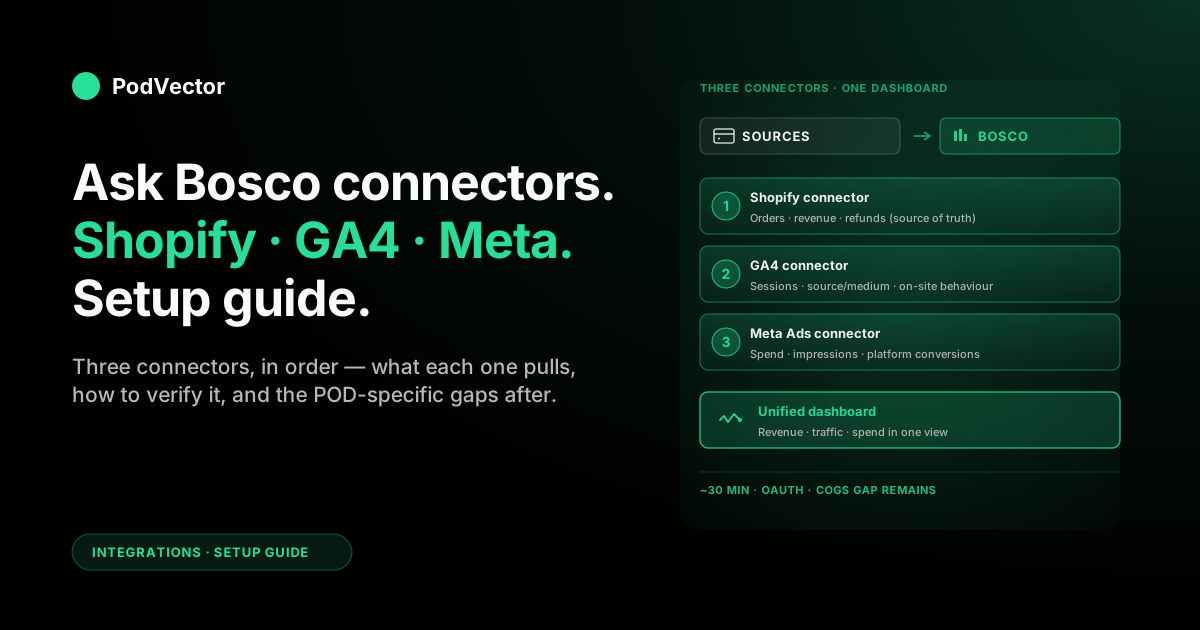
Quick Answer: Ask Bosco's Shopify, GA4, and Meta Ads connectors are three separate OAuth-style hookups inside the Bosco dashboard. Each one pulls a different slice — Shopify gives you orders and revenue, GA4 gives you sessions and on-site behaviour, Meta Ads gives you spend and platform-reported conversions.
Setup is roughly 30 minutes if your Shopify, Google, and Meta logins are already in order. The order matters: connect Shopify first (so revenue is the anchor), then GA4 (for traffic context), then Meta Ads (so spend slots in next to the revenue it claims credit for).
This guide walks the three connectors in order, what each one actually pulls, the POD-specific gotchas (variants, fulfillment-cost gaps, refund timing) and what reporting still won't show after everything is wired up.
What Ask Bosco is and what each connector does
Ask Bosco is a marketing reporting platform aimed at ecommerce brands and agencies. It pulls data from your store, analytics, and ad platforms into one dashboard so you stop tab-hopping every Monday morning. Connectors are how data gets in.
For POD sellers, three connectors carry most of the weight: Shopify, Google Analytics 4, and Meta Ads. (For broader context on what wires up to Meta in general, see our Meta Ads integrations hub and the Meta Ads for POD topic hub.)
The Shopify connector
Pulls orders, products, customers, and refund data via the Shopify Admin API. This is your revenue truth — the number every other source gets compared against. Bosco reads, never writes.
For POD, the Shopify connector is also where your variant catalog lives. Mug, tee, hoodie — same product, different SKUs. How Bosco rolls up variants matters when you slice campaigns by product later.
The GA4 connector
Pulls sessions, source/medium, on-site events, and GA4-modeled conversions. This is your traffic and behaviour layer — how shoppers found you, what they did before buying, and which channels GA4's attribution model credited.
GA4 is not a revenue source of truth. It's a traffic-context source. Trust Shopify for revenue numbers, GA4 for the journey leading up to it.
The Meta Ads connector
Pulls campaign spend, impressions, clicks, and Meta-attributed conversions from your Business Manager Ad Account. Spend is reliable. Conversions are Meta's own self-reporting and will routinely disagree with Shopify by 10–40% — that gap is a feature of post-iOS attribution, not a connector bug.
For deeper background on why those numbers diverge, our Meta Ads ROAS and attribution guide walks the mechanics.
Prerequisites before you start
Have these in order before you open the Bosco dashboard. Missing one turns a 30-minute setup into a 3-hour permissions chase.
An Ask Bosco account on a plan that includes connectors
Free trial accounts can connect one or two sources, but full multi-source reporting is on paid tiers. Confirm your plan covers Shopify, GA4, and Meta Ads connectors before you start — Bosco's pricing page lists the breakdown.
Shopify admin access (not just staff)
You'll authorise the Shopify connector via OAuth, which requires admin permissions. A staff account with limited scopes will fail at the consent screen. If your store is on a multi-staff setup, log in as the owner for setup, then revoke if needed.
A Google account with Editor access on the GA4 property
Read-only Viewer access can read most reports but won't let Bosco subscribe to property data via the Google Analytics Data API. Editor or higher is the safe floor.
Meta Business Manager admin on the Ad Account
Bosco connects to the Ad Account, not the Page. You need to be an admin on the Business Manager that owns the Ad Account, with permissions to grant a third-party app data access. Personal-account ad setups will not work cleanly here.
Time-zone alignment
Confirm your Shopify, GA4, and Meta Ads time zones match. If Shopify is on London time and Meta is on Pacific, every daily comparison Bosco produces will be off by hours. Fix this in each platform first — Bosco can't reconcile mismatched time zones for you.
Step 1 — Connect Shopify
Connect Shopify first. Revenue is the anchor every other source compares against, so getting it in cleanly avoids a lot of "why don't my numbers match" debugging later.
1.1 Open the Connectors page in Bosco
From your Bosco dashboard, navigate to Settings → Connectors (the wording varies slightly by Bosco's UI version — look for the "data sources" or "integrations" page). Find the Shopify tile and click Connect.
1.2 Enter your Shopify store URL
Bosco asks for your yourstore.myshopify.com URL — not your custom domain. The myshopify URL is the API-level identifier and is what Shopify's OAuth flow expects. You can find it under Shopify Settings → Domains if you're not sure.
1.3 Authorise on Shopify
You'll be redirected to Shopify's permission screen. The scope list will include orders, products, customers, and reports. Approve the install. Bosco gets read-only API access — it cannot edit your store, modify orders, or write to your catalog.
Back in Bosco, the Shopify tile should flip from "Disconnected" to "Connecting…" then "Connected" once the first sync completes. First sync typically takes 5–20 minutes depending on order history depth.
1.4 Choose the historical backfill window
Most plans let you backfill 12–24 months of order history. Default to the maximum your plan supports — historical data is what makes year-over-year comparisons useful, and you only get one clean shot at the backfill.
If your store is older than the backfill window, Bosco will pull what it can. The earliest months may show partial data; that's a Shopify API limit, not a Bosco problem.
If your Shopify-to-Meta wiring isn't yet in place, do that part first — our connect Shopify to Meta Ads setup guide walks the four pieces (Pixel, CAPI, catalog, Page) and the order they need to be wired in.
Step 2 — Connect GA4
With Shopify in, add GA4 next. The role here is context — where traffic came from, what shoppers did before checkout — not revenue truth.
2.1 Click Connect on the GA4 tile
Same Connectors page in Bosco. Find the Google Analytics 4 (or "GA4") tile. Click Connect.
2.2 Authorise the Google account
Google's OAuth flow opens. Sign in with the Google account that has Editor access on your GA4 property. Approve the requested scopes — Bosco needs read access to the Google Analytics Data API and the Admin API.
If you have multiple Google accounts in the browser, watch the account picker carefully. Authorising the wrong account is the most common cause of "GA4 connector not pulling data" tickets later.
2.3 Pick the GA4 property
You'll see a list of every GA4 property your Google account can read. Pick the one that matches your live Shopify store. Note: if you migrated from Universal Analytics in 2023 and never archived the old property, both will show — pick the GA4 one (the property ID starts with a number, not "UA-").
2.4 Select the data stream
Most Shopify setups have a single web data stream. Pick that. If you use the Shopify-published Google & YouTube channel, the stream is named after your shop URL by default. If you've manually added GA4 via Google Tag Manager, the stream might be custom-named — pick the one tagged on your storefront.
2.5 Confirm conversions are mapped
Bosco will pull every event GA4 records, but you want at least purchase, add_to_cart, and begin_checkout marked as Key Events in GA4 itself. Bosco can't create Key Events on your behalf — that's a GA4-side decision, set under Admin → Events in your GA4 property.
If your Pixel and CAPI events are already firing cleanly into Meta, the GA4 events Bosco pulls will be a complement, not a replacement. The Meta Pixel for Shopify setup guide covers the events GA4 won't replicate — primarily the server-side Conversions API stream that survives iOS attribution loss.
For the GA4-side parameter mapping that decides whether Meta's source/medium tags actually show up cleanly in your reports, Ask Bosco's own write-up on getting GA and GA4 tracking right for Facebook (Meta) is the cleanest reference.
Step 3 — Connect Meta Ads
Spend goes in last. Now Bosco can show you spend next to the revenue Shopify reports — the comparison every Meta Ads dashboard ultimately exists to answer.
3.1 Click Connect on the Meta Ads tile
Connectors page → Meta Ads (sometimes labelled "Facebook Ads" in older UIs — same connector). Click Connect.
3.2 Sign in to Facebook with your Business Manager admin
You're authorising a third-party app against the Ad Account. Use the Facebook account that's an admin on the Business Manager that owns your Ad Account. If you log in as a personal account that has only Page admin rights, the connector will see no Ad Accounts.
3.3 Approve the Business and Ad Account scope
Meta's permission flow asks which Business Manager and which Ad Accounts Bosco can read. Pick the Business Manager and check only the Ad Account that runs your Shopify store's spend. Granting access to all Ad Accounts you can see is fine if you only run one — sloppy if you manage multiple, because Bosco will list them all in your dashboard.
3.4 Pick the Ad Account inside Bosco
Back in Bosco, you'll be asked to pick the specific Ad Account whose data this Bosco workspace should pull. One workspace, one Ad Account is the cleanest setup for a single POD store.
3.5 Set the attribution window Bosco should use
Bosco asks which Meta attribution window to apply to the conversions it pulls — typically 7-day click + 1-day view (Meta's default). Match this to whatever your Ad Account is configured for. Mismatched windows are the most common reason Bosco's reported ROAS differs from what you see inside Meta Ads Manager.
Verifying the data is actually flowing
Three connectors authorised doesn't mean three connectors syncing. Verify before you trust any number on the dashboard.
The 24-hour smoke test
Wait 24 hours after the third connector finishes its initial sync, then run this checklist on Bosco's overview dashboard:
- Shopify revenue for yesterday should match yesterday's Shopify Reports → Sales figure to the dollar.
- GA4 sessions for yesterday should match GA4's own Realtime/Acquisition reports within ±2% (sampling and time-zone rounding cause small drift).
- Meta Ads spend for yesterday should match Ads Manager's spend figure to the cent.
- Meta-attributed conversions will not match Shopify orders. That gap is iOS attribution loss, not a Bosco bug.
If any of the first three are off by more than the tolerance above, the connector didn't authorise cleanly. Disconnect, reconnect, and watch the OAuth screens for warnings.
Cross-source sanity: did spend produce revenue?
Once data is flowing, the most useful single check is plotting daily Meta spend on one axis and daily Shopify revenue on the other for the same date range. If you can see your campaign launches in the Shopify revenue line, attribution is at least directionally working. If revenue is flat while spend rises, you have a deeper problem — and that problem isn't a Bosco connector issue.
POD-specific gotchas (Printify, Printful)
POD businesses have data shapes that generic ecommerce reporting tools weren't designed around. Three issues come up often.
Variant rollups blur which product is actually working
A "Spring Tee" in Shopify can be 20 variants (5 sizes × 4 colours). Bosco rolls Shopify orders up to the parent product by default. That's fine for big-picture reports, but it hides which variant — say, the navy XL — is doing the heavy lifting in your Meta campaigns.
Workaround: in Bosco's product report, drill into variant-level data manually when investigating a specific campaign. The data is there; the default view just doesn't show it.
Refund timing skews any single-day ROAS read
POD refunds and replacements often hit days or weeks after the original sale (printing defect, sizing return, supplier reship). Shopify reports a refund on the day it's processed, not the day of the original order. Bosco pulls Shopify's reported numbers as-is — meaning a campaign's "real" ROAS keeps shifting downward for weeks after launch.
Workaround: judge campaign performance on rolling 14-day or 28-day windows, not single days. For more on this attribution-window mismatch, see our ROAS and attribution guide.
Fulfillment cost is invisible
This is the big one. None of the three connectors carry your Printify or Printful base costs. Shopify knows the order total. Meta knows the spend. GA4 knows the session. None of them know that your $24.99 mug cost $9.40 to print and ship.
So Bosco's "ROAS" is revenue ÷ spend, not profit ÷ spend. For a typical POD margin of 20–35%, a 3.0 ROAS that looks profitable can be break-even or underwater once Printify costs and Shopify processing fees are netted out.
This is the gap every POD analytics setup hits eventually. Plugging it requires either (a) a manual spreadsheet that backs out an average COGS percentage from each campaign's revenue, or (b) a data layer that joins Printify and Printful order-line costs to Shopify orders directly.
What three connected sources still won't tell you
Once Shopify, GA4, and Meta Ads are flowing into Bosco, you have a much better dashboard than you had a month ago. You also have a clearer view of three things you still don't have.
Profit per order
Revenue minus ad spend is not profit. POD profit is revenue minus Printify or Printful base cost, minus Shopify processing fees, minus refund losses, minus ad spend, per individual order. Bosco can show you the first and last numbers cleanly. The middle three live in different systems and don't get pulled by the standard connectors.
Cross-channel double-counting
If a shopper clicks a Meta ad on Tuesday, sees a Google retargeting ad on Wednesday, and converts via direct on Thursday, all three platforms can take credit. Meta will claim it. Google will claim it. GA4 will assign it to direct. Bosco's dashboard will show three different conversion totals, all "right" by their own platform's logic.
Solving this requires a unified attribution layer that sits above the platform-reported numbers — something that ingests all three streams and decides on one model. It's a real problem; pretending one platform's number is the truth is the most common way POD operators over-spend on the channel that just happens to claim conversions most aggressively.
Plain-English answers
Bosco gives you charts and tables. Useful, but they're answers to questions you already knew to ask. The slow part of analysis is the half-hour you spend deciding which slice to look at, what comparison to plot, and whether the result generalises.
The shift coming for ecommerce reporting is from dashboards to AI employees — tools where you ask "which Meta campaigns lost money on Printify orders last week?" in plain English and get the answer with the SQL, the chart, and the next-step suggestion. The data Bosco connects is exactly the foundation that layer needs.
FAQs
Does Ask Bosco modify my Shopify, GA4, or Meta Ads data?
No. All three connectors are read-only. Bosco subscribes to data via API and pulls it into its own database. Your source platforms are unchanged.
How long does the initial sync take?
Shopify is typically 5–20 minutes for the historical backfill, depending on order volume. GA4 and Meta Ads are usually 1–6 hours for 12 months of history. Plan for "next-business-day" before you trust full historical reports.
What's the most common reason a connector silently breaks later?
Token expiry. OAuth tokens expire when admin passwords change or admin accounts get removed from a Business Manager. Bosco usually surfaces this on the dashboard as a "reconnect" prompt — but if you ignore it for weeks, you'll have gaps in the timeline that can't be backfilled. Reconnect within a day of any prompt.
Can I add my Printify or Printful data through these three connectors?
No. Shopify, GA4, and Meta Ads connectors do not pull Printify or Printful order-line cost data. Bosco may offer Printify-specific connectors on higher tiers, or you'll need a separate analytics layer that joins POD supplier costs to Shopify orders.
Why is my Bosco-reported Meta ROAS lower than what I see in Ads Manager?
Three usual suspects: (1) attribution window mismatch — Bosco might be set to 7-day click while Ads Manager defaults to 7-day click + 1-day view; (2) currency-conversion timing if your Ad Account currency differs from Shopify's; (3) time-zone difference if Meta is on Pacific and Shopify is on your local zone. Audit those three and the gap usually closes.
Does GA4's modelled data show up in Bosco?
Yes — Bosco pulls whatever GA4 reports via the Data API, including modelled conversions. That means GA4's behavioural-modelling adjustments are inside Bosco's numbers by design. If you want unmodelled raw events, you'd need to feed GA4's BigQuery export into a custom data layer (which Bosco doesn't ingest by default).
What if I have multiple Shopify stores?
Each store needs its own Shopify connector instance. Most Bosco plans let you add multiple Shopify stores per workspace, but check the per-source limit on your plan. Same applies to multiple Ad Accounts — one connector per Ad Account.
Is there a setup difference for Shopify Plus vs standard Shopify?
The connector flow is identical. Shopify Plus stores can have more granular permission scopes, so if your admin uses a custom role rather than full owner access, double-check the role has the orders, products, customers, and reports read scopes that the OAuth screen asks for.
Connectors are the wiring. Profit is the answer they don't give you.
Three connected sources mean Bosco can show you revenue, sessions, and spend in one place. They still won't tell you which Meta campaigns are losing money once Printify costs, Shopify fees, and refunds are netted out — because none of those numbers live in Shopify, GA4, or Meta Ads.
Victor is an AI employee built for POD operators. Connect your Shopify, Printify or Printful, and Meta Ads accounts, and ask in plain English: "Which Meta campaigns made me money on Printify orders last week, after fulfillment and refunds?" Live data warehouse. Plain-English answers. SQL and charts on demand.
No spreadsheets. No tab-hopping.
Try Victor free