
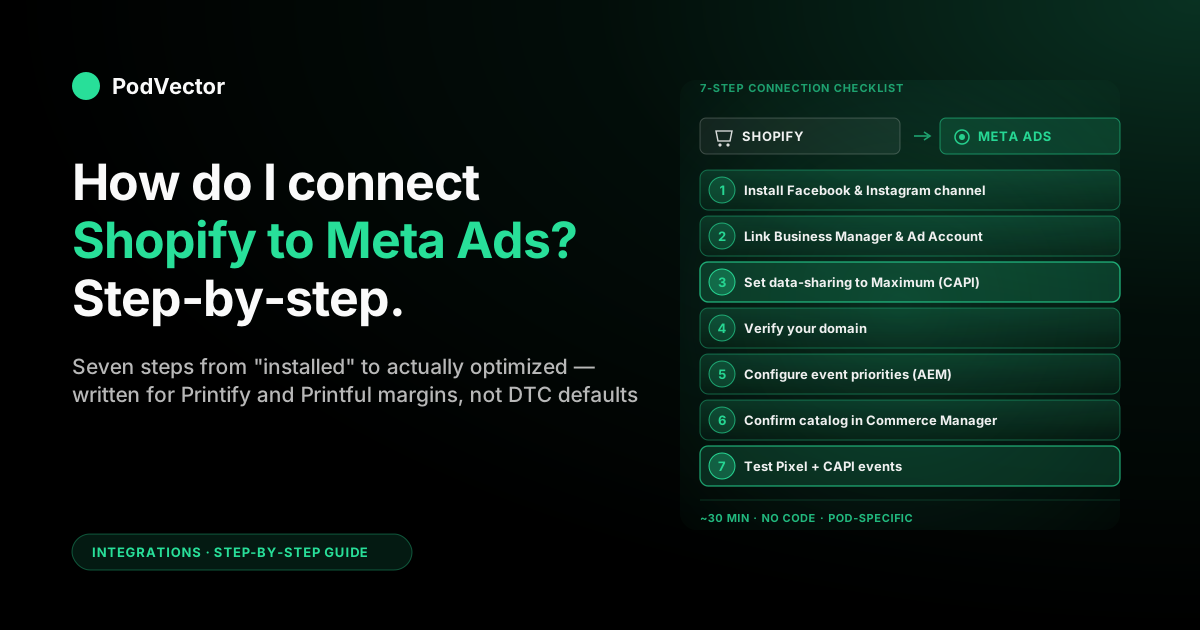
Quick Answer: Connecting Shopify to Meta Ads is a seven-step sequence: install the Facebook & Instagram by Meta sales channel in Shopify, link your Meta Business Portfolio (formerly Business Manager) and Ad Account, set data-sharing to Maximum so the Conversions API turns on, verify your domain, configure Aggregated Event Measurement, confirm the catalog reached Commerce Manager, and run a Pixel test.
The whole flow takes about 30 minutes if you have admin access to both platforms. One important 2025 change: Meta phased out native checkout on Facebook and Instagram, so the connection now exists solely to drive buyers to your Shopify store — not to complete purchases inside the Meta apps. That makes a clean, properly tracked connection even more critical.
Below is the operator-direct walkthrough — every screen, every checkbox that matters, and the post-connection items to wire up before you turn on spend.
What changed in 2025–2026
If you set this up a couple of years ago, several things are now out of date:
- No more native checkout inside Meta apps. In 2025, Meta phased out native checkout on Facebook and Instagram. Every order is now completed on your Shopify store. Facebook and Instagram are discovery engines that send buyers to you — your Shopify store is where the transaction happens.
- One unified sales channel. The old separate Facebook channel is gone. There is now a single channel called Facebook and Instagram by Meta, with one shared catalog feeding Facebook Shop, Instagram, and Meta Ads Manager.
- "Meta Business Manager" is now "Meta Business Portfolio." The administrative hub for your Pages, ad accounts, catalogs, and datasets has been rebranded, though most third-party guides still use the old name. The URL (
business.facebook.com) and the functionality are the same. - Sales tax collection moved to merchants. As of August 26, 2025, every order placed through the channel is completed on your Shopify store, and you collect the sales tax — not Meta.
Before you start: prerequisites
You need three things before you open Shopify, in this order:
- A Meta Business Portfolio account at business.facebook.com. If your store is currently running off your personal Facebook account, stop and create a Business Portfolio first. You will regret it later when you hand access to a freelancer or agency.
- A Facebook Page for the store, owned by that Business Portfolio. The store name is fine; this is the page that will show as the "advertiser" on your Meta ads.
- An Ad Account inside the Business Portfolio with a payment method attached. Don't reuse a personal ad account — Business Portfolio-owned accounts are the only ones that interoperate cleanly with Shopify's integration. You can add or link an ad account from Settings → Accounts → Ad accounts inside Meta Business Suite.
You should also know your store's primary domain (the apex domain — yourstore.com, not www.yourstore.com or shop.yourstore.com). Domain verification will fail if you mix subdomains.
One more thing: make sure your Shopify admin email matches the email on your Facebook account, or that both accounts are at least admins of the same Business Portfolio. Mismatched permissions are the most common cause of step-2 failure.
Step 1: Install Facebook & Instagram by Meta in Shopify
From your Shopify admin, the path is:
- Go to Settings → Apps and sales channels
- Click Shopify App Store
- Search for Facebook & Instagram by Meta — install the official app published by Meta Platforms, Inc., not a third-party look-alike
- Click Add sales channel and approve Shopify's permission prompts
This installs the integration framework. Nothing is connected yet — you've only added the app. The actual linking happens in step 2.
The app is free. Once installed, it shows up under Sales channels in your Shopify admin. It connects your Shopify catalog to your Facebook Page, your Instagram profile, and Meta Ads Manager — so product data, tracking, and ads all draw from the same source.
Step 2: Link your Meta Business Portfolio and Ad Account
Open the newly installed sales channel from your Shopify left-nav. You'll see a setup wizard with features you can connect, including Facebook Marketing, Facebook Shop, and Instagram Shopping.
For Meta Ads specifically, you only need Facebook Marketing. The Shop and Instagram Shopping features are sales-surface decisions — separate from your ad setup.
Click Start setup on Facebook Marketing, then:
- Click Connect account
- Sign into your personal Facebook account that has admin access to the Business Portfolio
- Select the Business Portfolio, Facebook Page, Ad Account, and Meta Pixel (also called a "Dataset" in current Meta UI) you want to use. If you don't have a Pixel yet, the wizard creates one — name it explicitly (e.g. "Yourstore Pixel") so it's identifiable later
- Approve the requested permissions
- Accept Meta's terms and conditions
- Click Finish setup
If you hit a "permission denied" or "asset not eligible" error here, it's almost always because the Facebook account you signed in with doesn't have admin access to one of the assets. Go to Business Portfolio → Users → People, confirm your role, fix permissions, and retry.
Note: if you previously had a legacy "Shopify" app connected in Meta and also have a newer "Shopify by Facebook" app, keep only one — the newer connection. Having both active can cause duplicate event firing and broken attribution. Remove the older one and re-authorize through the Shopify admin if needed.
Step 3: Choose Maximum data-sharing (turn on the Conversions API)
This is the step generic tutorials skip and where most POD stores leave attribution money on the table.
During the setup wizard you will be asked to choose a customer data-sharing level: Standard, Enhanced, or Maximum. The default is Standard. The correct choice for almost every POD store is Maximum.
- Standard sends only browser-side events through the Meta Pixel. iOS, ad blockers, and privacy extensions silently eat a meaningful share of these.
- Enhanced adds hashed customer data (email, phone) to browser events for better matching, but is still browser-only.
- Maximum turns on Shopify's native Conversions API (CAPI) forwarding — your store sends purchase, add-to-cart, and view-content events to Meta server-side, which survives iOS, ad blockers, and cross-device sessions. According to Meta's own documentation, stores running both the Meta Pixel and Conversions API see a 13% improvement in cost per result compared to Pixel alone.
Maximum is also where Shopify forwards Advanced Matching parameters — hashed email, phone, name, and address — that materially improve event-to-user matching. You can read Meta's framing in the Meta Business Help Center for Shopify; the practical version is: pick Maximum, and get your Event Match Quality (EMQ) score above 6.0 before you scale spend — anything lower means Meta cannot reliably match your events to real users.
If you skipped this in initial setup, you can change it later. Open the Facebook & Instagram channel in Shopify → Settings → Data sharing → set to Maximum → save.
Step 4: Verify your domain in Meta Business Manager
Domain verification is a one-time, five-minute step that almost every "how do I connect Shopify to Meta Ads" article forgets. Without it, you cannot configure event priorities (Aggregated Event Measurement, the next step), which means iOS users will fall through your tracking like sand through fingers.
In Meta Business Manager / Business Portfolio:
- Go to Brand safety and suitability → Domains
- Click Add and enter your apex domain (e.g.
yourstore.com— notwww.and not the.myshopify.comsubdomain) - Choose a verification method. The easiest for Shopify is Meta-tag verification: copy the meta tag, paste it into your Shopify theme's
theme.liquidfile just before the closing</head>tag, save, and click Verify in Meta - If you use a custom domain registrar (Cloudflare, GoDaddy, Namecheap), the DNS TXT record method is more durable — it survives Shopify theme edits and template swaps
Verification typically resolves in under five minutes. If it fails, the most common cause is verifying www.yourstore.com instead of yourstore.com, or having an old verification meta tag still in your theme from a previous attempt.
Step 5: Configure Aggregated Event Measurement
Aggregated Event Measurement (AEM) is Meta's iOS-era replacement for the old "all events count" model. Each verified domain gets eight prioritized event slots, and iOS users only attribute one event per session — the highest-priority one that fired.
Pick the wrong priorities and your ROAS reporting on iOS gets distorted.
The recommended POD priority order, top to bottom:
- Purchase
- InitiateCheckout
- AddToCart
- ViewContent
- Lead (if you run lead-magnet flows)
- Subscribe (if you sell subscription products)
- AddPaymentInfo
- Search (lowest)
The path: Meta Events Manager → select your Pixel / Dataset → Aggregated Event Measurement → Configure web events → drag your events into priority order → save.
If you ever change purchase event configuration (e.g., switch from gross sale price to a custom value), Meta resets your AEM priorities and pauses iOS optimization for 72 hours. Plan changes accordingly.
Step 6: Confirm the catalog reached Commerce Manager
Even if you only intend to run image and video ads (not catalog ads), you still want your products synced — Meta uses the catalog for Advantage+ Shopping campaigns and audience signals. Because Facebook and Instagram now share a single catalog feeding both surfaces, keeping it accurate matters more than it did when the two channels were separate.
Open Commerce Manager in your browser:
- Find the catalog the Shopify integration created (named something like "Yourstore — Catalog")
- Click into it and check the Items tab
- Confirm the count matches roughly what you have active in Shopify
- Spot-check a few items: image is sharp, title is correct, price is right, no rejections
- Check the Issues tab — if products are rejected, the rejection reason is listed there. Fix the underlying Shopify product (image, copy, price) and the catalog re-syncs within roughly 24 hours
If your catalog is empty, the most common causes are: products marked unavailable for the Facebook & Instagram channel inside Shopify (re-publish them to the channel), or products lacking required fields (image, description, price).
Step 7: Test your Pixel and Conversions API events
Don't trust "connected." Trust events firing.
Two free tools confirm your tracking actually works:
- Meta Pixel Helper (Chrome extension): install it, open your Shopify store in an incognito window, and walk a full purchase flow — homepage → product → add to cart → checkout → thank-you page. The extension should light up with PageView, ViewContent, AddToCart, InitiateCheckout, and Purchase events in sequence.
- Events Manager → Test events: in Meta Events Manager, select your Pixel / Dataset and open the Test Events tab. It shows a live feed of every event hitting Meta — both browser-side (Pixel) and server-side (Conversions API). You should see paired events: one from the browser and one from
server, deduplicated to count as one.
What you're checking:
- All five core events fire across a full user journey
- Each Purchase event has a non-zero
valueand acurrency - The Test Events panel shows both Browser and Server sources for purchases (this is your CAPI confirmation)
- Advanced Matching parameters (hashed email, phone, name) are present on Purchase events
- Your EMQ score (found in Events Manager → Pixel → Diagnostics) is 6.0 or higher
If browser events fire but server events don't, your data-sharing setting is still on Standard. Go back to step 3.
POD-specific gotchas (Printify, Printful)
Generic Shopify-to-Meta tutorials assume a DTC brand with fixed cost of goods, studio photography, and a single fulfillment partner. Print-on-demand breaks all three assumptions, and Meta's catalog review process is unforgiving.
Mockup imagery and Meta's catalog policy
Printify and Printful generate product photos as 3D mockups, not photographs. Meta's commerce policy technically allows mockups, but the auto-review system frequently flags them when the lighting is too flat, the background has any text overlay, or the design contains protected IP terms (band names, sports logos, copyrighted phrases).
Two practical fixes: use lifestyle mockups (model wearing the shirt) over flat-lay mockups when possible, and run any text-on-design through a quick trademark check before publishing. Catalog rejections lock products out of Advantage+ Shopping until fixed.
Variant explosion
A single hoodie design with five colors and six sizes generates 30 variants. Multiply by ten designs and your catalog has 300 SKUs Meta is trying to optimize across.
Meta handles this fine, but your Custom Audiences work better when you build them at the product level (parent SKU), not the variant level. Otherwise, every "viewers of this product" audience fragments into 30 tiny audiences too small to retarget effectively.
Shipping profiles and "available for online checkout"
If your Shopify shipping profiles don't cover every country your Meta audiences live in, Commerce Manager flags those products as "not available for online checkout" and silently downweights them in Advantage+ Shopping. POD operators selling globally — but with shipping rates only configured for the US — see this often.
Audit your Shopify shipping zones and either add international rates or restrict your Meta ad audiences to your shipping coverage. The two settings have to match.
Purchase value defaults to gross — not profit
This is the one that bleeds POD accounts quietly. Shopify sends the Meta Purchase event's value field as gross sale price.
On a $35 hoodie with a Printify base cost and shipping baked in, your true gross profit is a fraction of the sale price. Meta's Advantage+ Shopping algorithm then optimizes toward the gross sale price per purchase, not your actual margin.
You see strong ROAS in Ads Manager while your bank balance tells a different story. Fixing this requires sending a custom value equal to sale price minus supplier cost minus shipping minus expected refund rate — computed from your live order data. For the full contribution margin picture, see our guide on how to get contribution margin for your store.
For a granular look at what Printify products actually cost after base price, shipping, and platform fees, see our Printify t-shirt cost and profit breakdown.
Advantage+ Shopping vs. manual campaigns
Advantage+ Shopping Campaigns (ASC) are Meta's fully automated campaign type and they leverage your catalog heavily. They work well once your Pixel has sufficient purchase signal, but POD operators launching a new store should start with a manual CBO campaign first — build proven creative winners, let the Pixel accumulate purchase data, then graduate to ASC. Feeding ASC thin signal from a new catalog leads to wasted spend on low-margin variants.
Once you're scaling, watch for ad frequency rising on your best creative — high frequency is often the first sign that a winning ad is burning out before you feel it in ROAS. See our guide on how to avoid ad fatigue for the rotation tactics that keep top performers live longer.
What to track once it's live
Once your seven-step connection is wired up and events are firing, the work shifts from "is this connected" to "what is this telling me." Five questions to answer in your first 30 days:
- Does Ads Manager ROAS match your bank? Reconcile reported revenue against Stripe deposits. A meaningful gap means the integration is reporting gross instead of profit, refunds aren't being subtracted, or something is double-counting. See our piece on checkout conversion rate optimization if your Pixel data shows strong add-to-cart but weak purchase rates.
- What's your Event Match Quality (EMQ) score? Found in Events Manager → Pixel → Diagnostics. Below 6.0 means Advanced Matching isn't passing enough hashed identity for Meta to attribute well — go back to step 3 and reconfirm Maximum data-sharing.
- Are Purchase events deduplicated? Browser + server should equal one. If it's two, your reported conversions are doubled.
- Which campaigns are real-profit positive vs. reporting-positive? Use a Custom Metric with cost-of-goods baked in, or a tool that computes this automatically from your order data.
- Is your Lookalike seed list large enough? With a thin purchaser list, Lookalikes overfit to noise. Run Custom Audiences off engagement signals (90-day video viewers, page engagers) until purchase volume grows enough to seed a quality Lookalike.
This is also the point at which a tool like Victor earns its keep. Each of the questions above requires pulling Shopify orders, Printify or Printful supplier costs, and Meta's reported spend into one place to answer.
Victor — PodVector's AI employee — reads your live Shopify, Meta Ads, Printify, and Printful data and lets you ask in plain English: "Was last week's Meta spend profitable after Printify cost and refunds, by campaign?" No SQL, no spreadsheets. Victor also reads Google Ads, so you can cross-reference ad spend across channels in one conversation.
On the Shopify side, Victor can also propose and execute actions with your approval — repricing products to a target margin, adjusting your free-shipping threshold, or organizing products into collections — so the insights from your Meta data connect directly to levers you can pull in your store. See our guide on Shopify store modifications and automation for context on what's possible programmatically.
FAQs
How long does the full Shopify-to-Meta connection take?
About 30 minutes if you have admin access on both platforms and your Business Portfolio is set up. Add 15 minutes if domain verification fails on first try. Add an hour if you're untangling a personal-account setup into a proper Business Portfolio structure.
Do I need a developer to connect Shopify to Meta Ads?
No. The Facebook & Instagram by Meta sales channel handles the entire connection — Pixel install, Conversions API, catalog sync — without any code. The only place you might paste anything is the domain-verification meta tag in step 4, which is a 30-second copy-paste into theme.liquid.
What's the difference between the Meta Pixel and the Conversions API?
The Pixel runs in the visitor's browser and fires events as they click around. The Conversions API runs server-to-server between Shopify and Meta, sending the same events from your store's backend.
You want both, deduplicated. The Pixel gives faster signal; the Conversions API survives iOS, ad blockers, and cross-device sessions where the Pixel can't reach.
What is "Meta Business Portfolio" — is it different from Business Manager?
It's the same product, rebranded. Meta Business Manager is now called Meta Business Portfolio (sometimes displayed as Meta Business Suite at business.facebook.com). It remains the administrative hub for your Pages, ad accounts, catalogs, and datasets. The URL and core functionality haven't changed — only the name.
Can I connect more than one Shopify store to the same Pixel?
Technically yes. Don't. Each store should have its own Pixel and catalog — shared Pixels pollute optimization signals and make per-store reporting useless.
Why are my products getting rejected in Commerce Manager?
The three usual causes: image policy (low-quality mockups, watermarks, text overlays), copy policy (trademarked terms, prohibited claims like "FDA approved"), or shipping mismatch (your Shopify shipping zones don't cover the destination). The exact rejection reason is listed in Commerce Manager → Catalog → Issues. Fix the underlying Shopify product and resubmit.
Do I need a Facebook Shop to run Meta Ads?
No. The Facebook Shop is a separate sales surface. For ad campaigns that drive traffic to your Shopify store, you only need the catalog synced — not the Shop published. Most POD operators skip the Shop entirely, especially now that Meta has moved away from native in-app checkout.
What if I already had a Pixel installed manually before this setup?
Pick one Pixel and stick with it. Either point the Shopify integration at your existing Pixel during step 2, or migrate forward and remove the manual install from your theme. Two Pixels firing on the same store double-counts every event and breaks attribution.
Will Victor help me connect Shopify to Meta Ads?
Victor's current job is to answer questions about your store's integrated data once the connection is live — Shopify orders matched to Printify or Printful supplier costs, Meta ad spend reconciled against Shopify payouts, ROAS adjusted for refunds and POD margins. Victor reads Meta Ads data and proposes moves, but ad-platform writes (pausing campaigns, changing budgets) are executed by you in Ads Manager. Run the seven steps above, then point Victor at the data.
How does this connection relate to Shopify Capital?
If you're considering Shopify Capital to fund Meta ad spend, the connection matters indirectly — Meta performance data feeds back into your Shopify revenue, which influences your Capital eligibility. See our explainers on how to get Shopify Capital and whether Shopify Capital checks your credit before you plan a spend ramp.
Connected isn't the same as working
Most POD stores get to step 7 and assume the integration is done. Then Ads Manager reports strong ROAS while bank deposits flatline, and nobody can reconcile the two because Shopify orders, Printify cost, refunds, and Meta spend live in five different tabs. Victor pulls all of it into one live data warehouse and answers in plain English: "Was last week's Meta spend profitable, by campaign, after supplier cost and refunds?" No SQL, no spreadsheets.
Try Victor free