
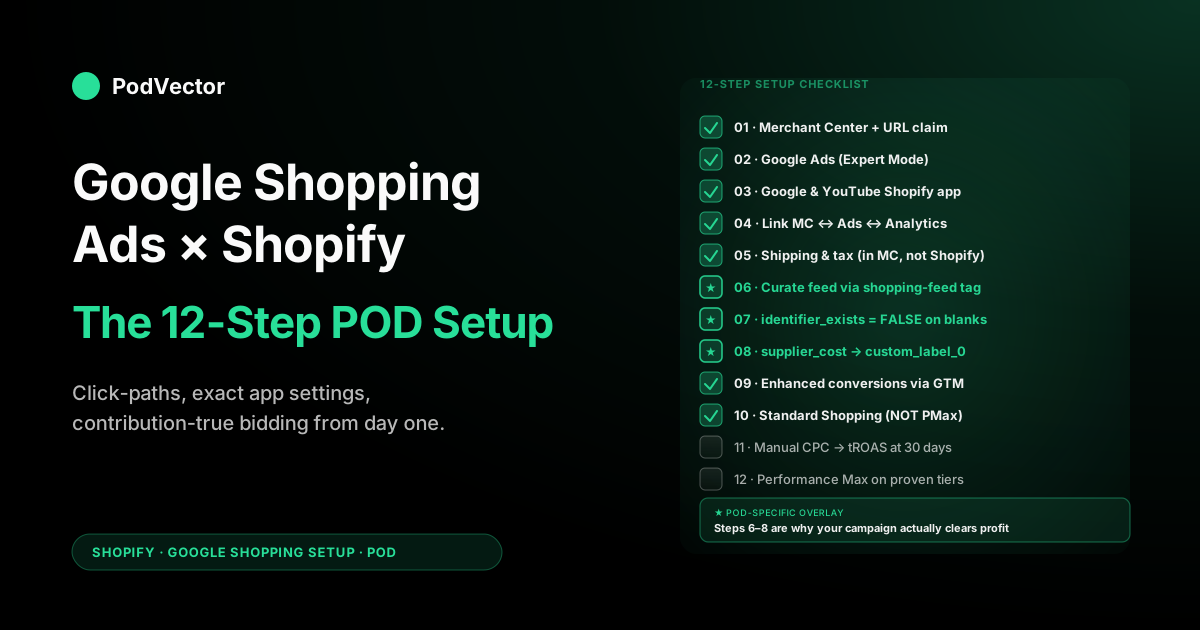
Quick Answer: To set up Google Shopping Ads on Shopify: install the Google & YouTube app, claim and verify your store URL inside Merchant Center, fix shipping and tax so the ad price matches checkout, then curate a tagged collection of your best products into the feed instead of syncing your whole catalog.
For print-on-demand, add three overlays before you spend a dollar: set identifier_exists to FALSE on every Printify or Printful blank, push supplier cost into a custom label so bidding optimises against margin (not just the $32 sale price), and install enhanced conversion tracking.
Launch a Standard Shopping campaign first for visibility, bid manually for about thirty days, then graduate to a contribution-margin tROAS and Performance Max once a margin tier has proven it converts profitably. The same feed also powers Google's free listings — turn those on too. Skip the POD overlays and Performance Max will happily spend $40 to sell a $32 shirt that cost you $14 to make.
Prerequisites: what you need before step 1
Most setup tutorials start with "open Merchant Center" and skip the four things that, when missing, cause the next six hours of work to silently fail. Before you click anything:
- A Shopify store on a paid plan with at least one published product. The Google & YouTube app installs on free trials, but Merchant Center won't approve a feed pointing at a development store URL.
- A live, indexable storefront URL. Merchant Center's URL claim process needs the homepage to load without a password and to return a 200 status code. If you're still on Shopify's password-protected pre-launch page, take the password off before starting.
- Real shipping policy and refund policy pages at
/policies/shipping-policyand/policies/refund-policy. Merchant Center's policy review reads these. POD stores get suspended within their first week more often for missing policy text than for any feed-quality issue. - A business email on your store domain (you@yourstore.com, not gmail). Google's verification trusts domain-matched email orders of magnitude more than free-tier accounts when reviewing new merchant applications.
Get those four right and the entire setup unblocks itself. Skip them and you'll waste a week debugging why Merchant Center keeps your account "Pending review" forever.
Step 1 — Create Merchant Center and claim your URL
Go to merchants.google.com, sign in with the Google account you want as the Merchant Center owner (use a shared business address, not a personal Gmail — you'll regret it during the first staffing change), and click "Get Started." Merchant Center will ask for: your business name (use the legal name on your Shopify store), country, time zone, and primary website URL.
The URL claim is the one critical step new operators miss. Merchant Center offers four verification methods: HTML file upload, HTML tag, Google Analytics, or Google Tag Manager.
On Shopify, the cleanest path is the HTML tag — copy the meta tag Merchant Center provides, paste it into your Shopify theme's theme.liquid file inside the <head> block, save, then click "Verify" back in Merchant Center. Done correctly, verification completes in under thirty seconds.
Why this matters: until your URL is verified and claimed, every product you push to the feed will sit in "Pending" status, never serve impressions, and your account-level "Account-issues" panel will show a red banner forever. The Google & YouTube app will not warn you that this is the cause.
Set up the Merchant Center business profile next: business display name, business address, customer service contact, and return policy URL. Google requires all four for the apparel category. POD stores selling t-shirts, hoodies, and other apparel that skip the return policy URL get auto-suspended within 14 days.
Step 2 — Create your Google Ads account
Open ads.google.com in a separate tab, sign in with the same Google account you used for Merchant Center (this avoids permissioning headaches later), and click "Start now." Google Ads will try to walk you through "Smart Campaign" setup — close that flow immediately. Smart Campaigns lock you into automated bidding from day one and give you no visibility into search terms, which is exactly what a POD seller needs to see during the first sixty days.
Instead, click "Switch to Expert Mode" (the link is small, bottom-left of the onboarding flow). In Expert Mode, you can skip campaign creation, set up just the account shell, and add your billing details. The billing setup requires a real credit card; Google places a $1 authorisation hold to verify.
Configure two account-level settings while you're here:
- Time zone: match your business's reporting time zone (typically the time zone where you're located, not your largest customer base). Google Ads time zone is permanent and cannot be changed once set.
- Currency: match your Shopify store's primary currency. If your Shopify is USD and you set Google Ads to GBP, every conversion-value flowing back into Google Ads will be silently mis-translated, breaking your bidding signals.
Make a note of your Google Ads Customer ID (the 10-digit number in the top-right). You'll need it in Step 4.
Step 3 — Install the Google & YouTube Shopify app
From your Shopify admin, navigate to "Sales channels" → "Add channel" → "Google & YouTube." Install the app (it's free and first-party). The app will open a setup wizard that asks you to connect a Google account — connect the same account that owns Merchant Center and Google Ads.
The wizard will then ask three configuration questions. The defaults are wrong for POD; here's what to set instead:
- "Which products do you want to sync?" Default is "All products." Change to "Specific collection" and create a Shopify collection called
shopping-feed(you'll populate it in Step 6). Don't sync anything yet — leave the collection empty for now. - "Auto-update product information?" Default is on. Leave it on — but understand it means any change you make in Shopify (price edit, title edit, image swap) will flow to Merchant Center within thirty minutes. Don't bulk-edit prices on a Friday afternoon if you don't want your Saturday traffic to land on stale Shopping ads.
- "Set up Smart Shopping campaigns?" Default is on. Turn it off. Smart Shopping is being rebranded under Performance Max, but the principle is the same: a fully automated campaign that bids against revenue Google can see, before you've calibrated what conversion is even worth to your POD margins. We'll create campaigns manually in Step 10.
Once installed, the app's dashboard will show three connection states: "Shopify connected," "Google account linked," and "Merchant Center connected." All three should be green. If Merchant Center shows a yellow warning, click into it — usually the issue is that the URL you set in Step 1 doesn't exactly match Shopify's primary domain (www.yourstore.com vs yourstore.com); fix the mismatch in Merchant Center's settings.
Step 4 — Link Merchant Center, Google Ads, and Shopify
Three pairwise links must exist for Shopping Ads to work:
- Shopify ↔ Merchant Center. Created automatically in Step 3 by the Google & YouTube app.
- Merchant Center ↔ Google Ads. Manual. Inside Merchant Center, go to "Settings" → "Linked accounts" → "Google Ads" → "Link account." Enter your Google Ads Customer ID from Step 2. Then switch to Google Ads, go to "Tools & Settings" → "Linked accounts" → "Google Merchant Center," and accept the pending invitation. The link is bidirectional and must be approved on both sides.
- Google Ads ↔ Google Analytics 4. Optional but strongly recommended. In Google Ads, "Tools & Settings" → "Linked accounts" → "Google Analytics" → link your GA4 property. This gives you cross-platform attribution data that becomes invaluable in Step 11 when you're tuning bids.
Verify the links by going to Google Ads → "Tools" → "Business data" → "Merchant Center feed." You should see your store name and a product count. If the count is zero, that's correct — you haven't added products to the shopping-feed collection yet.
Step 5 — Configure shipping and tax inside Merchant Center
Merchant Center has its own shipping and tax tables, separate from Shopify's. The Google & YouTube app tries to import Shopify's shipping profiles, but the import fails silently for any profile that uses "Calculated at checkout" — which is most POD stores using Printify's or Printful's calculated rates.
Configure shipping directly in Merchant Center: "Settings" → "Shipping and returns" → "Shipping services" → "Add a service." Set up flat-rate services that approximate your real shipping cost. For Printify domestic apparel, $5.50 flat to the US is a defensible quote. For Printful, $4.99 for first item and $1.99 each additional is more accurate but Merchant Center can't model "additional item" rules cleanly — use a flat $6.50 instead.
Configure tax: "Settings" → "Sales tax." If you sell only in the US and use Shopify's automatic tax calculation, set Merchant Center to "Don't charge tax" (Shopify handles it at checkout, and Merchant Center is asking what to display in the Shopping ad, not what to actually charge). For EU or UK stores, set the appropriate VAT rate.
The number-one Shopping account suspension reason in 2026 — confirmed across hundreds of operator reports — is shipping cost mismatch: the price the customer sees in the Shopping ad doesn't match the price they see at Shopify checkout. Get the Merchant Center shipping table within $1 of what your checkout actually charges and you'll dodge 90% of the suspension risk. The Shopify official Google & YouTube channel docs have the canonical mapping for shipping profiles, and our guide to integrating Google Shopping Ads with your Shopify store walks through the policy-page setup that prevents the other 10%.
Step 6 — Curate the feed with a Shopify tag
Now you decide which products are actually in the campaign. The default impulse — sync everything, let Google figure out winners — is the most expensive mistake POD operators make.
With 50–500 published designs, "sync everything" pushes 1,500–15,000 SKUs into Merchant Center. Most won't sell. The few that do compete with the dozens of zombie listings for impression share, and Performance Max's optimisation signals get diluted across products that should never have been in the auction.
The curation process: pick the products you'd actually be willing to spend $20 in ad cost to acquire a customer through. Apply the following filter:
- Has it sold organically in the last 60 days? If yes, it's a candidate.
- Does it have at least three high-quality mockup images (lifestyle, product-on-model, and a flat lay)? If no, skip until you fix the gallery.
- Is the contribution margin (price minus Printify cost minus shipping minus 3% processing) at least $10? If no, skip — Google Shopping CPAs at this margin won't ever clear positive.
- Is it a near-duplicate of another design? If yes, pick one and skip the rest. Duplicates fight each other in the auction.
For each product that passes, add the shopping-feed tag in Shopify's product editor (or use the bulk editor for speed). The Google & YouTube app's collection-based sync will pick up the tagged products automatically on its next sync cycle (within 30 minutes) and push them to Merchant Center.
Aim to launch with 20–40 SKUs in the feed. You can add more weekly as new designs prove organic demand.
While you're curating, fix the two feed attributes that decide whether curated products even show: titles and images. Google matches Shopping ads to queries largely on the product title, so lead with what people search — "Funny Cat Dad T-Shirt" beats "The Whiskers Tee." Front-load the product type and audience, not your brand name.
For images, Merchant Center wants at least 800×800px on a plain white or lifestyle background with no promotional text, watermarks, or borders. POD mockups from Printify and Printful clear the resolution bar — but strip any "50% OFF" banners your design tool baked in, since text-on-image is a common apparel disapproval.
The goal isn't to advertise your whole catalog — it's to advertise the slice that earns its CPA back. For the deeper architecture argument behind feed curation, see our Google Shopping Ads Shopify strategy guide; this setup walkthrough is its tactical companion.
Step 7 — Set identifier_exists FALSE on POD blanks
Google's apparel quality model treats GTIN as a strong trust signal, and POD blanks don't have consumer GTINs. Submitting Gildan's wholesale GTIN with your store-branded product creates a brand mismatch that Merchant Center will flag in review. The official escape hatch: explicitly tell Google the product has no GTIN.
The mechanic on Shopify: the Google & YouTube app exposes a metafield called google.identifier_exists on each product. Set it to FALSE for every POD product in your feed.
Don't try to be clever — don't submit Printify's blank GTIN, don't make up a placeholder, don't leave the field empty. Empty triggers a different warning that compresses impressions even harder than the GTIN mismatch.
The fastest implementation: use Shopify's bulk metafield editor. From admin → "Products" → select all products tagged shopping-feed → "Edit products" → add a column for google.identifier_exists → set the value to FALSE for every row → save. The change propagates to Merchant Center on the next sync.
Verify by checking Merchant Center "Products" → pick any item → "Issues." The "Missing identifier" warning should clear within 24 hours. If the warning persists past 48 hours, the metafield isn't being read correctly — usually because the Google & YouTube app is on an older version that doesn't expose the metafield through the feed; update the app and re-sync.
Step 8 — Wire supplier cost into a custom_label
This is the step nobody else's setup guide covers, and it's the difference between a Performance Max campaign that scales profitably versus one that scales gross revenue while quietly destroying contribution margin.
The problem: when a $32 Printify shirt sells, Google sees a $32 conversion. Performance Max's bidding optimises against $32.
But your real contribution after Printify's $14 blank cost, $5.50 shipping, and 3% processing is $11.10. If Performance Max spends $20 to acquire that conversion, Google reports a 1.6× ROAS (great!) while you actually lost $9 on the order.
The fix: get supplier cost into the feed as a structured label, then use it for bid scoping later. Five-step implementation:
- Create a Shopify metafield at the variant level called
custom.supplier_cost, type Money. For each variant in yourshopping-feedcollection, populate it with the actual Printify or Printful cost (blank + print + shipping). The Printify and Printful API can pull these programmatically; for under-100-SKU stores, manual entry via Shopify's bulk editor takes 30 minutes. - Compute contribution margin in Shopify by creating another metafield called
custom.contribution_margin= price minussupplier_costminus 3% (or use a Shopify Function or a simple Liquid snippet to derive it). For a $32 shirt with $19.50 in supplier+shipping cost, contribution_margin = $11.54. - Map contribution margin to a custom_label tier via the Google & YouTube app's metafield mapping. App settings → "Product feed mapping" →
custom_label_0= "high" if contribution_margin > $15, "medium" if $8–$15, "low" if < $8. - Push the custom_label through to Merchant Center on the next sync. Verify in Merchant Center → "Products" → click any product → you should see
custom_label_0: high(or medium/low) in the attributes panel. - Use the custom_label to scope ad groups in Step 10 — high-margin products get an aggressive tROAS, medium-margin get a conservative one, low-margin get excluded from the feed entirely (re-tag them out of
shopping-feed).
The compounding payoff: every campaign decision from this point onward is made against the right number. Bidding 3.5× tROAS on a high-margin product means $11.54 contribution × 3.5 = $40 of allowed spend per acquisition. Bidding 3.5× on a low-margin product would have allowed $25 — and you'd never have known the difference until you ran your monthly P&L and noticed Shopping ate your profit. Our complete guide to Google ad types for POD sellers covers the broader margin-tier framework if you want the cross-channel version.
Step 9 — Install enhanced conversion tracking
The Google & YouTube app installs basic conversion tracking automatically, but the basic version reports gross revenue (the $32) and is missing the customer-data signals that make enhanced conversions meaningfully more accurate post-iOS 14.5 and the third-party-cookie deprecation.
The enhanced setup: install Google Tag Manager on your Shopify theme (Shopify added native GTM support to all themes in 2024), then use GTM to fire two events: conversion on the order-confirmation page (with the order value and order ID) and enhanced_conversion with hashed customer email and phone (Shopify exposes these in the order-confirmation Liquid object).
The official setup walkthrough is at Stape's 2026 guide; the four critical bits to get right:
- Fire the conversion once per order, not per page view of the confirmation page (customers who refresh inflate your numbers).
- Pass the order value as a number (Shopify Liquid emits it as a string by default; coerce it).
- Hash customer email with SHA-256 before passing it (GTM has a built-in helper, or use a custom JavaScript variable).
- Set the conversion category to "Purchase" and the count setting to "One per click" (not "Every," which breaks attribution math).
Once enhanced conversions are firing, give it 48 hours of orders to populate, then check Google Ads → "Conversions" → "Diagnostics." You want to see "Enhanced conversions: enabled" with a coverage percentage above 70%. Below that, recheck the GTM tag — the most common failure is the email field not being passed at all.
Step 10 — Build a Standard Shopping campaign first
Resist the urge to launch with Performance Max. The platform is more powerful, but it is opaque — you can't see search terms, can't manually exclude poor-converting products mid-flight, and can't easily diagnose why spend is concentrating on one ad group versus another. For the first 30–60 days while you're learning what your POD catalog converts on, you need the visibility a Standard Shopping campaign gives you.
Create the campaign: Google Ads → "Campaigns" → "+ New campaign" → objective "Sales" → campaign type "Shopping" → choose "Standard Shopping" (not "Performance Max").
Settings to configure:
- Campaign name: something like
Shopping — Standard — High Marginso future-you knows what it is. - Merchant Center account: select the one you linked in Step 4.
- Country of sale: match where you actually ship.
- Inventory filter: "Only advertise products that match all of these requirements" →
custom_label_0 = high. This restricts the campaign to your high-margin tier from Step 8. - Bidding: "Manual CPC." Disable "Enhanced CPC" (Google's mild auto-bidding overlay). You want full manual control during the calibration period.
- Daily budget: $20–$30/day to start. Below $20 the auction data is too thin to learn from; above $30 you're spending faster than your contribution margin can absorb during calibration.
- Ad group: create one ad group called "All high-margin products." We'll subdivide later if data warrants.
- Default bid: $0.40–$0.60 manual CPC. Apparel CPCs in 2026 average $0.55–$1.20; starting low and ramping up is safer than starting high.
Repeat the campaign creation for medium-margin (custom_label_0 = medium) with a tighter budget ($15/day) and lower default bid ($0.30). Skip low-margin entirely.
Launch both campaigns. Within 24 hours, Google Ads will start serving impressions. Monitor the "Search terms" report daily for the first week — this is the data you'll lose forever once you graduate to Performance Max, so harvest it now.
Step 11 — Bid manually for thirty days, then graduate
The first thirty days are calibration, not optimisation. Your job is to collect enough conversion data that subsequent automated bidding has a real signal to learn from.
Daily routine for week 1:
- Check the Search terms report. Add irrelevant queries as negative keywords at the campaign level. (Common POD waste: someone searches "free t-shirt design," your ad shows up.)
- Check the Products report. If a product has 100+ clicks and zero conversions, exclude it from the ad group via the inventory filter.
- Don't change bids. Let the data accumulate.
Daily routine for weeks 2–4:
- Continue Search terms monitoring; cadence drops to every 2–3 days.
- Adjust bids per product based on cost-per-conversion: if a product is converting at $15 cost per acquisition and your contribution_margin is $11, lower its bid by 25%; if it's converting at $5 with $11 margin, raise its bid 25%.
- Document what's working in a Google Sheet — you'll need this when you switch to automated bidding.
The graduation criteria: when you have at least 15 conversions per ad group over the trailing 30 days, switch the bidding strategy from Manual CPC to Target ROAS. Set tROAS to a value that, applied to your contribution margin, generates positive contribution. For high-margin products with $15 contribution, set tROAS to 250% (means: for every $1 of spend, you target $2.50 of revenue, which at $15 contribution per $32 sale is roughly 0.47 conversions per $1 spend — math says this is positive).
If you're staring at your contribution_margin metafield and wondering whether to set tROAS in revenue terms or contribution terms, the honest answer is: Google Ads' tROAS bid setting only accepts conversion_value, which is set per conversion. You can override the conversion_value to be contribution rather than gross revenue (set the tag to fire conversion_value as {{order_total}} - {{supplier_cost_total}} rather than {{order_total}}) — this is the cleanest implementation because then a 100% tROAS literally means "break even on contribution." Most operators don't bother and just set a higher revenue-tROAS to compensate; either works if you're consistent. For a deeper read on Performance Max specifically, see our upcoming Shopify Performance Max campaigns explained guide.
Step 12 — Layer Performance Max on the proven tiers
Performance Max is the right campaign type for POD — eventually. Its multi-channel reach (Search, Shopping, YouTube, Display, Discover, Gmail) and AI-driven asset assembly outperform Standard Shopping for established product lines. The catch is that PMax needs at least 50 conversions in the last 30 days to learn well, and it needs a contribution-aware conversion value or it'll happily over-spend on high-revenue/low-margin products.
The graduation playbook:
- Wait until your high-margin Standard Shopping campaign has hit 50+ conversions in the last 30 days.
- Confirm your conversion tracking is firing contribution_value, not gross revenue (Step 9 enhanced setup).
- Create a new Performance Max campaign → "Sales" objective → "Performance Max" type. Filter to the same
custom_label_0 = highinventory. - Bidding: tROAS at the same target you proved out in Step 11.
- Asset group: provide 5 headlines, 5 long headlines, 5 descriptions, 1–5 logos, 5+ marketing images, ideally 1 video (PMax will auto-generate a slideshow video if you don't provide one, which performs poorly).
- Daily budget: 1.5× what your Standard Shopping was spending on the same inventory. Less and PMax will throttle learning; more and you'll over-spend before optimisation kicks in.
- Run the new PMax in parallel with the Standard Shopping for 14 days. After 14 days, compare cost-per-acquisition and contribution margin. If PMax wins, pause Standard Shopping. If it doesn't, pause PMax and revisit in 30 days with more conversion data.
The pitfall most operators fall into: launching PMax without Step 8's contribution_margin work and without Step 9's enhanced conversions. PMax will appear to "work" — your reports will show growing revenue and acceptable revenue-ROAS — while your actual P&L gets worse. The bidding signal is wrong, and PMax is amplifying the wrong signal at scale. Our complete Google Ads playbook for print-on-demand sellers goes deeper on the diagnostic patterns that distinguish "Performance Max is genuinely working" from "Performance Max is hiding margin compression."
Bonus — Turn on free listings and win the Shopping scorecard
The feed you built in Steps 5–8 doesn't only power paid ads. Google's free product listings surface the same products organically across the Shopping tab, Search, Images, and YouTube — at no cost per click.
They're usually on by default once your Merchant Center account is approved, but confirm it: Merchant Center → "Marketing" → "Free listings" → check the status reads "Active." Free listings pull the identical feed, so every fix from Steps 5–8 (accurate shipping, identifier_exists, clean titles) improves them automatically.
For POD, free listings are pure upside. They capture demand on the low-margin designs you deliberately excluded from paid campaigns in Step 6, without spending a cent on clicks.
Watch the 2026 addition: Google's Shopping experience scorecard and the Top Quality Store badge. Google now weights fast shipping, easy returns, and low return rates into how prominently both your free and paid listings rank. POD stores with clear policy pages and honest fulfillment estimates earn the badge; stores with vague shipping timelines get buried. This is why the policy-page work in the prerequisites pays off twice.
Troubleshooting the seven failures that actually happen
Across hundreds of POD setups, the same seven things go wrong. Diagnostics:
- Merchant Center stuck "Pending review" past 5 days. Cause is almost always missing or insufficient policy pages (shipping, refund, contact). Add the pages, then submit the account for re-review via the "Account issues" panel.
- Products approved in Merchant Center but no impressions in Google Ads. Inventory filter mismatch. Check campaign → settings → inventory filter; if you set
custom_label_0 = highbut the products in the feed havecustom_label_0 = High(capitalisation matters), zero will match. - Clicks but zero conversions. Conversion tracking not firing. Open the order-confirmation page on a recent order in Chrome with the Google Tag Assistant extension; if no conversion event fires, the tag is broken. Re-install via Step 9.
- "Misrepresentation" suspension. Google's automated reviewer flagged a policy concern. Most common POD trigger: store name doesn't match the brand on product images, or contact page lacks a real address. Fix and appeal via Merchant Center → "Account issues" → "Request review."
- Spend is concentrating on one product. Performance Max's optimisation is working as designed but starving the rest. Either accept it (it's optimising for what converts), split the campaign by product type, or move to ad-group-level Standard Shopping for finer control.
- ROAS reported is good but P&L is bad. Conversion value is gross revenue, not contribution. Implement Step 8's custom_label work and re-tag the conversion to fire contribution.
- Feed sync stops after a Shopify theme update. The Google & YouTube app's tracking pixel sometimes gets stripped by theme updates. Reinstall the app via Shopify admin → Sales channels → Google & YouTube → "Reconnect."
FAQs
How long does the full setup take for a POD store?
Steps 1–5 (account creation and linking): 90 minutes if you have policy pages ready, half a day if you don't. Step 6 (feed curation): 30 minutes for a 30-SKU launch.
Steps 7–9 (POD-specific overlays and conversion tracking): 2–3 hours, mostly metafield work. Step 10 (campaign launch): 30 minutes.
Total: a focused day for a clean install. Add 3–5 days of waiting time for Merchant Center reviews and the first sync cycle.
Do I need to do all 12 steps before launching?
You can technically skip Steps 7, 8, and 9 and launch — Performance Max will run, ads will serve, conversions will report. The campaign will not be profitable for a POD store. Of the three, Step 8 (supplier cost into custom_label) is the highest-leverage skip if you must shortcut, because it determines whether your bidding signal matches your real economics.
What if I'm using Printful instead of Printify?
Same setup, with two differences: Printful's average blank cost is $1–$3 higher than Printify's per equivalent product, so your contribution_margin computation in Step 8 will land lower for the same retail price. And Printful's shipping is calculated differently — use $6.50 flat in Merchant Center for Printful domestic apparel rather than Printify's $5.50.
What's a realistic monthly budget to start?
$600–$900/month for the first 30 days ($20–$30/day) is enough to generate the conversion data you need to graduate to automated bidding. Below $600/month the data is too thin and Google's algorithms can't learn well. Above $900/month is fine, but if you don't have margin headroom for the calibration period to lose money, scale back rather than scale up.
How do I handle the GTIN issue if my brand grows enough to want real GTINs?
You can purchase GTINs from GS1 ($30 per GTIN, one-time) and assign them to your branded products. Once you have real GTINs, set identifier_exists = TRUE and submit the GTIN. This is overkill for stores with under 100 SKUs but worth considering if you're scaling past $100K/month and competing in commoditised apparel categories where the GTIN signal materially helps.
Why not just use Performance Max from day one?
Because PMax's bidding decisions are opaque and irreversible. The first 30 days of a Shopping campaign are when you learn which products convert, which queries are wasted spend, and what your real cost-per-acquisition is.
Standard Shopping shows you that data; PMax hides it. You can always graduate to PMax — you can't easily reconstruct learning data you never collected. For more on the timing question, see our Google Shopping Ads for ecommerce strategy for print-on-demand piece, which covers the calibration economics in depth.
What about Microsoft Ads or Meta Shopping as alternatives?
Both are real channels, but neither replaces Google Shopping for POD — they complement it. Microsoft Ads (Bing) typically adds 10–20% incremental volume at lower CPCs once Google is dialed in; Meta Shopping is a different intent (discovery vs. demand capture) and sits earlier in the funnel.
Master Google Shopping first, then expand. The Google Ads topic hub covers the cross-channel framework if you want the full picture.
Let Victor run your Shopping campaigns on real margin
The 12 steps above get the plumbing right. Keeping it profitable is ongoing operator work: pausing the designs bleeding spend, shifting budget to the margin tiers that convert, re-tagging low-margin SKUs out of the feed.
Victor does that work for you. Connect Shopify and Printify or Printful in two clicks, and he runs your Google Shopping ops against live contribution margin — not gross revenue — proposing each bid change, budget shift, and feed edit for your approval before he acts. And hand off the Shopping busywork to an AI employee.
Try Victor free