
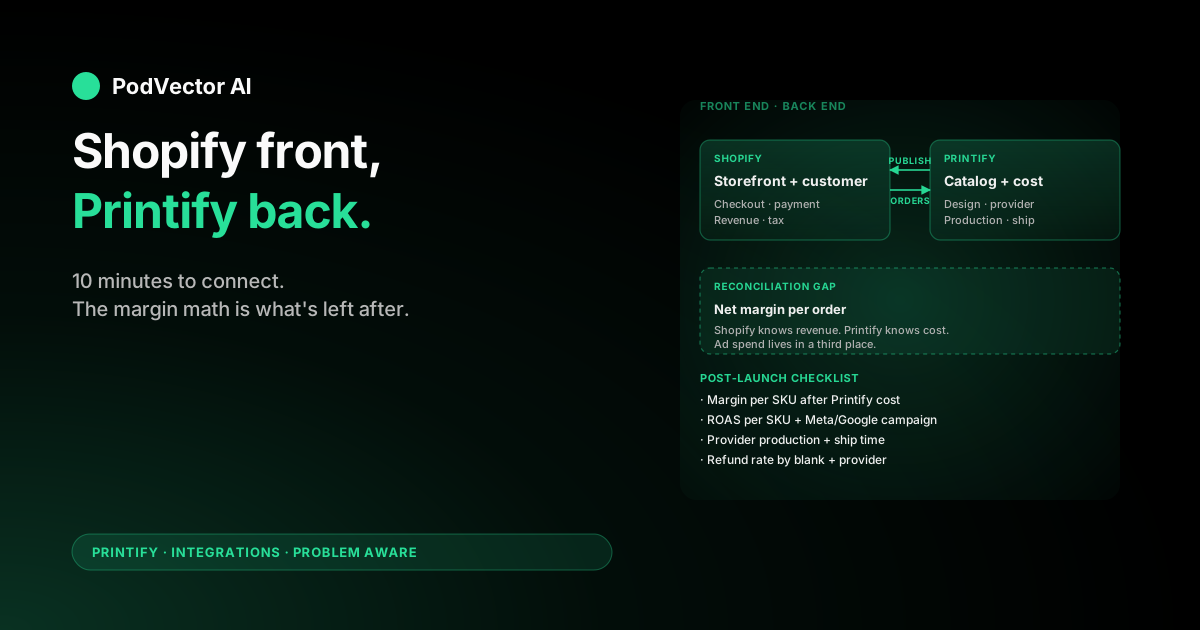
Quick Answer: Add Printify to your Shopify store by installing the official Printify app from the Shopify App Store, signing in to a free Printify account, and approving the product/order/fulfillment permissions. End-to-end install takes about 10 minutes.
The rest of this guide covers the parts most setup posts skip: how product, order, and cost data actually move between the two systems — and what you need to track once orders start landing.
Why Shopify merchants add Printify
Most sellers reading this already have a Shopify store. Printify slots in as a fulfillment back end so you can sell custom apparel, mugs, posters, and 900+ other items without holding inventory or running a press.
The split is clean: Shopify owns the storefront, checkout, customer, and tax. Printify owns the catalog of blanks, the print providers, and the per-order production cost. You pay Printify when an order ships; your customer pays Shopify at checkout.
If you're still comparing platforms or deciding which is the storefront and which is the fulfiller, the integrations cluster covers the trade-offs. This guide assumes Shopify is your front end and you want Printify wired in behind it.
Before you install
You need two things ready:
- A live Shopify store. A trial account works for the install itself, but you can't publish products to a Shopify trial in some regions — upgrade to a paid plan before you push your first product.
- A free Printify account with a saved payment method. Printify charges your card per order for production and shipping, separately from what your customer pays at Shopify checkout.
If you don't have the Printify account yet, you can create one inside the install flow — Shopify hands you off to Printify and Printify uses your Shopify email to spin up the account in one click.
Install Printify from the Shopify App Store
This is the path most merchants use because Shopify handles the OAuth handshake on your behalf.
- Log in to your Shopify admin as the store owner (not a staff account — staff accounts often can't install apps).
- Go to Apps → Shopify App Store in the top-right search bar.
- Search for "Printify" and click the official app. The publisher should read "Printify Inc." — there are knockoff apps in the store.
- Click Install, then approve the permissions. Printify needs access to products, orders, fulfillments, customer addresses, and shipping. All are required for the sync to work.
- You're redirected to a Printify login screen. Sign in, or click Sign up with Shopify to spin up a new Printify account using your store credentials.
- The Printify dashboard now appears embedded inside your Shopify admin at Apps → Printify. You're connected.
If the install stalls on the permissions screen, check your Shopify account role. Staff accounts without "Manage and install apps" permission silently fail at this step.
Alternate path: connect from Printify
This is the path you'll use if you already have a Printify account with products designed and you're adding Shopify as a new sales channel.
- Log in at printify.com.
- Open the store dropdown in the top-left corner of the dashboard and click Manage my stores.
- Click Connect and pick Shopify from the platform list.
- Click Get the app. A new tab opens to the Shopify App Store install page.
- From here, the flow is identical to the App Store path: install, approve permissions, log in to Printify, done.
Both paths land in the same place. Your Shopify store now shows up in Printify's "Manage my stores" list with a green status indicator, and your Shopify admin has Printify embedded.
Design and publish your first product
The Printify dashboard inside Shopify works the same as standalone Printify. Click Catalog, pick a blank, and you're in the mockup editor.
Walk through these steps for each product:
- Pick a product type. T-shirts, hoodies, mugs, and posters are the highest-margin starters. The catalog shows base cost, available print providers, and shipping zones for each.
- Pick a print provider. Each product has multiple providers with different base costs, print quality, and ship times. Sort by your priority — usually ship time to your largest market.
- Upload your design. The editor previews how it lands on each variant. Check the corners and seams on apparel — designs that look great on a flat PNG often clip oddly on a sleeve.
- Set the variants you want to sell. By default Printify enables every color and size. Disable the ones you don't want to clutter your storefront with.
- Price the product. Printify shows base cost per variant. Your retail price minus base cost minus shipping is your gross margin per unit.
- Click Publish to Shopify. Printify pushes the product, variants, mockup images, and inventory data into Shopify as a normal Shopify product within a few seconds.
The product now appears in your Shopify Products tab, taggable, collectionable, and editable like any other Shopify item. Edits to title, description, or images sync from whichever side you change them on — but pricing edits need to happen in both places if you want the Printify cost view to stay accurate.
Set up shipping rates
Shipping is where most setup guides hand-wave. There are three options and they have real margin implications.
Option 1: Publish Printify flat rates to Shopify. Printify pushes its current shipping rates into your Shopify shipping zones automatically. Easy to configure, but Printify's flat rates include a small buffer above what print providers actually charge.
Option 2: Enable the Printify shipping calculator. Shopify queries Printify in real time at checkout for the exact rate. Most accurate, but it requires Shopify's Advanced plan or higher to use carrier-calculated shipping.
Option 3: Set custom rates yourself. You decide what to charge — free shipping, flat $5, tiered by cart value — and absorb the difference. This is what most growth-focused stores do because free shipping converts better.
Pick one path per shipping zone and stick with it. Mixing options across the same destination creates Shopify shipping rate conflicts and customers see the cheapest one regardless of which provider you used.
How an order moves through both systems
This is the part to understand before you launch — confusion here is the source of most "where's my order?" support tickets.
When a customer checks out:
- Shopify captures payment and creates the order in your Shopify admin.
- The Printify app picks up the order from Shopify within seconds and creates a matching production order on the Printify side.
- Depending on your auto-fulfillment setting, Printify either holds the order for manual approval or charges your card immediately and sends production instructions to the print provider.
- The print provider produces and ships the item. Tracking flows back into Printify, then into Shopify.
- Shopify marks the order fulfilled and emails the tracking link to the customer.
Auto-fulfillment is the default and what most established stores use. Manual approval is useful in your first week so you can sanity-check designs before they go to print, but it adds a delay that hurts the customer experience long-term.
Run a test order before you launch
Place a real order on your own store using a real address. Don't skip this — a test order surfaces issues that no amount of dashboard checking will.
Things to verify:
- The order appears in Printify within 60 seconds.
- Your saved card was charged for production + shipping (you'll get an email).
- The mockup the customer saw at checkout matches the production preview Printify shows.
- Tracking arrives in Shopify and the customer-facing email within a few days of shipment.
- The shipping cost you paid Printify is in the ballpark of what you charged the customer.
If you sell internationally, place a second test order to a different country. Print provider routing and shipping economics change a lot across borders.
Track profit once orders start landing
This is where the integration stops being "set it and forget it." Shopify shows you revenue. Printify shows you per-order production cost. Neither shows you net margin per product, per variant, per ad campaign — and that's the number you actually need to make decisions.
The data you need to reconcile lives in at least three places:
- Shopify: order ID, revenue, discount applied, shipping charged, transaction fee, customer location.
- Printify: order ID, production cost per item, shipping cost, print provider.
- Your ad platforms: what you paid Meta or Google to acquire that customer, mapped back to the Shopify order via UTM or pixel.
Most sellers either run this reconciliation manually in a spreadsheet weekly, or they leave it untracked and rely on Shopify revenue as a proxy. Both approaches leak money. A pricing mistake or rising production cost on one variant can quietly destroy your margin for weeks before it shows up in the bank account.
Tools that pull from both Shopify and Printify into a single warehouse — and join that to your ad spend — close the loop. Platforms like Victor are built around this for POD specifically: every Shopify order is matched to the Printify production cost, the print provider, and the ad spend that drove it, so margin lives in one place instead of three.
Whatever you use, the principle holds: don't run a Shopify + Printify store on Shopify's revenue dashboard alone. More on the Printify operator stack here.
Troubleshooting common issues
"Store already connected" error. Printify only allows one connection per Shopify store at a time. If you see this, an old Printify account is still linked. Log in to that account, disconnect the store from Manage my stores, then retry the install.
Products not appearing in Shopify after publish. Check the product status in Printify — if it's in draft, the publish queue won't pick it up. Also check the Shopify product list filtered by "All vendors" — Printify-published products use "Printify" as the vendor by default, which can hide them from your default view.
Tracking numbers not syncing back. This is usually a permissions issue. Reinstall the app and make sure "Fulfillments" is in the granted permissions list.
Shopify orders not appearing in Printify. Check whether the order contains only Printify products. Mixed-cart orders (Printify + your own inventory) sometimes split, and Printify only pulls the line items it recognizes.
Wrong shipping charged at checkout. Almost always a shipping zone configuration issue. Audit your Shopify shipping zones and confirm Printify rates are mapped to every country you sell to.
FAQs
Is it free to connect Shopify and Printify?
Yes. The app install and ongoing connection are free. You pay for Shopify's monthly plan and you pay Printify per order for production and shipping. Printify Premium ($14.99/month) cuts product costs by 20% but isn't required to use the integration. Whether Premium pays back depends on your monthly order volume.
Can I sell Printify products alongside my own inventory on Shopify?
Yes. Printify-published products live alongside any other Shopify products. Orders that mix Printify and your own inventory fulfill in parallel — Printify handles its line items, you handle yours. Premium's benefits scale with the share of Printify products in your catalog.
How long does Printify take to ship after an order is placed?
Production averages 2–7 business days depending on the print provider, then shipping is whatever the carrier quotes. The Printify dashboard shows estimated ship times per product and per print provider — check those before you commit to a delivery SLA on your storefront.
Can I edit a Printify product directly in Shopify?
Title, description, tags, and SEO fields you can edit in Shopify and they won't be overwritten. Variants, mockup images, and pricing should be edited in Printify so the source of truth stays consistent. Edits to mockups in Shopify don't sync back to Printify and will get out of step.
What happens if I cancel my Printify account?
Products stay published in Shopify but new orders won't route to a print provider. Existing orders already in production complete. Disconnect cleanly by removing the store from Printify's Manage my stores before you delete the account.
Does Printify work with multiple Shopify stores?
Yes. One Printify account can connect to multiple Shopify stores, each shown separately in Manage my stores. Products are designed once and published per store, so you can run different price points or designs across stores.
Where do I see the actual margin I made on each order?
Not in Shopify, not in Printify. You need to subtract the Printify production cost from the Shopify revenue, then subtract Shopify transaction fees, shipping difference, and ad spend. Most sellers either build a weekly spreadsheet or use a tool that pulls both sources into one view. The Etsy connection has the same gap — covered in the Etsy setup guide.
Can I move from Etsy to Shopify and keep my Printify products?
Yes. Your Printify designs and product configurations stay in your account. You connect the new Shopify store and republish the products you want carried over. Etsy-to-Printify migration path is documented here.
Is the integration as smooth as the Etsy one?
Shopify is generally the smoother of the two because Shopify gives Printify deeper API access. Etsy has more manual steps for variant publishing.
For a deeper look at how the integration sits inside the broader Printify operator stack, see the Nudgify integration walkthrough, which covers some of the same setup steps from a Shopify-app-ecosystem angle.
Let Victor run your Shopify + Printify ops
Once Printify is wired into Shopify, the next problem is keeping track of what's actually profitable. Victor connects to both, joins Shopify revenue to Printify cost and your ad spend, and runs Meta + Google ads, Shopify catalog updates, and Printify ops with your approval before each material action.
Try Victor free