
Quick Answer: ROAS in Meta Ads is calculated as conversion value divided by ad spend. Meta does the math for you in Ads Manager — add the "Purchase ROAS (Website)" column and it appears next to every campaign.
That number isn't enough on its own for a print-on-demand store. The reported figure is revenue-based, and POD margins are thin enough that a "good" reported ROAS can still mean you're losing money once Printify or Printful cost, shipping, and fees come out.
The real calculation runs in two passes: pull Meta's reported ROAS, then translate it into true after-COGS ROAS using your per-SKU contribution margin. The walkthrough below covers both, with a worked POD example.
The Meta Ads ROAS formula
The base formula has been the same since Meta first added the column:
ROAS = Conversion Value ÷ Ad Spend
Conversion value is the dollar amount your pixel or Conversions API (CAPI — Meta's server-side event channel that complements the browser pixel) reports back when someone buys. Ad spend is what Meta charged the campaign over the same window.
Spend $500, return $1,500 in tracked purchase value, ROAS reads 3.0x. The column is rendered as a multiplier in Ads Manager, not a percentage, which is why "3.0" not "300%" is what you'll see.
Meta calculates this for every level — campaign, ad set, ad — and recalculates as new conversions land within your selected attribution window.
How to find ROAS in Meta Ads Manager
The column isn't on by default. Most accounts ship with the standard Performance preset, which surfaces CTR and CPM but hides ROAS. Three steps to add it:
1. Open Ads Manager and navigate to the Campaigns tab. The column setup applies to whichever level you have selected (Campaigns, Ad Sets, Ads), so pick the level you actually plan to read first.
2. Click "Columns" in the toolbar above the table, then "Customize Columns." A modal opens with every available metric grouped by category.
3. Search "ROAS" in the modal's search bar. You'll see two relevant rows: Purchase ROAS (Conversion Value) and Website Purchase ROAS. For most POD stores, check Website Purchase ROAS — it isolates pixel and CAPI events from your storefront and ignores Meta-native surfaces (Shop, Marketplace, Messenger).
Click "Apply" and the column persists across sessions. You can also save the layout as a custom preset by checking "Save as preset" at the bottom of the modal — useful if you switch between accounts.
The two ROAS columns and which one to use
Meta exposes them separately because they count different conversion paths:
- Purchase ROAS — includes website purchases plus any Meta on-platform purchases (Shop, Messenger checkouts).
- Website Purchase ROAS — includes only purchases that fired through your pixel or CAPI on your storefront.
For a Shopify or WooCommerce POD store with no Meta Shop set up, the two numbers are usually identical. For accounts running both, Website Purchase ROAS is what aligns with your store backend. For deeper context on which column matches what, see Meta Ads ROAS definition explained for POD.
Step-by-step: calculate ROAS by hand
You'll need to do this manually whenever you reconcile against Shopify, calculate ROAS for a date range Ads Manager won't slice cleanly, or back-check that the column is honest. Five steps:
Step 1 — Pick your window
Decide the date range first. ROAS for the last 7 days reads very differently from ROAS for last 30 days because of attribution window overlap. Pick one window per analysis and stay consistent.
Default attribution in Meta is 7-day click + 1-day view. For POD impulse purchases, a 1-day click window often paints a more honest picture — see the complete guide to Meta Ads ROAS and attribution for POD for the deeper tradeoff.
Step 2 — Sum total ad spend
Pull spend for that window from Ads Manager. Include the campaign, ad set, or account total — whichever level you're calculating ROAS for. Don't forget Meta's ad-platform tax in jurisdictions that apply it (CA, IL, others), which doesn't show in the spend column but does come out of your card.
Step 3 — Sum attributed conversion value
Pull the total purchase value Meta attributed within the same window. The column you want is "Purchases Conversion Value" (or "Website Purchases Conversion Value" if you isolated to website). This is the dollar amount Meta is taking credit for.
Step 4 — Divide
Conversion value ÷ ad spend. The result is your ROAS as a multiplier. Spend $1,000, attribute $3,200 in purchase value, ROAS = 3.2x.
Step 5 — Sanity-check against Shopify
Export Shopify orders for the same window and compare. Meta's attributed revenue will almost never match your store revenue exactly — that's normal because of attribution model differences. But if Meta is reporting more than 1.3× your actual store revenue, something is double-counted (usually a pixel-CAPI deduplication issue covered later).
Worked example: a POD Father's Day campaign
Numbers from a real POD account, anonymized:
- Date range: May 15 – June 14
- Campaign: Father's Day Hoodie Drop
- Ad spend: $1,840
- Attributed Website Purchases: 47
- Attributed Website Conversion Value: $5,612
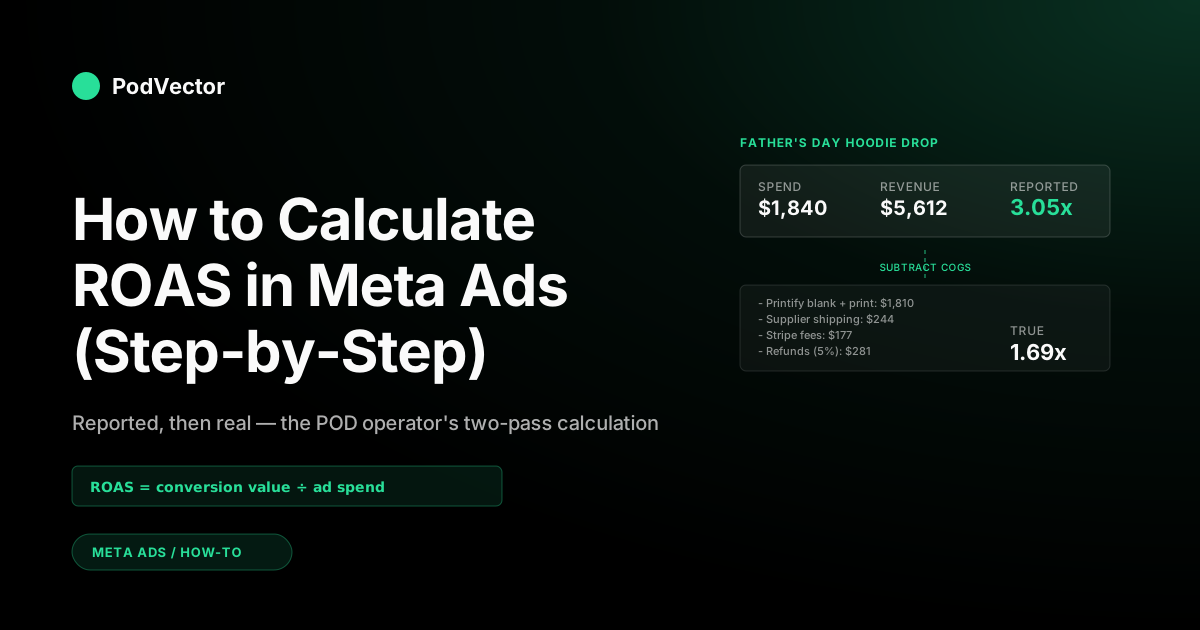
Reported ROAS = $5,612 ÷ $1,840 = 3.05x
That's the number that lands in the Ads Manager column. By the public-internet definition of "good ROAS" (3:1 or better), the campaign looks healthy. The agency would call this a win.
Then the supplier invoice arrives, the Stripe statement arrives, the refund queue clears, and the picture changes. The next section walks through what 3.05x reported actually translates to for a print-on-demand operator.
Why the reported number isn't your true ROAS
The Meta column treats every dollar of order value as the same dollar. Your store doesn't, because not every dollar of revenue is yours to keep.
Meta sees revenue, not contribution margin
Meta's pixel fires the order total. It doesn't see what you paid Printify for the blank, the markup the supplier built into shipping, the Stripe fee, or the refund that hits your account three weeks later.
For a typical apparel POD store, the gap between order revenue and contribution margin runs 60–75%. That means a 3.0x reported ROAS is roughly a 0.9x–1.2x true ROAS — close to break-even or slightly underwater.
Meta assumes a stable margin per order
The 3:1 benchmark you'll see in every generic ROAS guide assumes one cost line and one product. POD inventory mixes hoodies (12–18% margin), tees (25–35% margin), mugs (18–28% margin), and posters (40–60% margin) in the same Ads Manager row.
A campaign averaging 3.0x reported that sells the high-margin posters is profitable. The same 3.0x selling mostly low-margin hoodies bleeds cash. Meta's column can't tell you which mix you're actually running.
Pixel-CAPI deduplication errors inflate the number
If both your browser pixel and CAPI fire for the same purchase without a matching event_id, Meta double-counts the conversion value. The reported ROAS rises until you reconcile against your store backend and discover Meta is taking credit for $5,612 of orders that were really $4,800.
Calculating true after-COGS ROAS for POD
The fix is mechanical. Take the reported ROAS, strip out everything Meta doesn't see, and end with the number that actually reflects what landed in your bank account.
The full POD cost stack
For a typical Printify or Printful order on Shopify, the cost lines are:
- Supplier blank cost — what Printify or Printful charges for the unprinted product.
- Print fulfillment fee — bundled into the supplier total but listed separately on the invoice.
- Supplier shipping — the supplier's quoted ship cost, often higher than what the customer paid you.
- Customer-charged shipping (revenue offset) — what the buyer paid you for shipping.
- Payment processing — Shopify Payments or Stripe at ~2.9% + $0.30 per order.
- Returns and refunds — POD return rate runs 3%–8% depending on category and creative honesty.
- Ad-platform tax — sales tax on Meta spend in jurisdictions that apply it.
Contribution margin per order is order revenue minus all of those minus ad spend allocated to that order.
Worked example, continued
Same Father's Day campaign. $1,840 spent, $5,612 reported revenue, 47 purchases, 3.05x reported ROAS.
Now break the $5,612 down:
- Average order value: $119.40
- Supplier blank + print: $38.50 per hoodie × 47 = $1,809.50
- Supplier shipping (after customer offset): $5.20 per order × 47 = $244.40
- Stripe fees: 2.9% × $5,612 + $0.30 × 47 = $176.85
- Estimated returns (5%): $5,612 × 0.05 = $280.60
- Total cost of goods + fees: $2,511.35
Net revenue after COGS = $5,612 − $2,511.35 = $3,100.65.
True after-COGS ROAS = $3,100.65 ÷ $1,840 = 1.69x
Same campaign. Reported 3.05x, true 1.69x. Subtract design fees, app subscriptions, and your time, and the contribution to the business is closer to 1.4x — meaning the store keeps about 40 cents of profit for every dollar spent on Meta after fulfillment.
That might still be a win depending on your stage and growth goals, but it's a very different conversation than the dashboard suggested.
Layering in your break-even floor
The true-ROAS number only matters relative to your break-even ROAS — the multiplier below which a campaign loses money.
The formula:
Break-even ROAS = 1 ÷ Post-fulfillment gross margin %
Post-fulfillment margin is retail price minus supplier cost minus payment fees minus expected refund cost, divided by retail price. For most POD apparel stores, that lands between 25% and 35%, putting break-even at 2.9x–4.0x reported ROAS.
Add a buffer for fixed costs Meta doesn't see — apps, design fees, your salary. A 0.4x–0.8x buffer is reasonable. So a 30%-margin store should treat anything under 3.7x–4.1x reported ROAS as a campaign that needs work, not one that's "average."
For benchmarks across funnel stages and product categories, see what is a good ROAS for Meta Ads and average ROAS for Meta Ads explained for POD sellers.
Common mistakes that wreck the calculation
Mismatched attribution windows
Comparing Ads Manager's 7-day-click ROAS to Shopify's last-click attribution will never reconcile. Pick one window for reporting and stick with it across all your tools.
Pixel firing on the wrong page
Purchase events should fire only on the order-confirmation page. If the snippet leaked into product pages or thank-you templates from a duplicate Shopify theme, Meta sees inflated conversion volume and ROAS reads abnormally high. Check with Meta Pixel Helper. One Purchase fire per real order, no extras.
Conversions API duplicates
Running both pixel and CAPI without proper event deduplication double-counts purchases. Each event needs a matching event_id across both layers so Meta can collapse the duplicates. This is the single most common reason reported ROAS overstates true performance.
Including Meta's platform tax in revenue, not spend
Meta's ad-platform tax (where applicable) doesn't appear in the spend column but does come out of your card. Skipping it inflates ROAS by 2–7% depending on jurisdiction. Pull the tax line from your Meta billing summary and add it to spend before dividing.
Currency and timezone drift
Meta reports in your ad account currency at the timezone you set. If your store runs in PST and your ad account is set to UTC, end-of-day ROAS rows split orders across two days. Force them to align before reconciling.
Optimizing on revenue, not margin
Most Shopify stores fire order.total as the conversion value passed to Meta. That tells the algorithm to scale toward the highest-revenue orders, not the highest-margin orders. On a multi-SKU POD catalog where margins range 12% to 60%, that's the wrong signal. Switch the value parameter to revenue minus supplier cost via CAPI, and Maximize ROAS, Advantage+ Shopping, and value-based lookalikes all start optimizing toward profit-weighted purchases.
Tracking the calculation without a spreadsheet
The math above isn't hard. Doing it weekly across 8 campaigns, 30 ad sets, and a multi-SKU catalog — that's the part that breaks operators. Most POD teams either give up and run on reported ROAS (and slowly bleed cash on low-margin SKU mixes) or build a fragile Google Sheet that breaks the next time Printify changes pricing.
The structural fix is to land your Meta spend, Shopify orders, and Printify or Printful supplier costs into a single source of truth, then ask the question once instead of recalculating every week.
Victor — the AI employee PodVector AI built for POD operators — does this. It connects to your Meta Ads, Shopify, and Printify or Printful accounts, lands the data into a unified data store, and answers questions like:
- "Which Meta campaigns are unprofitable after Printify cost and Shopify fees this month?"
- "What's my true after-COGS ROAS by SKU for the Father's Day drop?"
- "Where is my reported ROAS higher than 3x but my true ROAS under 1.5x?"
Victor answers in plain language with numbers backed by your live data — and acts on those answers with your approval. The employee roadmap takes that further: Victor moves from answering to acting — pausing campaigns where true ROAS falls below break-even, and reallocating budget to the SKUs and ad sets clearing your real margin floor.
For the complete cluster overview, start at the Meta Ads ROAS & attribution hub or the Meta Ads topic hub. For the full diagnostic walkthrough that builds on this calculation, see how to increase ROAS on Meta Ads.
FAQs
What's the formula for ROAS in Meta Ads?
ROAS = total conversion value attributed to ads ÷ total ad spend, over the same window. Meta calculates this automatically and shows it in the "Purchase ROAS" column. Multiply by 100 if you want it as a percentage, but Meta displays it as a multiplier (e.g., "3.0x") by default.
How do I add the ROAS column in Ads Manager?
Click "Columns" in the toolbar above the campaigns table, then "Customize Columns," search "ROAS," and check "Website Purchase ROAS" (the cleanest column for storefront purchases). Click "Apply" and the column persists across sessions.
What's a good ROAS for Meta Ads on a POD store?
Healthy is 2.6x–3.5x reported, which corresponds to roughly 1.6x–2.2x after Printify or Printful cost, shipping, and Stripe fees. The exact target depends on your contribution margin — divide 1 by your post-fulfillment margin percent to get your break-even.
Why doesn't my Meta ROAS match my Shopify revenue?
Three usual causes: attribution window differences (Meta's 7-day-click vs Shopify's last-click), pixel and CAPI deduplication issues, or timezone drift between the ad account and the store. Reconcile by exporting both reports to the same window and matching order IDs.
Should I use Purchase ROAS or Website Purchase ROAS?
Website Purchase ROAS for almost every POD store. It only counts pixel and CAPI events from your storefront, which matches what Shopify or WooCommerce shows. Purchase ROAS blends in Meta on-platform surfaces (Shop, Marketplace, Messenger) that most POD operators don't sell on.
How is true after-COGS ROAS different from reported ROAS?
Reported ROAS uses gross order revenue. True after-COGS ROAS subtracts everything Meta doesn't see — supplier blank cost, print fulfillment, supplier shipping, payment processing, and refunds — before dividing by ad spend. For most POD stores, true ROAS lands at 50%–60% of the reported figure.
Can Meta calculate true ROAS for me directly?
Not natively. Meta only knows what your pixel or CAPI sends it. The workaround is to send contribution value instead of order total as the conversion value parameter — calculate revenue minus supplier cost server-side and pass that figure through CAPI. Then reported ROAS approximates true ROAS for that campaign.
Reported ROAS lies. Calculate the real one.
The Ads Manager column is one calculation. Your true ROAS — after Printify cost, payment-processing fees, and refunds — is the calculation that pays your rent.
Victor pulls Meta spend, Shopify orders, supplier costs, and payment fees from your live data, and answers "which campaigns are actually profitable this month?" in seconds.
Try Victor free