
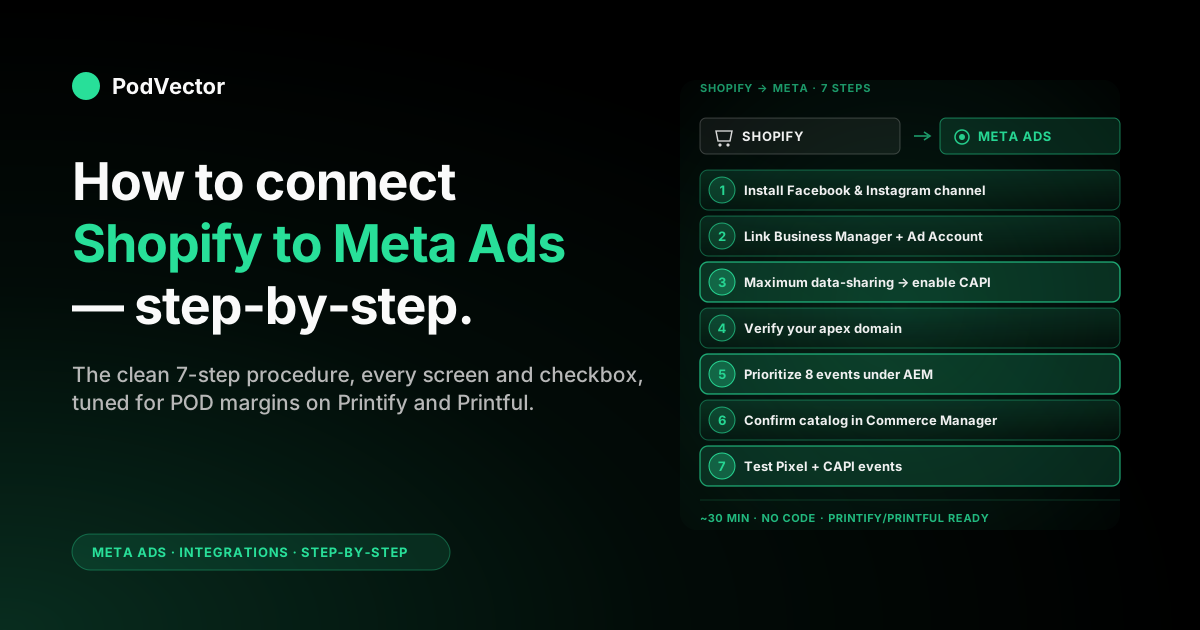
Quick Answer: Connect Shopify to Meta Ads in seven steps: install the Facebook & Instagram by Meta sales channel, link your Meta Business Manager and Ad Account, set data-sharing to Maximum to enable the Conversions API (CAPI — Meta's server-side event pipeline), verify your domain, prioritize events under Aggregated Event Measurement, confirm the product catalog syncs inventory in real time, then test the Pixel.
The setup itself takes about 30 minutes, plus an hour or two of waiting for DNS propagation and the first catalog sync. The "connected" badge appears after step one, but it's steps three through five that decide whether your ads optimize toward real profit on Printify or Printful margins — and step six that stops Meta from serving ads for variants that have already sold out.
This is the seller-direct walkthrough — every screen, every checkbox that matters, and the post-launch items to wire up before you turn on spend.
Before you start: what you need
Five things in hand before you open a single tab. Missing any of them sends you out mid-flow to fix permissions, which is where most setups die.
- Shopify admin access on a paid plan (Basic and up).
- Meta Business Manager with admin role — not just an Ads Manager seat.
- A Facebook Page for the brand. Personal profiles will not connect to a Shopify catalog.
- Domain access with permission to add a meta tag, DNS TXT record, or upload an HTML file. Without one of those, Meta cannot verify ownership.
- An ad account inside Business Manager. If yours is still attached to a personal profile, claim it into Business Manager first or create a new one.
If you are running a custom domain on Shopify (almost everyone is past their first month), the verification step targets the apex domain — not store-name.myshopify.com. Get the DNS login from whoever owns the registrar account before you start.
Step 1: Install Facebook & Instagram by Meta in Shopify
From your Shopify admin, click Settings → Apps and sales channels → Shopify App Store. Search for Facebook & Instagram by Meta and click Add sales channel.
This is Meta's official channel — not "Facebook Channel," which was the older app, and not a third-party connector. The official one is the only path that turns on the server-side event pipeline (CAPI) without code.
Once installed, the channel appears in your Shopify left nav. Click into it and you'll land on the connection wizard.
Step 2: Link your Meta Business Manager and Ad Account
The wizard prompts you for four things in this order: your Facebook account, your Business Manager, a Facebook Page, and an Ad Account. Pick each from the dropdowns rather than creating new ones inline — created-inline assets don't always inherit the permissions you need later.
If you don't see your Business Manager listed, log into business.facebook.com in another tab and confirm your role is Admin. Anything below admin will silently fail at the catalog handoff.
Pick the ad account that will actually run the spend. The Pixel that gets created — or the existing one you select — will be locked to this ad account, and changing it later means re-verifying everything downstream.
Step 3: Choose Maximum data-sharing
This is the screen most sellers rush past. Shopify offers three data-sharing levels: Standard, Enhanced, and Maximum. Pick Maximum.
Maximum turns on the Conversions API, Meta's server-side event pipeline. It sends events from Shopify's servers to Meta's servers, bypassing the browser. Without it, you lose a meaningful share of purchase events to ad blockers, iOS privacy settings, and tracking-prevention defaults — every event Meta doesn't see is an event the algorithm cannot optimize on.
For POD sellers on Printify or Printful margins, that loss is the difference between a campaign Meta thinks is breakeven and one it can actually scale. Pick Maximum.
Step 4: Verify your domain in Meta Business Manager
Open business.facebook.com → Brand Safety → Domains → Add. Enter your apex domain (yourbrand.com, not www.yourbrand.com or shop.yourbrand.com).
Meta gives you three verification options: meta tag, HTML file upload, or DNS TXT record. DNS is the most stable — once it's in, it stays in even if you redesign the site. The downside is propagation can take an hour. Click Verify; if it fails, wait 30 minutes and try again before re-doing anything.
Domain verification matters because Meta's Aggregated Event Measurement (AEM) — the iOS 14.5+ workaround — only lets the verified domain owner prioritize events. If you don't verify, you cannot configure step five, which means your Purchase event may not even fire reliably.
Step 5: Set up Aggregated Event Measurement
Still in Business Manager, go to Events Manager → your Pixel → Aggregated Event Measurement → Configure web events. You'll see your verified domain. Click Manage events.
Meta caps you at eight events per domain, ranked by priority. The top-priority event is the only one iOS opted-out users contribute to. For an ecommerce store the canonical order is:
- Purchase (with value optimization enabled)
- InitiateCheckout
- AddToCart
- ViewContent
- Lead (if you have a popup or quiz)
- CompleteRegistration
- Search
- PageView
Drag Purchase to the top. Toggle value optimization on for it — this lets Meta bid based on order value, not just conversion count, which is critical when you're running multiple SKUs at different price points.
Step 6: Confirm your product catalog and inventory sync
Back in Shopify, the Facebook channel automatically pushes your products to a Meta catalog after the connection completes. Open business.facebook.com → Commerce Manager and find the catalog. The first sync can take anywhere from 15 minutes to a few hours, depending on SKU count.
Spot-check three things: product titles match what's on your Shopify product pages; variant images load correctly; and the price in the catalog matches the price on your store (no missing decimals, no wrong currency).
If anything looks off, fix it in Shopify — never edit the catalog directly. Direct edits get overwritten on the next sync, and the next sync runs every time you publish a product change.
Inventory availability matters here too. When Shopify marks a variant as out of stock, the native channel integration updates the catalog's availability field so Meta stops serving that variant in Dynamic Product Ads. Confirm the availability column in Commerce Manager shows in stock for live variants and out of stock for anything you've sold through — this is the native guardrail that keeps Meta from sending paid clicks to dead-end product pages.
Step 7: Test your Pixel and CAPI events
Install the Meta Pixel Helper Chrome extension. Open your store in an incognito window, browse a product, add to cart, and start checkout. Don't actually purchase yet — fire a test event from Events Manager → Test events instead, by entering your store URL there.
What you're checking for in Test events:
- Each event appears with a browser source and a server source. Two sources per event = the Pixel and CAPI are both firing. Deduplication happens on Meta's side.
- Purchase events carry a value, currency, and content_ids array.
- No "match quality: poor" warnings — if you see them, customer-info parameters (email, phone) are not being hashed and passed through.
If only the browser source fires, your Maximum data-sharing setting in step three didn't stick. Re-open the Facebook channel in Shopify and confirm.
How to stop ads from running on sold-out products
The native catalog integration handles availability at the product-feed level — once Shopify marks a SKU out of stock, the catalog flags it and Meta stops including it in Dynamic Product Ads. But that guardrail only covers catalog-driven ads. Manually built campaigns targeting a specific product page keep running regardless of inventory status.
For tighter control, there are three approaches currently used by Shopify merchants:
- Dedicated inventory-guard apps. Apps like AdStockGuard and Guardified watch inventory in real time and pause matching Meta ad sets the moment a product or variant hits zero (or a safety buffer you set), then reactivate them automatically when stock returns. They work at the campaign, ad set, or individual ad level — not just the catalog feed.
- Shopify Flow + webhook. Shopify Flow (available on Advanced and Shopify Plus plans) can trigger a webhook to a middleware tool like Make.com or Zapier when inventory hits zero. The webhook then calls the Meta Ads API to pause the relevant ad set. This requires naming your ad sets by product handle so the automation knows which one to pause.
- Feed-rule exclusions. Inside Commerce Manager, you can add a filter rule that excludes any product where
availability = out of stockfrom your catalog-backed ad sets. This is the lightest-weight option but only protects Dynamic Product Ads — it won't touch manually created campaigns.
For POD sellers on Printify or Printful, inventory is managed by your supplier and reflected in Shopify with a slight lag. Set a safety-buffer threshold (not just zero) in any inventory-guard tool you use — a buffer of 2–5 units catches the gap between when Printify marks a variant unavailable and when Shopify updates its count.
POD-specific watchouts (Printify, Printful)
The standard Shopify–Meta integration assumes one model: the merchant owns inventory and ships it. POD breaks two pieces of that model. If you skip these, your Meta data will technically work but it will mislead the algorithm.
Purchase event timing. The Purchase event fires when the customer completes Shopify checkout — not when Printify or Printful actually fulfills. That's correct (you want to optimize on conversion intent, not fulfillment). But it means cancellations and supplier failures aren't subtracted from your Meta-side ROAS. Track them separately.
Purchase value vs. profit. Meta optimizes on the value you send — by default, Shopify sends the order revenue. For a print-on-demand product, the base cost and shipping reduce the actual profit substantially below what Meta sees. Meta will happily scale spend toward the revenue number, not the margin number.
You have two options: send a custom event with margin-adjusted value (requires dev work), or accept the optimization gap and reconcile profit downstream in your data warehouse. Most POD sellers do the second. See the Advantage+ Shopping Campaign catalogue guide for how catalog-level signals feed into Meta's automated bidding and why margin matters there.
Catalog feed quality. POD apps sometimes inject placeholder images or generic titles on products you customized late. Re-check the catalog in Commerce Manager every time you add a new product line, not just once at setup. A bad title in the catalog becomes the headline in your Dynamic Product Ad.
Ad fatigue compounds faster in POD. Because many POD sellers run the same product imagery across similar audiences, creative fatigue sets in earlier than in branded inventory businesses. Once your Shopify–Meta pipeline is live and data is flowing, watch for rising frequency and falling CTR — those are the early signals. The ad fatigue in Meta Ads guide covers the detection framework, and ad fatigue detection and solutions walks through the fixes.
What to track once it's live
The connection gets you a clean event pipeline. It doesn't get you the answer to "is this campaign actually profitable?" That answer needs four data sources joined together: Meta Ads (spend, attributed conversions), Shopify (orders, revenue, customer LTV), your POD supplier (item cost, shipping cost, fulfillment outcome), and any other channels (Google, organic) that share credit.
Manually, that's significant spreadsheet work each month. The shortcut is a unified data layer that joins those sources in one place, so you can ask questions like "which Meta campaign drove the most second-order revenue from new customers last month?" and get a real number, not an estimate.
That's where PodVector's AI employee, Victor, fits. Victor reads your live Shopify, Meta Ads, Google Ads, Printify, and Printful data in one warehouse. When you ask "which Meta campaign had the highest profit margin last month after Printify costs?" Victor reads across all four sources and surfaces the answer in plain English. On the Shopify side, he can also execute approved actions — repricing underperforming SKUs, adjusting your free-shipping threshold, or pausing a losing Meta campaign — with your explicit approval before anything changes.
For the attribution side specifically — UTMs, view-through windows, channel overlap — see the Advantage+ Shopping Campaign on Facebook guide. And if your next move after connection is scaling what's working, the A/B price testing guide covers how to test price points through Meta without blowing your margin. For recognizing when a winning creative is starting to wear out, the ad creative fatigue guide and ad fatigue in ecommerce guide go deeper than this article does.
The full ad fatigue statistics page is also worth bookmarking — it tracks the benchmark numbers for frequency and CTR decay that tell you when to rotate creative before performance craters.
FAQs
How long does it take to connect Shopify to Meta Ads?
About 30 minutes if you have admin access to both platforms and DNS access for domain verification. Add an hour or two of waiting time for DNS propagation and the first catalog sync.
Do I need a developer to connect Shopify to Meta Ads?
No. The Facebook & Instagram by Meta sales channel handles the entire connection — including the Conversions API — without code. You only need a developer if you want to send custom events with margin-adjusted purchase values.
What happens if I skip domain verification?
You can still run ads, but you cannot configure event priorities under Aggregated Event Measurement. That means iOS opted-out users won't reliably contribute to your Purchase event, and Meta's optimization will degrade — especially for retargeting and value-based audiences.
Can I connect more than one Shopify store to the same Meta Ad Account?
Yes. Each Shopify store gets its own Pixel and its own catalog inside the same Business Manager and ad account. Verify each store's domain separately. Watch out for AEM event-priority conflicts if multiple stores share a parent domain — Meta treats them as one for the eight-event cap.
Why do I see two Pixels firing on my store?
Usually because the older Facebook Channel app is still installed alongside the new Facebook & Instagram by Meta channel, or because a theme template hard-coded a Pixel ID before you ran the official integration. Uninstall the old channel and remove the hard-coded snippet from your theme — duplicate firing inflates your event counts and breaks attribution.
Will this connection track ads that ran before I set it up?
No. The Pixel and CAPI only see traffic after they're installed. Historical attribution stays in Meta Ads Manager but won't have the Shopify-side context (conversions, revenue, product) backfilled.
What's the difference between the Facebook Pixel and the Conversions API?
The Pixel runs in the customer's browser and sends events client-side. CAPI runs on Shopify's servers and sends the same events server-side. Together they catch what each one misses — ad blockers and iOS privacy settings break the Pixel; missing browser context breaks CAPI alone. Both running with deduplication is the modern standard.
How do I stop Meta from running ads on sold-out products?
The native catalog integration handles this automatically for Dynamic Product Ads — when Shopify marks a variant out of stock, the catalog's availability field updates and Meta stops serving that variant. For manually built campaigns, the catalog flag has no effect; you need an inventory-guard app (AdStockGuard, Guardified) or a Shopify Flow + webhook setup to pause those ad sets automatically. For POD sellers, set a safety buffer above zero to catch the lag between supplier availability and Shopify inventory updates.
Does the Shopify–Meta integration work with Printify and Printful?
Yes, with caveats. The Pixel fires on Shopify checkout, so event tracking works regardless of your fulfillment provider. The catalog syncs whatever product data Shopify holds — including any titles or images your POD app injected. The gap is on the cost side: Shopify sends revenue to Meta as the purchase value, not margin. Printify and Printful production costs only enter your data picture through completed order records, so you need a downstream layer (like Victor's live warehouse) to reconcile the real profit number against what Meta thinks it optimized toward.
Once it's connected, what's the campaign actually doing?
You wired up the events. Meta now sees orders. Shopify sees orders. Printify or Printful sees the supplier cost. None of them know the answer to "is this campaign profitable after item cost, shipping, and the discount I ran last week?" — that answer lives across four systems.
PodVector's AI employee, Victor, joins your Meta Ads, Shopify, and POD supplier data into one live warehouse and answers the profit question in plain English. Ask "which Meta campaign had the highest profit margin last month after Printify costs?" and get the number, not an estimate. Every action Victor proposes — repricing a SKU, pausing a losing campaign, adjusting your shipping threshold — waits for your approval before anything changes.
Try Victor free