
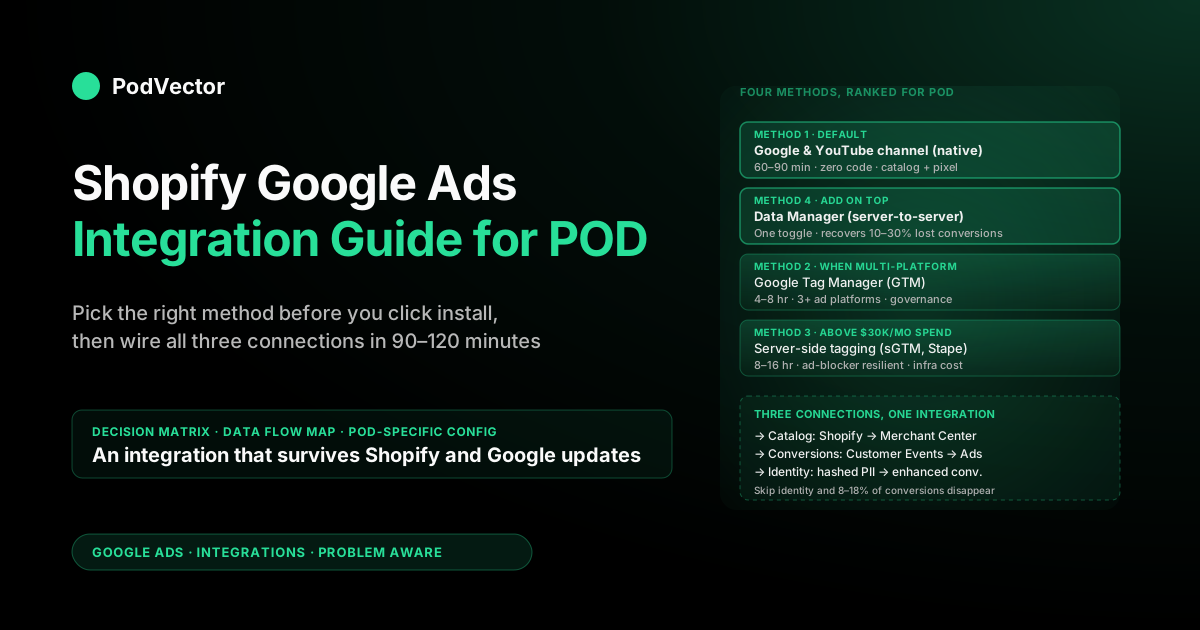
Quick Answer: A Shopify-to-Google-Ads integration is really four decisions stacked on top of each other: which connection method (native Google & YouTube channel, Google Tag Manager, server-side tagging, or the new Data Manager server-to-server pipe), which conversion actions to track (Purchase plus three secondaries), what value to send (gross revenue or margin-adjusted), and which feed source to point Merchant Center at. For 90% of POD stores under $200K monthly revenue, the answer is the native channel + Data Manager + enhanced conversions + a margin-adjusted Purchase value. This guide maps the integration end-to-end so you know what's connected to what before you start clicking.
What actually gets integrated
"Integrate Shopify with Google Ads" is a fuzzy phrase that hides three separate connections. A clean integration sets up all three, in this order:
- Catalog connection. Shopify products → Google Merchant Center feed → Google Ads campaigns. This is what makes Shopping ads, Performance Max product asset groups, and free Google listings possible. Without it, you're running Search ads only and missing 60-80% of the volume that ecommerce Pmax campaigns produce.
- Conversion connection. Shopify Customer Events (the in-store pixel layer) → Google Ads conversion actions. This is what lets Smart Bidding optimize against actual purchases instead of guessing. Without it, your campaigns optimize against clicks, which on POD margins is roughly the same as setting money on fire.
- Identity connection. Shopify customer data (hashed email, phone, address) → Google Ads enhanced conversions and Customer Match. This is the 2026 privacy story. Without it, iOS tracking restrictions and ad blockers eat 8-18% of your reported conversions and Smart Bidding makes worse decisions with less data.
The integration method you pick (next section) determines how you wire all three. The setup steps in any guide you read are the mechanical execution; the architectural choice underneath them is what decides whether the integration is durable, accurate, and survives Shopify or Google updates without you having to redo it.
If you've already read our complete Google Ads + Shopify integration guide for POD, this article goes a layer deeper on the decision underneath the install. If you haven't, the high-level strategic context lives there.
The four integration methods, ranked for POD
There are four distinct ways to wire Shopify into Google Ads in 2026. They are not mutually exclusive — most mature stores end up running two simultaneously — but you start with one and graduate.
Method 1: Google & YouTube sales channel (native)
Shopify's first-party integration with Google. Installs as a sales channel in your Shopify admin, handles OAuth into Merchant Center and Google Ads, auto-claims your domain, syncs your product feed, and installs the conversion pixel via Customer Events. Zero code. About 60-90 minutes end-to-end. This is the right default for any POD store, period.
What it does well: catalog sync (incremental, automatic, variant-aware), conversion pixel install (Purchase, Begin Checkout, Add to Cart, Page View — all four created automatically), enhanced conversions toggle (one click), domain verification (one click), Merchant Center account creation if you don't have one (one click).
What it doesn't do: custom event tracking beyond the four defaults, server-side conversion sending, complex multi-region feed routing, integration with non-Google ad networks via the same pixel.
Method 2: Google Tag Manager (GTM)
A container tag installed in your Shopify theme, with individual tags configured inside GTM's UI. Gives you full control over what fires, when, and with what payload. Required if you're running Meta, TikTok, Pinterest, and Google all simultaneously and want one source of truth for tag governance.
What it does well: multi-platform tag orchestration, custom triggers (e.g., a custom Conversion event that fires only on second-time buyers), debugging via GTM Preview mode, per-tag versioning and rollback.
What it doesn't do well: catalog sync (still need the native channel or a third-party feed app for Merchant Center), automatic enhanced conversions (you wire it manually), upgrades when Shopify Customer Events specs change (you wire those too).
For POD stores under $200K monthly revenue, GTM is usually overkill. The native channel handles 95% of what GTM does, automatically. Switch to GTM when you have a specific tracking need the channel can't reach — usually when you're running 3+ ad platforms and need governance.
Method 3: Server-side tagging (sGTM, Stape, etc.)
A server-side container hosted on a custom subdomain (e.g., sst.yourdomain.com) that proxies all your tracking traffic. The browser sends events to your server; your server sends them to Google, Meta, etc. Survives ad blockers and ITP/Safari intelligent tracking prevention because the requests look like first-party requests to your own domain.
What it does well: data quality (recovers 10-30% of conversions client-side tagging loses), control (you own the data layer), privacy (fewer third-party requests from the browser), latency (server-to-server is faster than client-to-third-party).
What it doesn't do: install itself in 60 minutes. Plan for 8-16 hours of setup plus ongoing infrastructure (typically $20-100/month hosting). The ROI is real once your monthly ad spend is high enough that recovering 15% of conversions pays for the engineer time. Below ~$30K monthly ad spend, it usually doesn't.
Method 4: Data Manager (Google's server-to-server)
The newest option and the one most operators haven't heard of yet. Google's Data Manager is a server-to-server pipe that pulls conversion data directly from Shopify into Google Ads without going through the browser at all.
Available since 2024 and now production-ready for Shopify stores. Configured inside the Google & YouTube channel as a toggle.
What it does well: recovers conversions lost to client-side blockers (similar gain to sGTM, no infrastructure to run), zero code, zero ongoing maintenance, complementary to the native channel rather than replacing it.
What it doesn't do: replace the native channel (you need both — channel for catalog and pixel, Data Manager for the resilience pipe), give you control over event payloads (Google decides what's sent), let you point at non-Google destinations (Meta and TikTok have their own equivalents).
For POD in 2026, the right pattern is the native channel + Data Manager turned on. You get most of what server-side tagging delivers, with none of the engineering overhead.
Decision matrix: which method matches your store
Use this to pick before you install anything. Fixing an integration mid-stream is harder than choosing right the first time.
| Your situation | Recommended methods | Setup time |
|---|---|---|
| Brand-new POD store, <$10K monthly revenue | Native channel only (skip Data Manager until you have orders) | 60-90 min |
| POD store, $10K-$200K monthly revenue, Google-only ads | Native channel + Data Manager + enhanced conversions | 90-120 min |
| POD store, $10K-$200K monthly revenue, multi-platform ads (Meta + Google + TikTok) | Native channel + Data Manager + GTM for non-Google tags | 4-6 hours |
| POD store, $200K+ monthly revenue, single platform | Native channel + Data Manager + sGTM for resilience | 1-2 days |
| POD store, $200K+ monthly revenue, multi-platform | Native channel + sGTM as the primary pipe + Data Manager parallel | 2-3 days |
| You already have GTM installed and don't want to change | Keep GTM, add Data Manager separately, ensure no double-firing | 2-3 hours |
Two things to notice. First, "native channel" is in every row except none — there's no realistic POD scenario in 2026 where you skip it. Second, "Data Manager" is in almost every row. It's free, takes 30 seconds, and recovers data that would otherwise quietly leak. Turn it on as soon as you have your first Shopify order.
The integration data flow, end-to-end
Here's what's connected to what once a clean integration is in place. Reading this once will save you an hour of confused debugging later when something breaks.
| Step | From | To | What flows | Method |
|---|---|---|---|---|
| 1 | Shopify products | Google & YouTube channel | Variant data, images, prices, descriptions, inventory | Sales channel sync (every 30 min) |
| 2 | Google & YouTube channel | Google Merchant Center feed | Same product data formatted as a Merchant Center feed | API push, real-time |
| 3 | Merchant Center feed | Google Ads (Performance Max, Shopping, free listings) | Product catalog with availability, GTIN, brand, custom labels | Internal Google sync |
| 4 | Shopify Customer Events | Google Ads conversion actions (browser path) | Purchase, Begin Checkout, Add to Cart, Page View events | Pixel fires in browser |
| 5 | Shopify Customer Events | Google Ads conversion actions (server path) | Same events, deduplicated against browser events | Data Manager server-to-server |
| 6 | Shopify checkout | Google Ads enhanced conversions | Hashed customer email, phone, address | First-party data via Customer Events |
| 7 | Google Ads conversion actions | Smart Bidding | Conversion count, conversion value, attribution path | Internal Google ML |
| 8 | Google Ads | Shopify (reverse) | Click IDs (gclid) appended to URLs for attribution back to orders | URL parameter |
The two paths most operators don't know about are steps 5 and 8. Step 5 is Data Manager — the server-to-server backup channel that catches conversions step 4's pixel misses.
Step 8 is the reverse flow that lets you reconcile Google Ads spend against Shopify orders by gclid. If you've ever wondered how to know which Shopify order came from which Google Ads click, gclid is the answer; the integration sets this up automatically when the native channel is installed.
Recommended install: native channel + Data Manager
For the 90% of POD stores under $200K monthly revenue, this is the integration. Total setup time is 90-120 minutes if your prerequisites are clean.
For the mechanical step-by-step screens, our Shopify Google Ads setup guide for POD sellers walks through the OAuth and channel install in 60-90 minute detail. The compressed version of the integration sequence is:
- Shopify admin → Sales channels → Add channel → Google & YouTube → Install. Zero configuration here, just the install.
- Inside the channel, click Get started → Connect under Google Merchant Center. Sign in with the Google account that will own the entire integration. Auto-claims your store domain.
- Inside the channel, click Get started → Connect under Google Ads. Same Google account, same OAuth flow. The channel auto-creates four conversion actions.
- Inside the channel settings, find Data Manager and toggle it on. Single switch. Authorizes Google to pull conversion data from your store via the server-to-server pipe.
- In Google Ads → Tools → Conversions → Purchase action → Edit → Enhanced conversions: turn on, method "Google tag (automatic)". Hashed customer identity flows automatically.
- Apply a margin-adjusted value rule on the Purchase conversion action. See the next section for the POD-specific configuration that makes Smart Bidding work on POD margins instead of against them.
That's the full integration. Six steps, one Google account, all four connection types (catalog, conversions, identity, Data Manager) live and talking to each other.
For the conversion-tracking specific deep dive, our Shopify Google Ads conversion tracking guide for POD sellers covers the four-action setup and how to verify each one is firing. For the Merchant Center side, our Connect Google Merchant Center to Shopify guide for POD sellers covers feed attributes that POD catalogs need (GTIN exemption, age_group, gender, color-specific imagery).
POD-specific configuration that the install screens skip
The native channel install gets you a working integration. It does not get you a profitable one. Three POD-specific configurations close the gap.
Margin-adjusted Purchase value
By default, the Purchase conversion action reports order revenue (gross sale) as conversion value. For POD, where Printify and Printful take 35-55% of the order total in supplier costs and shipping, gross revenue trains Smart Bidding to chase your worst-margin SKUs because they have the highest reported values.
Fix it by adding a value rule in Google Ads → Conversions → Value rules → Add rule. Three options ranked by accuracy:
- Flat margin multiplier (10-minute setup): one rule that multiplies the Purchase value by your blended margin (e.g., 0.42 for 42% blended). Right answer for stores with consistent margins across catalog.
- Margin tiers via custom labels (half-day setup): tag products with margin tier in Merchant Center custom_label_0, then create three rules. Right answer for catalogs with wide margin variance (apparel + accessories + home goods).
- Per-line-item value via custom Customer Events (multi-day setup): replace the default pixel with a custom JavaScript handler that calculates contribution margin per line item. Right answer above $50K monthly ad spend.
GTIN exemption and POD feed attributes
POD products almost never have GTINs because the manufacturer (Printify, Printful, Gelato) doesn't issue them. Inside Merchant Center: Products → Feed → Settings → "I do not have GTINs" and check the box for the entire feed. Without this, every POD product gets flagged with "Missing GTIN" and many get disapproved outright.
Apparel additionally needs age_group and gender attributes. Set via Shopify metafields or the channel's bulk attribute editor. Missing these is the second most common disapproval after GTINs.
Realistic shipping promises
Print on demand means production time + transit time, not just transit. Misreporting this in Merchant Center (e.g., promising 3-day shipping when production alone takes 5 days) leads to "long shipping time" penalties on Shopping ad rank when actual delivery dates miss the promise. Configure realistic min/max shipping days at the Merchant Center shipping service level — usually 7-12 business days for US Printify or Printful, longer for international.
For the Shopping ads angle specifically — variant feed handling, asset group structure, campaign architecture — our Google Shopping ads + Shopify strategy for print-on-demand covers the campaign-side decisions once the integration is live.
How to verify the integration is working before you spend
Five checks. Run all of them before launching your first campaign. Catching an integration error before $1,000 of ad spend is the difference between a 30-minute fix and a multi-week debugging exercise.
- Catalog check. In Merchant Center, go to Products → Diagnostics. Active products should equal (or closely match) your active Shopify products. Disapproval count should be in the single digits, not the hundreds. If you see hundreds, you skipped a feed attribute (most often GTIN exemption or age_group on apparel).
- Conversion pixel check. Install the Google Tag Assistant Chrome extension. Run a test checkout on your store using a $1 product or a 100% discount code. Tag Assistant should show a Purchase event firing with a non-zero value. If it shows nothing, the pixel isn't reaching Google.
- Conversion action recording check. 24-48 hours after a real order, open Google Ads → Tools → Conversions → Purchase. Status should read "Recording conversions" with at least one conversion logged. If it shows "No recent conversions" after 48 hours and you've had real orders, the pixel is firing but Google isn't receiving — usually a legacy Google Channel app conflicting with the new one.
- Enhanced conversions diagnostics. Inside the Purchase conversion action, open the Diagnostics tab. After 7 days, the user-provided data field should report 70%+ match rate. Lower than that means the channel is sending unhashed data or the wrong fields; toggle enhanced conversions off and back on to reset.
- Reconciliation check. One week after launch, pull your Google Ads Purchase conversion count and value, compare to Shopify orders attributed to Google (use the gclid filter). Conversion counts should match within ±5%. Conversion values should match within ±15% (the difference is enhanced-conversion recovery from cross-device journeys, which is real and expected).
Most operators run check 1 and skip 2-5. The four they skip are where 90% of integration failures hide.
When to graduate to GTM or full server-side
The native channel + Data Manager combo is the right starting point. It is not the right ending point for everyone. Three signals tell you it's time to graduate.
- You're running three or more ad platforms. Once Meta, TikTok, Pinterest, and Google all need pixels firing, governance becomes a real problem. Native pixels per platform installed via separate apps or theme edits drift. GTM gives you one source of truth.
- Data Manager + enhanced conversions still leaves a 20%+ gap between Google Ads and Shopify reporting. This means client-side blockers are eating more than the server-to-server pipe can recover. Full sGTM (Stape, Google's hosted sGTM, or self-hosted) closes that gap further. Worth the engineering time when your spend is high enough that 5-10% of additional recovered conversions pays for it.
- You need custom events the channel doesn't expose. Examples: a "qualified lead" event for high-value products, a "second purchase" event for retention campaigns, a "subscription signup" event for memberships. The native channel emits the four standard ecommerce events; if you need anything else, GTM or sGTM is the only path.
If none of these three apply, don't graduate. Switching to GTM or sGTM when you don't need to is a common time-sink that adds maintenance overhead without measurable ROAS lift. The native channel + Data Manager is the right answer for longer than most operators expect.
Once the integration is in place and you're collecting data, the next question is what to do with it. Our complete Google Ads playbook for print-on-demand sellers covers campaign architecture, scaling, and the seasonal patterns that POD specifically experiences.
For the cross-channel picture (Google Ads spend vs. actual Printify or Printful supplier costs vs. true contribution margin), our complete guide to profit tracking for Shopify POD stores walks through how to do the join. Browse the rest of the integration cluster from our Google Ads integrations hub, or zoom out to the full Google Ads topic hub for strategy, ad-type, attribution, and agency content. For an external counterpoint focused on GTM and server-side tagging methods specifically, the Stape 2026 Google Ads conversion tracking for Shopify guide goes deeper on the GTM-heavy side of the integration tree.
FAQs
Do I need both the native Google & YouTube channel and Data Manager?
Yes. They do different jobs. The native channel handles catalog sync and the conversion pixel install; Data Manager is a separate server-to-server backup pipe for conversion events that the browser pixel misses. Run both. Data Manager without the native channel is missing the catalog half; native channel without Data Manager is missing the resilience half.
Can I use Google Tag Manager instead of the native channel?
Technically yes, but it's almost always the wrong choice for POD stores under $200K monthly revenue. GTM doesn't handle catalog sync — you'd still need either the native channel or a third-party feed app for Merchant Center.
So you end up with both GTM and the channel installed, which means two things to maintain and a higher chance of double-firing tags. Use the native channel and add GTM only if you have a specific tracking need it can't reach.
Do I need a developer to integrate Shopify with Google Ads?
No, not for the recommended native channel + Data Manager path. The full integration is six clicks across Shopify admin and Google Ads. You only need a developer if you're going to GTM or sGTM, or if you're configuring a custom Customer Events handler for per-line-item margin tracking.
What's the difference between Google Ads conversion tracking and Google Analytics conversion tracking?
Different systems with overlapping purposes. Google Ads conversion tracking feeds Smart Bidding directly — it's what your Pmax campaigns optimize against.
Google Analytics conversion tracking (GA4) feeds reporting and audience-building — it's what shows up in your acquisition reports and what you can build remarketing audiences from. POD operators should set up both. The native channel handles Google Ads side; GA4 needs its own setup, usually via the same Google & YouTube channel or a separate GA4 tag.
How do I know if my integration is sending margin-adjusted values vs. revenue?
In Google Ads, go to Tools → Conversions → Purchase → Edit. Scroll to the Value field.
If it shows "Use the same value for each conversion" with a fixed dollar amount, you're sending a single value (uncommon, usually wrong). If it shows "Use different values for each conversion based on transaction" with the default dollar amount, you're sending whatever your pixel reports, which by default is gross revenue. To confirm a value rule is applied, scroll further to "Value rules" — if you see one or more rules listed, those are being applied to the raw value.
Can the integration be undone or rolled back?
Yes. Uninstalling the Google & YouTube channel from Shopify removes the catalog sync and the Customer Events pixel.
It does not delete your Merchant Center or Google Ads accounts — those persist independently and can be relinked. Conversion actions in Google Ads stop receiving data the moment the pixel stops firing, but the historical conversion data remains. Rollback is safe; reinstall is one click.
What's the minimum monthly ad spend that justifies this integration?
The native channel + Data Manager combo is free and takes 90-120 minutes. The break-even at any positive monthly spend is hours, not weeks.
Don't wait for a spend threshold; install at any volume. The cost-justified threshold for graduating to sGTM is usually around $30-50K monthly ad spend, where 5-10% additional recovered conversions starts paying for the engineering and hosting overhead.
How do I track which products are profitable after Printify or Printful supplier costs?
The Google Ads UI doesn't know your supplier costs, so it can't show you profitability natively. Two options: (1) build a manual reconciliation report in Sheets that joins Google Ads spend, Shopify orders, and your COGS table weekly, or (2) use an AI analytics agent that runs the join against your live data and answers profitability questions in plain English. Either way, the integration above is the prerequisite — without margin-adjusted Purchase values flowing into Google Ads, both options reconcile against the wrong baseline.
Wire the integration, then ask your data the questions Google Ads can't
The integration above puts clean data into Google Ads. But Google Ads doesn't know your Printify costs, your shipping margin by SKU, or which Pmax asset groups deserve more budget after actual contribution margin. Victor is an AI analytics agent built for POD sellers — connect Shopify, Google Ads, and Printify or Printful, then ask questions like "which products lost money on Google Ads this week after supplier costs?" in plain English.
Try Victor free