
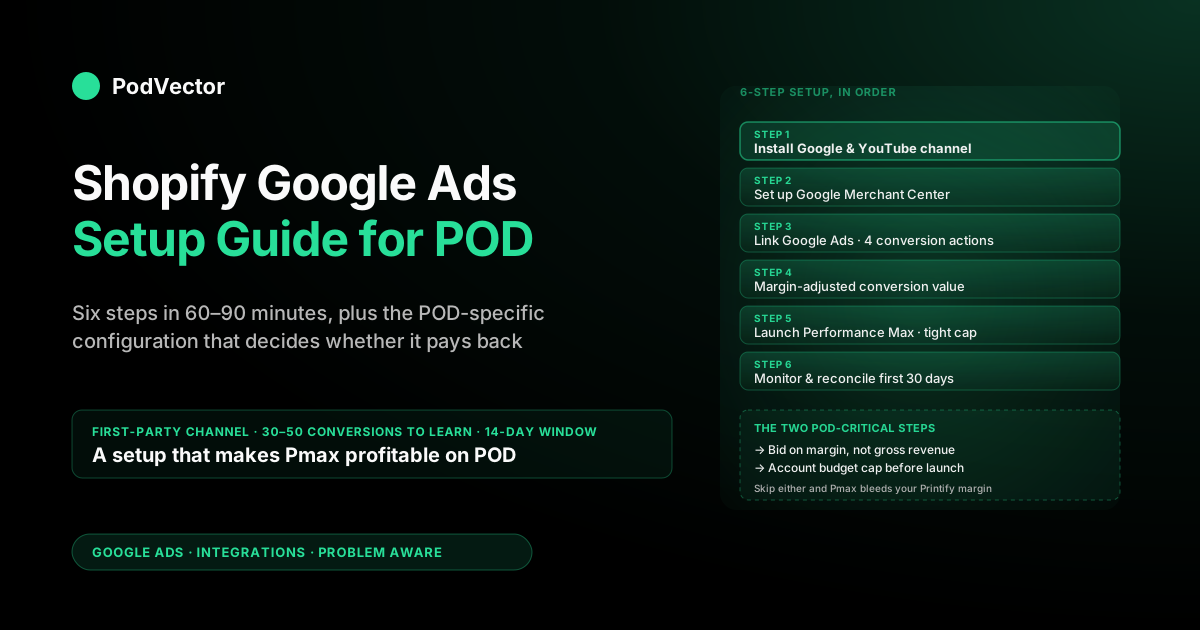
Quick Answer: A Shopify Google Ads setup that actually works for print on demand is six steps in this order: (1) audit prerequisites, (2) install the Google & YouTube channel, (3) link a verified Google Merchant Center, (4) link Google Ads and confirm the four default conversion actions, (5) turn on enhanced conversions and switch the Purchase value to a margin-adjusted number that excludes Printify or Printful supplier costs, (6) launch a single Performance Max campaign with a tight budget cap and a 14-day learning window. Total install time: 60–90 minutes. The two steps where every other setup guide cuts corners — margin-adjusted conversion value and an account-level budget cap — are the two that decide whether the integration makes you money or quietly bleeds it.
What this setup guide covers (and what it skips)
Most Shopify Google Ads setup guides walk you through clicking install on the Google & YouTube channel, hitting "connect" on a few OAuth screens, and pasting a budget into a Performance Max campaign. That gets you an integration that compiles. It doesn't get you one that's profitable on print-on-demand margins.
This guide covers the same six mechanical steps every other guide covers, then layers on the POD-specific configuration the others skip: margin-adjusted conversion values, supplier-cost reconciliation, feed-level handling for variant explosion, and an account budget cap that stops you from burning a month's profit while Google's algorithm is still learning. We assume you sell physical apparel, drinkware, home goods, or accessories through Printify, Printful, Gelato, Gooten, or a comparable POD provider. The Shopify mechanics are the same for any merchant; the value-configuration step is where POD differs.
What we skip: dropshipping-specific tax handling, Shopify Markets multi-country setup beyond a single mention, and Google Tag Manager-based custom installs. The first-party Google & YouTube channel is the right default for stores under roughly $200K monthly revenue, which covers almost every POD seller. If you've already maxed it out, our complete Google Ads + Shopify integration guide for POD covers when to graduate to GTM or server-side tagging.
Before you start: a 6-item prerequisite list
Each of these takes five minutes individually but blocks the install if missing. Audit them before opening the channel install screen so you don't have to back out of OAuth twice.
- Shopify store owner access (or a collaborator with full permissions). Staff accounts with limited app permissions can start the install but won't be able to configure Customer Events, which is where the conversion pixel actually fires.
- A paid Shopify plan with checkout enabled. Trial and development plans don't emit production Customer Events. The integration will look installed but record zero conversions.
- One Google account that owns both Google Ads and Google Merchant Center. Mixing identities is the most common reason a working integration suddenly stops two weeks later — a permission expires somewhere downstream and the diagnostic message points nowhere useful. Use the same Google login for both properties.
- A payment method on the Google Ads account, and the account is not suspended. Google requires billing before the OAuth handshake completes. Suspended accounts accept the link but never record conversions; resolve the suspension first.
- Per-variant supplier cost documented. The Printify or Printful base price, print fees, and shipping cost for at least your top 20 SKUs by volume. You'll feed these into the conversion-value step. Reconstructing them later is the single biggest reason POD sellers default to revenue-based bidding and never come back to fix it.
- An account-level budget cap you've already decided on. Tools → Budgets → Account-level cap. Set it to a number you would not be horrified to lose in a week. POD operators have burned $3,000–$5,000 in seven days on a campaign whose tracking misreported Add-to-Cart as Purchase. An account cap is the only thing that catches this before your card statement does.
Print-on-demand variant counts compound the audit job. A single t-shirt design sold in 5 colors and 5 sizes is 25 variants in Shopify, which becomes 25 line items in your Merchant Center feed.
Before you touch the channel, scroll your product list and confirm every variant has a unique SKU, an image (color-specific is best), a price, and a populated description. The channel will sync whatever you give it. Bad inputs become disapprovals downstream and you'll spend a Saturday cleaning them up by hand.
Step 1: Install the Google & YouTube channel
In Shopify admin, click Sales channels → Add channel → search "Google & YouTube" → Install. The app installs as a sales channel and appears in your left sidebar alongside Online Store and POS. Install time: under a minute. You're not configuring anything yet — this just registers the channel surface that the next steps will configure.
The install also creates a Google & YouTube entry inside Settings → Customer Events. You don't need to touch this, but bookmark the location: that's where the conversion pixel actually lives in your store. If conversions disappear three weeks from now, that's the first place to look — not Google Ads.
Two configuration knobs are worth flipping inside the channel before you go further. First, set your target country and primary language to where you actually advertise.
The default copies your Shopify primary market, which is usually right but worth confirming for international stores. Second, if your catalog uses any non-standard product types (POD apparel, mugs, drinkware, posters all have their own quirks), make sure each product has a Google product category set. The channel will auto-suggest one based on the Shopify product type; spot-check a sample of 5–10 products before moving on.
Step 2: Set up Google Merchant Center
From the channel sidebar, click Get started → Connect under Google Merchant Center. You'll redirect through Google's OAuth consent flow.
Sign in with the Google account that will own both Merchant Center and Google Ads, grant the requested permissions, and either create a new Merchant Center account or select an existing one. The channel auto-claims and verifies your store domain — a step that used to take 30 minutes with HTML file uploads now collapses to a single click.
Once linked, the channel begins syncing your Shopify catalog. First sync takes 2–24 hours depending on catalog size; a typical POD store with 50–500 active products is usually done within a couple of hours. While the sync runs, do the following inside Merchant Center:
- Set tax and shipping settings. Merchant Center → Tools → Tax. POD sellers in the US should configure either a simplified flat rate or pull live rates from Shopify; for international stores, configure each country's VAT or GST profile here. Shopping ads will not serve products with missing tax/shipping configuration.
- Disable GTIN requirement globally. POD products almost never have GTINs (the manufacturer doesn't issue them). Go to Products → Feed → Settings → "I do not have GTINs" and check the box for the entire feed. Without this, every POD product gets a "Missing GTIN" warning and many get disapproved outright.
- Confirm brand attribute is populated. Shopify stores brand at the product level. The channel maps it automatically if you've set it. If not, set your store name as the default brand in the channel's bulk attribute editor.
- Add age_group and gender for apparel. Shopping ads require these for any clothing category. Set them via Shopify metafields or the channel's bulk editor. Missing these is the second most common disapproval after GTINs.
If you'd prefer a focused walkthrough on this step alone, our connect Google Merchant Center to Shopify guide for POD sellers covers the feed-attribute side in more depth, including the metafield templates we use for variant-heavy catalogs.
Step 3: Link Google Ads
Back in the Shopify channel, click Get started → Connect under Google Ads. You'll go through a second OAuth flow — same Google account as Merchant Center.
The channel will either pick up an existing Google Ads account on the login or offer to create one for you. Use the existing one if you have any history; a fresh account starts with zero learning data, which extends the Performance Max ramp by 7–10 days.
After the OAuth handshake completes, the channel automatically creates four conversion actions in Google Ads:
- Purchase (primary; this is what Smart Bidding optimizes against)
- Begin Checkout (secondary)
- Add to Cart (secondary)
- Page View (secondary)
Confirm all four exist in Google Ads → Tools → Conversions. The Purchase action should be marked as the primary conversion goal — if not, edit it and check "Use as primary action for account." The other three should be secondary.
A common misconfiguration is having multiple actions all set to primary, which causes Smart Bidding to optimize against an aggregated value that overcounts every funnel step. One primary, three secondary, every time.
Two more checks before moving on. First, run the Google Tag Assistant Chrome extension on your store and complete a test checkout (use a $1 test product or a 100% discount code).
Tag Assistant should show a Purchase event firing with a non-zero value. Second, in Google Ads, confirm the Purchase conversion action shows "Recording conversions" status within 24 hours. If it shows "No recent conversions" after 48 hours and you've had real orders, the pixel isn't reaching Google Ads — see the common mistakes section below.
Step 4: Configure conversion tracking the POD way
This is the step where POD setups diverge from generic Shopify setups. Out of the box, the Purchase conversion action reports the order's gross sale price as the conversion value.
For a regular ecommerce store with 60–80% margins, that's roughly fine. For POD, where Printify and Printful take 35–55% of the order total in supplier costs and shipping, reporting gross revenue trains Smart Bidding to chase your worst-margin SKUs (oversized hoodies, all-over-print sublimation, premium substrates) because their order totals are highest.
Two configurations to apply, in order:
4a. Turn on enhanced conversions
In Google Ads, edit the Purchase conversion action → Enhanced conversions → Turn on → Method: Google tag (automatic). The Google & YouTube channel passes hashed customer email and phone through Customer Events automatically once you flip this on.
Recovery rate from enhanced conversions on POD stores is typically 8–18% — that many additional Purchases attributed back to ad clicks that would otherwise have been lost to ad-blockers, iOS tracking restrictions, or cross-device journeys. Step-by-step screens for this are covered in our enhanced conversions on Shopify setup guide for POD sellers.
4b. Switch to margin-adjusted conversion value
The default Purchase value is order revenue. To switch to margin-adjusted value, you have three options ranked from simplest to most accurate:
- Flat margin multiplier (simplest). If your blended margin across the catalog is reasonably consistent (within ±10 percentage points), apply a single multiplier to the Purchase value. In Google Ads, go to Conversions → Value rules → Add rule and set the rule to multiply Purchase value by your margin percentage (e.g., 0.42 for a 42% blended margin). Smart Bidding now optimizes for $/conversion of true contribution margin, not gross revenue. Takes 10 minutes; right answer for ~70% of POD stores.
- Per-product margin via custom labels (medium effort). Tag each product with a margin tier (label_0 = high margin, label_1 = medium, label_2 = low) in the Merchant Center feed via Shopify metafields. Create three value rules in Google Ads, one per label, each with its own multiplier. Better optimization signal because Smart Bidding can favor high-margin SKUs at the auction level. About a half day of setup; right answer for stores with wide margin variance across product types.
- Per-line-item value via custom Customer Events (highest accuracy). Replace the default Purchase pixel with a custom Customer Events handler that calculates contribution margin per line item using your COGS table, then sums to a single conversion value. Requires JavaScript in Shopify Customer Events plus a maintained COGS feed. Worth it once you're past $50K monthly ad spend; overkill below that.
If you're not sure which to pick, start with the flat multiplier and graduate as your spend grows. The single biggest mistake POD sellers make at this step is skipping it entirely and bidding on revenue forever. After three months of revenue-based bidding, your campaigns have learned to chase the wrong products and rebuilding the signal takes another four to six weeks.
Step 5: Launch your first Performance Max campaign
Performance Max (Pmax) is the default Google Ads campaign type for ecommerce in 2026, and the right starting point for almost every POD store. It uses your Merchant Center feed plus Google's automated bidding to serve across Search, Shopping, Display, YouTube, Discover, and Gmail simultaneously. You give Google budget, conversion goals, and creative assets; it figures out where to spend.
From the Shopify channel sidebar, click Create campaign. Configure:
- Campaign type: Performance Max.
- Goal: Sales.
- Bidding: Maximize conversion value with a target ROAS. For a first campaign, set the tROAS at 0.7× your blended profitable ROAS — meaning if you need a 3× ROAS to break even on margin-adjusted value, set tROAS at 2.1. This gives Pmax room to find conversions; tightening the target later is straightforward, loosening it after Google has hit a wall is harder.
- Budget: $20–$50/day to start. Performance Max needs roughly 30–50 conversions in the learning window to optimize, which on POD AOVs of $30–$60 means you want at least $1,000 in spend across the first 14 days.
- Targeting: Your primary country plus any country where you've configured Merchant Center tax/shipping. Don't enable customer acquisition mode yet; turn it on after you have 60 days of data.
- Asset groups: One per major product category. For a POD apparel store, that might be one asset group for t-shirts, one for hoodies, one for accessories. Each asset group gets 5–15 images, 5 headlines (30 characters), 5 long headlines (90 characters), 5 descriptions (90 characters), and 1–2 video assets if you have them.
- Audience signals: Add 1–2 custom audience signals based on your buyer persona. Don't overconstrain — Pmax uses these as starting points, not hard limits.
The single most useful tactical decision at launch is keeping your account-level budget cap (from prerequisites step 6) tight enough that a tracking error can't drain you. The first 14 days are the highest-risk window: if conversion attribution is firing wrong, you won't see it in the Pmax UI for 3–7 days because of attribution lag. The account cap is the seatbelt.
For ad-type-level depth on Performance Max and Shopping campaigns specifically, our Google Shopping ads + Shopify strategy guide for POD covers the campaign architecture in more detail.
Step 6: Monitor the first 30 days
The first 30 days of any Google Ads + Shopify integration are about confirming signal quality, not chasing ROAS. Pmax needs roughly 14 days of data to exit the learning phase. Optimizing aggressively before then trains the algorithm against noise.
Monitor on this cadence:
| Cadence | What to check | Action threshold |
|---|---|---|
| Daily, first 7 days | Spend pacing vs. cap; conversion count; any disapproved products | Pause if spend pace exceeds 1.5× target with zero conversions |
| Twice/week, days 8–14 | Conversion volume; tROAS performance; asset performance ratings | Add new assets to underperforming groups; don't lower tROAS yet |
| Weekly, days 15–30 | Margin-adjusted ROAS reconciled to actual contribution margin; product-level performance | Begin tightening tROAS by 5–10% per week if hitting target |
| Weekly, ongoing | Reconcile Google Ads reported conversion value against your Shopify revenue minus actual Printify/Printful costs | If gap exceeds 15%, audit the value rule |
Reconciliation is the part most operators skip and the part that decides whether you're profitable. Once a week, pull your top-spending campaigns from Google Ads, pull the matching orders from Shopify, subtract actual supplier costs, and compare to what Pmax thinks you earned.
A persistent 15%+ gap means your value rule is wrong and Smart Bidding is optimizing against a fiction. Tightening the value rule is a 10-minute fix that compounds over months.
Once you're comfortable running the integration day-to-day, our complete Google Ads playbook for print-on-demand sellers covers the strategy layer above setup — campaign portfolio design, scaling rules, and seasonal patterns specific to POD.
POD-specific tweaks every setup needs
The setup steps above will get any Shopify store live on Google Ads. The following four tweaks are the difference between live and profitable on POD margins.
- Margin-adjusted conversion value. Covered in step 4b. The single highest-leverage configuration. If you do nothing else from this list, do this.
- Variant feed hygiene. POD catalogs explode in variant counts (a single design × 5 colors × 5 sizes = 25 variants). Color-specific imagery beats parent-product imagery for Shopping ad CTR by 20–40%. Set the
image_linkattribute per variant in the Merchant Center feed. Shopify metafields can do this if you tag color-specific media on each variant. - Custom labels for margin tiers. Tag products with their margin tier (high/medium/low) using Merchant Center custom_label_0 through custom_label_4. Even if you're using a flat margin multiplier in step 4b, custom labels let you build a campaign architecture that bids differently on high-margin vs. low-margin SKUs once you graduate from a single Pmax campaign.
- Shipping configuration that matches POD reality. Printify and Printful production times mean your shipping promise to Google should be production + transit, not just transit. Misreporting in Merchant Center leads to "long shipping time" penalties on Shopping ad rank. Set realistic min/max shipping days (e.g., 7–12 business days) at the Merchant Center shipping service level.
Once these are in place, the POD-specific question that beats every generic Google Ads dashboard is "which Pmax asset groups are profitable after my actual Printify costs this week?" Answering it requires joining your Google Ads spend data, your Shopify orders, and your supplier cost table — three places, three different formats. Victor, our AI analytics agent, runs that join in plain English against your live data so you don't have to build a BI stack to find out which campaigns deserve more budget.
Common setup mistakes that cost POD sellers money
The five failure modes we see on operator audits, ranked by how often they happen and how much they cost.
- Bidding on revenue, not margin. By far the most common. Smart Bidding optimizes against whatever value you tell it. Tell it gross revenue and it learns to chase your worst-margin SKUs because they generate the largest reported conversion values. Fix: step 4b above. Apply on day one.
- Multiple primary conversion actions. Setting Add to Cart and Begin Checkout as primary alongside Purchase. Pmax double-counts funnel steps and chases junk traffic. Fix: one primary (Purchase), three secondary, every time.
- No account-level budget cap. When tracking misfires (and it will at least once in the first six months), the cap is the only thing that stops a $4,000-week from $400-day. Fix: set the cap before launching the campaign.
- Old Shopify Google channel coexisting with new one. The legacy Google Channel app and the current Google & YouTube channel can both be installed simultaneously and fire conflicting tags. Fix: uninstall any legacy Google or Google Shopping app before installing the unified channel.
- Skipping enhanced conversions. Worth 8–18% additional recorded conversions for under 10 minutes of work. Fix: step 4a above.
For a deeper diagnostic walkthrough, the Stape team maintains a thorough 2026 Google Ads conversion tracking for Shopify guide that covers GTM-based and server-side fixes if you've outgrown the first-party channel.
FAQs
How long does it take to set up Google Ads on Shopify?
Sixty to ninety minutes for the mechanical install if your prerequisites are clean. Add another 30 minutes for the POD-specific configuration in step 4. Plan for two hours end-to-end the first time.
Do I need a Google Merchant Center account before installing the Google & YouTube channel?
No. The channel will create one for you during the OAuth flow if you don't have one, and auto-claim your store domain. If you already have a Merchant Center account, the channel will offer to link it instead.
What budget should I start with on a Performance Max campaign for POD?
$20–$50/day for the first 14 days, with an account-level cap at $1,000 across that window. Pmax needs 30–50 conversions to exit the learning phase; on typical POD AOVs of $30–$60, that's where the conversion volume math lands.
Why are my Shopify products getting disapproved in Merchant Center?
Most common reasons for POD: missing GTIN (fix: disable GTIN requirement globally in feed settings), missing age_group or gender on apparel (fix: set via Shopify metafields), broken or low-resolution images (fix: 800×800 minimum, color-specific per variant), and shipping/tax configuration missing in Merchant Center (fix: configure under Tools).
Can I use Google Tag Manager instead of the Google & YouTube channel?
Yes, but it's almost always the wrong choice for POD stores under $200K monthly revenue. The first-party channel handles the OAuth, claim, feed sync, and conversion tracking automatically.
GTM gives you flexibility you usually don't need at the cost of 4–8 hours of manual configuration. Switch to GTM only when you have a specific tracking need the channel can't reach.
How do I track which products are profitable after Printify or Printful costs?
The Google Ads UI doesn't know your supplier costs, so by default you can't. Two options: build a manual reconciliation report in Sheets that joins Google Ads spend, Shopify orders, and your COGS table weekly; or use an AI analytics agent like Victor that runs the join against your live data and answers profitability questions in plain English. Step 6's reconciliation cadence is the manual version.
What if my Purchase conversion shows zero recorded conversions after 48 hours of orders?
The pixel isn't reaching Google Ads. Diagnostic order: (1) run Google Tag Assistant on a test checkout — should show Purchase event firing; (2) check Settings → Customer Events → Google & YouTube in Shopify and confirm it's enabled; (3) confirm the Google Ads conversion action is linked to the same Merchant Center as the channel; (4) check for legacy Google or Google Shopping apps still installed and uninstall them. One of these four catches 95% of cases.
Ship the integration, then get answers from your data
The setup gets the data flowing. The hard part is using it: which Pmax asset groups are profitable this week after Printify costs, which SKUs are stealing budget without margin, where attribution is leaking. Victor is an AI analytics agent built for POD sellers — connect Shopify, Google Ads, and Printify or Printful, then ask in plain English.
Try Victor free