
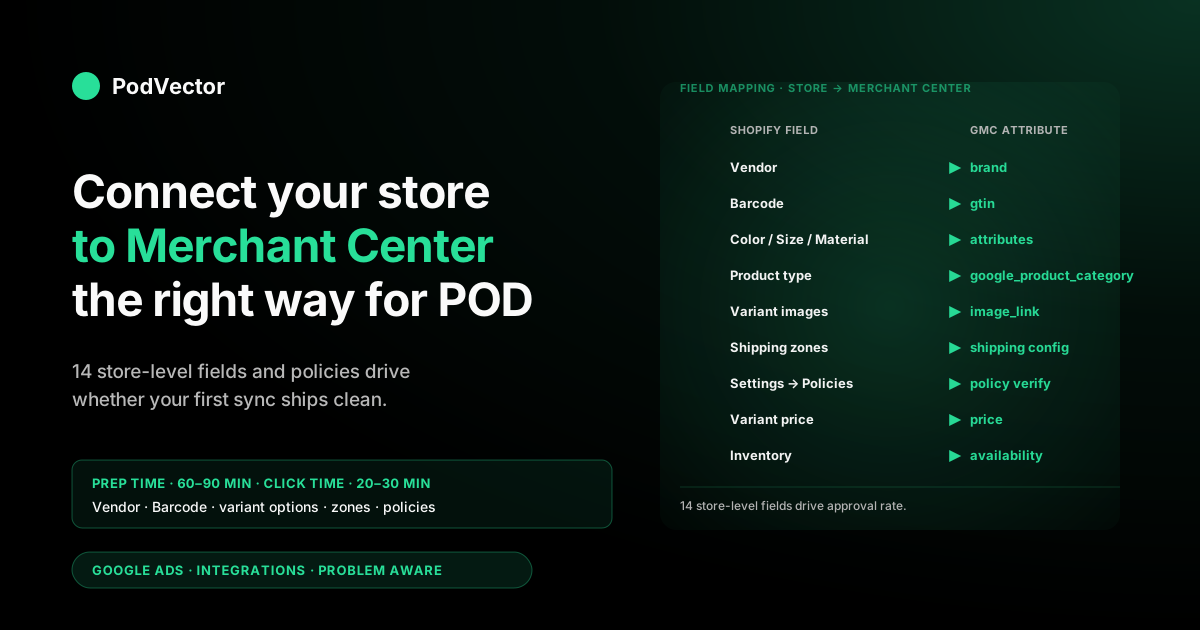
Quick Answer: To connect your Shopify store to Google Merchant Center in 2026, install the free Google & YouTube sales channel in Shopify, connect your Google account, link or create a Merchant Center account, verify your phone via SMS, let Shopify auto-claim and verify your domain, then sync your catalog. That click-path takes 20–30 minutes. The part that determines whether your products actually approve is the store-level prep beforehand: 14 specific fields and policies have to match what GMC's policy engine expects. Do that prep deliberately (another 60–90 minutes) and your first sync ships clean; skip it and you trade it for 5–7 days of disapproval-fix cycles.
For print-on-demand operators, the highest-leverage store-level decisions are: which Vendor value lives on every product (becomes GMC's brand), which product type taxonomy you've used in Shopify (becomes google_product_category), how your collections are structured (affects feed segmentation later), and whether your shipping zones reflect Printify's actual print-partner geography rather than your business address. Get those right before clicking Connect and your first sync ships clean.
What flows from your Shopify store to GMC (and what doesn't)
Most "connect Shopify to Google Merchant Center" tutorials treat your store as a black box and focus on the OAuth handshake. That framing skips the more important question for POD sellers: which specific fields on your Shopify store become which GMC attributes, and which ones GMC ignores entirely. Knowing the data-flow inventory upfront tells you exactly which store-level fields to fix before you click Connect — everything else is noise.
The Google & YouTube channel pulls these Shopify product fields into GMC on every sync:
- Product title → GMC
title(truncated to 150 characters; GMC uses the first 70 in search results, so front-load keywords there). - Product description → GMC
description(HTML stripped to plain text; first 500 characters carry most of the matching weight). - Variant price → GMC
price(GMC checks for parity with on-page price; mismatches block approval). - Variant compare-at price → GMC
sale_pricewhen present. - Variant SKU → GMC
id(the canonical product identifier). - Variant Barcode (UPC/EAN/ISBN) → GMC
gtin; if empty, the channel passesidentifier_exists = no. - Variant Inventory → GMC
availability(in_stock,out_of_stock, orpreorder). - Variant images → GMC
image_linkandadditional_image_link(must be 800x800 minimum, RGB, no watermarks). - Vendor → GMC
brand(the single most-misconfigured field on POD stores). - Product type → GMC
product_typeand seedsgoogle_product_categorymapping. - Tags → not directly mapped, but the channel uses them to suggest
google_product_categoryoverrides. - Variant options (Color, Size, Material) → GMC
color,size,materialwhen option names match exactly. - Shopify shipping zones → GMC shipping configuration per country.
- Shopify Settings → Policies (privacy, refund, terms) → GMC verifies their existence and accessibility.
What does not flow: customer reviews (GMC pulls those separately via Product Ratings programs), sales history, customer behavior, abandoned-cart data, theme styling, page speed scores, or anything from your Shopify analytics. GMC sees only the catalog data and the policy pages. That's why a perfectly-optimized storefront can still fail GMC review if the underlying product fields are sloppy — and conversely why a no-frills store with clean fields can pass review on day one.
Knowing the inventory also tells you what to not waste time on. Operators sometimes spend a week perfecting product description SEO before connecting, expecting it to drive Shopping ad performance. Description text helps marginally; the title carries 5x the weight in Shopping match logic, and the image carries even more. Spend prep time accordingly.
Store-level prep: 14 fields and policies to fix first
Walk this checklist on your Shopify store before you install the Google & YouTube channel. Each item is a recurring first-week support ticket from POD operators who connected first and discovered the gap during disapproval triage afterwards.
Product-level fixes (1–7)
- Vendor field on every product set to your storefront brand. Default Shopify product imports from Printify or Printful leave Vendor as the supplier name or blank. GMC reads Vendor as
brand. If your storefront is "MountainMug Co." but Vendor reads "Printify," your products show up under "Printify" brand in GMC and approval rates suffer. Bulk-edit Vendor on every product to your real storefront brand. Use Shopify admin's Products view, filter by Vendor, select all, and use Bulk edit → Vendor. - Variant Barcode field empty for custom designs (no fake GTINs). POD operators sometimes paste fake GTINs into Barcode to "satisfy GMC." That's worse than empty — GMC's GTIN database lookup catches the mismatch and disapproves the SKU with a stronger penalty than a missing identifier carries. Leave Barcode empty on custom designs; the channel handles the
identifier_exists = nodeclaration automatically. - Variant option names exactly "Color," "Size," "Material" (case-sensitive). The channel maps these by exact-string match. "Colour" (UK spelling) doesn't map; "color" (lowercase) doesn't map. Rename existing options to the canonical exact-match values before connecting. After connection, you can use Field Mapping to map nonstandard option names, but starting clean is faster than retrofitting.
- Product type populated on every product. Shopify allows blank Product Type, but the channel uses Product Type to suggest
google_product_category. Blank means the channel guesses from title only, which is less accurate. Fill in Product Type with your internal category names ("T-shirt," "Mug," "Hoodie," "Phone Case"); the exact wording isn't critical because Google does its own taxonomy mapping, but having something there improves the auto-mapping accuracy. - At least one product image per variant at 800x800+ resolution. Older Printify mockup templates output 600x600 or smaller. GMC's image-quality filter rejects sub-800x800 images for Shopping ads (free listings sometimes accept smaller, but ads don't). Switch any affected products to high-resolution mockups in Printify's product publish settings; for Printful, the default mockup quality already meets the threshold.
- Variant images that match the variant's actual color/style. If your blue-shirt variant uses the white-shirt mockup as its primary image, GMC's image-text match logic catches the mismatch and disapproves with "Image and product detail mismatch." Use Printify or Printful's variant-mockup feature to generate correct mockups per variant; assign them as the primary variant image in Shopify.
- Product titles formatted "Brand + Product + Key Attributes" pattern. "Vintage Mountain Sunset Unisex Cotton T-Shirt by MountainMug" matches better than "Cool Mountain Tee." GMC's matching logic weights early-title keywords most heavily. The pattern also helps shoppers scanning Shopping results — you're competing against thousands of similar listings, and a structured title reads as more credible.
Storefront-level fixes (8–14)
- Privacy policy, refund policy, terms of service, and shipping policy all published and linked in the footer. Shopify Settings → Policies has generators for all four. They don't need to be perfect; they need to exist and be reachable from every page. The detail operators miss: GMC (and the channel's pre-sync check) wants these surfaced through Shopify's "Policies" footer link type — add them via Settings → Policies, then in your theme's footer menu add menu items using the Policies link type rather than pasting raw URLs. GMC's automated misrepresentation check looks for these within 24 hours of feed activation; missing any one triggers a blanket account suspension that takes 5–10 business days to appeal even when fully fixed.
- Contact page with at least one verifiable contact method. An email address, a contact form, or a phone number — just one. POD operators often skip this because they handle support via Etsy DMs or social. GMC requires one verifiable channel on the storefront itself. A simple
/pages/contactwith an email form satisfies it. - Shipping policy text matches actual Printify/Printful timing, not aspirational timing. If your real fulfillment is "5–8 business days print + 3–5 days ship" but your policy says "ships in 2 days," GMC's automated comparison catches the mismatch and disapproves the affected SKUs. Edit the policy to match reality. Customers prefer accurate-and-honest over fast-and-wrong; GMC's policy engine enforces the same preference.
- Shopify shipping zones reflect supplier print-partner geography. Printify orders fulfill from the print partner nearest the customer; UK customer orders print and ship from Latvia, EU customers from Germany, US customers from one of several US partners. If your shipping zones say "ships from California" globally, GMC's policy engine flags the geographic discrepancy. Configure zones in Shopify with each major fulfillment region enabled and per-region delivery times that match supplier reality.
- Tax configuration for every country you ship to. Shopify Settings → Taxes needs explicit configuration per country, not "auto-calculate." Stores that haven't touched the tax page see "tax not configured" warnings during the connection wizard's Step 5 that block deliveries until resolved. Set tax-included pricing if your supplier handles it, or add per-country VAT/sales tax rules.
- Storefront not password-protected. Pre-launch stores commonly have a password gate up. Googlebot can't crawl past it, the feed sync sees zero products, and the channel admin reports "0 products synced" with no obvious cause. Lift the password before connecting (or accept that the connection sits in a paused state until you do).
- Paid Shopify plan, not trial. Trial-mode stores can install the channel but the feed sync stays inert because the storefront isn't publicly accessible. Complete the upgrade first if you intend to launch.
For the Shopify-side architecture context (how data flows in both directions, what the channel sends and receives, where to debug field mappings), see the Google Merchant Center Shopify integration architecture guide. For an alternative phrasing focused on the OAuth-flow steps with deeper troubleshooting, see connect Shopify to Google Merchant Center setup guide.
Running the connection itself
With the 14 store-level prep items handled, the connection itself takes about 20 minutes of click-time. From Shopify admin, click the green plus icon next to "Sales channels" → search "Google & YouTube" → Add channel → Add sales channel. The channel is free, owned by Google, and the supported integration path between Shopify and GMC.
The channel admin opens to a guided wizard with five steps:
- Connect Google account. OAuth pop-up opens; pick the Google account that should own the long-term GMC. For solo POD operators this is often a personal Gmail; for anyone with partners, contractors, or plans to sell the business, use a Google Workspace user on your business domain. Ownership is sticky after this step, so pick deliberately.
- Link or create Merchant Center. If your authorising Google account already has GMC access, the wizard offers Link to existing. If not, it auto-creates a new Merchant Center named after your Shopify store. Link only if the existing GMC is clean (no active suspensions, no policy violations); create new if the existing GMC has accumulated baggage you'd rather not inherit. Note that the channel binds to a standalone Merchant Center, not a multi-client account — if you operate an MCA, link the store's individual sub-account here, not the parent. New accounts also trigger a one-time phone verification: Google texts a 6-digit code to the number you enter, you type it back, and the account activates. Have the phone in reach so you don't stall mid-wizard.
- Verify domain. The connection auto-claims your Shopify domain in GMC by injecting a verification meta tag into your storefront's
<head>. For 95% of stores this completes in seconds. If verification fails, the most common cause is a custom theme that strips the{{ content_for_header }}Liquid tag fromtheme.liquid; restore that tag and click Re-verify. - Confirm shipping, tax, returns. The wizard pulls from your Shopify shipping zones, tax settings, and refund policy. If you completed the prep checklist, this step takes 30 seconds of clicking through with no manual config. If you skipped it, this is where the warnings show up.
- Sync products. The wizard's last step kicks off the initial product sync to GMC. Click and wait.
Complete the wizard end-to-end on first install rather than partial-completing — the channel state machine is unforgiving about half-complete progress, and operators who close the tab mid-wizard often end up with a half-linked account that needs uninstalling and reinstalling to recover.
The first sync and what to watch
The initial product sync runs in 1–24 hours depending on catalog size. POD stores with focused niches (50–500 SKUs) typically sync in under two hours. Broader catalogs with multiple product templates (500–2,000 SKUs) take 4–8 hours. Large general POD catalogs (2,000+ SKUs) may need a full day.
While the sync runs, the channel admin's Overview tab shows live counts: "X products synced, Y errors, Z disapproved." Refresh periodically. The counts climb as products move through the queue.
Important framing: synced means the product reached GMC's catalog. Approved is a separate state requiring GMC's automated and (for some categories) manual review to pass, which takes another 3–5 business days for the initial bulk review. Day 1 typically shows "Pending" against most of your catalog — that's expected. Wait until day 5–7 before troubleshooting at the SKU level; many disapprovals self-resolve as the review queue catches up.
During the sync window, monitor the Errors tab for feed-level issues that block whole categories of products. The five day-zero error patterns that need immediate attention:
- Brand attribute empty. Catches any products whose Vendor field you didn't fix during prep. Bulk-edit Vendor on those products and trigger a re-sync.
- Image URL returning 4xx. Usually a Shopify-CDN cache issue that resolves on the next sync; rare but worth investigating if it persists.
- Invalid shipping configuration for a country. Usually a country you forgot to configure during the wizard's Step 4. Add the country to Shopify shipping zones, re-pull config in GMC.
- Tax not configured for a country. Same root cause; fix in Shopify Settings → Taxes and re-sync.
- Missing GTIN exemption flag. The 2026 channel handles this automatically for fresh installs, but stores migrated from older channel versions or other platforms sometimes need bulk edit via the channel's CSV export/import flow.
Each of these blocks a slice of the feed. Fix them in Shopify, return to the channel admin, and trigger a re-sync from the Overview tab to unblock the next layer of products.
Post-connect store-level fixes
Once the initial sync completes and the first wave of products either approves or disapproves, four store-level fixes typically unlock the next batch of approvals. None of these are connection issues per se — they're store-data issues that only become visible once GMC has the catalog and starts running its full review pass.
- Map color, size, material metafields to GMC attributes via the channel's Field Mapping view. Even with exact-match option names, some POD products use metafields rather than variant options for these attributes. The Field Mapping view lets you point any Shopify metafield at a GMC attribute. The metafields most worth mapping for POD apparel:
color,size,material,age_group(adult/kid/baby/toddler — required if your blanks include kids' or baby sizes), andgender(male/female/unisex). Mapping these unlocks filter-based discovery on Google Shopping that you don't get from defaults. - Override
google_product_categoryfor unusual product types. The connection auto-maps Shopify product type to Google's product taxonomy. For most POD products this is roughly right (t-shirts get Apparel & Accessories > Clothing > Shirts & Tops; mugs get Home & Garden > Kitchen & Dining > Tableware > Drinkware), but unusual product types ("all-over print sweatshirt," "premium organic tote") map to wrong categories that hurt visibility. Review the Catalog → Products view, sort by Google product category, override mismaps individually or via bulk edit. - Set
condition = newexplicitly on every product. Shopify doesn't have a Condition field; the channel defaults tonewfor all syncs. That's correct for POD, but some categories (especially apparel) get stricter scrutiny if Condition is missing rather than explicitlynew. The Field Mapping view lets you hard-set this attribute. - Add custom labels for feed segmentation. Once you start running Shopping campaigns, you'll want to segment your feed by margin tier, supplier, design family, or any other operator dimension. The channel exposes five custom-label slots (
custom_label_0throughcustom_label_4) you can populate via metafield mapping or product tags. Doing this now — while the catalog is small — is far easier than retrofitting at scale.
Storefront content traps that trigger suspensions
The 14-item prep checklist covers the big policy items, but four specific storefront content patterns trip GMC's misrepresentation policy even on stores that have all the basics in place. These are POD-specific gotchas that don't surface in generic "connect Shopify to GMC" guides because they only matter when your supplier is a third-party fulfillment partner.
- Mockup-only product pages with no real product photography. GMC accepts mockups for POD products, but pages that only show stylized mockups (no on-model shots, no product-on-table shots) sometimes trigger a "lack of product detail" review note. Fix: add at least one realistic mockup variant per product (Printify's "Lifestyle" mockup category is designed for this).
- "Designed in [Country]" marketing copy without "Made in" disclosure. POD product pages often emphasize the design origin without disclosing the manufacturing origin. GMC's transparency rules increasingly want both. Add a "Manufactured by our partner network in the US, UK, EU, and Australia" line to the product description template; for Printful it's even simpler because their fulfillment is more centralized.
- Trademark-adjacent designs that pass Printify's filter but fail GMC's. Printify and Printful both have IP filters, but they're more permissive than GMC's because they only block clear infringement, not "could be mistaken for." GMC's IP review is stricter and disapproves anything that looks like a protected mark. If your store sells parody, fan-art, or trademark-adjacent designs, expect a higher disapproval rate from GMC than from your supplier's IP filter would suggest. There's no fix for genuine IP issues; the only path is using fully-original designs.
- Pricing that ends in .00 across the entire catalog. GMC's policy engine doesn't formally penalize round pricing, but its automated price-comparison logic flags catalogs where every product is exactly $24.00 or $19.00 as suspiciously formulaic. Mix in some .99 or .95 endings; the variance reads as more authentic to the policy engine.
If you run multiple Shopify stores
Many POD operators run a flagship niche store plus 2–5 product-line spinoffs. The connection flow handles each store independently, which is correct for ad operations (each store gets its own feed, its own approvals, its own performance reports) but creates a reporting headache if you want consolidated visibility.
Two architectures handle multi-store cleanly:
- Per-store GMC accounts (default). Each Shopify store connects to its own dedicated Merchant Center. Simple to set up, simple to debug, but reporting lives in N separate accounts. Right choice for 1–2 stores or when stores have very different product mixes.
- Multi-Client Account (MCA) at the GMC level. A parent MCA aggregates child Merchant Centers, one per Shopify store. Each store still connects to its own child GMC; the MCA gives you a single login that sees rolled-up performance, consolidated policy issue visibility, and unified user management. Worth the setup overhead at 3+ active stores.
The Google & YouTube channel doesn't directly create an MCA structure — you create the MCA in Google Merchant Center first, then connect each Shopify store to its own sub-account by selecting the sub-account during the channel's Step 2 wizard. Operators sometimes try to skip this and connect all their Shopify stores to one shared GMC; that fails because GMC enforces a one-Shopify-store-per-GMC binding through the channel.
For a single Shopify store with multiple international destinations, the right path is a single GMC with multi-country shipping zones configured rather than multiple GMCs. Multi-country complexity sits inside the GMC, not at the Shopify-to-GMC binding.
What changes about your store once GMC is live
The connection itself is infrastructure. What changes about your store operations once it's live is where the value compounds.
- Free Shopping listings start indexing. For eligible US stores, free listings surface approved products at no cost across the Google Shopping tab, the main Search results, Google Images, and Maps — not just the Shopping tab. They're opt-in within GMC; enable them under GMC → Growth → Manage programs. They won't drive a flood of traffic on their own, but they turn the GMC connection from a paid-ads-only pipe into a free discovery surface.
- Product data quality starts mattering operationally. Before GMC, sloppy Vendor values or generic product titles cost you nothing. After GMC, those same fields drive Shopping ad match quality and approval rates. The store-prep work becomes ongoing hygiene rather than a one-time setup.
- Shipping policy and SLA discipline become enforced. GMC's automated comparison runs continuously. If your supplier timing slips and your shipping policy doesn't update, GMC catches the drift and disapproves SKUs. The connection forces a level of operational discipline most POD stores don't have organically.
- Cross-channel data starts being worth analyzing. Once GMC, Google Ads, and Shopify are all connected, you've got three sources answering different parts of the same question: which campaigns are actually profitable for your POD catalog after Printify's per-SKU supplier costs. Dashboard tools (Looker Studio, custom SQL) can stitch them together with manual joins. A more direct path is having an AI agent like Victor sit on top of your Google Ads and Shopify data and answer questions like "what's my true ROAS after supplier costs on the cat-design Performance Max campaign" in plain English — PodVector AI's roadmap goes further: Victor answers the cross-channel profitability questions you'd otherwise need a SQL specialist for and flags which campaigns to pause when supplier costs spike on a specific SKU.
For the broader Google Ads + Shopify integration architecture (conversion tracking, Performance Max, attribution), see the complete Google Ads + Shopify integration guide. The Shopify Google Ads conversion tracking setup guide covers the conversion-tracking layer that runs alongside the GMC feed.
For broader context on Google Ads for POD, browse the Google Ads integrations cluster hub or the Google Ads topic hub. Shopify's official Help Center documentation covers the channel install in step-by-step screenshot detail.
FAQs
Do I need a paid Shopify plan to connect to Google Merchant Center?
Yes, in practice. Trial-mode stores can install the Google & YouTube channel, but the storefront isn't publicly accessible until you upgrade, which means Googlebot can't crawl your products and the feed sync stays at zero. Complete the Shopify upgrade before connecting.
Does GMC pull from my Shopify drafts or only published products?
Only published products that are also marked as available on the Online Store sales channel. Draft products don't sync; products available only on Shopify POS or other channels but not Online Store don't sync either. Check Product Status = Active and Sales Channels includes Online Store before expecting a product in GMC.
How long until my Shopify store's products show up in Google Shopping?
Sync is 1–24 hours; approval is 3–5 business days; first impressions in Shopping search are typically 5–7 days from connection for free listings, and immediate for paid Shopping ads once you launch a campaign. The wait between sync and approval is what most operators find frustrating; it's normal.
Can I selectively choose which Shopify products sync to GMC?
Yes. The channel admin's Catalog view exposes a per-product Sync toggle. By default all Online Store products sync; you can manually exclude individual products or use product tags to bulk-exclude (configure the tag-based filter in the channel's Settings → Sync rules).
What happens to my GMC connection if I switch Shopify themes?
If your new theme is a Shopify-published or well-maintained third-party theme, no impact — the meta-tag injection that supports domain verification carries through automatically. If your new theme is custom or aggressively edited, double-check that {{ content_for_header }} is present at the top of theme.liquid's <head> section, otherwise GMC may unverify your domain after its next crawl cycle.
Why does GMC see different prices than my Shopify storefront?
Three causes account for nearly all price-mismatch errors: (1) Shopify currency settings differ between admin display and customer-facing storefront, (2) discount codes or sale prices that show on the storefront aren't reflected in the variant price field, or (3) a third-party app modifies displayed prices in real-time but the feed pulls the static variant price. Resolve in that order; option 3 requires app-specific configuration.
Can I use the same Google Merchant Center for two Shopify stores?
Not directly. The Google & YouTube channel binds each Shopify store to exactly one GMC sub-account. To consolidate reporting across multiple stores, set up an MCA (Multi-Client Account) at the GMC level with each store as its own sub-account; reporting rolls up at the MCA level while feed and approval data stays per-store.
Does the connection slow down my Shopify storefront?
No measurable impact. The Google & YouTube channel runs server-to-server (Shopify pushes feed updates to GMC on a schedule), with the only client-side artifact being a single meta tag in <head> for domain verification. The meta tag adds about 100 bytes to your HTML and zero JavaScript; PageSpeed scores don't change.
What's the difference between connecting my Shopify store to GMC versus to Google Ads?
GMC is the product-feed pipe (catalog data, prices, images, availability). Google Ads is the campaign-and-bidding pipe (which products to show, how much to bid, where).
For Shopping ads you need both: GMC to host the feed, Google Ads to run campaigns against that feed. The Google & YouTube channel sets both up in one wizard but they remain separate Google products under the hood.
Once your store is connected, the question is: which campaigns actually make money?
The connection is plumbing. The hard part is figuring out which Shopping campaigns are actually profitable for your POD catalog once Printify's per-SKU supplier costs come out. Building the dashboards yourself takes weeks. Letting Victor sit on top of your live data warehouse and answer in plain English takes 10 minutes.
Try Victor free