
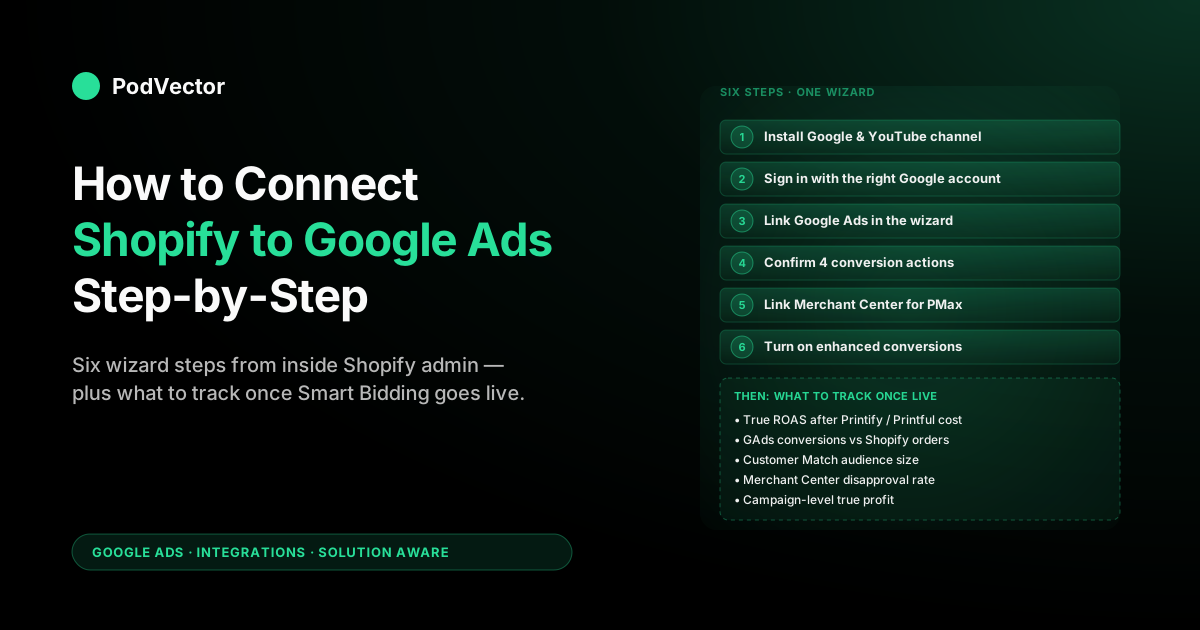
Quick Answer: From your Shopify admin, install the Google & YouTube sales channel, sign in with the Google account that owns your Google Ads account, link Google Ads inside the channel wizard, accept the four auto-created conversion actions, link Merchant Center if you plan to run Shopping or Performance Max, and turn on enhanced conversions. Hands-on time is 25–40 minutes; product approval and conversion verification add 24–72 hours of waiting.
The setup is the easy part. The harder question — what to track once it's live so Smart Bidding doesn't optimise on the wrong signal — is the part the official docs skip, and it's the difference between Google Ads working and Google Ads burning budget on your highest-list-price, lowest-margin SKUs.
What "connect Shopify to Google Ads" usually means
"Connect Shopify to Google Ads" is a phrase POD operators search when they're sitting inside their Shopify admin and want their store talking to a Google Ads account. The phrase covers three different connections that the official docs treat as one flow because the Google & YouTube channel app does them all in the same wizard:
- Account linking. Authorising Shopify and Google Ads to share data — customer lists, audiences, product feed, conversion events. The link is one-way trust: Shopify can write into Google Ads, not the reverse.
- Conversion tracking. The Google Ads pixel firing on your order-confirmation page so Smart Bidding can see purchases and optimise toward them. Auto-installed when you link, but the conversion value needs work for POD specifically — more on that below.
- Product feed for Shopping or Performance Max. Pushing your Shopify catalog into Google Merchant Center so Shopping ads and Performance Max can use it. Same wizard, separate destination, separate review queue.
The good news: since Shopify retired the legacy "Google" app and consolidated everything into the Google & YouTube channel, all three live behind the same install. The trade-off is that the wizard frames them as one linear flow, when in practice each part has its own failure modes and its own "this is broken" symptoms. Knowing which of the three is breaking is half the troubleshooting battle.
This guide is the Shopify-admin-first walkthrough — what you click and where, what changes inside Shopify after the link is live, and what to watch in the days after. If you came in from the Google-Ads-side angle (signed into Google Ads, looking for "where do I add my Shopify store"), the mirror-image walkthrough is how to connect Google Ads to Shopify step-by-step. The architectural pillar that ties this cluster together is the complete guide to Google Ads + Shopify integration for POD.
Prerequisites: what to have ready before opening Shopify admin
Five conditions need to be true before you start. Each missing one produces an error mid-wizard that looks like a Shopify or Google Ads bug but is really account-state. Five minutes of pre-checks save a half hour of back-and-forth:
- A Shopify store on a paid plan. The Google & YouTube channel installs on Basic and above. Trial stores can install but Merchant Center won't approve products until billing is active, and the wizard will say "feed connected" while every product status sits as "Pending."
- An existing Google Ads account. Shopify links to your account; it doesn't create one. If you don't have one yet, spin it up at
ads.google.comfirst — it takes three minutes — then come back. By contrast, you do not need a Merchant Center account in advance; the wizard creates one for you, and that's the right path for almost everyone. - A Google account that owns the Google Ads account. Manager (MCC) access alone is not enough to complete the link. You need owner or admin access on the underlying Google Ads account. Most agencies that run POD ad accounts grant owner access on request — ask before you start the wizard, not at minute 18.
- Customer Data Terms accepted in Google Ads. Inside Google Ads → Admin → Account access → Account settings → Customer data terms. Without this, the link succeeds but enhanced conversions and Customer Match show up greyed out, and you have to come back here, accept the terms, and rerun the link to enable them.
- Products published to the Online Store sales channel. Required for Merchant Center to approve products and serve Shopping or Performance Max ads against them. Publishing only to a draft or hidden channel produces an empty feed and a screen full of "missing required attribute" warnings inside Merchant Center.
If you're running multiple Shopify stores (a common POD pattern — one main store, separate niche or geography stores), decide upfront whether each store gets its own Google Ads account or whether they share one. Shared is less management overhead but Performance Max tends to favour whichever store has higher AOV at the expense of the other; separate is cleaner accounting but doubles the management surface. Either is fine; the costly choice is to migrate later.
Step 1: Install the Google & YouTube sales channel
From Shopify admin, look at the left sidebar. Find "Sales channels" and click the green plus next to it.
In the search field, type Google & YouTube, click into the channel listing, then "Add channel." Accept the permissions prompt. Installation takes about thirty seconds, after which the channel appears under Sales channels in the sidebar and the channel admin opens to the setup wizard.
Avoid the third-party "Google Ads" or "Google Shopping" apps you'll see further down the search results unless you have a specific reason. Most are wrappers around the same official APIs with a markup. A few introduce additional pixel layers that conflict with the channel-app pixel and produce double-counted conversions, which take longer to debug than the original install saved.
One nuance worth flagging: the Google & YouTube channel and the older "Google" app (now retired) are different. If you previously installed the legacy app and never uninstalled it, you may see two Google entries in your sales-channel sidebar.
Uninstall the legacy one before continuing — the OAuth callback in the next step can otherwise associate with the wrong app, and that produces an "already connected" error with no way to fix from the new channel's UI. The legacy app's pixel won't fire either way, so removing it is purely UI hygiene plus avoiding the OAuth collision.
Step 2: Sign in with the right Google account
Inside the channel admin, click "Connect a Google account." A Google OAuth pop-up opens. Pick the Google account that owns your Google Ads account. Grant the permissions Shopify requests — read profile, manage Google Ads conversion tracking, manage Merchant Center, read YouTube channel. The wizard advances automatically once the OAuth callback completes.
If the OAuth pop-up closes without returning to the wizard, the cause is almost always pop-up or third-party-cookie blocking. Safari and Brave with default privacy settings block the postMessage callback that completes the handshake.
Switch to Chrome or Firefox for the duration of setup. The connection persists across browsers once established, so this is one-time pain you don't have to live with afterwards.
If you have multiple Google accounts (a personal Gmail, a Google Workspace account for the brand, an MCC operator login), use the Google Workspace account that's permanent. Personal Gmail accounts can lose access if the human leaves; the brand account stays. The number of POD stores running ad accounts off the founder's college Gmail is higher than you'd think, and the cost of re-anchoring the link to a different account later is non-trivial.
Step 3: Link your Google Ads account inside the wizard
The next wizard step is labelled "Conversion measurement" or "Set up Google Ads" depending on which version of the channel UI Shopify has rolled out (the wording has changed three times in 2025; the function is identical). Inside that step, find "Your Google Ads account," click Connect, and pick your Google Ads account from the dropdown.
If you have multiple Google Ads accounts (separate dev/prod, separate brands, an MCC across clients), cross-reference the 10-digit customer ID against the one shown at the top of your Google Ads UI before confirming. Picking the wrong account means uninstalling the channel and reinstalling to fix it — there is no in-channel "switch Google Ads account" button. The 90 seconds of double-checking saves the 45 minutes of unwinding.
What this link technically does: it grants Shopify permission to write conversion-action definitions and customer-list audiences to your Google Ads account, plus read campaign metadata for the diagnostics shown inside the Shopify channel admin. Google Ads doesn't get write access to Shopify in return. The trust direction is one-way, which matters if you're auditing access later — only Shopify can change Google Ads conversion actions through this channel, not the other way around.
Step 4: Confirm the four auto-created conversion actions
Once the link confirms, Shopify creates four conversion actions inside Google Ads automatically. The wizard shows them as a list and asks you to confirm:
- Purchase — set as the primary action and the default for Smart Bidding. This is the one that matters most.
- Begin Checkout — secondary, useful for funnel analysis and as a soft-conversion signal early in a campaign's learning phase.
- Add to Cart — secondary, useful for remarketing audience signals and audience-based bidding.
- Page View — secondary, low-value but harmless. Don't disable it; some campaign types use it as a frequency-cap denominator.
Customer Match also turns on automatically, which imports your Shopify customer list (hashed) into Google Ads as an audience for retargeting and lookalike modelling. There's an "Allow Customer Match" toggle if compliance requires it off; for U.S.-based POD stores, leave it on — the audience signal is a meaningful slice of where Performance Max gets its early lift from.
One adjustment worth making while you're in this step: switch the Purchase conversion's "count" setting from "one" to "every" if your POD catalog has repeat customers (it does — POD's gift and seasonal categories drive multi-order behaviour even when "one purchase per click" sounds intuitive). The default counts only one purchase per click, which under-counts loyal customers and skews Smart Bidding away from acquisition campaigns that produce multiple orders over the attribution window.
For the deeper conversion-action setup, including the manual GTM path for stores that need finer pixel control, see how to set up Google Ads conversion tracking on Shopify step-by-step.
Step 5: Link Merchant Center for Shopping and Performance Max
Same wizard, next step. Under "Reach customers across Google" or "Feed your products to Google" (wording varies by channel version), Shopify either creates a new Merchant Center account or links to an existing one.
The default is "create new" — that's the right answer for the vast majority of stores. Pre-existing Merchant Center accounts created outside Shopify often have stale website claims or unverified-domain problems that block the link, and starting fresh inside the wizard is faster than untangling them.
Once linked, Shopify pushes your published products into Merchant Center as a feed. The first sync takes 1–24 hours depending on catalog size; products then enter Google's product-approval review, which takes another 24–72 hours. Don't panic if 100 products go in and 30 come back "Disapproved" — POD catalogs typically have systematic feed issues that need a single-pass cleanup, not 30 individual fixes.
The four POD-specific feed issues that account for almost all disapprovals:
- "GTIN missing." POD products don't have GTINs because they're made on demand. Set the
identifier_existsfield tonovia a metafield or feed app — Google accepts this, but Shopify's default feed doesn't pass the field, so the disapproval comes back even when the product is technically allowed. - "Image quality too low." Mockups straight from Printify or Printful are usually fine. Lifestyle photos repurposed without size adjustment are not. Minimum 800×800 px on a white-or-neutral background works for apparel; t-shirt mockups under 600×600 px almost always trip this.
- "Misrepresentation: trademark concerns." The most common POD-killer. Anything adjacent to a trademark (band names, sports teams, fictional characters, even "Sunday Funday" in some categories) gets caught. There's no override — rename or pull the SKU.
- "Variant images same across SKUs." Black, navy, and grey hoodies all using the same photo trip this. Either generate distinct mockups per colour (Printify and Printful both support this in their mockup generators) or de-list all but the lead variant.
You can skip Merchant Center if you're only running Search ads or Display, but Performance Max is a major reason most POD operators are running Google Ads in 2026, and PMax requires Merchant Center, so most stores end up doing the full link. For a complete walkthrough of the Merchant Center side specifically, including approval troubleshooting and feed structure, see how to connect Shopify to Google Merchant Center step-by-step.
Step 6: Turn on enhanced conversions
Enhanced conversions matter more in 2026 than they did two years ago. Third-party cookie deprecation and Apple's Intelligent Tracking Prevention have eroded the share of conversions Google can attribute through cookies alone. Enhanced conversions recover roughly 5–15% of conversions that would otherwise show as unattributed, by hashing first-party customer data (email, phone, name) at fire time and matching against Google's signed-in user graph.
Inside the channel admin → Conversion tracking → "Enhanced conversions" toggle → on → accept the customer-data terms prompt. The channel app handles the user_data binding automatically; you do not need to paste anything into theme code or your Customer Events pixel. This is one of the few places where the channel-app path is meaningfully easier than the manual gtag-on-Shopify approach, which requires hand-wiring the user_data parameter on top of a Liquid checkout-extensibility script.
For the longer setup discussion — including what to do if you're running enhanced conversions through GTM instead — see set up Google Ads enhanced conversions on Shopify.
What changes inside your Shopify admin after connecting
Once the link is live, four things change in your Shopify admin that nobody flags in advance. None of them are bugs, but each one has surprised somebody at midnight three weeks after install:
- The Google & YouTube channel becomes a top-level sales-channel reporting destination. In Shopify Analytics, "Sales by sales channel" now lists "Google & YouTube" as its own line. The number is not your Google Ads spend or revenue — it's purchases attributed to clicks from a Google sales-channel surface (Shopping tab, YouTube Shopping). It will look small relative to your actual Google Ads-driven sales, which still attribute to "Online Store." That's correct; both numbers reflect different things.
- Customer Events shows new pixels. Inside Settings → Customer events, you'll see a new app-pixel entry for Google & YouTube. Don't disable it — that's the conversion-tracking and enhanced-conversion machinery. If you have a developer who has previously customised the Customer Events pixel for another tracker (Meta, TikTok, Pinterest), check that their custom code doesn't suppress events fired by other pixels in the same module; that's the most common silent break.
- Marketing → Campaigns gains a Google Performance Max card. You can launch and edit Performance Max campaigns from inside Shopify admin without going to ads.google.com. Convenient for one-store operators; less so for multi-store, since campaign-level edits made in Shopify don't always sync cleanly to changes made in Google Ads UI. Pick one as your source of truth.
- Customers tagged as "Marketing accepted" start syncing to Google as a Customer Match audience. No action required, but if you have customer-data export agreements (DPA, CCPA opt-outs) or a privacy-conscious customer base, document this and confirm your store policy reflects it. The data that goes is hashed; the audience name in Google Ads is "Shopify Customers."
What to track once it's live (the part everyone skips)
The setup walkthrough usually stops at "the link is live." That's the wrong place to stop. The first 30 days after connecting are when Smart Bidding is in its learning phase, and the signals you feed it during that window shape every optimisation decision afterwards. Five things are worth watching, in roughly this order of importance for a POD store:
1. True ROAS by SKU after Printify or Printful supplier cost
This is the single highest-leverage measurement and it is also the one Google Ads cannot show you. The conversion value flowing into Google Ads is order total — what the customer paid you. Order total is not what you kept.
A $52 hoodie sold through Printify clears roughly $19 of contribution margin after Printify's blank cost, the print fee, the shipping you absorb, and Shopify's payment processing. A $24 mug clears about $11.
A $74 all-over-print sweatshirt clears about $22 because the substrate cost is what it is. Smart Bidding, fed order totals, sees those three outcomes as $52, $24, and $74 — and systematically pushes spend toward the highest-list-price product, which on a POD catalog is systematically the worst-margin product.
The fix has three layers, in increasing order of accuracy:
- Layer A (the 80% solution). A Google Ads conversion-value rule that multiplies all conversions by your blended margin ratio. If your blended contribution margin is 38%, a value rule of 0.38 on the Purchase conversion gets Smart Bidding into roughly the right neighbourhood. Coarse but effective in week one.
- Layer B (the 95% solution). Per-line-item value modification at fire time, where the Customer Events pixel reads each line item's actual SKU-level supplier cost from a metafield you populate from your Printify or Printful order webhook, then ships revenue minus supplier cost as the conversion value rather than order total.
- Layer C (the 99% solution). Post-hoc conversion adjustments via the Google Ads API, where after each Printify or Printful invoice reconciles, your warehouse pushes a corrected conversion value with the actual contribution margin including refunds, returns, and reprints.
For a deeper architectural treatment of how POD operators wire margin into ad bidding, see the cluster pillar: the complete guide to Google Ads + Shopify integration for POD.
2. Conversion volume in Google Ads vs orders in Shopify Analytics
Cross-check daily for the first two weeks. The two numbers won't match exactly — Google Ads counts conversions on the click date with its attribution window, Shopify counts orders on the order date — but they should track within roughly 80–120% of each other once the attribution window is full.
If Google Ads is way under, the pixel is firing partially (most often the value field is broken; see Troubleshooting below). If Google Ads is way over, you have a duplicate pixel from a previous installation firing alongside the channel-app pixel — uninstall the legacy app or the duplicate GTM tag.
3. Customer Match audience size
Inside Google Ads → Tools → Audience manager → Your data segments. The "Shopify Customers" audience populates over the first 24–48 hours and should reach ~70–90% of your Shopify total customer count (the gap is unmatched hashed emails — customers who used a different email at Google than at your store). If the audience is stuck at zero or under 10% of your customer count after 72 hours, the most likely cause is the Customer Data Terms still not being accepted on the Google Ads account, or the Customer Match toggle being off on a manual override.
4. Merchant Center disapproval rate
Inside Merchant Center → Products → All products. After the first review cycle, watch the disapproval rate.
Anything under 10% is normal and reflects the natural rate of trademark-flag false positives plus a few "image quality" hits on edge SKUs. Anything over 25% is a systematic feed issue — usually one of the four POD feed gotchas above — and worth fixing before you scale ad spend, because Performance Max can't bid on disapproved SKUs no matter how strong their organic performance is.
5. Campaign-level true profit
This is the hardest measurement and the most consequential. None of Google Ads, Shopify, Printify, or Printful alone can show you "how much profit did this Google Ads campaign actually produce after everything." You need the four data sources joined: ad spend by campaign, attributed revenue by campaign, supplier cost per attributed order, and shipping/processing costs per attributed order.
The DIY path is a weekly spreadsheet that pulls each source into Google Sheets and joins them by order ID. It works for stores under ~$50K/month in revenue. Above that, the spreadsheet becomes load-bearing and a single missed Printify webhook re-run breaks the join silently.
Shopify-side issues that break the link first
OAuth pop-up closes without completing the connection
Third-party-cookie blocking in Safari or Brave. Switch to Chrome or Firefox for the duration of the connect flow. If it still fails on Chrome, your Google account has 2FA prompts pending on a different device — finish the challenge there, then retry.
"Already connected to a different store"
The Google account you're signing in with has previously linked to a different Shopify store via an old or duplicate channel install. Sign in to Google Ads → Tools → Linked accounts → Third-party app analytics, find the old Shopify link, and remove it. Then retry from Shopify.
Merchant Center disapproves more than 25% of products
Almost always one of the four POD-specific feed issues above — GTIN missing, image quality, trademark, or duplicate variant images. Fix at the data source (Shopify product fields or Printify/Printful mockup generator) rather than at the feed-app level, then re-sync the feed; Google re-reviews automatically every 24 hours. Trying to fix at the feed-app level is whack-a-mole because the underlying product data still has the issue.
Conversion tracking shows "Connected: not receiving data" after 72 hours
Three causes ranked by likelihood. First, you've had no Google Ads-attributed conversions yet — confirm in Campaigns that you actually have spend and click volume.
Second, your store is on a multi-domain setup (separate domain for checkout) and the conversion tag isn't firing on the production domain — fix by setting cross-domain measurement in your gtag config. Third, an aggressive Customer Events pixel customisation by a developer is suppressing the channel-installed pixel — diagnose with the Google Tag Assistant Chrome extension on a real test order.
Conversion value fires as "1.00" on every order
The value field in your Customer Events pixel isn't reading the correct Liquid variable. The current syntax is {{ checkout.totalPrice.amount }} in modern Customer Events.
The default channel-app pixel does this correctly out of the box, so a "$1.00 on every order" symptom usually means a previous developer customised the pixel and broke the binding. Restore from the channel-app default if you don't need the customisation, or fix the variable reference if you do.
Performance Max spends entire daily budget in 24 hours
Not a connection bug, but the most common new-launch panic call. Performance Max's spend pace can be roughly 2× the campaign daily budget you set in week one, because the algorithm front-loads spend to gather signal. Either set a much smaller daily budget for the first 14 days, or accept the spend pace and verify Smart Bidding is at least seeing the right conversion-value signal (see the conversion-value section above) before forming an opinion about whether the campaign is working.
FAQs
How long does the full Shopify-to-Google-Ads connection take?
25–40 minutes of hands-on time, plus 24–72 hours of waiting for product approval and conversion verification. Most POD operators finish the active work in under an hour; the bulk of elapsed time is Google reviewing your product feed and ingesting the first conversions. If you're skipping Merchant Center (Search-only campaigns), shave 15 minutes off the active work and roughly 48 hours off the wait.
Do I need a Google Ads account before I start, or can Shopify create one?
You need an existing Google Ads account. The Shopify channel app links to your account; it doesn't create one.
Spinning up a Google Ads account at ads.google.com is a three-minute task you do before opening the Shopify channel wizard. Conversely, Shopify does create a Merchant Center account for you inside the wizard, and that's the right path — pre-creating one outside Shopify often introduces verification problems that block the link.
Can I connect Shopify to Google Ads without Google & YouTube channel app?
Technically yes — you can manually paste a Google Ads conversion tag into your theme.liquid or your Customer Events pixel, and create the conversion actions manually inside Google Ads. In practice, the channel app does the same thing in 25 minutes that the manual path takes 3+ hours, with fewer breakage points (no theme-update conflicts, automatic enhanced conversions, automatic Customer Match). The manual path is worth it only if you have a non-standard requirement the channel app can't meet, like firing the conversion on a custom post-purchase upsell page.
Does the Google & YouTube channel work on Shopify Plus?
Yes, with the same install path. Plus stores running Shopify checkout extensibility get a slightly cleaner Customer Events pixel because the modern checkout exposes more line-item data to the pixel, which makes Layer B of the conversion-value fix (per-line-item margin) easier to implement. If you're on Plus and still on the legacy checkout, plan the migration before you scale Performance Max — it's the difference between Layer A and Layer B levels of bidding accuracy.
Can I connect multiple Shopify stores to one Google Ads account?
Yes, but be deliberate about it. Each store gets its own channel-app link, and they all write conversion actions to the same Google Ads account if you point them there.
Customer Match audiences blend across stores, which is sometimes what you want and sometimes a problem. Performance Max bidding tends to favour whichever store has higher AOV at the expense of the lower-AOV store — fine if your stores are intentionally tiered, problematic if they're meant to be parallel niches under different branding.
Do I need GTM to connect Shopify to Google Ads?
No. The Google & YouTube channel installs the gtag library and the conversion event automatically; no GTM container is required. GTM is preferred only if you already maintain a container for other pixels (Meta, TikTok, Pinterest) and want a single place to control them, or if you're running server-side tagging through Stape or your own GTM server. For most POD stores under ~$1M/year, the channel app is the right answer and GTM is over-engineering.
What's the difference between this and Google Analytics 4?
Different pixel, different purpose. Google Ads conversion tracking is the signal Smart Bidding optimises against.
GA4 is the analytics layer for understanding user behaviour across sessions. They're often confused because both are "Google" and both fire on the order-confirmation page, but the right answer is to run both — and to mark only the Google Ads pixel (not the GA4 imported conversion) as the conversion source for Smart Bidding to avoid double-counting. The Google & YouTube channel installs the Google Ads pixel; GA4 installs separately, usually through GTM or the GA4 sales-channel app.
Where does Google document this officially?
The Google-side reference is Google Ads Help: Shopify. Both pages stay current and supersede any third-party walkthrough — including this one — when wording or UI screens change.
What's the right reading order after this article?
If conversion-value accuracy is your next concern, read Google Ads conversion tracking Shopify setup for POD sellers for the value-layer fix in detail. If Performance Max specifically is what you're spinning up, the cross-cluster Google Shopping ads on Shopify for POD covers product-group structure.
The architectural pillar is the complete guide to Google Ads + Shopify integration for POD; the Google Ads Integrations cluster hub indexes the rest of the wiring articles. For broader strategy beyond this cluster, the Google Ads playbook for POD sellers and the Google Ads topic hub cover ad types, ROAS, and campaign architecture.
Connecting is the easy half. Knowing what's actually profitable is the hard half.
Once the Google & YouTube channel is live, the harder question — which campaigns are profitable after Printify or Printful supplier cost, Shopify processing, and shipping you absorbed — sits one layer below what Smart Bidding can see by default. Victor connects your live Google Ads, Shopify, and Printify or Printful data into a single a warehouse and answers questions like "what's my true ROAS by campaign after supplier cost?" or "which Performance Max product groups are over-spending relative to actual margin?" in plain English. Victor answers your questions and acts on your ad accounts on your behalf — with your approval.
Try Victor free