
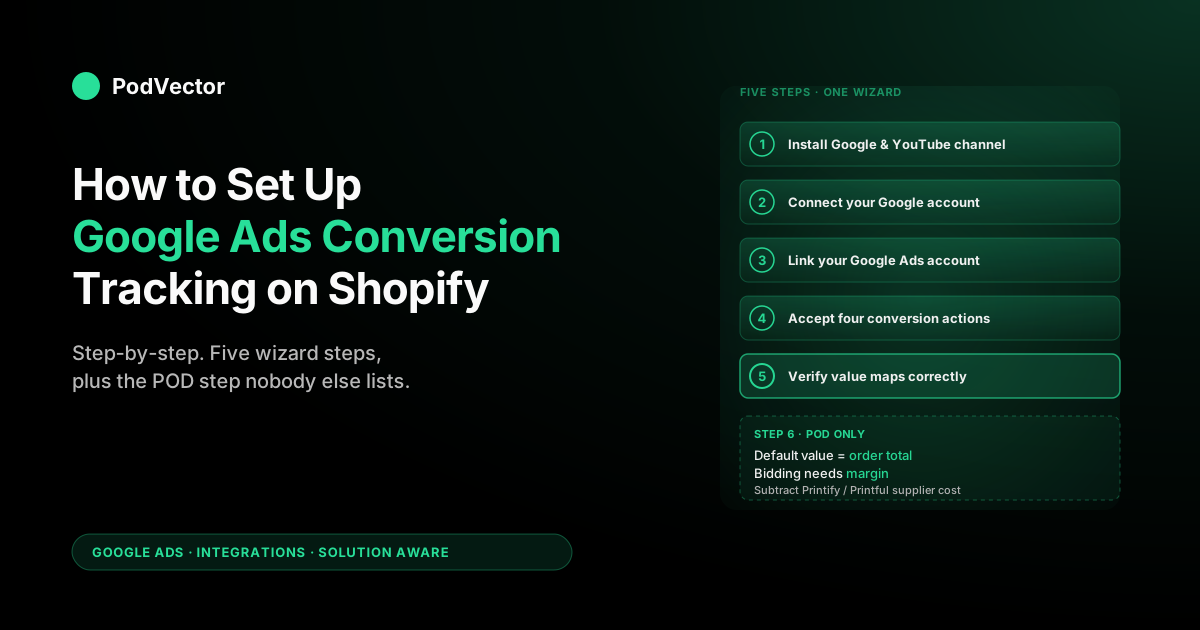
Quick Answer: The fastest path is the Google & YouTube channel app: install it from Shopify, connect a Google account that owns your Google Ads account, link Google Ads, accept the four auto-created conversion actions (Purchase, Begin Checkout, Add to Cart, Page View), and verify with Google Tag Assistant on a real test order. End-to-end hands-on time is 15–25 minutes; verification waits another 24–72 hours for diagnostic data.
The advanced path — manual tag installation through Customer Events or Google Tag Manager — is only worth the extra effort if you need conversion-value customisation the channel app can't express. POD-specific note: even after a "successful" setup, the conversion value Shopify ships to Google Ads is order total, not contribution margin after Printify or Printful supplier costs, which trains Smart Bidding on the wrong number until you fix the value layer separately.
Prerequisites: what you need before you start
Six things should be true before you start the setup. Skipping any of them produces errors mid-flow that look like Shopify or Google Ads bugs but are actually account-state problems:
- A Shopify store on a paid plan. The Google & YouTube channel app installs on Basic and above. Trial stores can install but conversion data won't validate until billing is active.
- An existing Google Ads account. Shopify links to your Google Ads account; it doesn't create one. If you don't have one, spin it up at ads.google.com first — three minutes — and come back.
- A Google account that owns the Google Ads account. Manager (MCC) access alone won't complete the link. You need owner or admin access on the underlying account.
- Customer Data Terms accepted in Google Ads. Admin → Account access → Account settings → Customer data terms. Without this, conversion tracking will install but enhanced conversions and Customer Match are greyed out and you'll have to come back.
- Admin permission on the Shopify store. Staff accounts can install the app but can't complete the OAuth callback that persists the credentials.
- Products published to the Online Store sales channel. Not strictly required for conversion tracking, but if you also enable Merchant Center for Shopping campaigns later, an unpublished catalog produces an empty feed and confusing warnings.
That's everything. The setup itself takes 15–25 minutes of hands-on time and 24–72 hours of waiting for verification data to land in Google Ads.
Choosing between the two setup methods
There are two supported ways to set up Google Ads conversion tracking on Shopify. Pick one — running both creates double-counting (covered below).
Method 1: Google & YouTube channel app. Free, owned by Google (not a third-party developer), and the supported integration path in 2026. It auto-creates four conversion actions, wires up Customer Match, and handles consent mode out of the box.
This is the right default for any POD store under roughly $200K MRR. Skip ahead to Method 1 if you're starting from scratch.
Method 2: Manual tag installation. Paste the global site tag into your theme's <head> and the conversion event snippet into the order-status page (or wire both through Google Tag Manager). Worth the extra effort only if you need conversion-value customisation the channel app can't express, multi-domain tracking, or you're already running a tightly-controlled GTM container for compliance reasons. Most POD operators do not need Method 2; if you're not sure, you don't.
For everyone else, Method 1 is the answer. It's faster, less brittle, and updated by Google when Customer Events syntax changes. The five minutes you save fighting with manual installation is five more minutes of actual ad-account work.
Method 1: The Google & YouTube channel app (easy, recommended)
The flow inside Shopify's channel admin is a five-step wizard. Each step is clearly labelled inside the channel UI; what follows are the things the wizard doesn't tell you out loud.
Step 1: Install the Google & YouTube channel
From Shopify admin, click the green plus next to "Sales channels" in the left sidebar → search "Google & YouTube" → Add channel → accept permissions. Installation takes about thirty seconds. The channel appears in the sidebar under Sales channels and the channel admin page opens to the setup wizard.
Avoid the third-party "Google Ads" apps in the Shopify App Store unless you have a specific reason. Most are wrappers around the same official APIs with a markup, and a few introduce additional pixel layers that conflict with the channel-app pixel and produce double-counted conversions — which then takes longer to debug than the original installation saved.
Step 2: Connect your Google account
Inside the channel admin → "Connect a Google account" → Connect → OAuth pop-up. Choose the Google account that owns your Google Ads account. Grant the permissions Shopify requests (read profile, manage Google Ads conversion tracking, manage Merchant Center, read YouTube channel). The wizard advances automatically once the OAuth callback completes.
If the OAuth pop-up closes without returning to the wizard, the cause is almost always pop-up or third-party-cookie blocking — Safari and Brave with default settings block the postMessage callback that completes the handshake. Switch to Chrome or Firefox for the duration of setup. The connection persists across browsers once established.
Step 3: Link your Google Ads account
The wizard's next step is "Conversion measurement" or "Set up Google Ads" depending on which version of the channel UI Shopify has rolled out (the wording has changed three times in 2025 alone; the function is identical). Inside that step, find "Your Google Ads account" → Connect → pick your Google Ads account from the dropdown.
If you have multiple Google Ads accounts (separate dev/prod, separate brands, an MCC across clients), cross-reference the 10-digit customer ID against the one shown at the top of your Google Ads UI before confirming. Picking the wrong account here means uninstalling the channel and reinstalling to fix it.
Step 4: Accept the four default conversion actions
Once you confirm the link, Shopify creates four conversion actions inside Google Ads automatically:
- Purchase — set as the primary action and the default for Smart Bidding.
- Begin Checkout — secondary, useful for funnel analysis.
- Add to Cart — secondary, useful for remarketing audience signals.
- Page View — secondary, low-value but harmless.
Customer Match is also turned on automatically — it imports your Shopify customer list (hashed) into Google Ads as an audience for retargeting and lookalike modelling. There's an "Allow Customer Match" toggle if compliance requires it off; for most U.S.-based POD stores, leave it on.
One adjustment worth making while you're here: switch the Purchase conversion's "count" setting from "one" to "every" if your POD catalog has repeat customers (it does). The default counts only one purchase per click, which under-counts loyal customers and skews Smart Bidding away from acquisition campaigns that produce multiple orders.
Step 5: Verify the conversion value is mapped correctly
Before leaving the wizard, click into the Purchase conversion action in Google Ads → Settings → verify the "value" field is mapped to {{purchase_total}} or the modern Customer Events equivalent {{ checkout.totalPrice.amount }}. A surprising number of channel-app installations land with conversion value at $1.00 because of a Liquid binding error introduced by an earlier theme customisation. If you see "Value: 1.00" instead of the order total, fix it now — Smart Bidding spends two weeks optimising against zero meaningful signal before the symptom becomes obvious.
That's the channel-app setup. Skip to enhanced conversions next.
Method 2: Manual tag installation (advanced)
Use this path if you need control the channel app can't express. The standard manual setup has three steps.
Step 1: Create the conversion action manually in Google Ads
Goals → Summary → New conversion action → Website → "Add a conversion action manually." Choose Purchase as the category. Set the value to "Use different values for each conversion" if you'll pass dynamic order totals (you should). Set count to "Every" for POD stores. Click Save and continue.
You'll receive two snippets: a global site tag (the gtag library) and an event snippet (the conversion fire). Copy both.
Step 2: Install the global site tag in your Shopify theme
Online Store → Themes → Edit code → theme.liquid → paste the global site tag immediately after the opening <head> tag. This loads gtag on every page of your store. If you already have a Google Analytics 4 tag installed via theme code or via the legacy Google Analytics admin field, the gtag library is shared — don't paste a second copy or you'll initialise gtag twice.
Step 3: Install the event snippet on the order-status page
Settings → Checkout → "Order status page" → "Additional scripts" textarea → paste the event snippet, replacing the static value with Liquid that reads the actual order total:
Use {{ checkout.total_price | money_without_currency }} for the value field and '{{ order_id }}' for the transaction_id field (the second prevents duplicate firing if a customer reloads the thank-you page). Save.
If you'd rather wire this through Google Tag Manager — recommended for stores that already have GTM in place for other pixels — install the GTM container snippet instead of the gtag global, then set up the Google Ads Conversion Tracking tag inside GTM with a trigger of "All Pages — Order Status" and the same Liquid variables passed in via dataLayer. The work is identical; the maintenance surface moves from theme code to GTM.
Add enhanced conversions (do this once, not optional in 2026)
Enhanced conversions matter more in 2026 than they did in 2024. Third-party cookie deprecation in Chrome and Apple's Intelligent Tracking Prevention have eroded the share of conversions Google can attribute through cookies alone. Enhanced conversions recover roughly 5–15% of conversions that would otherwise show as unattributed by hashing first-party customer data (email, phone, name) and matching against Google's signed-in user graph.
If you're on Method 1 (channel app), enhanced conversions enable in one click: channel admin → Conversion tracking → "Enhanced conversions" toggle → on → accept the customer-data terms prompt. The channel app handles the user_data binding automatically.
If you're on Method 2 (manual), enable in Google Ads at Goals → Conversions → click your Purchase conversion → Enhanced conversions → turn on → Choose "Google tag" → provide the user_data fields you'll pass (email, phone, address). Then update your event snippet to include a user_data object with hashed-or-plain customer fields from the order. Google's tag SHA-256-hashes them client-side before sending; if you want to hash before passing for additional control, you can.
For a deeper walkthrough of the enhanced-conversions setup specifically, see our Google Ads enhanced conversion setup on Shopify guide.
Verify the conversion is firing (three checks)
This is the step most often skipped. Don't skip it. A silently broken setup costs more in mis-spent ad budget than the verification takes in time.
Check A: Google Tag Assistant on a real test order
Install the Google Tag Assistant Chrome extension. Place a small live test order through your store — use a $1 product and refund yourself afterward. Don't use the test credit card option. It won't reliably trigger full conversion tracking, because the order never actually becomes "paid."
On the order-confirmation page, open Tag Assistant. You should see a Google Tag firing, a Google Ads Conversion event with the conversion ID matching your Google Ads account, conversion value populated correctly (the actual $1, not 1.00 or 0), and (if enhanced conversions are on) a green indicator showing user_data attached. Any of those missing means the pixel is firing partially.
Check B: Shopify channel diagnostics (Method 1 only)
Inside the Google & YouTube channel admin → Settings → Conversion tracking. The status should show "Connected: receiving data" within 24 hours of your first real (non-test) Google Ads-attributed conversion. If it still shows "Connected: not receiving data" after 48 hours and you've had Google Ads clicks that converted, escalate to Check C.
Check C: Google Ads Diagnostics tab
Goals → Conversions → click into your Shopify Purchase conversion action → Diagnostics tab. After 72 hours of data, you should see "Receiving conversions" with no flagged warnings. The most common warnings on a fresh POD setup: "Tag firing on multiple domains" (your test environment is also pixeling), "Inconsistent value" (variant prices flowing through with currency-conversion rounding), or "Low volume" (you simply haven't had enough conversions yet — fine for a brand-new setup).
The POD step nobody else lists: fix the conversion value
The standard setup ends at verification. For POD, there's a sixth step no other guide flags, and skipping it is what causes Smart Bidding to make increasingly weird decisions after two to four weeks of "successful" conversion tracking.
The data flowing into Google Ads consists of: a Purchase event, attributed to a click, with a value field set to the order total. Order total is what the customer paid you. It is not what you kept.
A $52 hoodie sold through Printify clears roughly $19 of contribution margin after Printify's blank cost, the print fee, the shipping you absorb, and Shopify's payment processing. A $24 mug clears roughly $11.
A $74 all-over-print sweatshirt that looked great in your bestsellers report clears about $22 because the substrate cost is what it is. Smart Bidding, fed order totals as the conversion value, sees the $52, $24, and $74 outcomes and optimises spend toward whichever ad groups produce the highest aggregate revenue. On a POD catalog, that systematically pushes spend toward the highest-list-price products, which are systematically the worst-margin products.
Three layers of fix, in increasing order of accuracy:
- Layer A (the 80% solution). A Google Ads conversion-value rule that multiplies all conversions by your average margin ratio. If your blended contribution margin across the catalog is 38%, a value rule of 0.38 applied to the Purchase conversion gets Smart Bidding into roughly the right neighbourhood. Coarse but effective. Set it inside Google Ads → Goals → Conversions → Conversion value rules.
- Layer B (the 95% solution). This method looks at each item in the order, not just the total. It finds what that item actually cost you to make, then sends your real profit (what the customer paid minus that cost) as the conversion value, instead of the full order amount. It takes more setup, but the numbers you get back are much more accurate.
- Layer C (the 99% solution). Post-hoc conversion adjustments via the Google Ads API, where after each Printify or Printful invoice reconciles, your warehouse pushes a corrected conversion value with the actual contribution margin including refunds, returns, and reprints. The picture closest to the truth.
The full implementation across all three layers is covered in our Google Ads conversion tracking Shopify setup guide for POD sellers. The point of mentioning it here is that the conversion-tracking setup you just completed is necessary but not sufficient. A POD store running with the default channel-app value mapping is leaving 15–35% of effective ad spend on the table compared to one that has even Layer A in place.
Avoid double-counting conversions
The single most common reason a fresh setup looks "wrong" is double-counting — Google Ads reports more conversions than you actually had. Three causes account for roughly all of them.
Cause 1: You ran both Method 1 and Method 2. The channel app installed its pixel; you also pasted a manual gtag conversion event into the order-status page. Both fire on the thank-you page.
Fix: pick one method and remove the other. If you want the channel app's other features but need a custom value at fire time, leave the channel app installed but disable its conversion-tracking-only setting and rely on the manual tag for the actual conversion fire.
Cause 2: Your theme has a legacy Google Ads conversion script left over from a previous setup. Search your theme.liquid and the order-status page's "Additional scripts" textarea for any reference to googleads, conversion, or AW- (the Google Ads conversion ID prefix). Remove duplicates.
Cause 3: GA4 is also configured as a conversion source linked to Google Ads. If you've imported GA4 conversions into Google Ads and have the Google Ads channel-app pixel firing, both count. Choose one as the source of truth (the Google Ads pixel is more accurate for Smart Bidding). Inside Google Ads → Goals → Conversions → uncheck the GA4-imported Purchase conversion's "Include in 'Conversions'" toggle.
Troubleshooting: five things that break first
1. OAuth pop-up closes without completing the connection
Third-party-cookie blocking in Safari or Brave. Switch to Chrome or Firefox for the duration of the connect flow. If it still fails on Chrome, your Google account has 2FA prompts on a different device — finish the challenge there, then retry.
2. "Your Google account does not have access to a Google Ads account"
You're signed in to a Google account with no Google Ads account or only manager (MCC) access. Sign in to the account that owns the Google Ads account, then retry the link.
3. Conversion tracking shows "Connected: not receiving data" after 72 hours
Three causes ranked by likelihood. First, you've had no Google Ads-attributed conversions yet — confirm in Campaigns that you actually have spend and click volume.
Second, your store is on a multi-domain setup (separate domain for checkout) and the conversion tag isn't firing on the production domain — fix by setting cross-domain measurement in your gtag config. Third, an aggressive Customer Events pixel customisation by a developer is suppressing the channel-installed pixel — diagnose with Tag Assistant.
4. Conversion value is firing as "1.00" on every order
The value field in your Customer Events pixel isn't reading the correct Liquid variable. Should be {{ checkout.totalPrice.amount }} in modern Customer Events syntax or {{ purchase_total }} in legacy script-tag syntax.
The default channel-app pixel does this correctly out of the box, so a "$1.00 on every order" symptom usually means a previous developer customised the pixel and broke the binding. Restore from the channel-app default if you don't need the customisation, or fix the variable reference if you do.
5. Smart Bidding makes weird decisions after 2–4 weeks of "successful" conversion tracking
This is the symptom of the POD value problem: connection is correct, conversion data is flowing, but Smart Bidding is optimising against a value signal that doesn't reflect actual margin, so it's training itself toward worse and worse SKU mixes by your real economics. Solution lives in the value layer — implement at least Layer A from the section above.
FAQs
How long does the full conversion-tracking setup take?
Method 1 (channel app): 15–25 minutes of hands-on time, plus 24–72 hours of waiting for verification data. Method 2 (manual): 30–60 minutes of hands-on time depending on whether you wire through GTM, plus the same waiting period. Most POD operators are done in under an hour of active work.
Do I need Google Tag Manager to set up Google Ads conversion tracking on Shopify?
No. Method 1 (channel app) doesn't use GTM. Method 2 (manual) can use either direct theme installation or GTM — GTM is preferred only if you already maintain a GTM container for other pixels. For most POD stores, neither GTM nor manual installation is necessary; the channel app does the job.
Can I track conversions in Google Ads without a Shopify store?
Yes — Google Ads conversion tracking works on any platform that lets you install JavaScript on the conversion page. Shopify is just one of many supported platforms. The channel app is Shopify-specific, but the underlying tag is platform-agnostic.
What conversion actions should I use as the primary action for Smart Bidding?
Purchase, with a value-based bid strategy (Maximise Conversion Value or Target ROAS). Begin Checkout and Add to Cart are useful as secondary actions for audience building and funnel analysis but should not drive bidding — they're too far up-funnel and too easy for Smart Bidding to optimise toward at the expense of actual revenue.
Will conversion tracking work if I'm running Google Ads to a non-Shopify landing page?
Partly. The conversion-tracking layer fires on Shopify pages — it doesn't track conversions that happen on a different platform.
If you're running Google Ads to a Webflow or WordPress landing page that links to Shopify checkout, the conversion will fire when the user reaches the Shopify thank-you page, but you'll lose any landing-page-stage events. For a Shopify-only funnel, the channel app is fine; for cross-platform funnels, you need additional pixel work.
Should I run Search and Performance Max simultaneously?
Strategy question rather than tracking question. The conversion setup supports both. Most POD operators eventually run both, with Search optimised for branded and bottom-funnel queries and Performance Max handling generic discovery. The architectural question of which to start with is covered in our Google Ads playbook for POD sellers.
What's the right cluster of articles to read after this one?
Once tracking is live, the next-most-important read is the value-layer fix — start with our Google Ads conversion tracking Shopify setup guide for POD sellers, then the deeper enhanced conversions setup guide for first-party data recovery. The architectural pillar tying this whole cluster together is the complete guide to Google Ads + Shopify integration for POD, and the Google Ads Integrations cluster hub indexes the rest of the wiring articles. For broader strategy beyond this cluster, the Google Ads topic hub covers ad types, ROAS, and campaign architecture.
Where does Google document this officially?
The Shopify-side documentation is at the Google Ads Help: Set up conversion tracking with the Google & YouTube app on Shopify page. Shopify's blog walkthrough is at How To Set Up and Use Google Ads Conversion Tracking. Both are kept current and are the source of truth for any UI text changes that out-date third-party guides like this one.
Tracking is the floor, not the ceiling.
A working Google Ads conversion-tracking setup means data is flowing. Whether that data reflects what you actually keep — order total versus contribution margin, gross revenue versus net of Printify or Printful supplier cost — is a separate question Smart Bidding can't answer for you. Victor connects your live Google Ads, Shopify, and Printify or Printful data into a single a warehouse and answers questions like "what's my true ROAS by campaign after supplier cost?" or "which Performance Max product groups are over-spending relative to actual margin?" in plain English. Victor answers your questions and acts on your behalf in the ad accounts — with your approval.
Try Victor free