
Quick Answer: The Shopify Printify integration is a one-click install from either side. The setup that actually matters happens after the connection — provider selection, shipping configuration, and pricing rules that don't put you underwater on every sale.
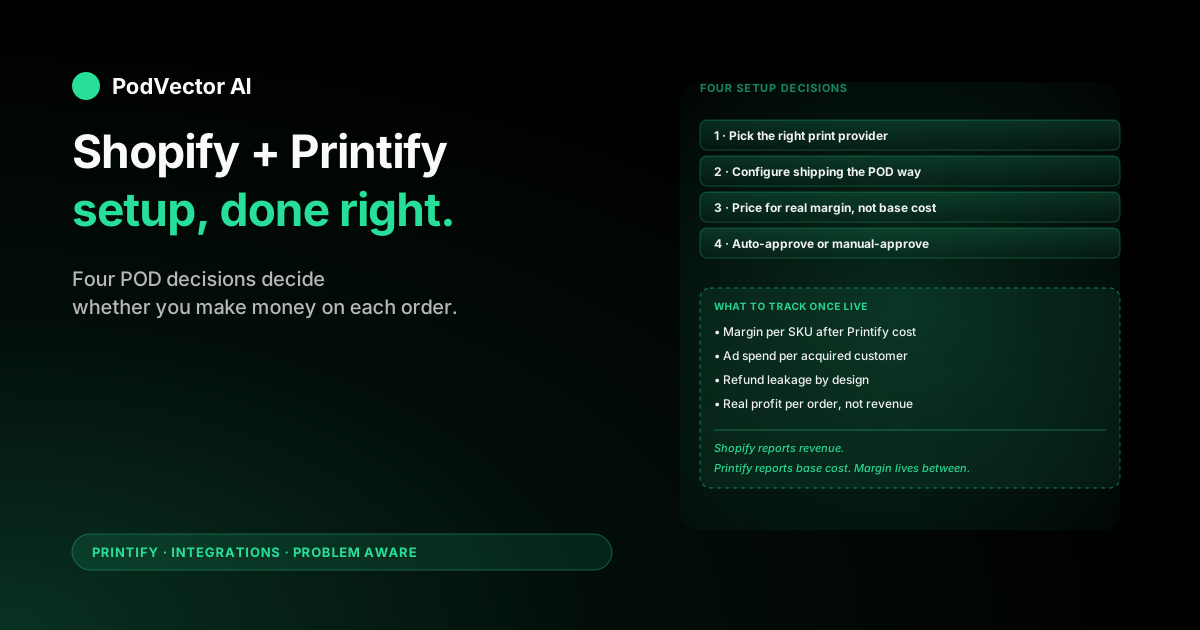
Most setup guides walk you through clicking Install. This one covers the four POD-specific decisions that decide whether your store makes money or loses it on each order.
Then it covers what to track once orders flow, because Shopify's dashboard shows revenue and Printify's shows base cost — neither shows margin.
What the Integration Actually Does
The integration is a two-way sync between your Shopify storefront and your Printify production backend. Once it's live, four things happen automatically.
- Products you create in Printify push to Shopify as draft listings with mockups, descriptions, variants, and SKUs already populated.
- Paid orders from Shopify pull into Printify within a few minutes, ready for fulfillment by whichever provider you picked for that product.
- Tracking numbers and fulfillment status push back to Shopify so customers get the usual shipping email and order page updates without you touching either system.
- Refunds and cancellations sync in both directions as long as the order hasn't been sent to production yet.
What it does not do: surface profit per order, allocate ad spend to SKUs, or warn you when a provider's base cost goes up. Those are the gaps you fix in the layer above the integration. More on that in the tracking section.
Connect the Two Accounts
The connect step is the fastest part of the whole setup — under three minutes. You can start from either side and end up in the same place.
From Shopify
In your Shopify admin, click Apps → Visit Shopify App Store. Search Printify, open the official listing (developer should read Printify, Inc.), and click the green Install button. Approve the permissions Shopify lists. Sign in to your existing Printify account when the embedded panel loads, or sign up if you don't have one yet.
The connection is live the moment you finish signing in. For the click-by-click version including troubleshooting, see the connect Printify to Shopify setup guide.
From Printify
Log in to Printify, click the store dropdown in the top-left, and pick Manage my stores → + Add new store. Click the Shopify tile, paste your store URL in the format yourstore.myshopify.com, and click Connect. Approve the app on Shopify's side. You land back in Printify with a green Connected badge.
Either path gets you to the same place. The interesting decisions start now.
Decision 1: Pick the Right Print Provider
Printify isn't one factory. It's a marketplace of independent print providers — Monster Digital, Swiftpod, Drive Fulfillment, District Photo, SPOKE Custom Products, and a few dozen more. Each has its own base cost, production time, ship-from location, and quality reputation for each product type.
For a Shopify-first POD store, three things matter when picking:
- Ship-from location. Pick a provider in the country where most of your customers live. A US provider for US-heavy traffic, an EU provider for EU-heavy. Cross-border shipping is slow and expensive and kills your conversion.
- Production time. Sort the provider list by production time. Shopify customers expect "ships in 3 business days" because that's what every other Shopify store promises. Anything over 5 business days is a refund magnet.
- Base cost. Don't optimize for the absolute lowest cost. The cheapest provider often has the worst print quality, which generates returns. Pick the second- or third-cheapest with a four-star-plus rating.
For new sellers on Bella+Canvas 3001 tees in the US, Monster Digital and Swiftpod are the safe starting picks. For the full base-cost matrix, see the Printify Bella+Canvas 3001 cost breakdown.
Decision 2: Configure Shipping the POD Way
This is the step the standard install guides skip — and it's the single most expensive mistake a new POD seller makes on Shopify.
Printify charges you a per-order shipping fee that varies by provider and destination. Shopify, by default, charges the customer a flat shipping rate set in your store settings. If you leave Shopify's default rates on, the math goes wrong on most orders.
You have three options. Pick one and stay consistent.
Option A: Carrier-calculated shipping (best margin, requires the right plan)
Inside Printify, go to My account → Connections and toggle on Use Printify-calculated shipping rates. Shopify then quotes the actual Printify rate at checkout based on the customer's address and cart contents.
The customer pays exactly what Printify charges you. Zero subsidy, zero overcharge. The catch: Shopify's carrier-calculated shipping is included on Advanced and Plus plans, and on Basic/Shopify plans only if you pay annually. On monthly Basic, it's a paid upgrade.
Option B: Static rate tiers that approximate Printify's costs
In Shopify admin, go to Settings → Shipping and delivery. Edit the General shipping profile and add price-based or weight-based rates that roughly match what Printify charges your most common provider.
Pull the Printify rate matrix from My account → Shipping costs. Update it every quarter — provider rates drift, and a 50-cent shift across thousands of orders adds up. For the US shipping breakdown on the most common SKU, see the Printify Bella+Canvas 3001 US shipping cost breakdown.
Option C: Bake shipping into the product price (free shipping)
Set Shopify shipping to free. Mark up the retail price by the average shipping cost across your top markets. This gives the cleanest checkout and the highest conversion rate — customers hate surprise shipping fees more than they hate higher sticker prices.
It works if 80%+ of your traffic is in one or two countries. It breaks fast if you sell internationally — Australia and Europe shipping on a US-printed tee can be three times the domestic cost and the buffer math gets ugly.
For most sellers on Basic plan, Option C is the lowest-friction starting point. Switch to Option A once monthly order volume justifies the plan upgrade.
Decision 3: Set Pricing Rules That Survive Cost Hikes
Printify shows a suggested retail price on every product. Ignore it. The default suggestion is a 100% markup on base cost, which doesn't account for Shopify fees, ad spend, or refunds. You'll be losing money on every sale and not know it.
Build your retail prices from the bottom up. The minimum viable POD margin equation looks like this for a typical Shopify tee:
- Printify base cost (provider + 1-side print): $9–$12 depending on size and color
- Shopify payment processing (2.9% + $0.30 on Basic): ~$1 on a $25 sale
- Ad cost per acquired customer (Meta or Google, POD CAC typical): $6–$10
- Returns and refund leakage (industry average 3–5% of revenue): ~$1
- Target net margin per order: aim for $5+ to make the operation worth running
That puts the minimum viable retail price for a Bella+Canvas 3001 tee at around $25–$27 in the US. Going lower and you're paying customers to take your product. Going higher works for niche audiences and branded designs, but conversion drops fast above $30 for plain apparel.
Bake a 5–10% buffer into every retail price so a base-cost hike from Printify doesn't immediately put you underwater. Provider prices change — usually upward — and the alert never arrives in time.
Decision 4: Auto-Approve or Manual-Approve Orders
By default, Printify auto-approves every paid Shopify order and submits it to the provider within minutes. You can flip it to manual approval under My account → Settings → Order approval.
The trade-off is real. Auto-approve is fast and hands-off — fine when your product catalog is settled and you trust the provider. Manual approve gives you a window to catch obvious errors before the order goes to production: wrong size, weird shipping address, duplicate order from a glitched checkout.
The right answer for most POD sellers: start manual for the first 50 orders, then flip to auto once you've seen the failure patterns and built confidence in your catalog. Stay manual on high-value SKUs (anything over $50 retail) even after you flip the rest to auto. A wrong-size hoodie is a $30 mistake; a wrong-size embroidered jacket is $80.
What to Track Once Orders Flow
The connection is done. Products are pushed. Orders are coming in. Now the actual work starts — knowing whether you're making money.
Here's the part the integration doesn't do for you. On a $26 t-shirt sold through Shopify and produced by Printify, the real per-order math looks like this:
- Sale price: $26.00
- Shopify processing (2.9% + $0.30): −$1.05
- Shopify monthly plan (allocated at 100 orders/month on Basic): −$0.39
- Printify base cost (Bella 3001, 1-side, US provider): ~$10.50
- Shipping (passthrough if charged at checkout): $0 net
- Ad spend per acquired customer (Meta or Google, POD CAC range): −$8.00
- Refund leakage (3% average): −$0.78
- Net margin: ~$5.28 before apps and platform fees
That's the equation Shopify won't show you and Printify won't show you. Shopify's dashboard reports revenue. Printify's dashboard reports base cost. The ad platforms report spend. Margin lives in the intersection of all three.
The cross-source business questions that decide whether your POD operation is healthy live in that same intersection. Examples: which SKU is losing money on Meta this week? Which design is paying back its CAC fastest? Which provider drives the most refunds per dollar fulfilled? None of those questions can be answered by Shopify or Printify alone.
This is the gap Victor closes. He pulls Shopify orders, Printify costs, and Meta and Google ad spend into a unified live data warehouse, then runs your ads, updates your Shopify catalog, and reallocates spend with approval gates. Ask him in plain English "which Printify SKU lost money on Meta last week?" and he tells you, then proposes the bid change. You approve. He acts.
For sibling integration setups across the rest of your Printify-connected channels, the connect Printify to Etsy setup guide, the connect Printify to Shopify setup guide, and the connect Printify to Squarespace setup guide cover the per-platform install paths. The full Printify integrations hub indexes every connector, and the Printify topic page indexes every cost, integration, and provider deep-dive across the site. Printify's own connection guide writeup is a useful third-party reference if you hit an edge case the steps above don't cover.
FAQs
Is the Shopify Printify integration free?
Yes. There's no monthly fee on either side for the connection itself. You pay Shopify's plan fee ($39/mo on Basic) and Printify's per-order base cost. Printify Premium ($29/mo) is optional and only pays back above roughly 30 orders/month.
How long does the Shopify Printify integration take to set up?
The connection itself is under three minutes. The four POD-specific decisions above — provider, shipping, pricing, fulfillment — take another 30 to 60 minutes if you've thought through them in advance. Plan for an hour total from zero to first published product.
Can I connect more than one Shopify store to one Printify account?
Yes. Printify supports up to ten connected stores per account on the free plan. Each connection is independent — different products, different providers, different shipping rules.
Do Shopify orders automatically push to Printify?
Yes, as soon as Shopify marks the order as paid. The order appears under Orders → Awaiting fulfillment in Printify within a few minutes, then either auto-submits to the provider or waits for your manual approval depending on the setting under My account → Settings → Order approval.
What happens if a Printify provider raises base costs?
Nothing automatic. Printify updates the catalog and your existing Shopify listings keep selling at the old retail price — meaning your margin shrinks silently until you re-price. The fix is to either bake a 5–10% buffer into retail prices upfront, or run a monthly margin check across all active SKUs.
Can I edit Printify products directly in Shopify?
You can, but you shouldn't. Edits made on the Shopify side don't sync back to Printify, so your two systems drift apart. Treat Printify as the source of truth for product data — title, image, variants, description — and let it push down to Shopify.
Does the integration handle international orders?
Yes, but the shipping setup matters more than for domestic. International shipping rates from Printify can be three to five times domestic rates. Either use carrier-calculated shipping at checkout, or set separate static rates per destination region. Free shipping baked into price almost never works for international orders.
Let Victor run your Shopify + Printify ops
The integration moves orders and tracking numbers between Shopify and Printify. It doesn't tell you which SKU is bleeding money or which campaign to pause. Victor is an AI employee that runs your Meta and Google ads, updates your Shopify catalog, and reallocates spend with your approval — on top of a live data warehouse that already speaks Shopify, Printify, and every ad platform you use. He does the work. You approve the moves.
Try Victor free