
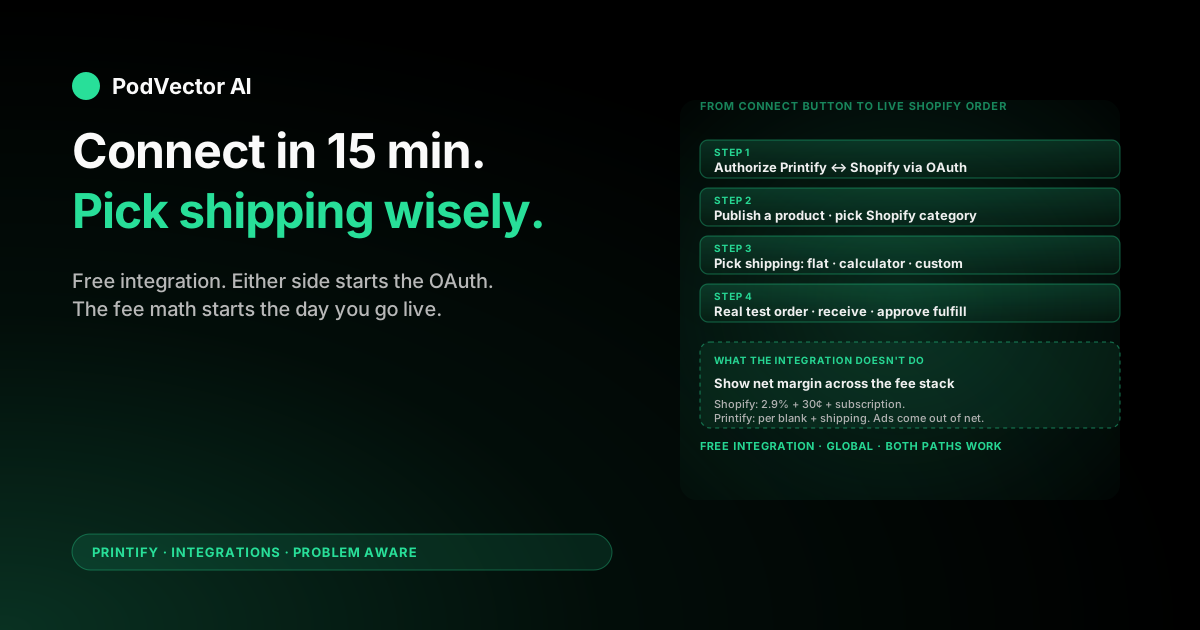
Quick Answer: Connecting Printify to Shopify is free, takes about 15 minutes of active work, and can start from either side — the Printify dashboard or the Shopify App Store. Both paths land at the same place: an authorized OAuth handshake that lets Printify push product listings into Shopify and pull orders back for production.
The mechanical setup is the easy part. The setting most guides skip: how you publish shipping rates. Printify can flat-rate them, calculator-them in real time, or you can set custom rates in Shopify — and each choice changes what your checkout actually charges.
The real work starts after the connection is live. Shopify takes its 2.9% + 30¢ per transaction. Printify charges per blank. Your ad spend sits in Meta and Google. None of those numbers live in the same dashboard, and that's where most stores quietly lose money. This guide covers the setup and what to do about the data problem.
What the Printify–Shopify integration actually does
The integration is the official link between your Shopify storefront and Printify's print-on-demand network. Once connected, Printify becomes the back-end production layer for any product you publish into Shopify.
Functionally it does three things. It pushes products you build in Printify into your Shopify catalog as live listings with images, variants, and prices. It listens for orders on those listings and queues them for production at the print provider you picked. And it pushes tracking back to Shopify so the buyer sees normal Shopify order status emails.
Shopify owns the customer experience. Shopify owns the storefront, checkout, payments, email list, returns workflow, and analytics. Printify never touches the buyer side — they only see Shopify branding and Shopify emails. Whether Printify's margins actually work for your category is a separate question from whether the integration works mechanically.
Before you connect: prerequisites
This is the part most guides hand-wave. Both sides of the integration have requirements that, if missing, cause the connect button to silently fail or the first order to refund itself. Walk through this list before you click anything.
- An active Shopify subscription. The free trial works for connecting and testing, but Shopify will pause your storefront when the trial ends and orders will start failing. Pick a plan first — Basic at $39/month is fine for most POD stores under $5K MRR.
- A Shopify store with a payment provider enabled. Shopify Payments or a third-party gateway (PayPal, Stripe). Without one, the checkout will load but rejects every order.
- A Printify account. Free to create, no card at signup. You'll add a payment method before any order goes to production. Printify's free plan supports up to 5 connected stores.
- A payment method in Printify. Credit card or PayPal. This is the card Printify charges per order when production starts — it's separate from how you get paid in Shopify.
- Your Shopify store URL. The "myshopify.com" address or your custom domain. You'll paste this into Printify during the OAuth handshake.
- A clear product idea, or at least a category. Don't connect a blank store. Have one design and one product type ready to publish so you can test the full pipeline within an hour of connecting.
If you're choosing between Shopify and another front-end, hold that decision before you connect. Migrating products between storefronts later is annoying and breaks your SEO. The integration itself is free either way.
Method 1: connect starting from Printify
This path is faster if you already have a Printify account. You'll authorize Shopify from inside the Printify dashboard.
- Log into Printify. Go to printify.com and sign in. If you don't have an account, sign up — it's free.
- Open the store menu. Click the dropdown in the upper-left corner of the dashboard and select Manage my stores.
- Click "Add new store." A list of integration options appears (Shopify, Etsy, eBay, WooCommerce, TikTok Shop, and others).
- Pick Shopify. Click the Connect button under the Shopify card.
- Enter your Shopify store URL. Paste the full address — either
your-store.myshopify.comor your custom domain. - Install the Printify app. You'll be redirected to Shopify's app installation prompt. Click Install app and approve the permissions Printify requests (read/write products, orders, shipping, draft orders).
- Confirm the redirect. Shopify hands you back to Printify with the store now showing in Manage my stores as connected.
Total clicks: about a dozen. Total time: 5–10 minutes if your Shopify URL and login are at hand.
Method 2: connect starting from the Shopify App Store
This path is faster if you already have Shopify but no Printify account, or if you prefer to install apps the way you install every other Shopify app.
- Open Shopify admin. Sign into your Shopify dashboard.
- Visit the Shopify App Store. Click Apps in the left sidebar, then Shopify App Store, or go directly to apps.shopify.com.
- Search "Printify." Click the official Printify listing — verify the developer is "Printify, Inc." to avoid copycat apps.
- Click "Install." Shopify shows the permissions Printify is requesting. Review and click Install app.
- Sign in or sign up for Printify. The Printify login screen opens inside your Shopify admin. Enter your credentials or create a new account.
- Confirm the embedded dashboard. After login, the Printify dashboard renders inside Shopify admin. That's your sign the connection completed.
If you're still seeing the Printify login screen instead of the dashboard, the most common cause is that you logged into the wrong Printify account — the one you signed up with versus the one already connected. Sign out of Printify entirely (printify.com → logout), then sign back in through the Shopify app.
Publish your first product to Shopify
The connection is live, but Shopify still shows zero products. You need to actually push one through to confirm the data path works.
- Open the Printify catalog. From Printify dashboard, click Catalog. Pick a starter product — a unisex T-shirt is fastest because shipping rates are well-defined for most regions.
- Pick a print provider. Each provider has its own cost, shipping speed, and quality profile. Sort by location closest to your target buyers; international shipping is where margins die.
- Upload your design. Drag a PNG with a transparent background onto the mockup. Printify shows live previews per variant.
- Add product information. Title, description, tags, and Shopify category. Don't skip the description — Shopify's search and Google's index both use it.
- Set retail price. Printify shows your production cost; you set the retail price. The default 40% margin is a starting point, not a strategy — see the fee section below for what to actually price for.
- Pick "Publish to Shopify." Choose whether the product publishes as Active (visible to buyers immediately) or as a Draft (hidden until you flip it). Drafts are the right default for a first product so you can review the Shopify-side listing before going live.
- Verify in Shopify admin. Within a minute or two, the product appears under Products in Shopify with all variants and images synced.
If the product doesn't show up in Shopify within 5 minutes, the most common cause is that the Printify product is missing a required Shopify field (typically the product category, which Shopify made mandatory in 2024). Re-open the product in Printify, fill the missing field, and republish.
Set up shipping rates (three options, pick one)
This is the setting that quietly kills more POD stores than any other. Shopify charges the buyer whatever your shipping rates say at checkout. Printify charges you whatever its real shipping cost is per order. If those numbers don't line up, you eat the gap on every sale.
You have three options. Pick one — don't mix.
Option 1: Publish Printify flat rates to Shopify
Printify exports its rate table directly into your Shopify shipping settings. Buyers see flat rates per region (e.g., $4.99 for US standard). Your checkout charges that. Printify charges you the same.
Best for: stores selling one or two product categories where Printify's flat rates are reasonably accurate. This is the simplest setup and matches buyer expectations.
Option 2: Enable the Printify shipping calculator
Printify calculates real shipping per item at checkout based on weight, destination, and provider. Buyers see the exact rate that Printify will charge you. Your spread is always zero on shipping.
Best for: stores selling multiple categories with very different shipping costs (a mug and a hoodie can't share a flat rate without one losing money). Requires Shopify's third-party carrier shipping rate feature, which is included on Shopify plan and above, or available on Basic for an extra $20/month if you pay annually.
Option 3: Set custom shipping rates in Shopify
You bypass Printify's rate logic entirely and set your own Shopify rates — usually "free shipping" or a single $5 flat rate. You eat or profit on the difference.
Best for: stores baking shipping into the product price. Risky for non-US-bound orders because international Printify shipping can hit $10–15 even on light goods. Run the math on your worst-case destination before flipping this on.
Whatever you pick, the deeper guide on Printify shipping covers carrier choices, delivery windows, and how to handle reships.
Place a real test order before you market
Do not run ads before a real test order has gone through your Shopify checkout and produced a tracking number from Printify. The most expensive way to find a broken integration is to find it from a refund request.
- Add the test product to cart on your live Shopify store. Use a real address — your own.
- Check out and pay. Use a real card. You'll refund yourself later.
- Confirm Shopify shows the order paid. Within seconds, the order should appear in Shopify admin → Orders.
- Confirm Printify received the order. Within a minute, the order should appear in Printify → My orders with status "Awaiting payment" or "In production." If it's not there after 5 minutes, the order didn't sync — fix that before doing anything else.
- Approve production. Some Printify configurations require manual approval; flip the auto-fulfill setting on once you're past testing so this isn't a recurring chokepoint.
- Wait for the tracking number. Printify pushes the tracking back to Shopify when the print provider hands off to the carrier. Shopify emails the buyer automatically.
- Receive the product. Hold it. Verify the print quality matches the mockup. The first physical sample tells you more about your print provider than any review will.
How orders flow once you're live
Once the integration is live, the order flow is automatic — but knowing each step matters when something breaks.
- Buyer checks out on your Shopify store.
- Shopify captures payment via your payment provider.
- Shopify pushes the order to Printify.
- Printify charges your payment method on file for production + shipping cost.
- The print provider produces and ships the order.
- Printify pushes the tracking number back to Shopify.
- Shopify emails the buyer their tracking number.
You're paid via Shopify (less Shopify's transaction fees, less your payment provider's cut). You pay Printify out of band, via the card on file. The gap between what you collect and what you pay is your gross margin — before ad spend.
That out-of-band charging is what makes margin tracking hard. Shopify shows revenue. Printify shows production cost in a different system. Neither shows the other. We'll come back to that.
The fee stack: what Shopify and Printify each take
Run this math on every product before you list it. Most first-time sellers price for Printify's cost only and discover Shopify's cut on their first $1K month.
| Cost | Who charges it | Typical rate (2026) |
|---|---|---|
| Shopify subscription | Shopify | $39/month (Basic) → $399/month (Advanced) |
| Shopify Payments transaction fee | Shopify Payments | 2.9% + 30¢ (Basic plan, US cards) |
| Third-party gateway surcharge | Shopify (if not using Shopify Payments) | 2% (Basic) → 0.5% (Advanced) on top of gateway fee |
| Printify production cost | Printify | Per-item, varies by product (e.g., $9.30 for a Bella+Canvas 3001 T-shirt) |
| Printify shipping | Printify | $4–8 US, $10–20+ international |
| Printify Premium (optional) | Printify | $14.99/month for a 20% production discount |
| Ad spend | Meta, Google, TikTok, etc. | Whatever you spend — not in Shopify or Printify |
A worked example: you sell a $24.99 T-shirt. Shopify Payments takes $1.02 (2.9% + 30¢). Printify charges $9.30 production + $4.99 shipping = $14.29. Your gross margin before ads is $24.99 − $1.02 − $14.29 = $9.68. If your average ad cost per sale is $8, you net $1.68 per shirt. If it's $10, you're losing money on every order and ad-buying harder makes it worse.
None of those numbers live in one place by default. That's the next problem.
Running the business after the integration is live
Once orders are flowing, the day-to-day work splits into three jobs that no setup guide explains.
Sync monitoring. Printify-to-Shopify sync fails occasionally — a product image times out, a variant mapping breaks, an order stalls in "Awaiting payment" because your card was declined. Each failure is recoverable if you catch it fast and silent if you don't. Most stores find out about sync failures from a customer email three days later.
Margin tracking across sources. Shopify has your revenue and Shopify fees. Printify has your production and shipping costs. Meta and Google have your ad spend. Your accountant has your Shopify subscription cost. No single screen shows you net margin per SKU, per day, per ad campaign.
The default answer is a Sunday-night spreadsheet that reconciles four sources. The next-step answer is to dump all four into a unified data warehouse — Snowflake, BigQuery, Redshift, Databricks, or equivalent — and query margin there. Even then, somebody has to ask the questions and act on the answers.
Listing and ad operations. Top-converting variants need more ad spend. Slow movers need to be paused or repriced. New designs need Shopify listings, Printify mockups, and ad creative across two or three platforms. This is the work that pays the rent, and it's also the work that gets put off when the operator is reconciling spreadsheets on Sunday.
An AI employee like Victor reads all four sources into one live data layer, watches sync errors, and — with your approval — reallocates ad spend, pauses unprofitable variants, and updates Shopify and Printify listings. The setup pays for itself the first time it pauses a campaign that was bleeding $40/day before you would have caught it manually.
Troubleshooting common connection issues
The Printify embedded dashboard keeps showing the login screen
You're signed into the wrong Printify account in the embedded session. Open printify.com in a new tab, fully sign out, then sign back in via the Shopify app. Browser cookies between the two sessions are the usual culprit.
Products don't appear in Shopify after publishing
Most common cause: the Printify product is missing Shopify's required product category. Open the product in Printify, scroll to Shopify category, pick the right taxonomy, and republish. Second cause: you published to Draft and never flipped it to Active in Shopify admin.
Orders sync to Printify but never go to production
Your Printify payment method failed. Check Printify → Payment settings. A declined card moves orders into "Action required" and they sit there until you fix the card. Add a backup payment method so a single declined transaction doesn't pause every order.
Shipping charges at checkout don't match Printify's real cost
You're using flat rates set in Shopify rather than Printify's calculator. Switch to the Printify shipping calculator in your Shopify shipping settings, or rebuild your Shopify rates to match Printify's region-by-region table.
Tracking numbers don't appear in the customer email
Check that order fulfillment notifications are enabled in Shopify (Settings → Notifications → Shipping confirmation). Then verify in Printify that the order moved to "Shipped" status — Printify only pushes tracking after the print provider scans the package to the carrier, which can lag 12–24 hours after "Production complete."
Disconnecting and reconnecting
To disconnect: Printify → Manage my stores → click the store → Disconnect. The Shopify side also requires uninstalling the Printify app from Shopify admin → Apps. Reconnecting after a full disconnect re-syncs your product list — existing Shopify listings stay, but you may end up with duplicate product entries if you republish without first deleting the originals.
FAQs
Is the Printify–Shopify integration free?
Yes. The integration itself costs nothing. You pay Shopify's subscription ($39+/month) and transaction fees (2.9% + 30¢ on Basic), plus Printify's per-order production and shipping costs. Printify Premium ($14.99/month) is optional and gives you a 20% production discount.
How long does the full setup take?
About 15–30 minutes of active work to connect, publish a first product, and configure shipping. Add another 5–10 business days if you're waiting on a physical sample to arrive before going live.
Do I need both a Shopify and a Printify account?
Yes. Shopify hosts your storefront and processes payments; Printify produces the items. The integration links the two — it doesn't replace either.
Can I connect multiple Shopify stores to one Printify account?
Yes. The free Printify plan supports 5 connected stores; Premium supports 10. Each Shopify store gets its own entry in Manage my stores with separate product lists and order feeds.
Are Printify and Shopify the same company?
No. They're independent companies with a deep partnership — Shopify has a minority investment in Printify and Printify is one of the most-installed Shopify apps. They run separate businesses with separate billing.
Does the integration work with Shopify Plus or only basic plans?
It works with every Shopify plan, from Starter to Plus. Higher plans get better Shopify transaction fees and access to features like real-time shipping calculators without the $20/month annual surcharge, but the Printify integration itself is identical across plans.
What happens if I cancel my Shopify subscription?
Shopify pauses your storefront, and orders stop reaching Printify. Your Printify account stays active and you can connect a new front-end (another Shopify store, Etsy, WooCommerce, TikTok Shop) without losing your product designs or order history.
Can I import products from another POD provider into Shopify?
The Printify integration only syncs Printify-built products. If you have products from another provider already in Shopify, they stay where they are — Printify doesn't touch them. You can run multiple POD providers in one Shopify store, each through its own app.
How do refunds work across the two systems?
You refund the buyer in Shopify. That's the customer-facing side. Whether Printify reships, refunds you, or charges you depends on the reason — production defects and shipping damage are usually Printify's cost; buyer's-remorse returns are usually yours. Document everything with photos before opening a ticket with Printify.
Does the integration work for non-US sellers?
Yes, unlike the Printify–TikTok Shop integration, the Printify–Shopify integration is global. Sellers in any region Shopify supports can connect to Printify. Your Printify print provider options depend on your buyers' region, not yours.
Related reading
For the broader Printify integration set, see our Printify integrations hub and the Printify topic page. Etsy is the other major front-end most POD sellers run — our Etsy-to-Printify setup guide covers that side, with a Printify-first variant and a step-by-step linking walkthrough. Printify's official help article is the source of truth for current connect-button behavior.
Hand off the operations to Victor
You connected Printify to Shopify. You published your first product. You picked your shipping rate strategy. Now you have revenue in Shopify, production cost in Printify, ad spend in Meta and Google, and no shared view of which SKUs actually make money.
Victor is an AI employee built for POD sellers. He reads every source into one live data warehouse, answers questions in plain English ("which Shopify products lost money after fees and shipping last week?"), and — with your approval — reallocates ad spend, pauses unprofitable variants, updates Printify listings, and adjusts Shopify pricing. You stay in control; Victor does the busywork.
Stop reconciling four dashboards every Sunday.
Try Victor free