
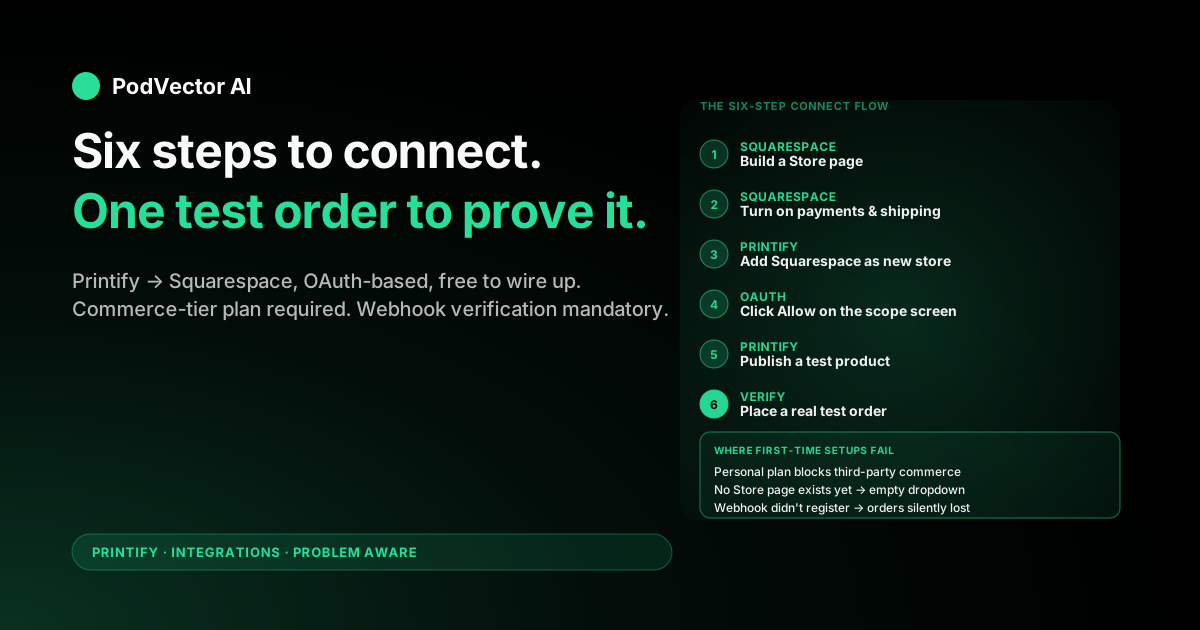
Quick Answer: Connecting Printify to Squarespace is a free, six-step process: build a Squarespace Store page, turn on payments and shipping, add Squarespace as a new store inside Printify, click Allow on the authorization screen, publish a test product, and place a real test order to confirm the loop works end-to-end.
The connect button itself takes about 30 seconds. The reason setups stall isn't the click — it's the prep. Squarespace needs a commerce-tier plan, a live Store page, and a working payment processor before the Printify dropdown will show your site.
This guide walks the six steps in order, flags the three errors that block 90% of first-time connections, and lists what to track once orders start flowing.
Before you start: the three boxes to tick
Before the Connect button does anything, three prerequisites need to be in place. Skipping any one of them is the single most common reason a Printify-to-Squarespace setup fails on the first try.
1. A commerce-tier Squarespace plan. Under current naming that's Core, Plus, or Advanced. Under legacy naming you may still see Business, Basic Commerce, or Advanced Commerce. The Personal plan won't allow the connection to complete.
2. A working payment processor. Stripe is the default; PayPal is the second option. Without one of these wired up under Selling → Payments, the integration will connect — but every checkout will fail at the payment step.
3. A Printify account. If you don't have one, sign up at printify.com — it's free, no credit card required. You don't need to design anything yet; the account is what the OAuth handshake needs to land somewhere.
That's the prep. Total time, if you already have a Squarespace site: five to ten minutes. Total time, if you're starting from scratch: thirty to forty-five minutes, mostly waiting for the Squarespace site to finish initial setup.
Step 1: Build a Store page in Squarespace
The Printify dropdown lists your Store pages, not your sites. If no Store page exists, the dropdown stays empty and there's nothing to connect to.
Inside your Squarespace site, go to Pages in the left sidebar. Click the + next to "Main Navigation" or "Not Linked" and pick Store from the page-type list. Squarespace will prompt you to name it — "Shop," "Store," or whatever fits your brand voice is fine.
You don't need to add any products to the page yet. The page just needs to exist as a container. Printify will populate it once the connection is live and you publish your first product.
If you want the page to show up in your site navigation, drag it into the Main Navigation section. If you want it hidden until launch day, leave it in Not Linked — you can still complete the integration against a hidden page.
Step 2: Turn on payments and shipping
Two settings need attention before checkout will work. Both live under the Commerce panel in your Squarespace dashboard.
Payments. Go to Selling → Payments. Click Connect Stripe Account and walk through Stripe's onboarding (business type, bank account, tax ID). If you'd rather use PayPal, click the PayPal option instead — same idea, different processor. Without one of these connected, the Printify integration will still pair with your store, but no buyer will ever complete a purchase.
Shipping. Go to Selling → Shipping. Squarespace's shipping setup is independent of Printify's — the integration does not pass live shipping rates back from Printify at checkout. Most POD sellers set a flat rate (for example, $4.99 US standard, $9.99 international) that approximates Printify's cost across the catalog they sell.
If you want a more accurate rate, you can set rates per weight bucket — but that requires knowing what each Printify blank weighs, and the gain over a sensible flat rate is usually small. Pick flat and move on.
Step 3: Add Squarespace as a new store in Printify
Log in to Printify and click your account name in the top-left to open the store dropdown. Pick Manage my stores if you already have other stores connected, or Connect if this is your first one.
On the connect screen, you'll see a grid of supported sales channels — Shopify, Etsy, WooCommerce, eBay, Wix, and Squarespace among them. Click the Squarespace tile.
Printify will prompt you to log in to your Squarespace account (if you aren't already logged in to Squarespace in the same browser). Use the email and password tied to the Squarespace site that has the Store page from Step 1 — not a separate admin user, not a collaborator account.
You'll see a Squarespace permission screen listing what Printify is asking for: read and write access to products, read access to orders, and webhook permission for order events. This is the OAuth scope the integration needs to function — read it, then click Allow.
Step 4: Click Allow on the authorization screen
After you click Allow, Squarespace bounces the browser back to Printify with an authorization token. Printify uses that token to create a draft store record in your account and to pull the list of Store pages from your Squarespace site.
You'll land on a screen that shows your Squarespace site URL and a dropdown labeled Select a store. The dropdown lists every Store page on your Squarespace site. Pick the one you created in Step 1 and click Continue.
Printify will spend a few seconds finishing the connection — registering webhooks, exchanging the token for a long-lived API key, and verifying that the Store page is reachable. When it's done, you'll see your new Squarespace store listed in Printify's store dropdown, ready for products.
If you see a success screen, you're done with the connection itself. Steps 5 and 6 are about confirming the loop actually works in production, which is where most quiet failures show up.
Step 5: Publish a test product through Printify
The next click verifies that the product-push half of the integration is working. From your Printify dashboard, with the new Squarespace store selected, click Create new product.
Pick something cheap and unambiguous — a Gildan 64000 unisex tee or a Bella+Canvas 3001 tee in one color, one size. Upload any placeholder design (a single character is fine), set a price, write a title and description, and click Publish.
Printify will push the product to your Squarespace Store page within 30-60 seconds. Open your Squarespace site in a new tab, navigate to the Store page, and confirm the product is visible with the mockup image, the variants you picked, and the price you set.
If it's not there after two minutes, see the common errors section below — the most likely cause is that the Squarespace plan doesn't actually allow integrations, despite the connection completing.
Step 6: Place a real test order
The product-push side working doesn't prove the order-pull side works. The webhooks are separate, and they fail independently.
The only way to confirm the full loop is to place a real order. Use an incognito window, navigate to your Squarespace store, add the test product to cart, and check out with a real card. Use your home address as the shipping destination.
Within a minute, the order should appear in Orders inside your Printify dashboard with status "On hold" or "In production" (depending on the Printify auto-fulfillment setting). If it doesn't appear, the order webhook isn't firing — disconnect and reconnect the store from Printify's side, which re-registers the webhooks.
You can refund the test order from Stripe once Printify has confirmed the order is queued. That refund won't reverse the Printify production charge if production has already started, so cancel the Printify-side order in the same minute.
The cost of a verified test loop is usually under $15 — one blank, one shipping, one ad campaign you can launch with confidence. Compare that to the cost of running ads to a store where checkout silently fails for two days before you notice.
Common errors that block first-time connections
Three errors account for the large majority of stuck first-time setups.
Error 1: "Couldn't find a Squarespace store on this account." The connection completes, but the dropdown that should list your Store pages is empty. Cause: no Store page exists on the Squarespace site you authorized, or you authorized the wrong Squarespace site (you may own more than one). Fix: confirm you're logged in to the right Squarespace account in another tab, then re-run the connection from the Printify side.
Error 2: Personal-plan rejection. The Squarespace OAuth screen loads, you click Allow, and Printify shows an error like "This Squarespace site doesn't support third-party commerce integrations." Cause: the site is on the Personal plan, which doesn't include third-party commerce. Fix: upgrade to Core (or any commerce-tier plan) under Billing & Account → Subscriptions, then re-run the connection.
Error 3: Products push but orders don't pull. You publish a product and it lands in Squarespace. A test order checks out fine but never appears in Printify. Cause: the order webhook didn't register correctly, usually because the connection was interrupted before the final handshake. Fix: in Printify, click your Squarespace store → Disconnect, then redo Steps 3 and 4. The webhook will re-register on the second pass.
If none of those match, the issue is usually upstream of the integration (Stripe not approved, Squarespace site in trial limbo, two-factor auth blocking the OAuth callback). Printify support can read the connection logs and tell you which side of the handshake failed.
What to track once orders are flowing
Once the integration is live and ads are running, the data spreads across at least four places, and none of them shows the number that actually matters.
Squarespace holds your revenue, your Squarespace fee (3% on Core, 0% on Plus/Advanced), and your Stripe processing cost. Stripe holds the per-transaction fee in detail (typically 2.9% + 30¢ per US card, more for international). Printify holds the per-blank production cost and shipping cost per order. Meta and Google each hold their own ad spend, attributed to their own click models.
What no single dashboard shows is net margin per SKU after ads. That number — revenue minus Squarespace fee minus Stripe minus blank minus shipping minus attributed ad spend — is the only one that tells you whether scaling a winning product will actually print money or quietly cost you money on every order.
The fix isn't to manually reconcile spreadsheets every week. It's to push every source — Squarespace, Stripe, Printify, Meta Ads, Google Ads — into one warehouse that can answer "what's my net margin on SKU X over the last 30 days" in one query. Victor is the AI employee that runs that warehouse for you — pulling from all five sources, ranking SKUs by net margin, and then actually adjusting Meta and Google ad spend on the winners (with your approval before each move).
You don't need that on day one. You do need to know it's the question you'll be asking by month two — and to pick a stack that can answer it without manual export work every Sunday.
FAQs
Is connecting Printify to Squarespace free?
Yes. Both the Printify account and the integration itself are free. You pay only when an order is placed (the Printify blank cost plus shipping) and for your Squarespace plan. There's no per-product fee, no setup fee, and no monthly fee from Printify's side.
What Squarespace plan do I need?
A commerce-tier plan: Core, Plus, or Advanced under current naming, or Business, Basic Commerce, or Advanced Commerce under legacy naming. The Personal plan does not support third-party commerce integrations. Core is the cheapest plan that works.
How long does the connection actually take?
The OAuth click itself takes 30 seconds. End-to-end — including building a Store page, turning on payments and shipping, publishing a test product, and placing a test order to verify the order webhook — most sellers complete the full setup in 30 to 45 minutes the first time through.
Can I connect more than one Squarespace store to one Printify account?
Yes. Printify supports multiple stores per account, and Squarespace is one of the supported channels you can connect repeatedly. Each Squarespace site shows up as its own store in your Printify dropdown.
What syncs automatically once connected?
Products you publish from Printify push to Squarespace with their mockups, variants, and prices. Orders placed in Squarespace push to Printify for production. Tracking numbers Printify receives from the print provider push back to Squarespace so the buyer gets a normal shipment email. What does not sync: edits made to products inside Squarespace, and live shipping rates at checkout.
Do I need to set up shipping zones in Squarespace separately?
Yes. The integration does not pass Printify's live shipping rates to checkout. You configure Squarespace shipping rates independently — most sellers pick a flat rate (e.g., $4.99 US, $9.99 international) that approximates Printify's actual cost across the products they sell.
What if my products don't show up after publishing?
Wait two minutes — Printify's push is asynchronous and can take 30 to 60 seconds. If the product still isn't visible, confirm your Squarespace plan supports integrations (Personal does not), check that you selected the right Store page during connection, and try disconnecting and reconnecting from the Printify side to re-register the webhooks.
How do I disconnect or reconnect?
In Printify, click your store name in the top-left dropdown, then click Disconnect next to the Squarespace store. To reconnect, follow Steps 3 and 4 again. Disconnecting does not delete the products from Squarespace — they remain in the Store page as unmanaged listings until you delete them manually.
Related setup guides on Printify integrations
If you're comparing Squarespace to other Printify-supported channels, these companion guides walk the same six-step framing for each:
- Printify Shopify integration steps: setup guide for POD sellers — the most common alternative, and the one with the deepest channel feature support.
- Printify Square integration: setup guide for POD sellers — the option if you're already running a brick-and-mortar Square POS and want the same catalog online.
- Printify Squarespace integration: setup guide for POD sellers — companion piece focused on how the integration works under the hood (OAuth scope, what syncs, plan tiers).
For the cost side of the equation — what Printify charges you per order and what the free plan actually includes — see the Printify pricing and free-plan cost breakdown and the Printify pricing free-plan full breakdown.
For other integration paths and the full integrations cluster overview, browse the Printify integrations hub or the Printify topic hub.
Source for the official Squarespace-side connection walkthrough referenced in this guide: the Printify Help Center article on connecting a Squarespace store.
Connected the store. Now hand the ops to an AI employee.
The integration moves products one way and orders the other. It does not tell you which SKU is profitable after Squarespace fees, Stripe, blanks, shipping, and ad spend — let alone act on that answer.
Victor is the AI employee that runs your Printify-Squarespace business once it's live. He pulls from Squarespace, Stripe, Printify, Meta Ads, and Google Ads into one warehouse, ranks your SKUs by true net margin, and then reallocates Meta and Google ad spend toward the winners — asking for your approval before each material move. Listing edits, audience changes, budget shifts: all proposed by Victor, executed only after you click Approve.
Try Victor free