
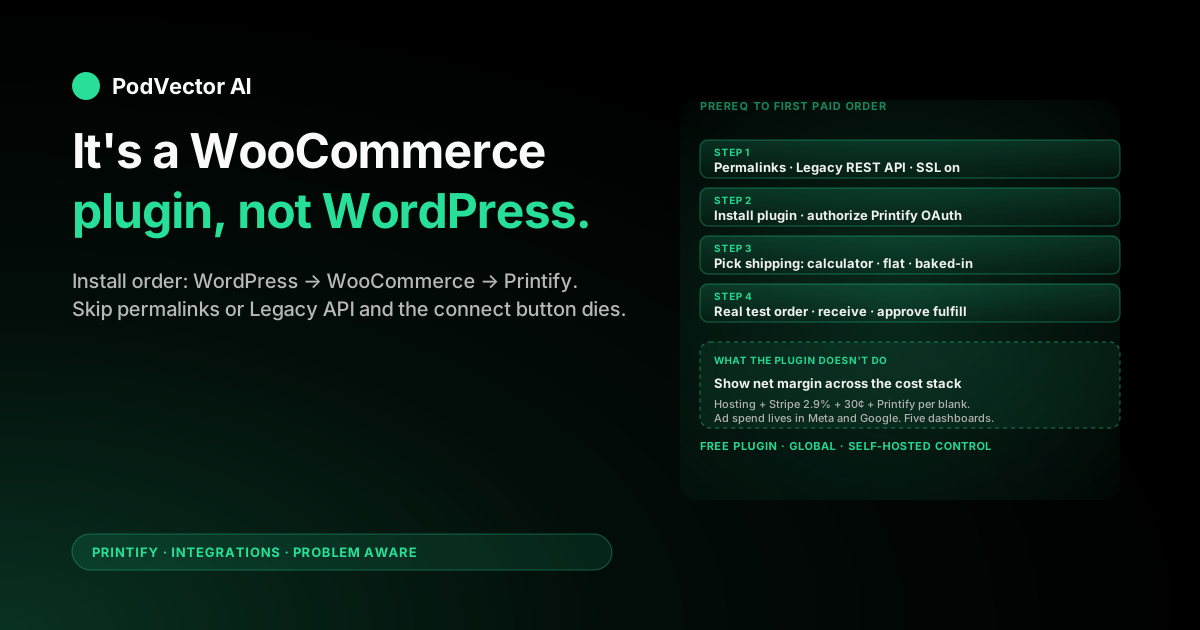
Quick Answer: The "Printify WordPress plugin" is technically called Printify for WooCommerce. WordPress on its own doesn't sell anything — WooCommerce is the ecommerce layer that turns a WordPress site into a store, and Printify plugs into that layer.
Setup takes 20–30 minutes if your WordPress install already has WooCommerce running and a payment gateway live. The actual install is six clicks. The setup that trips up most first-timers is the WordPress permalinks setting and the Legacy REST API requirement — miss either and the Printify connect button silently fails.
The real work starts after the connection is live. Hosting, WooCommerce, Printify, your payment gateway, and your ad platforms each charge separately. None of those numbers live in one dashboard. This guide covers the setup and what to do about the data problem.
What the Printify WordPress plugin actually does
The plugin is the official bridge between Printify's print-on-demand network and a self-hosted WordPress store running WooCommerce. Once installed and authorized, Printify becomes the production layer behind any product you publish to your WooCommerce catalog.
Functionally it does three things. It pushes products you build inside Printify into your WooCommerce store as live listings with images, variants, and prices. It listens for orders on those listings and queues them for production at the print provider you picked. And it pushes tracking back to WooCommerce so your buyer sees normal WooCommerce order-status emails.
WooCommerce owns the customer experience. Your storefront, checkout, payment processing, email list, returns workflow, and analytics all live inside your WordPress install. Printify never touches the buyer side — they see your domain, your theme, and your branded emails throughout.
WordPress vs WooCommerce: the distinction you need to make first
This is the part most setup guides skip, and it's the source of half the confused support tickets Printify receives.
WordPress is the content management system. It runs your site, your pages, your blog. Out of the box, it doesn't sell anything. You can't take a credit card on a stock WordPress install.
WooCommerce is the free plugin (from Automattic, the same company that runs WordPress.com) that turns WordPress into an ecommerce store. It adds a product catalog, a shopping cart, a checkout, and integrations with payment gateways like Stripe and PayPal.
The "Printify WordPress plugin" you're searching for is actually Printify for WooCommerce. It only works if WooCommerce is already installed and configured on your WordPress site. If you install Printify before WooCommerce, the plugin will activate but every screen will be blank or error out.
Install order matters: WordPress → WooCommerce → Printify for WooCommerce. Not the other way around.
Prerequisites: what you need before you click install
Walk through this list before you start. Skipping a prereq is the most common reason the connect step silently fails and you spend an hour Googling error messages.
- A self-hosted WordPress site (wordpress.org, not wordpress.com). The plugin works on WordPress.com only if you're on the Business plan or higher — lower tiers don't allow custom plugins. For most POD sellers, a self-hosted install on a host like SiteGround, Bluehost, or Cloudways is the right setup.
- WooCommerce installed and activated. Free plugin, installed from Plugins → Add New → search "WooCommerce". Run the WooCommerce setup wizard before touching Printify.
- A payment gateway live in WooCommerce. Stripe and PayPal are the most common. Go to WooCommerce → Settings → Payments and enable at least one. Without a gateway, checkout loads but rejects every order.
- An SSL certificate on your domain. Most hosts include this free via Let's Encrypt. Without HTTPS, payment gateways refuse to process and Chrome blocks the checkout page.
- A Printify account. Free to create, no card at signup. You'll add a payment method before any order goes to production. Printify's free plan supports up to 5 connected stores.
- A payment method in Printify. Credit card or PayPal. This is what Printify charges per order when production starts — separate from how you get paid in WooCommerce.
- The WordPress Legacy REST API enabled. This is the catch most guides bury. Modern WooCommerce defaults to the new REST API, but the Printify plugin still expects the legacy endpoint to be active. Verify under WooCommerce → Settings → Advanced → Legacy API.
- Admin access to your WordPress site. Not editor, not shop manager. Full admin, because you'll be installing a plugin and editing API settings.
Have all of this in hand before you start. The actual setup runs in under 30 minutes once the prerequisites are in place.
Step 1: configure WordPress permalinks
WordPress ships with "Plain" permalinks by default, which use URLs like ?p=123. The Printify plugin and WooCommerce both require structured permalinks to route product pages and API callbacks correctly.
- In WordPress admin, go to Settings → Permalinks.
- Pick any option other than "Plain." Post name (
yourdomain.com/sample-post/) is the standard choice and the one WooCommerce optimizes for. - Scroll down and click Save Changes. Even if you don't change the option, hitting save flushes the rewrite rules.
If you skip this step, the Printify connect button will fail silently or your product pages will return 404 errors after publishing. Five-second fix, hour-long debug if you miss it.
Step 2: install the Printify for WooCommerce plugin
WooCommerce is installed. Permalinks are set. Now you can install the Printify bridge itself.
- In WordPress admin, click Plugins → Add New.
- In the search box, type Printify for WooCommerce. The official plugin shows the Printify logo and lists Printify, Inc. as the developer — verify both to avoid copycat plugins.
- Click Install Now. WordPress downloads the plugin from the official repository.
- Once installed, the button changes to Activate. Click it.
- A new Printify menu item appears in your WordPress sidebar after activation.
If "Install Now" is greyed out, you're either on a managed host that restricts plugin installs or you don't have full admin permissions. Check with your host and your user role before troubleshooting further.
Step 3: connect your Printify account
The plugin is installed but it's not yet linked to your Printify account. This is the OAuth handshake step.
- Click Printify in the WordPress sidebar.
- You'll see a Connect to Printify button. Click it.
- A new tab opens to Printify's authorization screen. Log in if you're not already signed in, or click Sign up if you don't have an account.
- Printify shows the permissions it's requesting (read/write products, orders, and shipping in your store). Click Authorize.
- You're redirected back to your WordPress admin with the Printify dashboard now embedded in the plugin screen.
- In Printify's main app at printify.com, your WooCommerce store now appears under Manage my stores with a green "Connected" badge.
If Printify shows a "Could not connect to store" error, the most common cause is that the Legacy REST API isn't enabled (see prereqs) or your site is behind HTTP Basic Auth (a staging environment with a username/password popup). Disable Basic Auth before connecting; you can re-enable it after the OAuth handshake completes.
Step 4: publish your first product
The connection is live, but WooCommerce still shows zero Printify products. You need to push one through to confirm the data path works end-to-end.
- Open the Printify catalog. From printify.com, click Catalog. Pick a starter product — a Bella+Canvas 3001 unisex T-shirt is the standard test because shipping rates are well-defined for most regions.
- Pick a print provider. Each provider has its own cost, shipping speed, and quality profile. Sort by location closest to your target buyers; international shipping is where margins die.
- Upload your design. Drag a PNG with a transparent background onto the mockup. Printify shows live previews per variant.
- Fill product details. Title, description, tags. Don't skip the description — WooCommerce's search and Google's index both use it.
- Set retail price. Printify shows your production cost; you set the retail price. The default 40% margin Printify suggests is a starting point, not a strategy — see the cost stack below for what to actually price for.
- Click "Publish to WooCommerce." Choose whether the product publishes as Published (visible to buyers immediately) or as a Draft (hidden until you flip it in WooCommerce). Drafts are the right default for a first product.
- Verify in WooCommerce admin. Within a minute or two, the product appears under Products in your WordPress admin with all variants and images synced.
If the product doesn't appear within 5 minutes, run Tools → Site Health → Info in WordPress and check that the REST API tests pass. Cron failures and disabled REST endpoints are the two most common reasons sync stalls on WooCommerce installs.
Step 5: configure shipping rates
This is the setting that quietly kills more POD stores than any other. WooCommerce charges the buyer whatever your shipping rates say at checkout. Printify charges you whatever its real shipping cost is per order. If those numbers don't line up, you eat the gap on every sale.
The Printify plugin gives you three options. Pick one and don't mix.
Option 1: Use Printify Shipping (recommended for most sellers)
In WordPress admin, go to WooCommerce → Settings → Shipping → Printify Shipping and enable both checkboxes. Printify pushes its real shipping rates into your WooCommerce checkout in real time, calculated per item, per destination, per print provider.
Your buyer sees the rate Printify will actually charge you. Your spread on shipping is zero — no over-charging the buyer, no eating costs on international orders. This is the simplest setup for stores with mixed product categories.
Option 2: Flat shipping rates in WooCommerce
You bypass Printify's calculator and set your own WooCommerce shipping zones with flat rates (e.g., $4.99 US, $14.99 international). You eat or profit on the difference between what the buyer pays and what Printify charges you.
Best for: single-category stores where Printify's per-product rates are predictable. Risky for international orders because Printify shipping to non-US destinations can run $10–20 even on light items.
Option 3: Free shipping baked into product price
You offer "free shipping" in WooCommerce and bake the cost into your retail prices. Buyers convert better; you absorb shipping variance on every sale.
Best for: US-only stores selling one or two well-understood SKUs where you can model shipping to the dollar. Run the math on your worst-case destination — usually Hawaii or Alaska — before flipping this on.
Whichever option you pick, our full Printify shipping cost breakdown walks through the carrier choices, delivery windows, and per-region rates you're working with.
Step 6: place a real test order
Do not run ads before a real test order has gone through your WooCommerce checkout and produced a tracking number from Printify. The most expensive way to find a broken integration is to find it from a refund request.
- Add the test product to cart on your live store. Use a real address — your own.
- Check out and pay. Use a real card. You'll refund yourself later.
- Confirm WooCommerce shows the order as paid. Within seconds, the order should appear in WordPress admin under WooCommerce → Orders with a "Processing" status.
- Confirm Printify received the order. Within a minute, the order should appear in printify.com under My orders. If it's not there after 5 minutes, the order didn't sync — fix that before doing anything else.
- Approve production. Some Printify configurations require manual approval; flip the auto-fulfill setting on once you're past testing so this isn't a recurring chokepoint.
- Wait for the tracking number. Printify pushes tracking back to WooCommerce when the print provider hands off to the carrier. WooCommerce emails the buyer automatically.
- Receive the product. Hold it. Verify the print quality matches the mockup. The first physical sample tells you more about your print provider than any review will. Printify offers a sample discount on your own products — worth using for every new print provider you onboard.
The cost stack: what WordPress, WooCommerce, and Printify each take
WooCommerce is free, the Printify plugin is free, and the integration is free. But running a self-hosted POD store on WordPress is not free — there's a stack of costs that nobody itemizes upfront.
| Cost | Who charges it | Typical rate (2026) |
|---|---|---|
| Domain registration | Registrar (Namecheap, Cloudflare, etc.) | $10–15/year |
| WordPress hosting | SiteGround, Cloudways, Kinsta, etc. | $5–35/month depending on traffic |
| SSL certificate | Free (Let's Encrypt, included by most hosts) | $0 |
| WooCommerce + Printify plugins | Automattic + Printify | $0 (free, open source) |
| Stripe transaction fee | Stripe | 2.9% + 30¢ per US transaction |
| PayPal transaction fee | PayPal | 3.49% + 49¢ for goods/services |
| Printify production cost | Printify | Per item, varies (e.g., $9.30 for a Bella+Canvas 3001) |
| Printify shipping | Printify | $4–8 US, $10–20+ international |
| Printify Premium (optional) | Printify | $14.99/month for a 20% production discount |
| Ad spend | Meta, Google, TikTok, etc. | Whatever you spend — not in WooCommerce or Printify |
A worked example: you sell a $24.99 T-shirt. Stripe takes $1.02 (2.9% + 30¢). Printify charges $9.30 production + $4.99 shipping = $14.29. Your gross margin before ads and hosting is $24.99 − $1.02 − $14.29 = $9.68. If your average ad cost per sale is $8 and your hosting works out to about $0.20 per order at 100 orders/month, you net $1.48 per shirt. Lose another 50¢ to PayPal fees on the orders that come in that way, and you're at $1.
None of those numbers live in one dashboard by default. Hosting bills come monthly from your host. Stripe payouts hit your bank. WooCommerce shows revenue but not production cost. Printify shows production cost but not revenue. Meta and Google each have their own ad spend reports. That's the next problem.
Running the business after the plugin is live
Once orders are flowing through WooCommerce, the day-to-day work splits into three jobs that no setup guide covers.
Sync monitoring. Printify-to-WooCommerce sync can fail in ways that are silent until a customer complains. A product image times out during upload. A variant mapping breaks after Printify updates its catalog. An order stalls in "Awaiting payment" because your Printify card was declined. Each failure is recoverable if you catch it fast and quiet if you don't.
Margin tracking across sources. WooCommerce has your revenue and Stripe/PayPal fees buried in webhook logs. Printify has your production and shipping costs in a different system. Meta and Google have your ad spend. Your hosting invoice has the WordPress overhead. No single screen shows you net margin per SKU, per day, per ad campaign.
The default answer is a Sunday-night spreadsheet that reconciles five sources. It works, barely, at small volume — but even a perfect spreadsheet just sits there. Somebody still has to ask the right questions and act on the answers.
Listing and ad operations. Top-converting variants need more ad spend. Slow movers need to be paused or repriced. New designs need WooCommerce listings, Printify mockups, and ad creative across two or three platforms. This is the work that pays the rent, and it's the work that gets put off when the operator is reconciling spreadsheets on Sunday.
An AI employee like Victor is built for POD stores that run on Shopify: he joins your Shopify orders, itemized Printify costs, and Meta and Google ad spend into one live view, then proposes profit moves — pausing unprofitable variants, repricing, cutting wasted ad spend — that you approve before anything changes. You stay in control; Victor does the operational busywork.
Troubleshooting common plugin issues
The "Connect to Printify" button does nothing
Three usual causes. First, permalinks are still set to "Plain" — fix under Settings → Permalinks. Second, the Legacy REST API is disabled — re-enable under WooCommerce → Settings → Advanced → Legacy API. Third, your site is behind HTTP Basic Auth (a staging password popup) — disable temporarily to complete OAuth.
Products publish to Printify but don't appear in WooCommerce
Run Tools → Site Health in WordPress admin and check the REST API tests. If a REST endpoint is blocked (often by a security plugin like Wordfence), Printify can't push the product through. Whitelist the Printify REST routes in your security plugin and retry.
Orders sync to Printify but never go to production
Your Printify payment method failed. Check printify.com → Payment settings. A declined card moves orders into "Action required" and they sit there until you fix the card. Add a backup payment method so a single declined transaction doesn't pause every order.
Shipping at checkout doesn't match Printify's real cost
You're using flat rates in WooCommerce instead of Printify's calculator. Switch to WooCommerce → Settings → Shipping → Printify Shipping and enable both checkboxes, or rebuild your WooCommerce shipping zones to match Printify's per-region rates.
Tracking numbers don't appear in customer emails
Check that WooCommerce order-status emails are enabled under WooCommerce → Settings → Emails → Completed order. Then verify in Printify that the order moved to "Shipped" status — Printify only pushes tracking after the print provider scans the package to the carrier, which can lag 12–24 hours after "Production complete."
Page builder conflicts (Elementor, Divi, Beaver Builder)
Some page builders override WooCommerce's default product template, which can hide Printify's variant selector on product pages. Test on a stock WooCommerce theme like Storefront first to confirm the Printify integration works, then re-enable your page builder and rebuild the product template if needed.
Disconnecting and reconnecting
To disconnect: in WordPress admin, go to Printify → Settings → Disconnect store. Then in printify.com, go to Manage my stores and confirm the store no longer appears. Reconnecting after a full disconnect re-syncs your product list — existing WooCommerce listings stay, but you may end up with duplicate entries if you republish without first deleting the originals.
FAQs
Is the Printify WordPress plugin free?
Yes. The plugin and the Printify integration are free. What you pay for is the underlying stack: WordPress hosting ($5–35/month), a domain ($10–15/year), payment gateway fees (2.9% + 30¢ on Stripe), and Printify's per-order production and shipping costs.
Do I need WooCommerce to use the Printify plugin?
Yes. The plugin is officially called Printify for WooCommerce — it depends on WooCommerce being installed and activated first. WordPress without WooCommerce has no product catalog, no shopping cart, and no checkout for Printify to integrate with.
Can I use the Printify plugin on WordPress.com?
Only on the Business plan or higher. Free, Personal, and Premium WordPress.com tiers don't allow third-party plugins. Most POD sellers run a self-hosted wordpress.org install on a host like SiteGround or Cloudways instead, which is cheaper and gives you full control.
How long does the full setup take?
About 20–30 minutes of active work if WordPress and WooCommerce are already running, plus another 5–10 business days if you're waiting on a physical sample to arrive before going live.
Can I connect multiple WooCommerce stores to one Printify account?
Yes. Printify's free plan supports 5 connected stores; Premium supports 10. Each WooCommerce store gets its own entry in Manage my stores with separate product lists and order feeds. If you also run Etsy, you can connect both under one Printify account.
Does the plugin work with Shopify too?
No — Shopify is a separate platform with its own Printify integration. The Printify for WooCommerce plugin is specifically for WordPress + WooCommerce installs. If you want Shopify, install Printify from the Shopify App Store. Squarespace works similarly through its own integration path.
What happens if I deactivate the plugin?
Existing WooCommerce products stay in your catalog as static listings, but new orders no longer sync to Printify and tracking updates stop pushing back. Deactivating doesn't delete data on either side — reactivating restores the sync without losing your product mappings.
Does the plugin handle taxes?
WooCommerce handles taxes, not the Printify plugin. Set up your tax zones under WooCommerce → Settings → Tax. Printify charges sales tax to you on US orders shipped to states where Printify has nexus; you're separately responsible for collecting tax from your buyers based on your own nexus.
Can I bulk-edit Printify product prices from WooCommerce?
Not directly. WooCommerce's bulk editor doesn't sync price changes back to Printify, so editing prices in WooCommerce alone creates a mismatch. Change prices in Printify, then republish to WooCommerce so both sides stay aligned.
How do refunds work across the two systems?
You refund the buyer in WooCommerce. That's the customer-facing side. Whether Printify reships, refunds you, or charges you depends on the reason — production defects and shipping damage are usually Printify's cost; buyer's-remorse returns are usually yours. Document everything with photos before opening a ticket with Printify.
Related reading
For the broader Printify integration set, see our Printify integrations hub and the Printify topic page. The other major POD front-ends most sellers run alongside WooCommerce are covered in our Printify-Etsy connect guide, the Printify-Squarespace setup, and a step-by-step Printify-WooCommerce walkthrough that focuses on the connect flow itself. For the WooCommerce setup wizard and store basics, the Printify WooCommerce product page, the WooLentor integration guide, and the 10Web walkthrough are useful external references.
Hand off the operations to Victor
You installed Printify for WooCommerce. You picked a shipping strategy. You placed a test order. Now you have revenue in WooCommerce, transaction fees in Stripe, production cost in Printify, shipping cost in Printify, ad spend in Meta and Google, hosting in your invoice email, and no shared view of which SKUs actually make money.
Victor is an AI employee built for POD sellers on Shopify. He joins your Shopify orders, itemized Printify costs, and Meta and Google ad spend into one live view, answers questions in plain English ("which products lost money after fees and shipping last month?"), and — with your approval — pauses unprofitable variants and adjusts pricing on the Shopify side, while flagging the ad spend worth cutting. You stay in control; Victor does the busywork.
Stop reconciling five dashboards every Sunday.
Try Victor free