
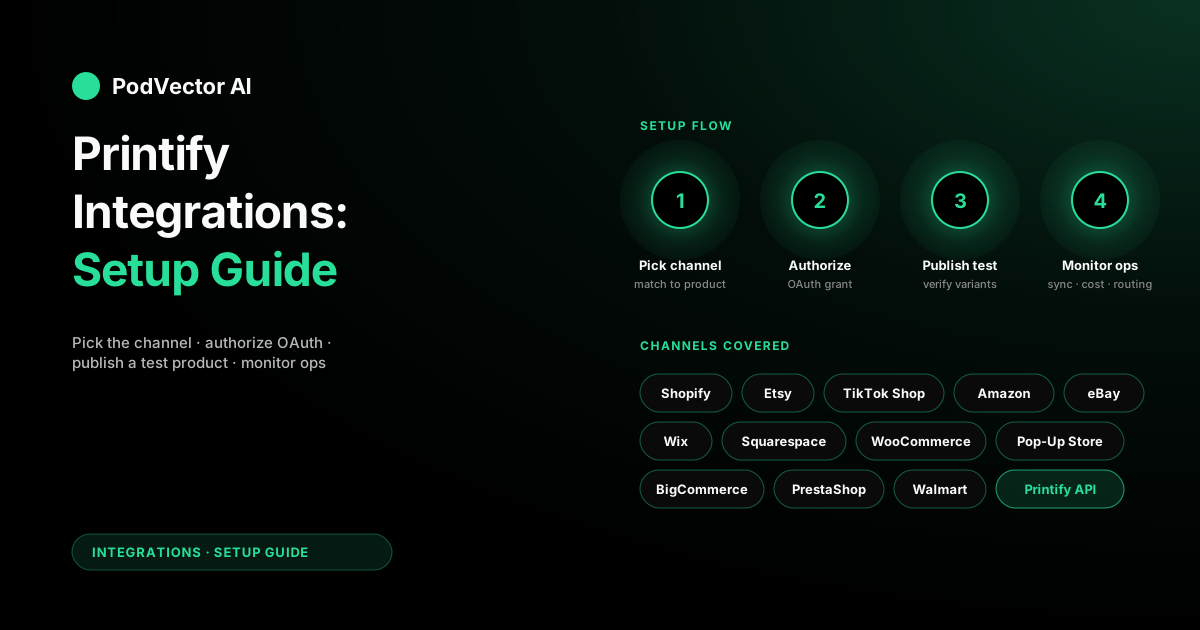
Quick Answer: Printify integrates with 13 sales channels — pick one channel that matches your product category and audience, then wire it up in My Stores → Add Store → authorize → publish a test product.
The technical connection takes 5 to 15 minutes per channel. Etsy fits gift and niche apparel. Shopify fits brand-owned stores. TikTok Shop fits viral-design plays in the US.
The harder work starts after the integration is live: variant mapping, sync monitoring, and watching landed cost per order across the whole stack.
Every Printify integration in 2026
Printify currently supports thirteen sales channels. Eight are mainstream picks for POD operators starting out, and the rest are niche or geographic.
The mainstream eight: Shopify, Etsy, eBay, Amazon (US), TikTok Shop (US), Wix, Squarespace, and WooCommerce. The remaining five: BigCommerce, PrestaShop, Walmart Marketplace, Pop-Up Store, and the Printify API.
Each integration has a different sync depth — what data flows in each direction, how fast, and what breaks first. Setup is similar across channels, but operational behavior is not. Pick based on where your audience is, not on what's easiest to connect.
For the deeper analytical comparison of every channel's fee stack and sync behavior, see the Printify integrations cluster hub.
Which integration to connect first
The right first channel depends on three things: what you sell, where your buyers already are, and how much storefront work you want to do.
If you're testing designs and want fast organic discovery on a gift-friendly marketplace, pick Etsy. If you're building a brand with an owned customer list and full design control, pick Shopify. If you're chasing viral video momentum and you're US-based, pick TikTok Shop.
Everything else is situational. WooCommerce makes sense if you already run WordPress. eBay makes sense for high-margin niches with sharp keyword targeting. Amazon makes sense only after you've cleared the brand-gating bar, which is non-trivial for POD.
Here's a decision matrix based on what we see actually working for new POD operators:
- Pure design tester, low budget: Etsy or Pop-Up Store. Cheapest path to live.
- Brand builder, owned audience: Shopify. The integration is the deepest and the customer data is yours.
- Creator with video reach, US: TikTok Shop. Conversion happens in-feed.
- Aesthetic site, no eCommerce stack yet: Squarespace or Wix. Faster than Shopify, less depth.
- Already on WordPress: WooCommerce. Skip the platform migration.
- Custom backend or app: Printify API. Direct OAuth integration.
One channel is enough to start. Two is the upper limit before you need real operational tooling to keep variant mapping, pricing, and inventory consistent across stores.
Before you click "Add Store": the prerequisites
The number-one reason setups stall is missing prerequisites on the destination channel. Get these sorted before you start the Printify connection flow.
For Shopify: an active Shopify plan (Basic or higher), a payment provider configured, and at least one shipping zone defined. Printify cannot push products into a store that hasn't completed its shipping setup.
For Etsy: a registered Etsy seller account in good standing, payment information confirmed, and Etsy's listing fee billing method on file. Etsy charges $0.20 per listing — Printify will create dozens of these during sync.
For TikTok Shop: a US-based seller account, valid US tax ID (EIN or SSN), and verified business address. The integration is gated to US sellers as of 2026.
For Amazon: a Professional Selling Plan ($39.99/month), GTIN exemption approval for your product category (because POD has no UPC codes), and approval to sell in the relevant category. The runway here is weeks, not minutes.
For Wix and Squarespace: a business plan tier that supports eCommerce (free tiers don't), a connected payment processor, and tax settings configured.
For WooCommerce: a WordPress site with WooCommerce installed, the Printify plugin downloaded, and SSL active on your domain. The Printify plugin needs HTTPS to authenticate.
Setup walkthrough: storefront integrations (Shopify, Wix, Squarespace)
Storefront integrations all follow the same general flow inside Printify: My Stores → Add Store → select platform → authorize → confirm permissions → land back in Printify with the store connected. The differences are in the destination platform's permission scopes and where the OAuth redirect lands.
Shopify
Inside Printify, go to My Stores → Add Store → Shopify. Enter your Shopify store URL (the yourshop.myshopify.com URL, not your custom domain). Click Connect.
Shopify redirects you to an authorization page listing the permissions Printify needs — products, orders, fulfillment, customer data. Click Install. You'll bounce back to Printify with the store connected and a confirmation banner.
Setup time: 5 minutes if prerequisites are clear. For the detailed walkthrough with screenshots and edge cases, see our Shopify setup guide.
Wix
From Printify: My Stores → Add Store → Wix → Connect. Wix opens in a new tab, asks you to choose which Wix site to authorize (if you have several), and shows the permission scope. Approve and you'll return to Printify.
Wix's authorization can fail silently if your Wix Business plan hasn't activated. The Printify side will show "Connection pending" indefinitely. Cancel and re-trigger after confirming your plan is active on Wix.
Squarespace
From Printify: My Stores → Add Store → Squarespace → Connect. Squarespace prompts for your site selection and permission grant. Approve.
Squarespace integration depth is intentionally narrow: product creation and order sync, but limited inventory feedback. Most operators don't need more. For the full walkthrough, see our Squarespace setup guide.
Setup walkthrough: marketplace integrations (Etsy, eBay, TikTok Shop, Amazon)
Marketplaces add an extra layer to the connection flow: identity verification and shop-side configuration. Plan for 15 to 30 minutes per marketplace, plus any platform-side approval waits.
Etsy
Printify: My Stores → Add Store → Etsy → Authorize access. Etsy opens an OAuth window with the permission scopes Printify needs (listing management, order access, transaction read). Approve.
You'll land back on Printify with a connected Etsy shop. Before you publish anything, confirm Etsy's per-listing fee setup is enabled in your Etsy billing — Printify will trigger one $0.20 listing fee per product you publish.
The full walkthrough with the Etsy approval edge cases lives in our Etsy connection guide.
eBay
eBay's flow mirrors Etsy's: OAuth authorization through eBay's developer console, followed by a permission grant. The added step is eBay's seller-level limits — new accounts have a 10-listing-per-month ceiling that can throttle Printify sync.
If you're a new eBay seller, request a limit increase before connecting Printify. Otherwise, expect Printify's bulk-publish flow to fail partway through.
TikTok Shop
Printify: My Stores → Add Store → TikTok Shop. You'll authenticate through TikTok's seller center and grant Printify permission to manage products, inventory, and fulfillment.
TikTok Shop integration is US-only as of 2026 and requires a verified seller center account. If your TikTok Shop is in pre-approval status, the Printify connection will succeed but product publishing will fail until TikTok approves your account.
Amazon (US)
Amazon is the longest setup. The Printify connection itself is straightforward — My Stores → Add Store → Amazon → authorize through Seller Central — but the prerequisites are not. You need a Professional Selling Plan, GTIN exemption on every POD category you want to list in, and category approval where required.
Most POD operators take 2 to 4 weeks to clear Amazon's approval gates before the Printify sync becomes useful. Don't start the Printify connection until those approvals land.
Setup walkthrough: Printify API and Pop-Up Store
Pop-Up Store is Printify's native no-code storefront. Inside Printify: My Stores → Add Store → Pop-Up Store → name your store → pick a URL slug → publish. No external authorization, no payment provider configuration — Printify handles checkout and payouts. Setup takes about 3 minutes.
Use Pop-Up Store as a free testing surface for designs before you commit to a paid storefront. The fee stack is higher than Shopify or Etsy (Printify takes a larger cut to cover payment infrastructure), so it's not a long-term primary channel.
Printify API is for custom integrations. Two auth modes: OAuth 2.0 for distributed apps, or Personal Access Tokens (PATs) for single-store automation scripts. Generate a PAT inside My Account → API Tokens, scope it to the actions you need, and use it as a bearer token in your Authorization header.
API setup time is whatever your engineering effort is. The API itself is REST, well-documented, and stable. Most POD operators don't need it unless they're running a custom backend or building a multi-channel tool of their own.
Publishing your first product through the integration
After the integration is connected, the actual test is whether a product flows correctly from Printify to the destination channel. This is where mapping errors surface.
Pick a single design and a single product (a basic t-shirt is the safest first test). Inside Printify, design the product, set retail prices, and click Publish. Printify pushes the product to the connected channel with variants, images, descriptions, and pricing.
Verify the following on the destination channel within 5 minutes of publishing:
- All variants appeared (sizes × colors) — not just a subset
- Images uploaded at full resolution, not thumbnails
- Title and description match what you set in Printify
- Pricing is in the destination channel's currency
- Shipping profile is assigned (Etsy and Shopify) or shipping cost is set (eBay)
If any of these fail, fix the mapping in Printify before publishing more products. Cleaning up 50 broken listings on Etsy is painful; cleaning up one is trivial.
What to monitor once the integration is live
Most POD content stops at "the integration is connected." That's where the operational work actually starts. Once products are live, you need eyes on five things:
- Order sync latency. Time from order placed on the channel to order appearing in Printify. Healthy: under 5 minutes. Above 30 minutes is a red flag.
- Fulfillment status drift. Printify shows "fulfilled," the channel shows "processing." Should self-resolve within an hour. If it persists, the integration is throwing webhooks but the channel isn't acking them.
- Inventory consistency. Printify shows a product as available, the channel shows it out of stock (or vice versa). Usually a permissions issue or a partial sync.
- Landed cost per order. Base cost + shipping + channel fee + payment processor + ad cost. Most operators only track base cost. The other four are where margin goes to die.
- Provider routing changes. Printify rotates print providers based on capacity. The same SKU might ship from a different provider tomorrow with different cost. Catch the swap before a sale at the old margin assumption.
This is the operational work that turns a connected integration into a profitable channel. It's also the work that doesn't fit on a dashboard — it needs decisions made, not data displayed.
This is exactly the gap Victor closes. Victor runs your Printify integrations as an AI employee: he watches order flow across every connected channel, flags sync failures the moment they happen, recalculates landed cost when a provider swap changes the per-unit charge, and asks for your approval before pausing a SKU or reallocating ad spend off a broken listing.
Common setup failures and fixes
The same three problems hit POD operators across every integration. Here's the recognition pattern and the fix.
Problem: "Connection successful" but no products appear. Almost always a permission scope issue. The Printify connection completed at OAuth but the destination channel didn't grant product-write permission. Disconnect from Printify, reconnect, and at the authorization step confirm that every requested scope is granted.
Problem: variants drop during publish. The destination channel has a per-listing variant limit Printify isn't aware of. Etsy caps at 100 variants per listing. Shopify caps at 100 per product. If your Printify mockup has 12 colors × 9 sizes = 108 variants, the channel silently drops 8 at publish. Either reduce variant count in Printify or split into two listings.
Problem: orders stop syncing after a week of working. The OAuth token expired and didn't auto-refresh. Common on Etsy and Wix. Go to My Stores in Printify, find the affected store, and reconnect. The refresh takes 30 seconds and restores order flow.
For the full breakdown of every integration failure mode and the cluster hub of fixes, see our Printify topic hub.
Adding a second integration: when and how
Don't add a second channel until the first one is producing predictable orders. The first channel teaches you what your product mix sells, what your real landed cost is, and what your operational rhythm looks like. The second channel multiplies whatever you've learned — including the mistakes.
Signs the first channel is ready to multiply:
- At least 30 fulfilled orders in a 30-day window without a sync failure
- Clean landed cost visibility (you know your real margin per order, not just MSRP minus base cost)
- A repeatable product launch flow (design → mockup → publish takes the same time every time)
When you're ready, add the second channel using the same setup steps. The two most common second-channel additions: Etsy → Shopify (you've validated designs on Etsy and want to own the customer), or Shopify → TikTok Shop (you have a brand and want video distribution).
Pricing strategy across channels is the hidden hard part. Etsy buyers expect lower prices than Shopify buyers. TikTok Shop discounts cut into margin fast. If you're running two channels at the same price, you're leaving margin on the table on the higher-willingness channel and overpricing on the lower one.
For the pricing math on Printify Premium across channels, see our breakdowns on Premium coupons and Premium subscription pricing.
FAQs
How many Printify integrations can I run at once?
Free plan: 5 connected stores. Premium: 10 stores. Enterprise: unlimited. Each connected channel counts as one store, including duplicates of the same platform (two Etsy shops = two stores).
Does connecting a channel cost anything on Printify's side?
No. The integration is free on every Printify plan. You pay only for the products you fulfill plus the destination channel's own fees (Etsy listing fees, Shopify subscription, etc.). See Printify's integrations page for the full channel list.
How long does an integration setup actually take?
The OAuth connection takes 5 to 15 minutes. The destination-channel prerequisites (account verification, payment setup, GTIN exemption on Amazon) can take days or weeks. Plan for the prerequisites, not the connection.
Can I sync the same product to multiple channels at once?
Yes. Inside Printify, after creating a product, you can publish it to every connected store from a single screen. Each channel will get the variants and pricing you set per store.
What happens to orders if Printify's API goes down?
Orders placed on your destination channel stay on the channel. When Printify recovers, it pulls the queued orders and processes them. Sync latency increases during outages but no orders are lost.
Do I need a separate integration for each Etsy or Shopify store I own?
Yes. Each storefront is a separate connection inside Printify. They count against your plan's store limit individually.
Which integration has the deepest sync?
Shopify, by a wide margin. Bidirectional product, inventory, order, and fulfillment sync with the lowest latency. Etsy is second. Everything else has narrower scope.
Let Victor run your Printify integrations with your approval
Connecting Printify to a channel is 15 minutes. Operating it well across months is the real job. Victor is the AI employee that watches every connected channel for you — order sync, landed cost, provider routing, fee creep — and asks for your approval before pausing a SKU or shifting ad spend off a broken listing.
Try Victor free