
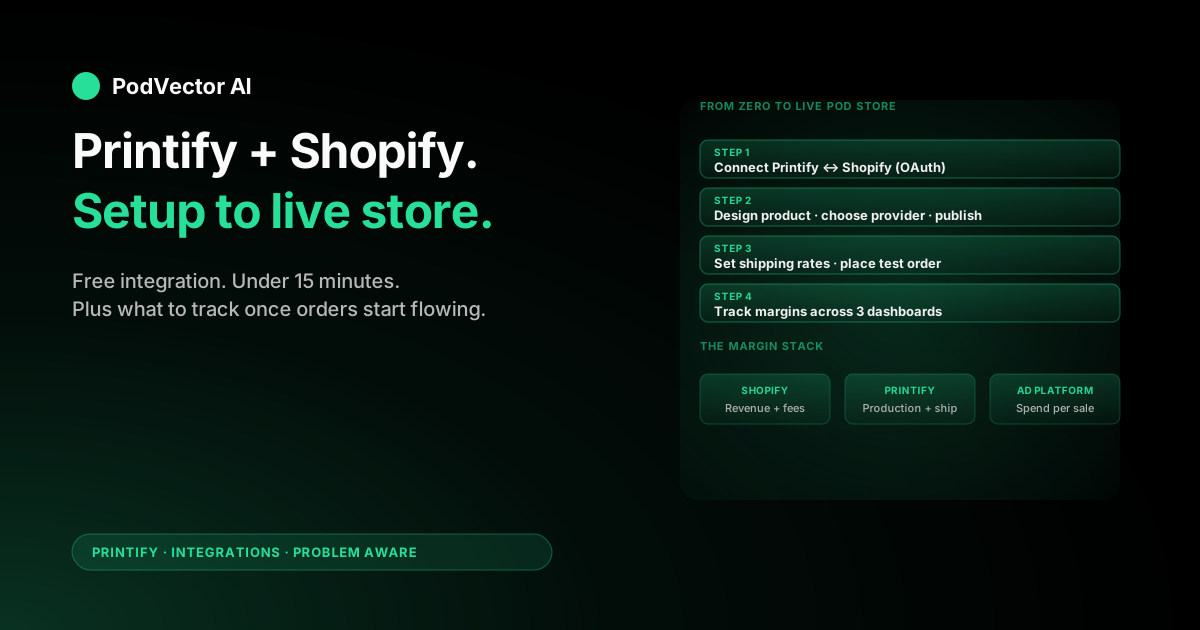
Quick Answer: Using Printify with Shopify means connecting Printify's print-on-demand catalog to your Shopify storefront so products get printed and shipped only when a customer orders. The integration is free, takes under 15 minutes, and works from either side — the Printify dashboard or the Shopify App Store.
The setup itself is straightforward. The part most guides skip is what happens after: you need to track margins across two platforms that don't talk to each other, set shipping rates that don't eat your profit, and watch provider quality before it tanks your reviews.
This guide walks through every step from zero to live store, then covers the post-launch tracking that separates stores that grow from stores that quietly bleed money.
What the Printify–Shopify integration actually does
Printify is a print-on-demand platform that connects you to a network of print providers around the world. Shopify is the storefront your customers see. The integration links the two so you can design products in Printify and sell them through Shopify without holding inventory.
When a customer buys from your Shopify store, the order routes automatically to the Printify provider you chose. That provider prints the item, packs it, and ships it directly to the buyer. Shopify sends the customer their tracking number and order-status emails — they never see Printify's name.
You keep the difference between your Shopify sale price and what Printify charges for production plus shipping. That margin is your entire business model, which is why tracking it accurately matters more than most guides suggest.
The integration handles three data flows: product listings pushed from Printify into Shopify, orders pulled from Shopify into Printify, and tracking information sent back to Shopify after production. If you're also connecting Printify to Etsy or other channels, each integration works the same way but independently — one Printify account can feed multiple storefronts.
What you need before connecting
Both platforms have requirements that, if missing, cause the connection to silently fail or the first order to break. Verify these before you start.
- An active Shopify plan. The free trial works for connecting and testing, but Shopify pauses your store when it expires. Basic ($39/month) is enough for most POD stores under $5K monthly revenue.
- A payment provider enabled in Shopify. Shopify Payments, PayPal, or Stripe. Without one, checkout loads but rejects every transaction.
- A Printify account. Free to create, no card required at signup. The free plan supports up to 5 connected stores.
- A payment method added in Printify. Credit card or PayPal. This is the card Printify charges when production starts — separate from how customers pay you through Shopify.
- Your Shopify store URL. The
your-store.myshopify.comaddress or your custom domain. You'll paste it during the connection flow. - At least one design ready. Don't connect a blank store. Have a design file (PNG at 300 DPI minimum) ready so you can test the full pipeline within an hour.
If you're weighing whether Printify Premium is worth it, you don't need to decide before connecting. The free plan works for setup and testing. Upgrade later if your volume justifies the discount on production costs.
Connect from the Printify dashboard
This path is fastest if you already have a Printify account. You'll authorize Shopify from inside Printify.
- Log into Printify. Go to printify.com and sign in.
- Open the store menu. Click the dropdown in the upper-left corner and select Manage my stores.
- Click "Add new store." You'll see integration options for Shopify, Etsy, eBay, WooCommerce, TikTok Shop, and others.
- Select Shopify. Click the Connect button under the Shopify card.
- Enter your Shopify store URL. Paste the full address — either
your-store.myshopify.comor your custom domain. - Install the Printify app. Shopify's app installation prompt appears. Click Install app and approve the permissions (read/write products, orders, shipping, draft orders).
- Confirm the redirect. Shopify sends you back to Printify. Your store now appears in Manage my stores as connected.
Total time: 5–10 minutes. The most common mistake here is accidentally creating a second Printify account during the OAuth redirect. If the login screen appears, sign into your existing account — don't click "Sign Up."
Connect from the Shopify App Store
This path works better if you already have Shopify running but haven't created a Printify account yet.
- Open your Shopify admin. Sign into your dashboard at your-store.myshopify.com/admin.
- Go to the App Store. Click Apps in the left sidebar, then Shopify App Store.
- Search "Printify." Click the official listing — verify the developer is "Printify, Inc." to avoid copycat apps.
- Click "Install." Review the requested permissions and click Install app.
- Log in or sign up for Printify. If you have an account, log in. If not, create one. Either way, the OAuth handshake completes and you land in Printify with the store connected.
Both methods end at the same place: an authorized connection between your Shopify store and your Printify workspace. Pick whichever side you're already logged into.
Create and publish your first product
With the integration live, the next step is getting a product into your Shopify store through Printify. This is where Printify's catalog, your design, and Shopify's listing system all converge.
Pick a product from the catalog
In Printify, click Start designing or Create product. Browse the catalog by category — t-shirts, hoodies, mugs, phone cases, tote bags, wall art, and hundreds more. Each product shows available print providers, production time, base cost, and shipping price.
Pay attention to the base cost and shipping price together, not just the base cost alone. A $7.50 t-shirt with $5.95 shipping costs more per unit than a $9.00 t-shirt with $3.50 shipping. Your customer sees the total.
Choose a print provider
Each product has multiple providers to choose from. The factors that matter: base cost, production time (usually 2–5 business days), shipping speed to your target market, and customer review score inside Printify's dashboard.
For US-based stores selling apparel, providers like Monster Digital, SwiftPOD, and The Dream Junction are commonly used. For EU markets, look at providers with EU production facilities to cut shipping time and cost. The Printify integrations hub covers more on choosing providers across channels.
Upload your design
Upload your design file (PNG, JPG, or SVG). Printify's mockup generator shows exactly how the design maps to the product. Adjust position, scale, and placement. For best results, use files at 300 DPI with transparent backgrounds for designs that don't fill the entire print area.
Preview every variant (color, size) before moving on. A design that looks great on a white tee may vanish on a black one.
Set your price and description
Printify shows your base cost per variant. Set your retail price in the same screen. A common starting margin for POD apparel is 40–60% above base cost, but test what your market supports.
Write a product title and description optimized for Shopify search and Google. Include the product type, material, and any sizing notes. Shopify imports these fields directly from Printify.
Publish to Shopify
Click Publish. Select your connected Shopify store. Choose the Shopify product category (important for Google Shopping feeds and tax calculation). Click Publish product.
The listing appears in your Shopify admin under Products within a few seconds. Images, variants, prices, and descriptions all sync over. You can edit the listing in Shopify afterward — changes to title, description, and price in Shopify stay in Shopify. Changes to the design or provider stay in Printify.
Set up shipping rates
This is the step that quietly makes or breaks your margin. Printify offers three approaches for handling shipping in Shopify, and each changes what your customer pays at checkout differently.
Option 1: Printify flat rates
Printify publishes pre-calculated flat shipping rates directly into your Shopify shipping settings. These rates are based on the cheapest available shipping method for each product type and destination.
Pros: zero setup, rates stay current as Printify updates them. Cons: you can't mark up shipping, and rates may differ from other (non-POD) products in your store.
Option 2: Printify shipping calculator
Printify calculates shipping in real time at Shopify checkout based on the exact items in the cart, their providers, and the destination. This handles mixed-cart scenarios better than flat rates.
Pros: most accurate per-order pricing. Cons: requires Printify's shipping profile to be active in Shopify, and customers see variable shipping costs that change with cart contents.
Option 3: Custom rates in Shopify
You set your own shipping rates in Shopify's Settings → Shipping and delivery section, ignoring Printify's rates entirely. This gives you full control — including the ability to build shipping cost into your product price and offer "free shipping."
Pros: full control, supports free-shipping marketing. Cons: you absorb any difference between what you charge and what Printify actually bills. If a provider's shipping cost increases, your margin shrinks silently.
For most new stores, Option 1 (flat rates) is the safest starting point. Switch to custom rates once you understand your actual shipping costs across enough orders to set accurate markups.
Place a test order before you launch
Before you spend a dollar on marketing, run a real order through the pipeline. This catches integration problems, shipping-rate errors, and quality issues before a customer does.
- Place an order on your Shopify store. Use a real payment method. Shopify's "Bogus Gateway" for test mode doesn't trigger Printify fulfillment — you need a live transaction.
- Watch the order appear in Printify. Go to Orders in Printify. The order should appear within minutes. If it doesn't, check that your store connection is still active and that order auto-import is enabled in Printify settings.
- Let it go to production. Depending on your order-approval settings, the order either auto-submits or waits for your manual approval. Let it process.
- Track the shipment. When the provider ships, tracking appears in both Printify and Shopify. Your Shopify customer notification triggers automatically.
- Inspect the product. When it arrives, check print quality, color accuracy, material feel, and packaging. This is the product your customers will receive.
If quality disappoints, try a different print provider for the same product before you launch. Provider quality varies widely on Printify — one provider's "premium" tee may feel noticeably different from another's. If you're considering whether Printify Premium benefits justify the cost, the production discount may shift which provider gives you the best margin-to-quality ratio.
What to track once you're live
Most Printify-Shopify guides end at "publish and sell." That's like a driving guide that ends at "start the engine." Here's what actually matters once orders start flowing.
True margin per SKU
Your margin isn't sale price minus Printify base cost. It's sale price minus Printify base cost, minus Printify shipping, minus Shopify's transaction fee (2.9% + 30¢ on the Basic plan), minus Shopify's subscription cost allocated per order, minus your ad spend per sale if you're running paid traffic.
Shopify knows your revenue and its own fees. Printify knows production and shipping costs. Your ad platform knows your spend. No single dashboard shows true net margin per SKU — you have to reconcile them yourself, typically in a spreadsheet or a dedicated tool.
Provider production and shipping speed
Printify shows estimated production time per provider, but actual speed varies by season, order volume, and product type. Track the gap between order date and delivery date for every provider you use.
Slow fulfillment kills repeat business and generates bad reviews before you can react. If a provider's average delivery creeps past 10 business days domestically, switch providers for that product — even if the base cost is slightly higher.
Return and complaint rate by product
POD products can't be returned to Printify unless there's a production defect. But customers still complain, and Shopify tracks those interactions. Watch for patterns: if one product or provider generates disproportionate complaints, the base cost savings aren't worth the damage.
Shipping cost versus what you charge
If you're using custom shipping rates or free shipping, compare what Printify actually bills for shipping each month against what you collected from customers. A $2/order gap across 200 orders is $400/month in silent margin loss.
This is the operational layer that separates stores that scale from stores that stall. Tracking all of it manually across three or four dashboards is possible, but most sellers either build a spreadsheet that goes stale or just don't track it. An AI employee like Victor can pull data from Shopify, Printify, and your ad accounts into one place, flag margin problems before they compound, and manage day-to-day ops like pausing underperforming ads or updating listings — with your approval before any action goes live.
Common Printify–Shopify issues and fixes
Store won't connect
Usually a browser or cookie issue. Clear your cache, make sure you're logged into the correct Shopify store (not a different one), and try the connection again. If you're on Shopify's free trial and it expired, reactivate the plan first.
Products not syncing to Shopify
Check that you clicked "Publish" in Printify and selected the correct Shopify store. Also verify that your Shopify product limit hasn't been reached (Basic plan allows unlimited products, but older plans had limits). If products still don't appear, disconnect and reconnect the store in Printify.
Orders not appearing in Printify
Confirm that order auto-import is enabled in Printify under Settings → Store preferences. Also check that the order used a Printify-published product — manually created Shopify products won't route to Printify unless they're linked.
Shipping rates look wrong at checkout
If you're using Printify flat rates but also have Shopify shipping profiles active, they can conflict. Go to Shopify admin → Settings → Shipping and delivery and check which profiles are active. Printify creates its own shipping profile — make sure it isn't being overridden by a general Shopify rate.
Duplicate account created during connection
This happens when you click "Sign Up" instead of "Log In" during the OAuth redirect. The fix: disconnect the accidentally created workspace from your Shopify store, log into your real Printify account, and reconnect. Contact Printify support if the duplicate workspace is stuck.
For deeper Printify guides beyond Shopify, including connecting to Etsy and other marketplaces, see the full topic hub.
FAQs
Is Printify free to use with Shopify?
Yes. The Printify app and Shopify integration are free. You pay Printify per order (base cost plus shipping) and Shopify for your store subscription and transaction fees. There's no extra charge for connecting the two.
Can I use Printify with Shopify's free trial?
You can connect and test during the free trial. But Shopify pauses your store when the trial ends, which stops orders from flowing to Printify. Activate a paid plan before you start marketing.
How long does it take for products to appear in Shopify?
Usually under a minute after clicking "Publish" in Printify. If a product doesn't appear within 5 minutes, check the connection status in Printify under Manage my stores.
Can I edit Printify products in Shopify?
Partially. You can edit the title, description, price, tags, and SEO fields directly in Shopify. But the design, mockup images, and print provider are managed in Printify. If you update the design in Printify, re-publish to push the new images to Shopify.
What happens if a Printify provider is out of stock?
Printify notifies you and may auto-route to a backup provider if you've enabled that setting. If no backup is configured, the order holds until the product is available or you manually switch providers. Check provider availability before big promotions.
Can I connect multiple Shopify stores to one Printify account?
Yes. Printify's free plan supports up to 5 stores. Each store gets its own workspace in Printify. Products and orders are managed per store, not shared across them.
Does Printify handle returns?
Only for production defects (misprints, wrong item, damaged in transit). Buyer's-remorse returns are your responsibility as the Shopify store owner. Set a clear return policy in your Shopify store that reflects what Printify will and won't cover.
For a broader comparison of Printify across all its integration options and connection methods, LitCommerce's guide covers additional detail on the shipping-calculator approach.
Let Victor manage your Shopify + Printify ops
You've got the integration running. Now your data lives in three places — Shopify for revenue, Printify for production costs, and your ad platform for spend. Victor pulls it all together, flags margin problems before they compound, and handles day-to-day operations like pausing underperforming ads and updating listings — always asking for your approval first.
Try Victor free