
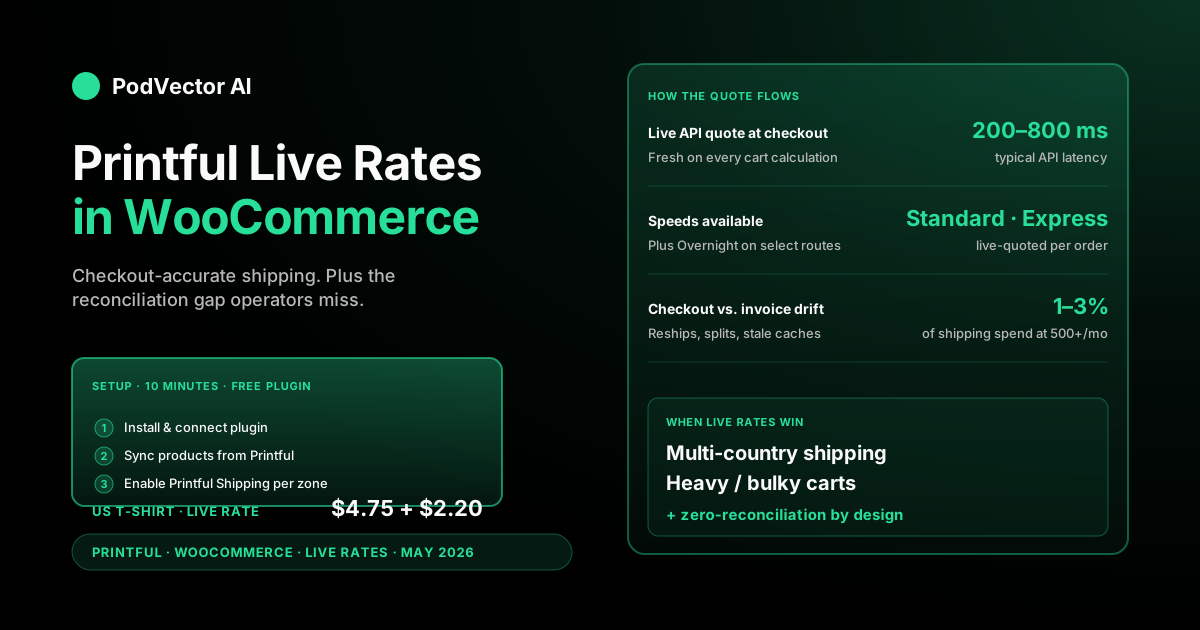
Quick Answer: Printful live shipping rates in WooCommerce pull a real-time quote from Printful at checkout, so the customer pays the exact shipping cost Printful will charge you on the invoice. You enable them inside the Printful Dashboard → Settings → Store settings → Shipping, then confirm the method is active under WordPress → Settings → WooCommerce → Shipping → Printful Shipping.
Setup takes about 10 minutes. The plugin only quotes live rates for products that are synced to your Printful account — anything unsynced falls back to your manual WooCommerce shipping rules.
Critical 2024–2026 gotcha: the Printful plugin does not yet fully support the WooCommerce Blocks checkout. If your checkout page uses the Blocks editor (the default in newer WooCommerce installs), live rates may silently fail. You may need to revert to the Classic Checkout block until Printful ships full Blocks support.
The catch most sellers miss: the checkout rate and the invoice rate can still drift if you have plugin conflicts, mixed-vendor carts, or stale cached rates. Reconciling the two is where the margin lives.
How live shipping rates work in WooCommerce
Live shipping rates are real-time quotes. When a customer hits checkout, the Printful for WooCommerce plugin sends Printful the cart contents and the shipping address, then Printful returns the exact shipping price for that order.
That price is what Printful will charge you on the invoice when the order goes to production. No spread, no markup, no rounding — the number at checkout is the number on your invoice.
Compare that to flat rates, where you pick a single shipping price per zone and hope it averages out. Flat rates are simpler but they're either over-collecting from light orders or under-collecting from heavy ones.
Live rates only apply to products that are synced to your Printful account through the plugin. If you sell a mix of Printful products and manually-fulfilled merch, the manual products still use whatever WooCommerce shipping rules you set up separately.
One notable advantage WooCommerce has over Shopify: live rates on WooCommerce are completely free. There is no plan gate, no carrier-calculated-shipping add-on fee. The free Printful for WooCommerce plugin handles live rates natively, with no Shopify-equivalent paywall.
For the broader picture, see our Printful topic hub and the Printful shipping cluster hub. Printful's own WooCommerce shipping configuration help article covers the official setup steps.
Step-by-step setup
The flow assumes you already have WooCommerce installed and a Printful account connected. If you're starting from zero, do the plugin install and account connect first.
Step 1 — Install the Printful for WooCommerce plugin. In your WordPress admin, go to Plugins → Add New, search "Printful," install, and activate. The plugin is free.
Step 2 — Connect your Printful account. From the WordPress sidebar, click the Printful menu item. Sign in with your Printful credentials. The plugin will issue an API key and store it automatically.
Step 3 — Sync your products. Inside the Printful plugin dashboard, import the products you want to sell from your Printful account into WooCommerce. Each synced product is what the live rate engine can quote on. You can also sync imported products via My products → Published in the Printful Dashboard.
Step 4 — Enable live rates in the Printful Dashboard. Go to your Printful Dashboard → Settings → Store settings → select your WooCommerce store → Shipping. Check the box "Enable Printful's live shipping rates for your storefront" and click Save changes. This is the primary toggle — the WooCommerce plugin side reads this setting.
Step 5 — Confirm the method is active in WooCommerce. Go to WordPress → Settings → WooCommerce → Shipping → Printful Shipping and make sure the settings are enabled. Open the shipping zone where your customers live (typically "United States" or "Everywhere else"). If "Printful Shipping" is not already listed as a method, click Add Shipping Method, select it, and save.
Step 6 — Pick which speeds to offer. Back in the Printful Dashboard shipping settings, select which shipping speeds you want to offer by destination — Express, Standard, Standard with CO2 offsetting, or Standard DDP (for Canada and the UK, which bundles duties and taxes into the shipping cost). Save changes.
Step 7 — Optional but recommended — hide other WooCommerce rates on Printful products. The plugin has an option to disable standard WooCommerce shipping methods for Printful items. Turn it on. Otherwise customers see both your manual flat rates and Printful's live rates side-by-side and pick the cheaper one, which may not cover your actual cost.
Step 8 — Confirm your checkout page type. If your site uses the WooCommerce Blocks checkout (the default in newer installs), test thoroughly — the Printful plugin's live rate support for Blocks has had known issues. If rates don't appear, switch to the Classic Checkout block as a temporary fix while Printful's support for Blocks matures.
Step 9 — Test the checkout flow. Add a synced Printful product to your cart from an incognito window, enter a real US address, and confirm a live rate appears. If you see "no shipping options available" or a fallback flat rate, jump to the troubleshooting section.
What live rates actually cost
The plugin itself is free. There's no per-quote fee, no monthly subscription, no add-on cost. Live rates are part of the standard Printful for WooCommerce integration — unlike on Shopify's Grow plan, where carrier-calculated shipping requires an extra fee.
What the customer pays is the actual Printful shipping rate for the product + destination + speed combination. Live rates start to diverge from flat rates when:
- Multi-item orders. Live rates use Printful's exact per-additional-item math. Flat rates round, so a multi-shirt order quoted by flat rate can diverge meaningfully from what Printful actually invoices.
- International destinations. Worldwide shipping varies sharply by destination country. Flat rates pick one number for "Everywhere else" and miss by a lot. Live rates quote each country specifically.
- Express upgrades. Express rates change per carrier and per route. Flat-rate setups usually don't expose express at all. Live rates surface it as an upsell at checkout.
- Standard DDP for Canada and the UK. Printful now offers a Standard DDP shipping method for Canadian and UK customers that bundles duties and taxes into the shipping cost shown at checkout — a meaningful UX improvement that flat rates can't replicate.
For current US rate ranges, see Printful's official shipping page. The numbers there are flat-rate published prices, but live rates land in the same ballpark for most US orders. The European-T-shirt rate detail is in our 2025 Europe t-shirt rates guide.
If you offer "free shipping" to customers, note that Printful will still charge you for shipping on the invoice — make sure those costs are built into your retail price before enabling the free-shipping display option in the Dashboard.
Live rates vs. flat rates — which to pick
The honest answer: most US-only stores with a narrow product range break even between live and flat. Either works. The decision matters more for international and multi-product stores.
Pick live rates if:
- You ship internationally to more than two or three countries. Flat-rate "everywhere else" zones almost always under- or over-collect.
- You sell heavy or bulky products (hoodies, backpacks, multi-mug orders). Flat rates miss the per-additional-item math.
- You want to offer express shipping as an upsell.
- You want zero shipping reconciliation work — checkout charges and Printful invoices match by design.
- You serve Canadian or UK customers and want duties included at checkout (Standard DDP).
Pick flat rates if:
- You ship US-only and the vast majority of orders are single-item.
- You want to offer "free shipping over $X" promotions easily — flat rates make that math predictable.
- You bundle shipping into product price (built-in shipping) and want a clean checkout.
- You're running A/B tests on shipping price as a conversion lever.
Plenty of stores run both. They use Printful live rates inside the US for accuracy, and a single flat international rate to keep the checkout simple for the long tail of countries that order once a quarter. Comparable Shopify guidance is in our Printful shipping rates for Shopify guide — the same trade-off shows up there.
What to expect at checkout
From the customer's side, live rates feel like any other carrier-quoted shipping option. They enter their address, the page recalculates, and Printful's rates appear in the shipping method list.
Available methods depend on the destination. According to Printful's help documentation, customers may see some or all of these options:
- Express — fastest delivery
- Standard — regular shipping
- Standard with CO2 offsetting — same speed, carbon-offset add-on
- Standard DDP — available for Canada and the UK; duties and taxes bundled into the shipping price
If a shipping method isn't available for the customer's area, it won't appear at checkout — the plugin suppresses unavailable options automatically.
The customer picks one, the rate locks into the order total, and the checkout proceeds. Behind the scenes, the plugin stored the exact rate Printful quoted at that moment.
What customers don't see — and what catches sellers off guard — is that the live rate is only as fresh as the API call. Most stores cache it for the session. If the customer lingers on the cart page for 20 minutes, then changes the address, the page makes a new API call and the rate refreshes. Usually fine, occasionally jarring if Printful's rate changed mid-session.
One UX detail: live-rate quotes can briefly show a spinner while the API call resolves. On slow connections, that adds 1–3 seconds to the cart page render. Worth knowing for high-conversion stores where every second of checkout latency costs sales.
WooCommerce-specific gotchas
This is the section the Printful blog won't write because it's their plugin. WooCommerce is an open ecosystem — anything can collide with anything.
WooCommerce Blocks checkout breaks live rates. This is the most important 2024–2026 gotcha. Newer WooCommerce installs default to the Blocks-based checkout. The Printful plugin's shipping class (Printful_Shipping::woocommerce_cart_shipping_packages) is not fully compatible with the Blocks checkout, meaning Printful receives no shipping rate request and rates silently fail. Community reports on WordPress.org confirm the fix is to revert to the Classic Checkout block. Check Printful's plugin changelog for full Blocks support before switching back.
Caching plugins break live rates. WP Rocket, W3 Total Cache, and similar plugins cache page output aggressively. If the cart page gets cached with a stale shipping quote, every customer in the same cache window sees the same wrong number. Exclude cart and checkout pages from cache, or use the plugin's WooCommerce-aware cache mode.
Other shipping plugins double-quote. If you have a Table Rate Shipping plugin or a third-party rate plugin running on the same zone as Printful Shipping, both will quote and the customer gets a confused list of overlapping rates. Disable conflicting methods on the zones where Printful is active.
Mixed-vendor carts. WooCommerce can fulfill some items through Printful and others through your own warehouse. Live rates only cover the Printful items. The non-Printful items either need a separate shipping method on the same zone or they show up in checkout with no rate at all. Test the mixed-cart flow before launch.
Address validation differences. Printful's API rejects shipping quotes for clearly invalid addresses (missing state, malformed ZIP). WooCommerce's default checkout doesn't validate those before quoting. A bad address shows up as "no shipping options available" — confusing for the customer, who thinks the site is broken. Add address-validation copy to the checkout if you see this in support tickets.
Currency conversion. The Printful API quotes in USD. If your WooCommerce store sells in EUR, GBP, or another currency, the plugin handles the conversion. But if you use a third-party currency switcher plugin, the conversion can happen twice and inflate the rate. Confirm the math on test orders in each currency you support.
Subscription products. WooCommerce Subscriptions and Printful don't share a clean live-rate path for renewals. The first order quotes correctly. Renewal orders may fall back to a default rate or fail. If you run a subscription program, test renewal shipping specifically.
Reconciling checkout vs. invoice
Here's the part most sellers don't think about until they audit shipping costs at quarter-end.
Live rates promise that the checkout-charged shipping equals the Printful-invoiced shipping. In normal operation, they do match — that's the design. According to Printful's documentation, live rates are calculated in real time based on the order's size, weight, and destination to provide accurate shipping costs at checkout.
Where they drift:
- Address corrections after checkout. Customer enters a typo, the carrier returns the package, you reship to a corrected address. The reship is invoiced separately. The customer was only charged once.
- Multi-package splits. A large cart can fulfill from two facilities, generating two invoice line items with two shipping charges. The customer paid one bundled rate at checkout.
- Plugin caching. Stale rates that survived a Printful rate-card update. Customer paid yesterday's rate, you get billed today's rate.
- Express downgrades. Printful occasionally downgrades a service tier silently if capacity is tight in Q4. Customer paid for Express, the order shipped Standard, you got billed Standard. Net to you is positive, but it's a customer-experience issue if they complain about late delivery.
- Blocks checkout fallback rates. If your checkout partially served stale or fallback rates due to the Blocks compatibility issue, those orders will have a checkout shipping amount that doesn't match the invoice.
The fix isn't to abandon live rates. It's to audit them. Match every Printful invoice line back to the original order's checkout-collected shipping. The gap is your shipping P&L line.
For the broader Printful invoice picture, our Printful integration cost breakdown and our Printful mug base cost breakdown walk through how the line items show up. For a fuller picture of what shipping costs do to net margins, see our net profit margin benchmark for POD sellers.
Troubleshooting common errors
The same six failures cover the vast majority of live-rate problems.
"No shipping options are available." Most common cause: the product in the cart isn't synced to your Printful account. Double-check the product in the Printful plugin dashboard. Second most common: cached page output — flush the cache plugin and retry incognito. Third: you're using the WooCommerce Blocks checkout and the plugin's rate request never fires. Switch to Classic Checkout and retest.
The flat fallback rate shows instead of a live rate. The plugin has a fallback rate that fires when the live API call fails. If you see this regularly, check the Printful plugin's logs (under Tools → Logs → Printful). Common cause: API key expired or revoked. Also check whether you have the Blocks checkout enabled — this triggers the same symptom.
The rate looks wrong by a small amount. Almost always currency conversion. Either a plugin conflict or a stale exchange rate. Compare the displayed rate to Printful's official shipping page rates for the same product/destination.
The page hangs on "calculating shipping." Network issue or Printful API outage. Check Printful's status page. If the API is up, check your hosting's outbound HTTP connection limit — some shared hosts throttle external API calls and Printful's call times out.
Express isn't appearing. Either the product doesn't support Express to that destination, or you didn't select Express in the Printful Dashboard shipping settings. Re-check Step 6 of the setup. Also confirm the destination country supports Express — if a method isn't available in the customer's area, it won't appear at checkout.
Standard DDP isn't appearing for Canadian or UK customers. Standard DDP is a distinct shipping method in the Printful Dashboard. Make sure you selected it when choosing which speeds to offer by destination. It does not enable automatically just because Standard is enabled.
The operator view: tracking shipping drift
Live rates solve the at-checkout accuracy problem. They don't solve the at-month-end visibility problem.
Three drift patterns to watch even with live rates running clean:
Effective per-order shipping rises. Live rates track exactly what Printful charges, which is good. But if Printful raises the rate card, your blended per-order shipping moves and your retail price didn't. Live rates make the drift invisible — the system is "working correctly," your margin is just shrinking. According to Printful's documentation, when you use live rates on WooCommerce, shipping prices automatically reflect any updates to Printful's rates — which means rate increases reach your invoices the same day, with no manual intervention needed or warning sent.
Region mix shifts. A viral post brings in worldwide orders. Live rates collect the correct shipping per order, so the customer pays. But your store's blended shipping-as-percent-of-revenue moves because international shipping is a bigger slice. If you're modeling channel profitability without itemized shipping, you'll miss the shift.
Mixed-cart bundles. When non-Printful products ride on Printful orders, the shipping math gets messy. Reconciliation needs to attribute shipping correctly across product lines, or the gross margin per product number stops being trustworthy.
The pattern is the same one we hit in the Printful shipping policy breakdown: the rate card is one input. Your live margin number is the output. Without itemized shipping pulled into the same data layer as revenue and product cost, you're modeling P&L with stale numbers.
If you're on Shopify and want to see this kind of shipping cost data alongside your actual order margins, PodVector's Victor reads your Printful fulfillment data and surfaces where shipping is compressing margin — then proposes concrete fixes like repricing your worst-margin SKUs or raising your free-shipping threshold, which you approve before anything changes. See how it ties into checkout completion rate benchmarks and average order value strategy as well.
FAQs
Are Printful live shipping rates free to enable in WooCommerce?
Yes. The Printful for WooCommerce plugin is free, and there's no per-quote fee for live rates. You pay only the actual shipping cost on each order — the same rate Printful charges you on the invoice. This is an advantage WooCommerce has over Shopify, where the Grow plan requires an additional fee for carrier-calculated shipping.
Do live rates work for all WooCommerce products?
Only for products synced to your Printful account through the plugin. Non-Printful items use whatever WooCommerce shipping rules you set up separately. Mixed carts get a quote for each line — Printful items via live rates, non-Printful items via your own rules.
How accurate are Printful's live rates?
The rate quoted at checkout is the rate Printful charges on the invoice — same number. Drift happens for address corrections, multi-package splits, service-tier downgrades, or stale caches. Audit drift at month-end if your shipping spend is meaningful.
Why does my customer see "no shipping options available"?
Four common reasons: (1) the product isn't synced to Printful; (2) the shipping zone doesn't have Printful Shipping enabled; (3) a caching plugin is serving stale checkout output; or (4) your checkout page uses the WooCommerce Blocks editor, which the Printful plugin does not yet fully support. Flush cache, verify sync status, confirm zone configuration, and check your checkout page type.
Can I offer express shipping with live rates?
Yes, where Printful supports it for the product and destination. Select Express in the Printful Dashboard's shipping settings under Store settings. The customer sees Standard and Express side-by-side at checkout with their respective rates and delivery times. If a method isn't available for the customer's area, it won't appear.
What is Standard DDP and who should enable it?
Standard DDP is a Printful shipping method for Canada and the UK that includes duties and taxes in the shipping cost shown at checkout. This means customers see and pay the full landed cost upfront rather than getting a surprise customs bill at delivery. Enable it in your Printful Dashboard shipping settings if you have meaningful Canadian or UK order volume.
Do live rates handle international VAT and duties?
Live rates quote shipping only in most cases. The exception is Standard DDP for Canada and the UK, which bundles duties and taxes into the shipping cost. For EU orders, Printful's integrated IOSS flow handles VAT at checkout when configured. Outside those programs, duties land on the buyer at delivery. See our shipping policy breakdown for the full international rules.
Can I run live rates and flat rates at the same time?
Yes — different shipping zones can use different methods. Many stores use Printful live rates inside the US and a single flat international rate elsewhere to keep the checkout simple. Within a single zone, run one or the other, not both.
Do live rates update automatically when Printful changes pricing?
Yes. According to Printful's documentation, WooCommerce stores using live rates will automatically reflect any updates to Printful's rates — no plugin update needed. The day Printful raises rates, your checkout starts charging the new rates. Caching plugins are the only exception; flush cache after any known rate-card update.
How long does the live-rate API call take at checkout?
Typically a fraction of a second to a couple of seconds when Printful's API is responsive. On slow connections or with caching plugins competing for resources, it can stretch longer. If you see consistent long delays, check the plugin logs for API failures.
What happens if Printful's API is down during checkout?
The plugin falls back to a configurable default rate. Customers can still complete checkout. You'll see the fallback rate in the plugin's order metadata. Compare the fallback rate to your typical live rate periodically so you're not silently under-collecting during outages.
Does the WooCommerce Blocks checkout work with Printful live rates?
Not reliably as of 2026. Community reports confirm that the Printful plugin's rate-fetching mechanism is incompatible with the Blocks checkout, causing live rates to silently fail. The workaround is to use the Classic Checkout block. Monitor Printful's plugin changelog for a Blocks-compatible release before switching. See the WooCommerce-specific gotchas section for more detail.
Live rates fix the checkout. They don't fix the P&L.
Printful's live shipping rates land exactly what they should at checkout. The harder question is what happens after the order ships — the address corrections, the multi-package splits, the automatic rate-card increases that quietly compress your margin while the system runs "correctly."
Victor, PodVector's AI employee for Shopify POD sellers, connects to your Printful account, reads every itemized shipping line into a live data warehouse, and answers questions like "how is shipping eating my margin this week?" against live order data. When the answer points to a fix — like repricing your worst-margin SKUs to a target margin or raising your free-shipping threshold — Victor shows you the old and new values as an approval card. You approve it; he executes it. No spreadsheet. No quarterly P&L surprise.
Want to see what your shipping costs are actually doing to your margins?
Try Victor free →