
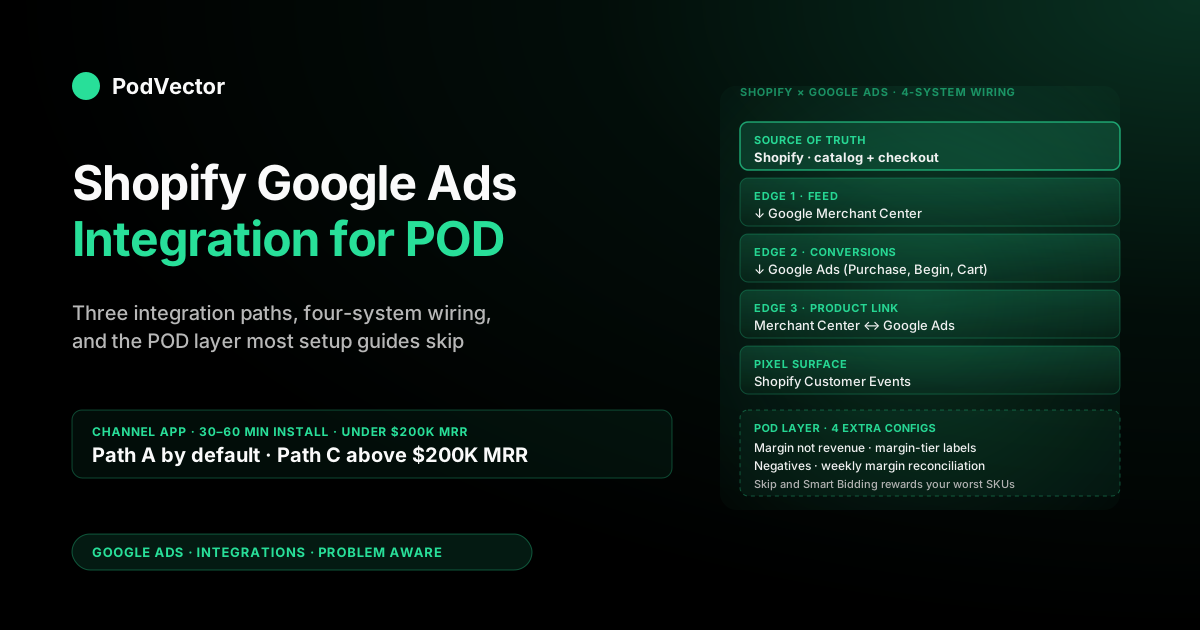
Quick Answer: The Shopify Google Ads integration is not one connection — it's three: Shopify ↔ Google Merchant Center (product feed), Shopify ↔ Google Ads (conversion tracking pixel and goals), and Shopify ↔ Google Customer Match (audience signals). The Google & YouTube channel app wires all three in a single OAuth flow, which is the right default for any POD store under roughly $200K monthly recurring revenue.
The mechanical integration takes 30–60 minutes. The harder problem — and the one this guide spends most of its time on — is what to do once the integration is live: making conversion value reflect margin after Printify or Printful supplier costs, segmenting your feed by margin tier, and reconciling weekly between what Google Ads reports and what your store actually keeps. Without that POD-specific layer, the integration runs but optimizes against revenue Google's algorithm sees, not contribution margin you bank.
What actually integrates: the four-way wiring
"Shopify Google Ads integration" sounds like a two-system connection. It isn't.
The integration is wiring four systems together, and understanding which four matters because the failure modes downstream are usually scoped to a single edge of the graph rather than to the integration as a whole. The four systems are Shopify (product catalog and checkout), Google Merchant Center (the product feed Google's ad surfaces serve from), Google Ads (campaigns, bidding, conversion goals), and Shopify Customer Events (the JavaScript pixel surface that fires conversion data back to Google). The integration is three live edges: Shopify ↔ Merchant Center on the feed, Shopify ↔ Google Ads on the conversion pixel, and Merchant Center ↔ Google Ads on product linking.
For a print-on-demand store, the same wiring carries one extra concern that doesn't apply to a normal Shopify catalog: every dollar of ad spend Google routes through this integration is being optimized against the conversion value Shopify reports back, and the gross sale price your store collects hides a 35–55% supplier-cost cut that varies by product. If the integration sends revenue and you do nothing else, Google's algorithm systematically rewards your worst-margin SKUs (oversized hoodies, all-over-print sublimation, premium substrates) because revenue is highest there.
If the integration sends margin-adjusted value, the algorithm pushes spend toward products you actually keep money from. The mechanical integration is identical either way; the value-configuration step is where the difference between "the integration works" and "the integration is profitable" gets decided. We'll cover the mechanical wiring first and the POD layer at the end.
If you want a deeper look at the system architecture before you wire anything, our Google Ads Shopify integration setup guide covers the same territory from the Google-Ads-first angle; this guide is Shopify-first.
Three integration paths and how to choose
Before you click anything, know that there are three distinct ways to integrate Shopify with Google Ads in 2026 and they're not interchangeable. Picking the wrong one for your scale or skill set is the most common avoidable mistake.
Path A: The Google & YouTube channel (recommended default)
A first-party Shopify app, free, built jointly by Shopify and Google. Installs as a sales channel, handles the Merchant Center claim and verification, syncs your product catalog as a managed feed, fires conversion events through Shopify Customer Events, and creates the standard Purchase / Begin Checkout / Add to Cart conversion actions in Google Ads automatically.
Typical full-stack install time: 30–60 minutes. The right default for POD stores under roughly $200K monthly recurring revenue, which covers nearly every operator who reads this guide.
Path B: Manual GTM with the Google Tag (intermediate)
You install Google Tag Manager via Shopify's theme.liquid or the Customer Events sandbox, configure conversion-tracking tags by hand, and submit a feed to Merchant Center either manually or via a third-party feed app. More work, more failure modes, more flexibility — useful if you need conversion tracking on non-Shopify-checkout flows (Recharge subscriptions, custom landing pages, app-based upsells).
For most POD stores this is over-engineering. Estimated setup time: 4–8 hours including QA.
Path C: Server-side tagging via Stape, Stape Pro, or self-hosted GTM Server (advanced)
You run a tagging server on your own infrastructure (or via Stape) that receives raw events from your store and forwards them to Google Ads server-side. Adds resilience to ad-blockers and iOS tracking restrictions, recovers more conversions, and gives you control over the pixel logic — at the cost of monthly hosting fees, configuration complexity, and a dedicated maintenance loop.
Worth the work above ~$200K MRR or where the data team can own it. Below that, the recovered-conversion uplift (typically 10–25%) doesn't pay back the engineering overhead.
The decision tree we recommend: use Path A by default, evaluate Path C only if you've already saturated the value rules and feed segmentation in the POD layer below, never use Path B unless you have a specific tracking need the channel can't reach. Our coverage of server-side tagging for Google Ads on Shopify goes deeper on Path C if that's where you're heading.
Prerequisites before you start
Confirm five things before you touch the channel install screen. First, Shopify store owner or full-permission collaborator access — staff accounts with limited permissions can install apps but the channel needs broader access to set up Customer Events, verify domain in Merchant Center, and edit checkout settings.
Second, your store is on a paid Shopify plan with checkout enabled; trial and dev plans don't fire production-grade Customer Events and the channel will silently fail health checks. Third, a Google account that you'll use as the linked owner of both Google Ads and Google Merchant Center — using the same Google identity for both prevents most cross-property permission errors that come up two weeks in.
Fourth, a payment method on the Google Ads account; Google requires one before the OAuth handshake completes the link. Fifth — and this one is POD-specific — a written list of supplier cost per product variant (Printify or Printful base price plus print fees plus shipping). You'll need these numbers for the conversion-value step in the POD layer, and reconstructing them after launch is what causes most operators to default to revenue-based bidding and never come back to fix it.
Two pre-launch budget guardrails. Set a daily campaign budget of $20–$40 USD for the first two weeks regardless of how much you intend to spend long-term — the learning phase is real, and high-budget campaigns that get tweaked daily never exit it.
And set an account-level budget cap you would not be horrified to lose in case the integration turns out to be misconfigured. We've seen POD operators burn $4,000 in a week on a campaign whose conversion tracking was reporting Add-to-Cart values as Purchases; an account cap would have caught it.
Step 1: Install the Google & YouTube channel
From your Shopify admin, navigate to Sales channels → add channel → search "Google & YouTube" → install. The app installs as a sales channel and appears in the same left-sidebar location as your Online Store, POS, and Shop channels.
Total time: under a minute. You're not configuring anything yet — the install just adds the channel surface that the next steps will configure. The app is free and first-party, which means version updates ship in lockstep with both Shopify and Google API changes; you don't need to babysit it for compatibility breaks the way you would with a third-party feed app.
The channel install also turns on the Google & YouTube source inside Shopify Customer Events. You don't need to configure anything there yet, but it's worth knowing that's where the conversion pixel actually lives — under Settings → Customer Events → Google & YouTube. If conversions ever go missing in week three, that's the first place to look, not Google Ads.
Step 2: Connect Google Merchant Center
Open the Google & YouTube channel from the Shopify left sidebar. Click "Get started" → "Connect" under the Google Merchant Center section.
You'll redirect through Google's OAuth consent flow — sign in, grant the requested permissions (mostly read access to your product feed and write access to the linked Merchant Center account), and either create a new Merchant Center account (the channel offers this if you don't already have one) or select an existing one. The channel auto-claims and verifies your store domain inside Merchant Center; the manual claim flow used to take 30 minutes and required uploading an HTML verification file, and the channel collapses it to a single click.
Once Merchant Center is linked, the channel begins syncing your Shopify product catalog as a managed feed. The first sync takes 2–24 hours depending on catalog size — for a typical POD store with 50–500 SKUs it's done within a couple of hours. While you wait, two configuration jobs are worth doing inside the channel:
First, set the target country and language. The channel defaults to your Shopify primary country; verify that matches where you actually want to advertise.
POD stores selling internationally should add additional target countries here, at the feed level — feed-level targeting determines product eligibility, campaign-level targeting is downstream of that. Adding a country to a campaign that the feed doesn't target produces "no eligible products" warnings and zero impressions.
Second, map any product attributes Shopify doesn't capture by default. The most commonly missing for POD are GTIN (most POD products don't have one — under feed configuration, set "I do not have GTINs" globally to prevent disapprovals), brand (Shopify stores it; the channel maps it automatically when set), and age group / gender (apparel-heavy POD catalogs need these for Shopping ad eligibility — set them on the Shopify product as metafields or in the channel's bulk attribute editor).
Once the first sync finishes, go to Merchant Center → Products → Diagnostics and confirm the count of "Active" products is what you expect. Disapprovals at this stage are normal and not yet a problem; you'll address them in Step 4.
Step 3: Connect Google Ads and verify conversions
Back in the Shopify Google & YouTube channel, click "Connect" under the Google Ads section. OAuth as before — sign in with the Google account that has admin rights on the target Google Ads account, grant permissions, select which Ads account to link if you have multiple. The channel then shows "Connected" with the Ads customer ID displayed.
Within 30 minutes of the link, Shopify automatically requests creation of three conversion actions in your Google Ads account: Shopify Purchase (set as the account's primary conversion), Shopify Begin Checkout, and Shopify Add to Cart. Verify in Google Ads → Goals → Conversions → Summary. All three should appear with categories Purchase, Begin Checkout, and Add to Cart respectively, source "Shopify," and Tracking status "Recording conversions" (or "No recent conversions" if no orders yet — that's also fine).
One critical default to leave alone: only the Purchase conversion is set as a primary action. Primary conversions are what Google's Smart Bidding algorithm optimizes against; secondary conversions are imported for visibility only.
Promoting Add to Cart to primary is one of the most common rookie mistakes in POD Google Ads accounts — it trains the algorithm to optimize for cart adds that may never convert, which on POD with its higher cart-abandonment rates becomes an expensive trap. Leave Purchase as the only primary.
While in the conversions screen, turn on enhanced conversions for the Shopify Purchase action. Click the conversion → Diagnostics tab → Turn on enhanced conversions for web → choose "Google tag" as the integration method.
The channel handles customer-data hashing and forwarding automatically once enabled. Typical recovered conversions for a POD store after enabling enhanced is 8–18% inside 30 days.
Two minutes of work, and roughly half the POD operators we audit never get around to it. The full configuration walkthrough including the conversion-value layer is in our Shopify Google Ads conversion tracking setup guide.
Step 4: Verify the integration is healthy
Most "the integration is broken" tickets we see come from skipping this step. The integration installs cleanly but isn't actually exchanging the data you assume it is. Run through three checks before you launch anything.
Check 1: feed health. Merchant Center → Products → Diagnostics. The "Active" count should be at least 80% of your Shopify catalog (excluding draft and unpublished products).
If it's lower, work the diagnostics list in order of issue count. The five most common POD-specific causes are missing GTINs (fix at feed level, "I do not have GTINs"), image quality below 800x800 (re-export Shopify images at higher resolution — Shopify default resize settings are usually the culprit), missing age_group / gender on apparel SKUs (set as metafields), description too short (Shopify's auto-generated short descriptions are often too brief for Merchant Center), and trademark / copyright matches on POD designs (these you can't fight — disapprove the SKU and move on).
Check 2: pixel health. Place a real test order on your store using a test discount code (or buy a $1 product yourself), then within 24 hours look at Google Ads → Goals → Conversions → Summary for the Shopify Purchase action. The Recorded conversions count should increment by 1 and the conversion value should match the order total (if you haven't yet configured margin-adjusted value rules).
If the count is 0, debug Tag Assistant on a checkout flow before anything else. The most common cause is the Customer Events permission setting under Settings → Customer Events → Google & YouTube being set to "Permission required" with no consent banner that ever grants permission.
Check 3: product link. Google Ads → Tools → Linked accounts → Google Merchant Center should show your Merchant Center account as Linked. This link is what makes Performance Max and Standard Shopping campaigns able to reference your product feed; without it you can run Search-only campaigns but not anything with product visuals, which on POD is a serious limitation. The link is created automatically by the channel install but occasionally fails silently if the same Google account isn't admin on both properties.
Only after all three checks pass should you launch a paid campaign. Campaigns launched on a partially-broken integration burn budget on traffic that doesn't track back, and the data is lost forever — Google won't retroactively attribute orders to clicks once the click-attribution window has closed.
The POD-specific integration layer
The mechanical integration above is what every Shopify Google Ads guide on the internet documents. The POD layer is what they miss, and it's the difference between an integration that loses money quietly and one that compounds. Four configurations, in order of impact.
Configuration 1: Send margin instead of revenue as conversion value
By default, the channel sends Shopify's order total as the conversion value on the Purchase event. For a POD store, that includes the supplier cut you'll pay to Printify or Printful — not the number Smart Bidding should optimize against.
The simplest fix is a Google Ads value rule: Tools → Conversions → Value rules → New rule → "All conversions" → adjust value by your average margin ratio (e.g., if supplier cost averages 42% of revenue, set the rule to 58%). Performance Max then optimizes against the corrected number.
This is the 80% solution and takes ten minutes. For finer accuracy, the conversion value can be overridden per line item using each line's actual supplier cost from a Shopify metafield or a warehouse lookup; the metafield pattern and per-line-item gtag override is in the conversion-tracking guide linked above.
Configuration 2: Margin-tier custom labels in the feed
Conversion value handles bid optimization. Custom labels handle product-group segmentation — what PMax is allowed to spend on in the first place.
The cleanest pattern: in Shopify, set a metafield called margin_tier on each product (values tier_1_high for embroidered apparel, posters, mugs; tier_2_mid for standard print apparel; tier_3_thin for oversized hoodies and AOP sublimation), then map that metafield to custom_label_0 in the channel's feed configuration. In Google Ads PMax, build asset groups that filter by custom_label_0 and assign different target ROAS values per tier — higher tROAS for tier 3 (so PMax spends less on it), lower tROAS for tier 1 (so PMax spends more there). This converts PMax from a black box into a system you can steer.
Configuration 3: Negative keyword list scoped to brand and free-tier search terms
PMax doesn't expose its search terms report the way Search campaigns do, but it does respect campaign-level negative keyword lists. For a POD store, the two negative-keyword categories worth setting on day one are: branded competitor terms (Printify, Printful, Teespring, Spreadshirt — you don't want to pay Google to rank for someone else's brand and sell your own product on their search), and free / freebie / discount-coupon-site terms ("free t-shirt template," "free hoodie design") which on POD attract a high-volume low-conversion traffic class. Add as a campaign-level negative list before launch; adding them later resets the learning phase.
Configuration 4: Weekly margin reconciliation between Google Ads and Shopify+supplier data
The single most useful POD-specific operating discipline isn't a configuration screen — it's a weekly process. Pull a week of orders from Shopify, compute true contribution margin by joining against Printify or Printful supplier exports, and compare against the conversion value Google Ads reported for the same orders.
If the gap exceeds 5%, your value rule is mis-calibrated or supplier costs have shifted. This is the check that distinguishes "tracking is set up" from "tracking is correct" and the one that takes the most ongoing discipline.
Most operators don't do it because the data lives in three different systems with three different schemas. Once the join is automated (we use a warehouse; a spreadsheet works for a single-supplier catalog), the reconciliation runs as a weekly diff query rather than a manual export.
Ongoing maintenance: what breaks and when
The integration is not set-and-forget. The five things that drift over time and how often to check each:
Weekly: margin reconciliation (Configuration 4 above). Shopify orders vs. supplier costs vs. Google Ads reported value. Five minutes if automated, an hour if manual.
Monthly: Merchant Center disapprovals. New product launches and supplier image updates routinely break feed health. Run Diagnostics monthly even if everything looks fine in Google Ads — disapprovals shrink eligible inventory before they show up as a campaign-level problem.
Quarterly: conversion-value rule calibration. If your product mix shifts (more hoodies, fewer mugs) the average margin ratio shifts, and the value rule needs to follow. Recalculate from your last 90 days of orders and update the rule.
Quarterly: custom-label tier assignment. New products get added to Shopify; if they don't get a margin_tier metafield they won't be filtered into asset groups and PMax will spend on them blind. Audit the metafield coverage of products added in the last 90 days.
Annually: integration path review. Most POD stores that start on the channel app stay on it forever, but at the $200K–$500K MRR transition many have a real reason to evaluate Path C (server-side tagging). Review yearly even if the answer stays "channel app is fine" — it usually is.
FAQs
Is the Google & YouTube channel app the same as a Shopify Google Ads app?
Yes. The channel app is the official integration; older or third-party apps with similar names are mostly Merchant Center feed apps that don't handle the conversion-tracking side. If a guide tells you to install something other than the Google & YouTube channel from the Shopify App Store, double-check what they're recommending — most third-party feed apps duplicate functionality the channel already provides for free.
How long does the full integration take to set up end to end?
30–60 minutes of clicking, plus 2–24 hours of waiting for the first feed sync to finish. The four health checks in Step 4 take another 15 minutes once the sync completes.
The POD layer (Configurations 1–4) is another 30–90 minutes depending on whether you implement value rules or per-line-item value overrides. Total: half a working day for the mechanical integration plus the POD layer.
Can I integrate Google Ads with Shopify without Google Merchant Center?
For pure text Search ads with no product extensions, yes. For Performance Max, Shopping, Display, or any campaign with product visuals, no — the feed is what the campaign serves.
We recommend setting up Merchant Center on day one regardless because the moment you want to run Shopping or PMax (which is usually within month one) you don't want to be blocked on a 24-hour feed sync. The integration is also harder to debug when only half of it is wired in.
What's the difference between the Shopify Google Ads integration and the Shopify Google Analytics integration?
Different pixels, different purposes. Google Ads tracks ad-click attribution and conversion value for bidding; Google Analytics 4 tracks broader user behavior across all traffic sources.
Both fire from Shopify Customer Events but configured separately. Connecting GA4 to Google Ads via the linked-accounts setting then imports GA4 conversions as a secondary data source — useful for cross-channel reporting but not a replacement for the direct Google Ads conversion link this guide covers.
Will the integration survive a Shopify checkout extensibility migration?
Yes — the Google & YouTube channel was rebuilt for the new Customer Events architecture and runs entirely outside the legacy checkout.liquid surface. If you're on Shopify Plus and migrating from checkout.liquid to checkout extensions in 2026, the channel is one of the few integrations you don't have to retest end-to-end. Manual GTM tags installed in checkout.liquid are a different story — those will break and need to be reinstalled in the new sandbox.
How do I integrate multiple Shopify stores with one Google Ads account?
Technically possible via separate campaigns and conversion-action sets, but almost always wrong. Conversion data, audience signals, and bidding strategies all benefit from being scoped per store. Use a Google Ads Manager Account (formerly MCC) to manage multiple per-store accounts under one login instead — this is also how agencies organize client accounts.
Does the integration work with Shopify subscription apps like Recharge?
Partially. The channel app fires Customer Events on the standard Shopify checkout, which Recharge's checkout flow uses.
Subscription renewals processed without a customer-facing checkout don't fire the same Purchase event, so they won't show up as Google Ads conversions automatically. For full subscription LTV in Google Ads, look at offline conversion uploads or server-side tagging (Path C above) — both add work the channel doesn't handle on its own.
What about the older Google Smart Shopping integration?
Smart Shopping was deprecated in mid-2022 and fully replaced by Performance Max. If you see Smart Shopping referenced in older guides or third-party tutorials, treat it as PMax — the underlying technology and the "automated multi-surface" concept are continuous. PMax expanded coverage to Search, Display, YouTube, and Discovery beyond what Smart Shopping handled.
Where does Google document its own version of this integration?
Google's official help page on the Shopify Google Ads integration covers the channel app behavior in their voice and is worth reading once for vocabulary alignment. It does not cover the POD-specific layer above, which is why most POD operators following only Google's docs end up with revenue-based bidding and the corresponding margin leak.
Where do I go from here?
The next-step articles in the same flow are the hands-on Shopify Google Ads setup tutorial for the campaign-launch side, the Google Ads integrations cluster hub for conversion tracking and Merchant Center deep-dives, and the Google Ads topic hub for ad types, agencies, and broader strategy. Operators who've completed the integration typically read the complete Google Ads playbook for POD sellers next.
The integration is the easy part. Knowing what's actually profitable is the hard part.
Wiring Shopify, Merchant Center, and Google Ads together takes an afternoon. Knowing whether the campaigns running across that integration are making you money — after Printify or Printful supplier costs, refunds, and ad spend — takes a system that joins three databases. Victor connects Shopify, your supplier dashboard, and Google Ads to your live data warehouse and answers questions like "what's my true ROAS by PMax asset group after Printify cost?" or "which SKUs is Smart Bidding over-spending on relative to margin?" in plain English. Victor answers your questions and acts on your behalf in the ad accounts — with your approval.
Try Victor free