
Quick Answer: Setup is the easy part — install the Google & YouTube channel from Shopify, connect Google Ads, accept the four auto-created conversion actions (Purchase, Begin Checkout, Add to Cart, Page View), turn on enhanced conversions, verify with Tag Assistant on a real test order. Hands-on time is 15–25 minutes.
The hard part for POD sellers is what comes next: configuring which conversions Smart Bidding optimizes against, switching the Purchase value from gross revenue to contribution-margin, and making sure the data Google Ads sees actually reflects profit on Printify or Printful margins. This guide covers both halves.
The two halves of conversion tracking nobody splits clearly
Most guides treat "set up Google Ads conversion tracking on Shopify" as a single task. It's two tasks, and conflating them is why so many POD operators have working pixels feeding broken bidding signals.
Half one is the install: get a pixel firing, get conversions logging in Google Ads, get enhanced conversions on. Half two is the configuration: decide which actions are primary for Smart Bidding, fix the Purchase value to reflect margin instead of revenue, and tune the counting and attribution settings so the algorithm optimizes against the right number.
Half one takes 15–25 minutes and the Google & YouTube channel does almost all of it for you. Half two takes another 30–45 minutes and the channel does none of it. Skip half two and Smart Bidding is happily training itself on gross revenue, which on print-on-demand margins is a recipe for chasing your worst-margin SKUs because they have the highest reported conversion values.
This guide walks both halves end to end. If you want the broader integration architecture (Google Ads + Merchant Center + GA4 + Shopify all connected), our complete Google Ads + Shopify integration guide for POD covers the layer above this one.
Prerequisites you should sort before clicking install
Five things in place before you start. Sorting these now saves the most common 30-minute mid-setup detour.
- A Google Ads account in Expert mode, with a payment method on file. If you only see a "Smart" interface, switch via Tools → Account settings → Switch to Expert mode. You need Expert mode for the conversion-action settings later.
- Shopify admin access with permission to install sales channels. If a marketer is doing this on a client store, the owner should add them as Staff with Sales channels permission, not share the owner login.
- One Google account that will own the integration long-term. Switching the owning account later forces a full reinstall, recreates conversion actions, and resets Smart Bidding's learning. Pick a brand-owned email (ideally Google Workspace) so access survives an employee leaving.
- One real product and a working checkout. The verification step requires placing a real test order. Have a $1 product ready, or a 100% discount code that still creates an order (not just a cart abandonment).
- Your blended POD margin estimate. You'll need this for the value-rule step. If you sell mixed-supplier (Printify + Printful), pull a recent month's orders, subtract supplier costs and shipping from gross revenue, divide by gross revenue, and use that ratio. A typical POD blended margin sits between 35% and 55%.
Already running a deprecated "Google Channel" or "Google Shopping" app from before 2023? Uninstall it before installing the current Google & YouTube channel. Running both creates duplicate-pixel conflicts that double-count or null-cancel each other's conversions, and the symptom (wildly inflated or wildly missing conversions) is hard to diagnose later.
The install: Google & YouTube channel, six screens
Six screens, 15–25 minutes hands-on. Skip any guide that tells you to paste a tag directly into theme.liquid — Shopify deprecated the checkout.liquid edit path for most stores in 2024, and manual theme tags no longer fire reliably on the order-confirmation page through standard checkout flows.
1. Install the Google & YouTube sales channel
In Shopify admin: Settings → Apps and sales channels → Shopify App Store, search "Google & YouTube," click Add channel. The app is free, published by Google, and shows up as a permanent left-sidebar entry after install.
2. Connect the Google account that should own the integration
Inside the channel, click Get started → Connect a Google account. The OAuth flow asks for permission to manage your Google Ads, Merchant Center, and Analytics.
Approve all three — you can revoke later if needed. Pick the account from your prerequisites; don't create a new Google account here unless you're sure you want a separate identity for this store.
3. Connect Google Ads
In the channel's Settings tab, find the Google Ads section and click Connect. The channel detects accounts under your Google login; pick the right one. On confirmation, four conversion actions get auto-created in Google Ads:
- Shopify Purchase (Primary, value: per-transaction)
- Shopify Begin Checkout (Secondary)
- Shopify Add to Cart (Secondary)
- Shopify Page View (Secondary)
Verify they landed: open Google Ads in another tab, go to Tools → Conversions → Summary. The four should show with status "No recent conversions" until the first real order fires.
4. Confirm the pixel installed via Customer Events
The channel installs through Shopify Customer Events, not by editing your theme. Verify at Settings → Customer events. You should see "Google Ads & Analytics" with status "Connected" and event coverage listed (Page Viewed, Product Viewed, Product Added to Cart, Checkout Started, Checkout Completed). If this entry is missing, the channel install didn't complete cleanly — uninstall and reinstall.
5. Confirm Merchant Center connection (if running Shopping or PMax)
In the channel, find Google Merchant Center and click Connect (or Create if you don't have one). Domain verification happens automatically because Shopify and Google already trust each other.
Product feed sync starts within 30 minutes; first full crawl takes 24–72 hours. Search-only campaigns track conversions fine without this — but if you're ever planning Performance Max or Shopping, set it up now. Our Connect Shopify to Google Merchant Center guide for POD sellers covers the Merchant Center side in more depth.
6. Set the Purchase action's value tracking to per-transaction
Open Google Ads → Tools → Conversions → Shopify Purchase → Edit. The Value field should read "Use different values for each conversion based on transaction" — that's the channel default, confirm it. Don't change anything yet; we'll add a margin-adjusted value rule below in the Smart Bidding configuration step.
Enhanced conversions and why POD needs it more
Enhanced conversions is the single highest-ROI configuration step in this guide. It's a one-click toggle that recovers 5–15% of conversions browser-side tracking would otherwise lose to ad blockers, Safari ITP, and cross-device buyer journeys. POD specifically benefits more than the average ecommerce vertical because POD buyers do longer browsing journeys (they research designs, leave, come back, buy on mobile after seeing the ad on desktop) — those are exactly the journeys client-side cookies miss.
How it works: when checkout completes, Shopify Customer Events sends hashed customer identifiers (email, phone, name, address) to Google. Google matches the hash against its signed-in user graph. If the buyer is signed into a Google account anywhere — Gmail, Chrome, Android — Google attributes the conversion back to a click that happened in a different browser, on a different device, or further back than the cookie window allows.
To turn it on:
- Google Ads: Tools → Conversions → Shopify Purchase → Edit.
- Scroll to Enhanced conversions and click the toggle.
- Method: "Google tag (automatic)". The channel handles data collection — no JavaScript edits.
- Accept the customer data terms.
- Repeat for any other action you've marked primary (typically Begin Checkout for low-volume campaigns).
Verification: after 7 days of real orders, open the Purchase action's Diagnostics tab and check user-provided data match rate. Healthy is 70%+.
Below 50% usually means the channel is sending wrong fields, hashing is wrong, or your store has a high guest-checkout share — toggle off and back on to reset, and confirm email is required at checkout. For deeper enhanced-conversion configuration including customer-match audiences, see our Google Ads enhanced conversion setup on Shopify guide for POD sellers.
The five conversion events POD stores should actually track
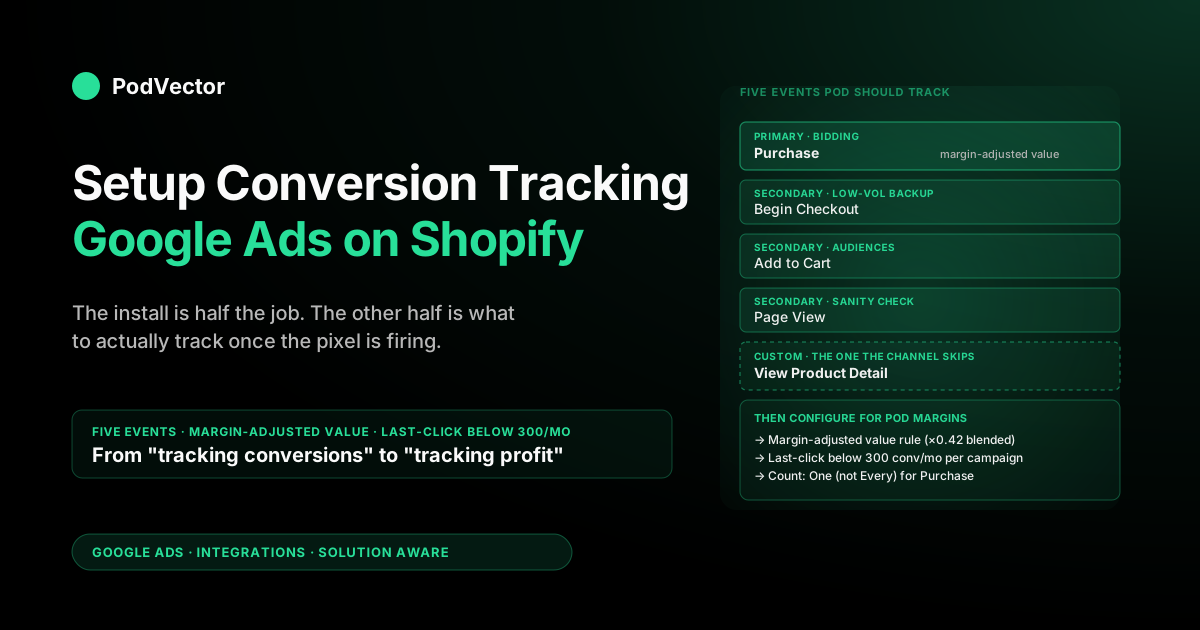
The Google & YouTube channel auto-creates four conversion actions. POD stores should track five — the four defaults plus one custom event that the channel won't create for you. Each plays a different role in Smart Bidding's learning curve.
- Purchase — the one that matters. Fires on order-confirmation. Marked Primary by the channel. This is what Smart Bidding optimizes against once volume is high enough. The configuration step (margin-adjusted value, "One" counting) is in the next section.
- Begin Checkout — secondary signal that becomes load-bearing on low-volume campaigns. If a campaign sees fewer than 30 monthly Purchase conversions, mark Begin Checkout as primary alongside Purchase so the algorithm has enough signal to learn from. Typical Begin Checkout-to-Purchase rate on POD apparel sits between 35% and 55%.
- Add to Cart — top-funnel signal. Cart-to-purchase conversion rate on POD apparel is usually 8–14%, which is noisy for bidding but valuable for audience-building. Don't set this as primary; do enable it as a customer-match audience source for retargeting Performance Max campaigns.
- Page View — sanity check only. Useful for confirming the pixel is firing across your store; never set as a Smart Bidding target. The channel keeps it Secondary by default — leave it there.
- View Product Detail Page (custom) — the one the channel doesn't create. POD buyers who view a product detail page have shown specific design intent, which matters more on POD than on commodity ecommerce because the product is the design. Create a custom Customer Events event that fires on
product_viewedand import it as a conversion in Google Ads. Keep it Secondary; use it for Performance Max audience signals and remarketing list seeding.
The fifth event is the one that separates "tracking like everyone else" from "tracking like a POD operator who understands their funnel." The channel won't suggest it — Google's defaults are designed for general ecommerce, not for stores where the design is the value proposition.
Configuring conversions for Smart Bidding on POD margins
Three settings that turn the install from "tracking conversions" into "tracking conversions Smart Bidding can profitably optimize against."
Margin-adjusted Purchase value
The default Purchase action reports gross revenue as conversion value. For POD, where Printify and Printful take 35–55% of order total in supplier costs and shipping, gross revenue trains Smart Bidding to chase high-revenue SKUs even when their absolute contribution margin is lower than smaller items. A $35 hoodie and a $9 sticker can both have a 40% margin, but if Smart Bidding optimizes by gross revenue, it bids 4× more aggressively for the hoodie click — even though the hoodie's after-cost contribution is only $14, not $35.
Fix it with a value rule. Google Ads → Tools → Conversions → Value rules → Add rule. Three options ranked by accuracy:
- Flat margin multiplier (10-minute setup): one rule that multiplies Purchase value by your blended margin (e.g., 0.42 for 42% blended). Right answer for catalogs with consistent margins across products.
- Margin tiers via custom labels (half-day setup): tag products with margin tier in Merchant Center
custom_label_0, then create three rules. Right answer for catalogs with high margin variance (apparel + accessories + home goods). - Per-line-item value via custom Customer Events (multi-day setup): replace the default Customer Events handler with one that calculates contribution margin per line item. Right answer above $50K monthly ad spend, where the precision matters more than the engineering time.
Conversion windows and attribution model
Default Google Ads windows are 30 days view-through and 90 days click-through, which work fine for POD. The attribution model defaults to "data-driven" — Google's machine-learned model that distributes credit across touchpoints.
Data-driven is good above 300 monthly conversions per campaign; below that, it's noisier than last-click. For POD stores under $20K monthly ad spend, switch to last-click at the conversion-action level until volume justifies the data-driven model. Tools → Conversions → Shopify Purchase → Edit → Attribution model.
Counting setting: "One" not "Every"
For Purchase, set Count → One (one conversion per click). The channel default is "Every" — fine for lead gen, wrong for POD because repeat buyers within the click window get double-counted in ways Smart Bidding's volume targets don't handle well. For Add to Cart and Begin Checkout, "Every" is correct: top-funnel actions where every event matters for audience-building.
Verification checks before your first dollar of spend
Five checks. All of them. Catching a tracking failure before $1,000 of spend is the difference between a 30-minute fix and a multi-week debugging exercise where Smart Bidding has been training on bad data the whole time.
- Pixel-fires-on-test-checkout. Install the Google Tag Assistant Chrome extension. Open your live store in incognito with Tag Assistant recording. Add a $1 product (or use a 100% discount code), complete checkout. Tag Assistant should show a "Conversion" event firing on order-confirmation with a non-zero value. Nothing? The pixel isn't reaching Google — usually a duplicate Google Channel app conflict.
- Conversion-action recording. 24–48 hours after a real order, check Google Ads → Tools → Conversions → Shopify Purchase. Status should read "Recording conversions" with at least one logged. If it reads "No recent conversions" after 48 hours despite real orders happening, pixel is firing browser-side but Google isn't receiving — usually a Customer Events config issue.
- Enhanced conversions diagnostics. After 7 days of real orders, open the Diagnostics tab. User-provided data match rate should be 70%+. Below 50% means hashing or field mapping is wrong; toggle enhanced conversions off and back on to reset.
- Reconciliation. One week post-launch, pull Google Ads Purchase conversion count and value, compare to Shopify orders attributed to Google (filter Shopify orders by gclid in UTM data). Counts should match within ±5%; values within ±15% (the difference is enhanced-conversion recovery from cross-device journeys, which is real and expected).
- No-double-firing. In Tag Assistant, the Purchase event should fire once on order-confirmation. If it fires twice, either both legacy Google Channel and the new Google & YouTube channel are installed, or you've manually pasted a tag into your theme that's now duplicating the channel. Uninstall the duplicate immediately — double-firing inflates conversions 2× and tanks every Smart Bidding campaign training against the bad data.
Most operators run check 1 and skip 2–5. Those four are where 90% of tracking failures hide.
What to monitor once tracking is live
Tracking installed and verified is the prerequisite, not the destination. Three things to watch in the first 30 days while Smart Bidding's data flow stabilizes:
- Reconcile weekly. Pull weekly Google Ads spend and reported Purchase conversion value, join against Shopify orders by gclid and your actual COGS table. The gap between Google Ads' reported ROAS and your actual contribution-margin ROAS is the number that matters — it tells you whether Smart Bidding is optimizing against profit or against revenue.
- Watch the conversion-volume threshold. Smart Bidding's Target ROAS strategy needs roughly 30 conversions in trailing 30 days per campaign to perform well. Below that, Maximize Conversions or Manual CPC will outperform. As volume grows past 30, switch.
- Layer in negative keywords from real search terms. Weekly, pull the search-terms report and add irrelevant ones (e.g., "free [your design name] download," "[design name] svg cricut") as negatives. POD search terms drift faster than commodity ecommerce because designs change; this is a perpetual job.
For the cross-channel picture (Google Ads spend vs. Printify/Printful supplier costs vs. Shopify revenue vs. true contribution margin), our complete Google Ads playbook for print-on-demand sellers covers campaign architecture, scaling, and seasonal patterns POD specifically experiences. Once tracking is live and you're ready for Shopping ads, our Google Shopping ads + Shopify strategy for print-on-demand goes deeper on campaign structure.
Browse the rest of the integration cluster from our Google Ads integrations hub, or zoom out to the Google Ads topic hub. For an external counterpoint focused specifically on server-side methods, the Stape 2026 guide covers the GTM-and-server-side path in depth.
FAQs
Do I need to edit Shopify theme code for Google Ads conversion tracking?
No. The Google & YouTube channel installs the conversion pixel through Shopify Customer Events, the supported pixel layer that doesn't require theme edits. Skip any guide telling you to paste tags into theme.liquid — that path is deprecated for most Shopify stores and no longer fires reliably on order-confirmation.
How long until conversions show up in Google Ads after setup?
The pixel fires immediately on the next checkout. Conversions show in Google Ads reports within 3–24 hours of a real conversion. Smart Bidding's learning takes 7–14 days to settle, and 30 days before Target ROAS bidding is reliably stable.
Can I track contribution margin instead of revenue as conversion value?
Yes — the channel doesn't do this for you, but Google Ads value rules can. The simplest is a flat-multiplier rule that multiplies revenue by your blended POD margin (e.g., 0.42 for 42%).
The right version is per-product margin via Merchant Center custom labels or a custom Customer Events handler. The Shopify Google Ads conversion tracking guide for POD sellers covers each path in detail.
Should I install GTM instead of the Google & YouTube channel?
Almost always no. GTM gives you full control over what fires, when, and with what payload — at the cost of doing the work yourself and maintaining it forever.
The honest test: are you running 3+ ad platforms (Meta, TikTok, Google) and need centralized tag governance? If yes, GTM is worth the overhead.
If no, the channel handles 95% of what GTM does, automatically. Most POD stores under $200K monthly revenue should stay on the channel.
What if I'm running Meta, TikTok, and Google Ads on the same Shopify store?
Each platform needs its own pixel. Google & YouTube channel handles Google.
Meta has its own Meta sales channel. TikTok has its own TikTok app.
They coexist on Shopify Customer Events without conflict because each is a separate "destination" subscribing to events independently. If you ever need governance across all three (shared events, deduplicated firing), that's when GTM becomes worth the maintenance overhead.
Do I still need Google Analytics if I have Google Ads conversion tracking?
They do different jobs. Google Ads conversion tracking feeds Smart Bidding directly. Google Analytics (GA4) feeds reporting, audience-building, and cross-channel exploration. POD operators should set up both — the Google & YouTube channel sets up Google Ads, and most stores layer GA4 on via the same Customer Events destination with one extra setup step. Not redundant; complementary.
Will conversion tracking work if a buyer has cookies disabled?
Partial. Browser-side pixel fails when cookies are blocked, but enhanced conversions recovers a meaningful share via hashed first-party data sent server-side. In 2026, the gap that enhanced conversions can't close sits around 8–18% of conversions. To close further, you'd need server-side tagging (sGTM) or Google's Data Manager — see our Shopify Google Ads integration guide for when graduating to server-side is worth the engineering time.
How do I know which products are profitable after Printify or Printful supplier costs?
Google Ads doesn't see your supplier costs, so it can't show profitability natively. Two paths: (1) build a manual reconciliation in Sheets that joins Google Ads spend, Shopify orders, and your COGS table weekly, or (2) use an AI analytics agent that runs the join against your live data and answers profitability questions in plain English. Either way, the conversion tracking setup above is the prerequisite — without margin-adjusted Purchase values flowing into Google Ads, both options reconcile against the wrong baseline.
What's the minimum monthly revenue to bother setting up conversion tracking?
There isn't one. Setup is free, takes 15–25 minutes, and recovers more value than it costs at any positive ad spend.
The decision isn't "should I install tracking" — it's "should I run Google Ads at all." Below ~$5K monthly revenue, you usually have bigger growth levers than paid (organic, email, marketplace listings). Above that, install tracking before spending a dollar on ads.
Tracking is half the picture — Victor handles the other half
Conversion tracking gives Google Ads enough signal to bid smarter, but it still doesn't know your Printify costs by SKU, your shipping margins by destination, or which Performance Max asset groups deserve more budget after actual contribution margin. Victor is an AI analytics agent built for POD sellers — connect Shopify, Google Ads, and Printify or Printful, then ask questions like "which products lost money on Google Ads this week after supplier costs?" in plain English.
Try Victor free