
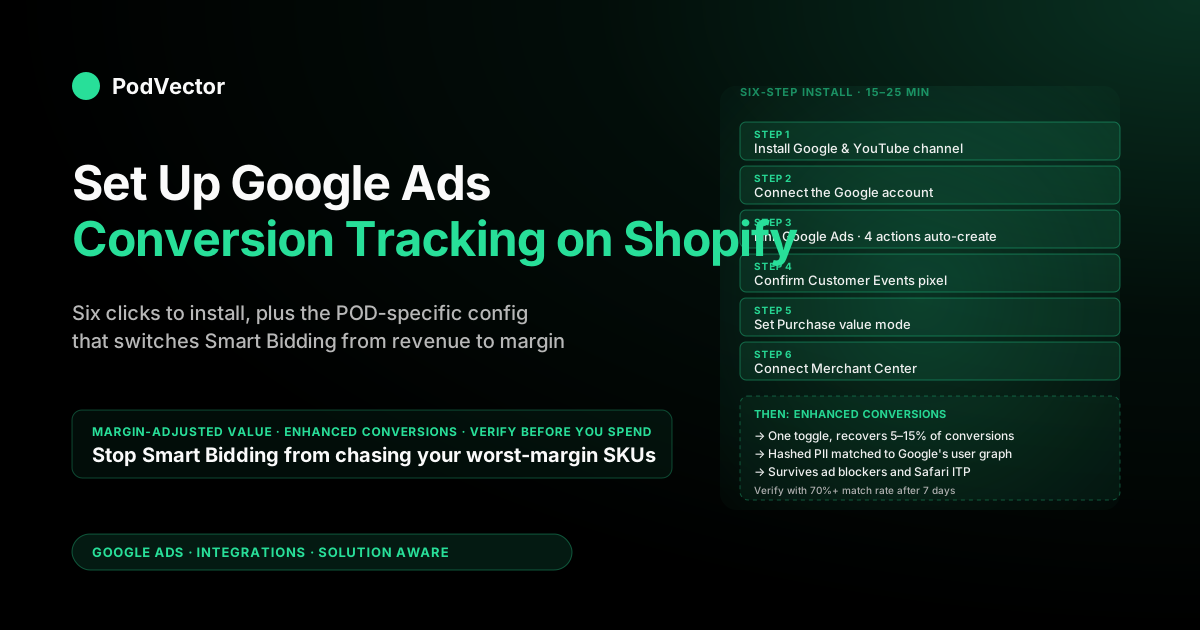
Quick Answer: The fastest correct way to set up Google Ads conversion tracking on Shopify in 2026 is the Google & YouTube channel app: install it, link Google Ads, accept the four auto-created conversion actions (Purchase, Begin Checkout, Add to Cart, Page View), turn on enhanced conversions, then verify with Tag Assistant on a real test order. Hands-on time is 15–25 minutes. For POD sellers specifically, the install is only half the job — you also need to switch the Purchase value from gross revenue to a margin-adjusted value before Smart Bidding starts spending against you on Printify and Printful supplier costs you don't actually keep.
What Google Ads conversion tracking actually tracks on Shopify
Conversion tracking is the pipe that lets Google Ads know what happened on your Shopify store after someone clicked one of your ads. Without it, Smart Bidding (the algorithm that decides how much to bid for each auction) is optimizing against clicks, which on print-on-demand margins is roughly the same as setting money on fire. With it, Smart Bidding optimizes against actual purchases at the values you tell it.
A clean Shopify install via the Google & YouTube channel auto-creates four conversion actions, in this order of importance for POD:
- Purchase — fires on the order-confirmation page. This is the one that matters for bidding. Counts an order, reports the order value, drives every Smart Bidding decision.
- Begin Checkout — fires when a shopper enters checkout. Useful as a secondary signal, especially when your monthly Purchase volume is too low to feed Smart Bidding directly (more on that below).
- Add to Cart — fires when someone adds a product to cart. A noisy signal on POD because the cart-to-purchase conversion rate on apparel sits around 8–14%, but useful for audience-building.
- Page View — fires on every page. Functionally a tracking sanity check; never set this as a bidding target.
The four-action default is the right starting point. The decision underneath it — which one to mark "primary" for Smart Bidding to optimize against — is the POD-specific configuration most operators skip.
Purchase is right when you have at least 30 conversions per month per campaign; below that, mark Begin Checkout as a secondary primary so the algorithm has enough signal to learn from. The complete Google Ads + Shopify integration guide for POD covers the architecture above this layer.
Two supported setup methods (and which one to pick)
There are exactly two methods Google currently supports for Shopify conversion tracking. Skip any guide that tells you to paste the global site tag into your theme.liquid file directly — Shopify deprecated the checkout.liquid edit path for most stores in 2024, and manual theme tag installs no longer fire reliably on the order-confirmation page on Shopify Plus pre-checkout and standard checkout flows.
Method 1: Google & YouTube channel (recommended for 95% of POD stores)
Free first-party Shopify app published by Google. Installs as a sales channel in your Shopify admin. Handles OAuth into Google Ads, auto-creates the four conversion actions, installs the conversion pixel via Shopify Customer Events (the supported pixel layer), and exposes a one-click toggle for enhanced conversions. Zero code. 15–25 minutes hands-on.
Use this unless you have a specific reason not to. The "specific reasons not to" list is short: you're already running a tightly-governed GTM container with multiple ad platforms, you need custom event payloads beyond the four defaults, or you have multi-domain tracking requirements the channel can't reach. None of these apply to a typical POD store under $200K monthly revenue.
Method 2: Google Tag Manager (when you're running 3+ ad platforms)
A GTM container installed via Shopify Customer Events. Individual conversion tags configured inside the GTM UI. Gives you full control over what fires, when, and with what payload — at the cost of doing the work yourself. Plan for 2–4 hours of initial setup plus ongoing maintenance every time Shopify or Google updates a spec.
The honest test for whether GTM is worth it: are Meta, TikTok, and Google all running on this store? If yes, GTM gives you one source of truth for tag governance and is probably worth it. If no, it's overkill — the channel handles 95% of what GTM does, automatically.
For the deeper architectural decision underneath these two methods (including server-side tagging and Google's newer Data Manager pipe), our Shopify Google Ads integration guide for POD sellers compares all four options with a decision matrix.
Prerequisites you need before you start
Five things you want in place before you click install. Sorting these now saves the most common 30-minute detour mid-setup.
- A Google Ads account with a payment method on file. Sign up at ads.google.com if you don't have one. Skip the "Smart" mode that the signup wizard pushes — switch to Expert mode immediately, you'll need it for the conversion-action settings later.
- A Google Merchant Center account if you're going to run Shopping or Performance Max ads. The channel can create one for you during setup, but it's faster if you've claimed your domain in Search Console first (verifies ownership in seconds rather than waiting for DNS propagation).
- Shopify admin access with permission to install sales channels. If you're a hired marketer working on a client store, ask the owner to add your account as Staff with Sales channels permission rather than sharing the owner login.
- The Google account that should own the integration. Pick one and stick with it — switching the Google account that owns the channel later requires a full reinstall and recreates all conversion actions, which resets Smart Bidding's learning. Use a brand-owned email, not a personal one. If your business uses Google Workspace, use a workspace account so access survives an employee leaving.
- One real product in your Shopify catalog plus a working checkout. The verification step at the end requires placing a real test order. Have a $1 test product ready, or a 100% discount code that still triggers an order (not just a cart abandonment).
Step-by-step walkthrough: Google & YouTube channel
Counting screen-by-screen, this is six actions. Total hands-on time 15–25 minutes if your prerequisites are clean.
Step 1: Install the Google & YouTube sales channel
In your Shopify admin, navigate to Settings → Apps and sales channels → Shopify App Store, search for "Google & YouTube," and click Add channel. The app is free, published by Google, and shows up as a permanent entry in your left sidebar after install. If a deprecated "Google" or "Google Channel" app is already installed, uninstall it first — running both creates duplicate-pixel conflicts that double-count or cancel each other's conversions.
Step 2: Connect the Google account that owns the integration
Inside the new channel, click Get started → Connect a Google account. Sign in with the account you picked in the prerequisites.
The OAuth flow asks for permission to manage your Google Ads, Merchant Center, and Analytics on your behalf. Approve all of them — you can revoke later if needed. Don't pick the "Create a new Google account" option unless you're sure you'd rather have a separate identity for this integration; merging accounts later is a pain.
Step 3: Connect Google Ads
Inside the channel's Settings tab, find the Google Ads section and click Connect. The channel detects existing Google Ads accounts under that Google login and lists them; pick the one you want and confirm. The channel auto-creates four conversion actions in your Google Ads account on confirmation:
- Shopify Purchase (Primary, value: per-transaction)
- Shopify Begin Checkout (Secondary)
- Shopify Add to Cart (Secondary)
- Shopify Page View (Secondary)
You can verify these landed by opening Google Ads in another tab and going to Tools → Conversions → Summary. The four should be visible with status "No recent conversions" until your first real test order fires.
Step 4: Confirm the pixel installed via Customer Events
The channel installs its pixel through Shopify Customer Events, not by editing your theme. Verify it by going to Settings → Customer events in Shopify admin.
You should see a "Google Ads & Analytics" entry with status "Connected" and event coverage listed (Page Viewed, Product Viewed, Product Added to Cart, Checkout Started, Checkout Completed). If this entry isn't present, the channel install didn't complete cleanly — uninstall and reinstall.
Step 5: Set the Purchase action's value tracking mode
By default, the Purchase action uses "different values for each transaction" with the order revenue Shopify reports. Confirm this by going to Google Ads → Tools → Conversions → Shopify Purchase → Edit.
The Value field should read "Use different values for each conversion based on transaction" with no override. Don't change it yet — we'll add a margin-adjusted value rule in the POD-specifics section below.
Step 6: Confirm Merchant Center connection (if running Shopping or PMax)
In the channel, find Google Merchant Center and click Connect (or Create if you don't have one yet). Domain verification happens automatically because Shopify and Google both already trust each other's identity.
Product feed sync starts within 30 minutes; the first full crawl takes 24–72 hours. The Shopping ads side of the integration isn't strictly required for conversion tracking to work — Search-only campaigns track conversions just fine without it — but if you ever plan to run Performance Max or Shopping campaigns, set this up now rather than later.
Turn on enhanced conversions (the 5–15% recovery)
Enhanced conversions is the single highest-ROI configuration step in this guide. It's a one-click toggle that recovers 5–15% of conversions client-side tracking would otherwise lose to ad blockers, Safari ITP, and cross-device buyer journeys. In 2026, with iOS 18+ tracking restrictions and Chrome's third-party cookie deprecation in motion, the recovery percentage is closer to the high end of that range than the low end.
How it works: when a buyer completes checkout, Shopify Customer Events sends hashed customer identifiers (email, phone, name, address) to Google. Google matches the hash against its signed-in user graph. If the buyer is signed into a Google account anywhere — Gmail, Chrome, Android — Google can attribute the conversion back to a click that happened in a different browser, on a different device, or weeks earlier than the cookie window allows.
To turn it on:
- In Google Ads, go to Tools → Conversions → Shopify Purchase → Edit.
- Scroll to Enhanced conversions and click the toggle.
- Method: choose "Google tag (automatic)". The channel handles the data collection — no manual JavaScript.
- Accept the customer data terms.
- Repeat for the Begin Checkout action if you've marked it as primary for any campaign.
Verification: after 7 days of real orders, open the Purchase action's Diagnostics tab and check the user-provided data match rate. A healthy match rate is 70%+. Below 50% usually means the channel is sending the wrong fields, the fields aren't being hashed correctly, or your store has a high share of guest checkouts where customer data is sparse — toggle enhanced conversions off and back on to reset, and confirm that name and email are being collected at checkout (Shopify's "guest checkout" still collects email, so this should be high by default).
For the deeper enhanced-conversions configuration including per-campaign customer match audiences, our Google Ads enhanced conversion setup on Shopify guide for POD sellers covers the audience-building side.
POD-specific configuration the install screens skip
The Google & YouTube channel install gets you a working integration. It does not get you a profitable one. Three POD-specific configurations close the gap between "tracking conversions" and "tracking conversions Smart Bidding can actually optimize against on POD margins."
Margin-adjusted Purchase value
By default, the Purchase action reports order revenue (gross sale) as conversion value. For POD, where Printify and Printful take 35–55% of the order total in supplier costs and shipping, gross revenue trains Smart Bidding to chase your worst-margin SKUs because they have the highest reported values. A $35 hoodie and a $9 sticker may both have a 40% margin, but if you optimize by gross revenue, Smart Bidding bids 4× more aggressively for the hoodie click — even though the hoodie's contribution after Printify costs is only $14, not $35.
Fix it with a value rule. In Google Ads: Tools → Conversions → Value rules → Add rule. Three options ranked by accuracy:
- Flat margin multiplier (10-minute setup): one rule that multiplies the Purchase value by your blended margin (e.g., 0.42 for 42% blended). Right answer for stores with consistent margins across catalog.
- Margin tiers via custom labels (half-day setup): tag products with margin tier in Merchant Center custom_label_0, then create three rules. Right answer for catalogs with wide margin variance (apparel + accessories + home goods, where unit economics differ a lot).
- Per-line-item value via custom Customer Events (multi-day setup): replace the default pixel with a custom JavaScript handler that calculates contribution margin per line item. Right answer above $50K monthly ad spend.
Conversion windows tuned for POD buying behavior
POD buyers don't behave like commodity ecommerce buyers. They browse, leave, come back days later, browse again, then convert.
Default Google Ads conversion windows are 30 days for view-through and 90 days for click-through, which is fine — but the attribution model defaults to "data-driven" (Google's machine-learned model), and on low-volume campaigns (under 300 monthly conversions per campaign) data-driven can be noisier than last-click. For POD stores under $20K monthly ad spend, switch to last-click attribution at the conversion-action level until you have enough volume for data-driven to settle. In Google Ads: Tools → Conversions → Shopify Purchase → Edit → Attribution model → Last click.
Counting setting: "One" not "Every"
For the Purchase action, set Count → One (one conversion per click). The channel default is "Every" which makes sense for lead gen but inflates your conversion count for POD repeat buyers in ways Smart Bidding doesn't handle well. For Add to Cart and Begin Checkout, "Every" is fine — these are top-funnel and you want them counting every event for audience building.
How to verify tracking before you spend a dollar
Five checks. Run all of them before launching your first campaign. Catching a tracking failure before $1,000 of ad spend is the difference between a 30-minute fix and a multi-week debugging exercise where Smart Bidding has been training on bad data the whole time.
- Pixel-fires-on-test-checkout check. Install the Google Tag Assistant Chrome extension. Open your live store in incognito with Tag Assistant recording. Add a $1 product (or use a 100% discount) and complete checkout. Tag Assistant should show a "Conversion" event firing on the order-confirmation page with a non-zero value. If it shows nothing, the pixel isn't reaching Google — most often because a deprecated Google Channel app is also installed and conflicting.
- Conversion-action recording check. 24–48 hours after a real order, open Google Ads → Tools → Conversions → Shopify Purchase. Status should read "Recording conversions" with at least one conversion logged and the right dollar value. If it reads "No recent conversions" after 48 hours despite real orders, the pixel is firing in the browser but Google isn't receiving — usually a Customer Events config issue.
- Enhanced conversions diagnostics. Inside the Purchase action, open the Diagnostics tab. After 7 days, the user-provided data field should report 70%+ match rate. Lower than 50% means hashing or field-mapping is wrong; toggle enhanced conversions off and back on.
- Reconciliation check. One week after launch, pull your Google Ads Purchase conversion count and value, compare to Shopify orders attributed to Google (use the gclid filter in Shopify orders' UTM data). Conversion counts should match within ±5%. Conversion values should match within ±15% (the difference is enhanced-conversion recovery from cross-device journeys, which is real and expected).
- No-double-firing check. In Tag Assistant, the Purchase event should fire once on the order-confirmation page. If it fires twice, you almost certainly have both the legacy Google Channel app and the new Google & YouTube channel installed simultaneously, or you've manually pasted a tag into your theme that's now being duplicated by the channel. Uninstall the duplicate immediately — double-firing inflates conversions 2× and tanks every Smart Bidding campaign that's been training against the bad data.
Most POD operators run check 1 and skip 2–5. Those four are where 90% of tracking failures hide.
Troubleshooting the four most common failures
"No recent conversions" after a real order
The most common single failure. Almost always one of three causes: (1) duplicate Google apps installed (uninstall the legacy one), (2) Customer Events showing the channel as "Disconnected" (reconnect from Settings → Customer events → Google Ads & Analytics), or (3) the order was placed by a buyer with all cookies blocked and gclid stripped — this is a real edge case and shouldn't affect the majority of orders. Wait for a second test order before declaring it broken.
Conversion values are off by 2× or 3×
Almost always double-firing. Run the no-double-firing check above.
The other cause is currency mismatch — if your Shopify store reports in USD but Google Ads is configured in EUR, conversion values get treated as if they were in your Google Ads currency. Confirm currency at Google Ads → Tools → Settings → Account settings → Currency; this can't be changed after account creation, so if it's wrong, you have to migrate to a new account.
Enhanced conversions match rate stuck below 50%
Three possible causes: (1) high guest-checkout rate without email collection (unusual on Shopify, which collects email by default — check Settings → Checkout to confirm email is required), (2) a checkout customization is stripping or hashing the email before the channel sees it, or (3) the channel was installed under a Google account that doesn't have the right scopes — disconnect and reconnect with a fresh OAuth grant.
Smart Bidding "learning paused" after 2 weeks
Not a tracking failure per se — it's a downstream symptom of one. Smart Bidding pauses learning when it detects sudden conversion volume changes that suggest tracking is unstable. If you see this, audit checks 1–5 above. The fix is almost always upstream of the bidding strategy.
What to do once tracking is live
Tracking installed and verified is the prerequisite, not the destination. Three things to do in the first 30 days once Smart Bidding has clean data flowing in:
- Reconcile weekly. Pull a weekly report of Google Ads spend and reported Purchase conversion value, then join it against Shopify orders by gclid and your actual COGS. The gap between Google Ads' reported ROAS and your actual contribution-margin ROAS is the number that matters; it tells you whether Smart Bidding is optimizing against profit or against revenue.
- Watch the conversion-volume threshold. Smart Bidding's Target ROAS strategy needs roughly 30 conversions in the trailing 30 days per campaign to perform well. Below that threshold, Maximize Conversions or Manual CPC will outperform. As volume grows past 30, switch.
- Layer in negative keywords from real orders. Every week, pull the search-terms report and add the irrelevant ones (e.g., "free [your design] download") as negatives. POD search terms drift fast because designs change; this is a perpetual job.
For the cross-channel picture (Google Ads spend vs. Printify or Printful supplier costs vs. Shopify revenue vs. true contribution margin), our complete Google Ads playbook for print-on-demand sellers covers campaign architecture, scaling, and the seasonal patterns POD specifically experiences. For the Shopping ads angle once tracking is live, our Google Shopping ads + Shopify strategy for print-on-demand goes deeper on campaign structure.
Browse the rest of the integration cluster from our Google Ads integrations hub, or zoom out to the full Google Ads topic hub. For an external counterpoint focused on server-side tagging methods specifically, the Stape 2026 Google Ads conversion tracking for Shopify guide goes deeper on the GTM-and-server-side path.
FAQs
Do I need to edit my Shopify theme code to set up Google Ads conversion tracking?
No. The Google & YouTube channel installs the conversion pixel through Shopify Customer Events, which is the supported pixel layer that doesn't require theme edits. Skip any guide that tells you to paste tags into theme.liquid — that path is deprecated for most Shopify stores and no longer fires reliably on the order-confirmation page.
How long does Google Ads conversion tracking take to start showing data?
The pixel itself fires immediately on the next checkout. The data shows up in your Google Ads conversion reports within 3–24 hours of a real conversion happening. Smart Bidding learning takes longer — plan for 7–14 days before the algorithm has enough signal to make stable decisions, and 30 days before Target ROAS bidding stops being noisy.
Can I track conversion value as profit instead of revenue?
Yes, but the channel doesn't do this for you out of the box. The default is gross revenue.
To track profit (or a margin-adjusted approximation), add a value rule in Google Ads → Tools → Conversions → Value rules. The simplest version is a flat-multiplier rule that multiplies revenue by your blended margin.
The right version for POD is per-product margin, which requires either custom labels in Merchant Center or a custom Customer Events handler. The Shopify Google Ads conversion tracking guide for POD sellers covers each path in more detail.
What if I'm running Meta Ads, TikTok Ads, and Google Ads on the same Shopify store?
Each platform needs its own pixel. The Google & YouTube channel handles Google.
Meta has its own Meta sales channel. TikTok has its own TikTok app.
They can coexist on Shopify Customer Events without conflict, because each is a separate "destination" that subscribes to events independently. If you ever need governance over all three (e.g., shared events, deduplicated firing, controlled rollout), that's when GTM via Customer Events becomes worth the maintenance overhead.
Do I still need Google Analytics if I have Google Ads conversion tracking?
They do different jobs. Google Ads conversion tracking feeds Smart Bidding directly.
Google Analytics (GA4) feeds reporting, audience-building, and exploration. POD operators should set up both.
The good news: the Google & YouTube channel sets up Google Ads, and most stores layer GA4 on via the same Customer Events destination with one extra setup step. They're not redundant; they're complementary.
Will conversion tracking still work if a buyer has cookies disabled or uses a privacy browser?
Partial. The browser-side pixel fails when cookies are blocked, but enhanced conversions recovers a meaningful share of those because it sends hashed first-party data (email, phone) on the server side. In 2026, the gap that enhanced conversions can't close is roughly 8–18% of conversions. To close that further, you'd need server-side tagging (sGTM) or Google's Data Manager pipe, both of which the channel install doesn't include — see our Shopify Google Ads integration guide for when graduating to server-side is worth the engineering time.
What's the minimum monthly Shopify revenue to bother setting up Google Ads conversion tracking?
There isn't one. The setup is free, takes 15–25 minutes, and recovers more value than it costs at any positive ad spend.
The decision isn't "should I install tracking" — it's "should I run Google Ads at all." Below ~$5K monthly revenue, you usually have bigger growth levers than paid acquisition (organic search, email, marketplace listings). Above that, install tracking before you spend a dollar on ads.
How do I track which products are profitable after Printify or Printful supplier costs?
Google Ads doesn't know your supplier costs, so it can't show you profitability natively. Two options: (1) build a manual reconciliation report in Sheets that joins Google Ads spend, Shopify orders, and your COGS table weekly, or (2) use an AI analytics agent that runs the join against your live data and answers profitability questions in plain English. Either way, the conversion tracking setup above is the prerequisite — without margin-adjusted Purchase values flowing into Google Ads, both options reconcile against the wrong baseline.
Tracking is live — now answer the questions Google Ads can't
Conversion tracking gives Google Ads enough signal to bid smarter, but Google Ads still doesn't know your Printify costs, your shipping margin by SKU, or which Pmax asset groups deserve more budget after actual contribution margin. Victor is an AI analytics agent built for POD sellers — connect Shopify, Google Ads, and Printify or Printful, then ask questions like "which products lost money on Google Ads this week after supplier costs?" in plain English.
Try Victor free