
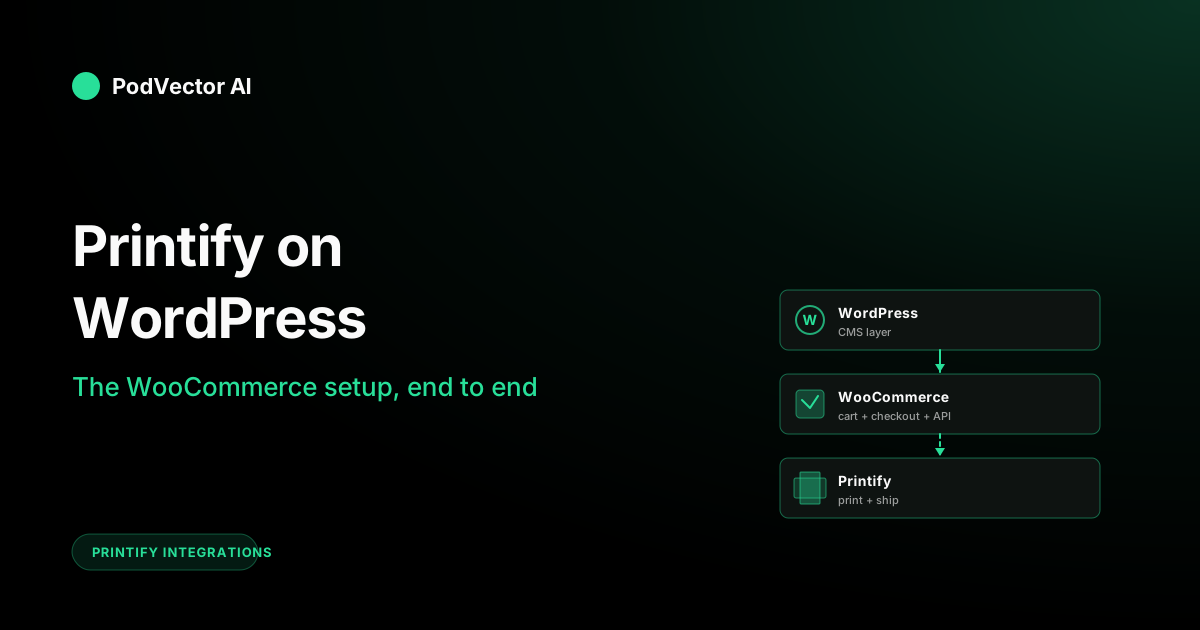
Quick Answer: "Printify Wordpress" is shorthand for Printify + WooCommerce. WordPress on its own does not handle e-commerce — you need the free WooCommerce plugin to take payments, and a second plugin called Printify for WooCommerce to wire Printify into it.
The setup is five steps: install WooCommerce, set permalinks, install the Printify plugin, generate WooCommerce API keys, and link the store from inside Printify. Total time: roughly 20 minutes once your hosting is live.
The harder question — and what this guide actually answers — is the order of operations that avoids the “cannot connect” loop, and what to track once the integration starts pushing products and pulling orders.
Why "Printify Wordpress" Really Means Printify + WooCommerce
WordPress is a content management system. Out of the box it can publish posts and pages, but it cannot take a credit card, manage a cart, or fulfill an order.
WooCommerce is the free plugin that turns WordPress into an e-commerce store. It adds the cart, checkout, payment processing, product database, and order management WordPress lacks.
So when sellers search "Printify Wordpress," they are really asking about Printify + WooCommerce. Printify integrates with the WooCommerce layer, not the WordPress core. Every step below assumes that's the stack you're building.
If you already run a different e-commerce stack on WordPress — Easy Digital Downloads, Shopify Lite via embed, or a custom checkout — Printify will not connect to it. WooCommerce is the only supported WordPress integration today.
Before You Start: What You Need in Place
Five things have to be ready before the setup will work. Skipping any of them produces the same generic "could not connect" error and a 20-minute debugging detour.
- A live WordPress site on your own hosting. WordPress.com's free tier does not allow plugin installs. You need self-hosted WordPress (WordPress.org install on hosting like Hostinger, SiteGround, Bluehost, or a VPS).
- An SSL certificate active on the domain. Most hosts ship a free Let's Encrypt cert. Without HTTPS, payment processors and the Printify connection will both refuse.
- Admin access to the WordPress site — not Editor, not Author. The plugin install and API key generation both require admin privileges.
- A Printify account (free is fine for setup; you can upgrade later if it pencils out — see our Printify free account breakdown and the Printify free plan cost breakdown for what stays free vs. what doesn't).
- At least one product designed in Printify that you want to publish to the new store. You can do this after the connection, but it's faster to have one ready to test with.
Step 1 — Install and Activate WooCommerce
In your WordPress admin dashboard, go to Plugins → Add New. Search for WooCommerce. Click Install Now, then Activate.
WooCommerce will launch its setup wizard. You can skip through it or fill in your store details (address, currency, payment methods). For the Printify connection, none of these answers matter — you can change them later. Focus is faster.
One thing to set during the wizard: enable physical product as the product type. Printify pushes physical goods only, so toggling on digital-only would later require switching back.
Step 2 — Set Permalinks and Disable Legacy API Issues
This is the step that traps most first-timers. Two settings need to be right before the API will respond to Printify.
Permalinks: Go to Settings → Permalinks. Select anything other than Plain. Post name is the standard pick. Click Save Changes even if you didn't change anything — that save is what re-flushes the rewrite rules WooCommerce needs.
Legacy REST API: Go to WooCommerce → Settings → Advanced → Legacy API. If you see a checkbox for Enable the legacy REST API, leave it unchecked. The modern WooCommerce API (which Printify uses) and the legacy one will conflict on some hosts if both are active.
If your WooCommerce install is recent (3.5 or newer), the legacy option may not appear at all. That's normal — it means you're already on the right path.
Step 3 — Install the Printify for WooCommerce Plugin
Back to Plugins → Add New. Search for Printify for WooCommerce. The official one is published by Printify — check the author name before clicking Install. Several lookalike plugins exist.
Click Install Now, then Activate. You'll now see a Printify menu item in your WordPress sidebar.
The plugin handles the order webhook on the WordPress side. You don't need to configure it manually — just having it activated is enough. The actual connection happens from inside Printify, not from this plugin.
Step 4 — Generate WooCommerce API Keys
Printify needs read-and-write API access to push products and read orders. WordPress does not grant this by default; you generate a key pair.
Go to WooCommerce → Settings → Advanced → REST API. Click Add Key. Set:
- Description: "Printify" (anything descriptive — this is for your own records)
- User: your admin user
- Permissions: Read/Write (anything less will fail order sync)
Click Generate API key. You'll see a Consumer Key and Consumer Secret on the next screen. Copy both immediately — the Consumer Secret will never display again. If you lose it, you have to delete the key and generate a fresh one.
Paste both into a password manager or scratch file. You'll need them in the next step.
Step 5 — Connect from Inside Printify
Log into printify.com. In the top-right or left-side menu, click Manage my stores, then Add new store. Select WooCommerce from the list.
Printify will ask for three things:
- Store URL: your full WordPress site URL, including
https://. Example:https://your-shop.com(no trailing slash). - Consumer Key: paste from Step 4.
- Consumer Secret: paste from Step 4.
Click Connect. If the credentials are right and the permalinks were saved correctly in Step 2, you'll see a green confirmation and the store will appear in your Printify dashboard's left rail.
If you get a "could not connect" error: 90% of the time it's permalinks set to Plain, the API key set to Read-only, or a typo in the store URL. Re-check those three before assuming the hosting blocks WooCommerce REST endpoints.
Verify the Connection Works
Publish one test product from Printify to confirm the data is actually flowing.
From your Printify catalog, pick any product (a basic T-shirt works), add a quick design, and click Publish to Store. Select your new WooCommerce store as the target. After 30 to 60 seconds, refresh Products inside WordPress — the new listing should appear with images, variants, and the price you set.
If the product shows up but the variants are wrong, the issue is variant mapping inside Printify, not the connection. If nothing appears at all, go back to Printify → Manage my stores and click Reconnect on the WooCommerce store. That usually fixes a stale token without re-doing the API key step.
For the official troubleshooting checklist, Printify maintains a help-center article on WooCommerce connection errors that covers the rarer hosting-specific issues.
When WordPress Beats Shopify for POD (and When It Doesn't)
Most POD guides assume Shopify. WordPress + WooCommerce is a real alternative, but only for specific situations. The honest version:
WordPress wins when:
- You already have a content-heavy WordPress site (a blog, a community, a publication) that you want to monetize with branded merch without spinning up a separate store.
- You want to own every part of the stack — design, checkout, plugins — without paying a monthly platform fee. WooCommerce itself is free.
- You're comfortable handling your own hosting, updates, backups, and the occasional plugin conflict.
Shopify wins when:
- You want the store live in an afternoon with zero plugin maintenance.
- You plan to run paid ads heavily — Shopify's checkout conversion rates and ad-platform integrations are slightly better out of the box than WooCommerce's.
- You don't have a developer or the patience to debug API keys when something breaks at 11 PM.
For most new POD sellers, Shopify gets you launched faster. For sellers with an existing WordPress audience, WooCommerce is the right call. There's no universal answer.
What to Track Once Orders Are Live
Setup is the easy part. Knowing whether the integration is actually making money requires watching a few numbers that neither Printify nor WooCommerce surfaces in one place.
Per-order true margin. Subtract Printify production cost, Printify shipping, WooCommerce payment processor fees (Stripe and PayPal both charge ~2.9% + 30¢), any plugin subscription cost (some premium add-ons take a cut), and your design / ad cost from the retail price. What's left is the real per-order profit. Most POD sellers track "revenue" and assume margin is healthy — it often is not.
Sync latency. How long after a customer hits Buy does Printify receive the order? Under 60 seconds is healthy. Five-plus minutes means a webhook is failing — usually a hosting timeout or a security plugin blocking the call.
Listing-level conversion. WooCommerce's built-in stats show orders, not conversion rates. Pair it with Google Analytics or Plausible to see which listings actually convert and which are just driving traffic. Then push the high-converters into your ad spend.
Refund-driven margin leak. Refunds in WooCommerce do not automatically issue refunds in Printify. If a customer demands a refund after the order has gone to production, you pay Printify and lose the sale. Track refunds against time-since-order so you know which orders to cancel in Printify before they're charged.
The cleanest way to watch all four is to pipe WooCommerce orders, Printify costs, ad spend, and payment-processor fees into a single warehouse — Snowflake, BigQuery, Redshift, or equivalent — and join them on order ID. Then any margin or sync question is one SQL query away. Stitching it together by hand from three dashboards is what most sellers do, and what most sellers eventually quit doing.
FAQs
Does Printify work with WordPress.com or only self-hosted WordPress?
Self-hosted only. WordPress.com's lower plans block plugin installs, and even the Business plan adds limitations around the WooCommerce API. Run WordPress.org on your own hosting (Hostinger, SiteGround, Bluehost, Cloudways, etc.) for a clean integration.
Is there a fee to connect Printify to WooCommerce?
No fee for the integration itself. WooCommerce is free. The Printify for WooCommerce plugin is free. You pay only when orders are produced — Printify charges you production cost plus shipping at that moment. Your separate costs are hosting, domain, and payment processor fees.
Why does Printify keep failing to connect even though I copied the keys correctly?
Three usual suspects, in order of frequency. First: permalinks set to Plain. Switch to Post name and click Save. Second: the API key was generated as Read-only. Delete it and generate a Read/Write key. Third: the site URL has a trailing slash, includes www. when the canonical domain doesn't, or uses http:// instead of https://. Match the exact URL WordPress redirects to.
Can I use Printify with a WordPress site that's still on staging?
Technically yes, but with a catch. Printify needs a publicly reachable URL to fire webhooks. Most staging environments are password-protected or on internal subdomains, which blocks the order callback. Either expose the staging site, or wait until you move to production before connecting.
How does Printify handle WooCommerce variants like size and color?
Variants from Printify push into WooCommerce as a variable product with one variant per size/color combination. Stock is always "in stock" (because it's print-on-demand — nothing is held). Prices can differ per variant if you set them that way in Printify before publishing.
Can one Printify account connect to multiple WordPress stores?
Yes. Printify's free plan supports up to ten linked stores per account, including any mix of WooCommerce, Shopify, Etsy, eBay, and others. Repeat the 5-step setup for each WordPress site. For the API side, you can use the same approach to connect Printify's API directly if you're running a custom WordPress integration outside the standard plugin.
What happens if I deactivate the Printify plugin after the connection is live?
Existing products stay published. New Printify-to-WooCommerce syncs stop until you reactivate. Orders placed during the downtime get queued in WooCommerce but do not flow to Printify until the plugin is back. Don't deactivate during a sale unless you're ready to manually push each order over.
Do I need a separate plugin for Printful or other POD services on the same WordPress site?
Yes — each POD service has its own plugin. You can run Printify and Printful side by side on one WooCommerce store, but each handles only its own products and orders. There's no conflict, just two separate integrations to maintain. If you're weighing the decision, our guides on the Printify Big Cartel integration and the broader Printify integrations hub cover how each channel differs.
Will Printify show up in my WooCommerce analytics or do I need a separate dashboard?
WooCommerce analytics shows revenue and order count but does not show your Printify production cost. So WooCommerce will tell you a $34.99 order happened — it will not tell you the t-shirt cost $12.40 to produce and another $4.79 to ship. Real margin requires joining WooCommerce data with Printify cost data. That's also why a unified Printify reporting layer tends to pay off the moment you cross a few hundred orders.
What's the difference between Printify on WordPress and Printify's direct API?
The plugin (this guide) is the no-code path: install, click, paste keys, done. The direct Printify API integration is the developer path: you write your own code against Printify's endpoints, skip the plugin entirely, and control every webhook. Use the plugin for a standard storefront. Use the API if you're building a custom flow Printify's plugin won't bend to.
Let Victor run your WooCommerce + Printify ops
Wiring Printify to WordPress is the setup. Knowing what to act on once orders flow — which listings lose money after WooCommerce fees, which Printify provider to swap, where to shift ad spend, which refund requests to cancel before production charges hit — is the actual job. Victor is an AI employee built for POD sellers. He runs your Meta and Google ads, updates your WooCommerce and Printify catalogs, and reallocates spend with your approval, on top of a live data warehouse that already speaks WooCommerce, Printify, and every ad platform you use. He does the work. You approve the moves.
Try Victor free