
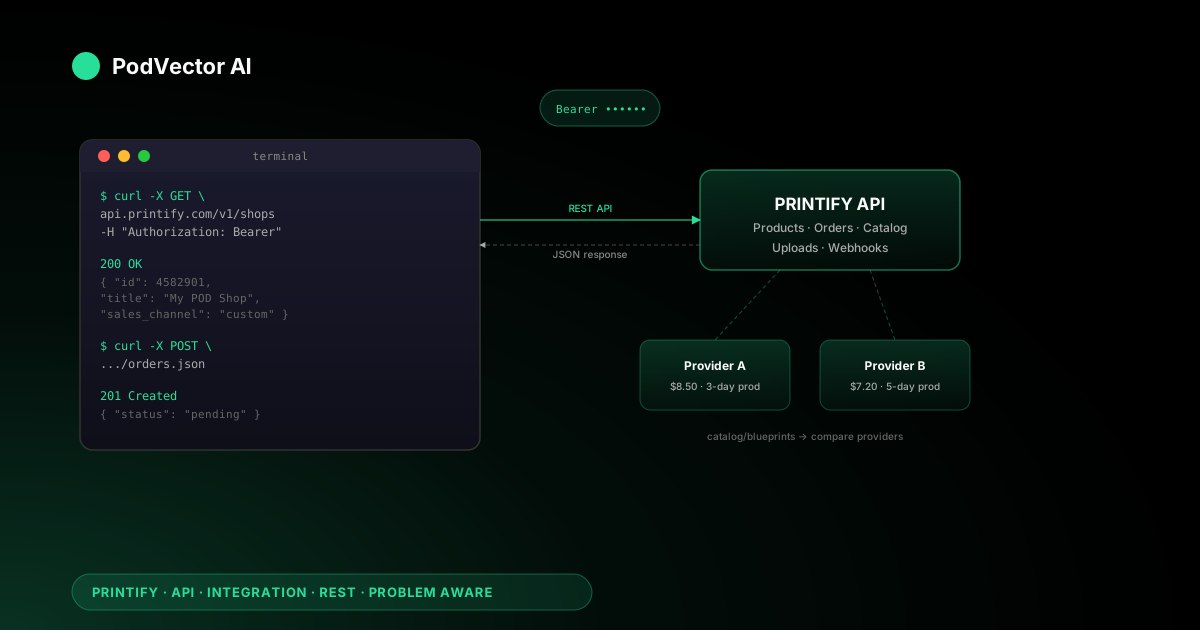
Quick Answer: The Printify API lets you programmatically manage products, orders, and print providers without clicking through the dashboard. You generate a personal access token inside Printify, authenticate with it in your HTTP headers, and start calling REST endpoints.
Most POD sellers don't need the API — native integrations with Shopify, Etsy, and the rest handle 95% of use cases. The API matters when you're running a custom storefront, piping Printify data into your own backend, or automating operations that the dashboard can't handle at scale.
Who actually needs the Printify API
If you sell on Shopify, Etsy, eBay, Amazon, WooCommerce, or any other natively supported channel, you don't need the API. The native integration handles product sync, order routing, and fulfillment updates automatically.
The API becomes the right tool in three situations:
- Custom storefronts. You've built your own checkout (Next.js, headless commerce, a standalone site) and need to create orders in Printify programmatically.
- Backend automation. You want to pull order data, cost data, or catalog availability into your own system — a warehouse, an ERP, or a reporting layer that the dashboard doesn't feed.
- Bulk operations at scale. You're managing hundreds of products across multiple print providers and need to update prices, swap providers, or push new designs faster than the UI allows.
If none of those apply, stick with native. The API costs you ongoing developer maintenance; the native integration costs you nothing after a 10-minute setup. (For a full walk-through of native connections, see the Printify integrations guide for Etsy and Shopify, or browse all Printify integration guides.)
Personal access token vs. OAuth 2.0
Printify offers two authentication methods. Pick based on who you're building for.
Personal access token — for managing your own Printify account. You generate the token in your Printify dashboard, include it in every API request, and it stays valid until you revoke it. This is the path for solo sellers and small teams.
OAuth 2.0 — for platforms that manage multiple Printify merchant accounts. You register your app with Printify, get a client ID, and merchants authorize your app to act on their behalf. Printify reviews applications and the process can take up to a week.
For the rest of this guide, we'll focus on personal access tokens. That's what 90%+ of POD sellers who go the API route will use.
Step 1: Generate your personal access token
Your token is the key to every API call. Treat it like a password — anyone with it can manage your Printify account.
How to create the token
- Log into printify.com.
- Click your profile icon (top right) → Manage Account.
- Navigate to Connections in the sidebar.
- Under Personal access tokens, click Generate.
- Name the token something descriptive (e.g., "Custom Storefront – Prod") and select the access scopes you need.
- Copy the token immediately. Printify shows it once — if you lose it, you'll need to generate a new one.
Access scopes to enable
Printify lets you restrict what each token can do. For a typical POD integration, enable these:
- shops.read — required. You need your shop ID for every other call.
- products.read / products.write — manage your catalog.
- orders.read / orders.write — create and track orders.
- uploads.read / uploads.write — push designs to Printify's media library.
Start with the narrowest scope you need. You can always generate a second token with broader access later.
Step 2: Find your shop ID
Every Printify API endpoint is scoped to a shop. Your first real API call retrieves the shop ID you'll use for everything else.
Run this from your terminal (or any HTTP client):
curl -X GET https://api.printify.com/v1/shops.json \
  -H "Authorization: Bearer YOUR_TOKEN_HERE"
The response is a JSON array of your shops. Each object has an id field — that's the shop ID. If you only have one shop, you'll get a single-element array.
Save that ID. You'll use it in the URL path of nearly every subsequent call: /v1/shops/{shop_id}/products.json, /v1/shops/{shop_id}/orders.json, etc.
Step 3: Make your first API call
Let's pull your product catalog to confirm the integration works end to end.
curl -X GET https://api.printify.com/v1/shops/{shop_id}/products.json \
  -H "Authorization: Bearer YOUR_TOKEN_HERE"
You should see a JSON response listing your products with titles, descriptions, variants, pricing, and print provider details. If you get a 401 Unauthorized, your token is wrong or revoked. If you get a 403 Forbidden, the token doesn't have the right scopes — go back to Step 1 and regenerate with products.read enabled.
Once you see your products in the response, the plumbing works. Everything from here is about picking the right endpoints for your use case.
Key endpoints for POD operations
The full Printify API reference covers every endpoint. Here are the five that matter most for POD sellers:
Products
GET /v1/shops/{shop_id}/products.json — list all products. POST to create, PUT to update. This is where you manage titles, descriptions, variants, pricing, and print provider assignments.
The product payload includes a print_areas array that maps your uploaded design files to specific print positions (front, back, sleeve). If you're bulk-creating products, you build this payload in code and POST it for each SKU.
Orders
GET /v1/shops/{shop_id}/orders.json — list orders. POST to create an order manually (used for custom storefront checkouts). Each order references a product ID and variant ID, plus shipping details.
The order lifecycle goes: pending → fulfilled → shipped. The API lets you poll for status changes, or you can use webhooks (below) to get push notifications when an order ships.
Catalog
GET /v1/catalog/blueprints.json — list every product type Printify offers (t-shirts, mugs, phone cases, etc.). GET /v1/catalog/blueprints/{blueprint_id}/print_providers.json — list the print providers available for that product type, with pricing per variant.
This is how you programmatically compare print providers. Instead of clicking through the Printify dashboard to check which provider offers the cheapest Bella+Canvas 3001 in your size range, you pull it from the catalog API and compare in a spreadsheet or script.
Uploads
POST /v1/uploads/images.json — push a design file to Printify's media library. You send either a base64-encoded image or a public URL, and Printify returns an image ID. Use that ID in your product's print_areas when creating or updating products.
Webhooks
POST /v1/shops/{shop_id}/webhooks.json — register a callback URL that Printify pings when specific events happen. Supported events include order:created, order:updated, order:shipped, and product:updated.
Webhooks eliminate the need to poll. Instead of checking order status every 5 minutes, Printify calls your endpoint the moment something changes.
What you can automate with the API
The API's value isn't in making one call — it's in chaining calls into workflows you'd otherwise do manually. Here's what POD sellers automate most often:
Bulk product creation
Upload a batch of designs via the uploads endpoint, then loop through each to create a product with the right blueprint, print provider, and pricing. Sellers with 200+ designs save hours compared to the dashboard's one-at-a-time workflow.
Price syncing across variants
When a print provider raises base costs, you can script a sweep: pull all products using that provider, recalculate retail prices to maintain your margin, and push the updates in one run.
Print provider comparison
Pull catalog pricing for a blueprint across all available providers. Sort by base cost, production time, or shipping zone. Some sellers run this monthly to catch provider price changes they'd otherwise miss in the dashboard.
Order routing for custom storefronts
When a customer checks out on your custom site, your backend creates a Printify order via POST, then registers a webhook to track fulfillment. No manual copy-paste from your storefront to Printify.
Reporting and margin tracking
Pull order data (including Printify's cost per item) into your own reporting layer. Match it against revenue from your sales channel to calculate true per-order margin — not just the estimate from the Printify dashboard.
If you're already tracking margins across Printify and your sales channels, connecting the API to a unified data layer means you can see cost-to-revenue at the SKU level without manual exports. For context on how Printify Premium affects those base costs, see our breakdown.
Testing your integration with a real order
Don't go live without placing a test order. The Printify API doesn't have a sandbox mode — test orders hit real infrastructure.
How to test safely
- Create a product via the API with a design you already have uploaded.
- Submit an order for that product using your own shipping address.
- Track the order status via
GET /v1/shops/{shop_id}/orders/{order_id}.json. - Verify: Did the order appear in your Printify dashboard? Did you get the correct fulfillment notifications? Did the product arrive as expected?
Yes, you'll pay for the test order. It's cheaper than discovering a broken payload after 50 real customers have ordered.
If you're testing webhook integrations, use a service like webhook.site to inspect the payloads Printify sends before pointing them at your production endpoint.
What to track once the integration is live
A working API call doesn't mean a healthy integration. These are the metrics that catch problems before your customers do:
API rate limits
Printify enforces rate limits. If your integration makes too many calls in a short window, you'll start getting 429 Too Many Requests responses. Build in retry logic with exponential backoff — don't just retry immediately in a tight loop.
Order creation failures
Monitor for 4xx and 5xx responses on your order creation calls. A 400 usually means a bad payload (wrong variant ID, missing field). A 500 is Printify's side — retry after a delay.
Cost drift
Print providers change base costs without fanfare. If you're not re-checking catalog pricing periodically, your margin calculation drifts. Script a weekly pull from /v1/catalog/blueprints/{id}/print_providers.json and diff against your stored prices.
Webhook delivery
Webhooks can fail silently if your endpoint goes down or starts returning errors. Log every incoming webhook. If you stop receiving order:shipped events for more than a day, something's broken on your side.
For a broader look at what to monitor across your entire Printify-to-Etsy or Printify-to-Shopify setup, including channel-specific gotchas, see our integration guides.
Common issues and fixes
401 Unauthorized on every call
Your token is wrong, expired, or revoked. Regenerate it in Printify under Connections → Personal access tokens. Make sure you're using Bearer YOUR_TOKEN in the Authorization header, not Token YOUR_TOKEN.
Products don't appear on your sales channel
Creating a product via the API doesn't automatically publish it. You need to call POST /v1/shops/{shop_id}/products/{product_id}/publish.json separately. This is the step most first-time integrators miss.
Order stuck in "pending"
Printify requires a valid shipping address and at least one line item with a recognized variant ID. Check the order payload for typos in the address_to object or an invalid variant_id.
Webhook events not arriving
Verify your endpoint returns a 200 status code. Printify retries failed deliveries, but after enough failures it may disable the webhook. Check your webhook list via GET /v1/shops/{shop_id}/webhooks.json to confirm it's still active.
Rate limiting during bulk operations
If you're creating or updating hundreds of products in a loop, add a delay between calls. A 200ms pause between requests is usually enough to stay under the limit. Check the X-RateLimit-Remaining header in responses to know exactly where you stand.
FAQs
Is the Printify API free?
Yes. API access is included with every Printify account, including the free tier. You pay for orders (base cost + shipping), not for API calls. Printify Premium gives you up to 20% off base costs, which directly improves margins on API-created orders too.
Do I need to know how to code?
For direct API integration, yes — you need enough programming knowledge to make HTTP requests, parse JSON, and handle errors. If you're not a developer, consider using a no-code connector like Make or Zapier instead, or stick with Printify's native channel integrations.
Can I use the API alongside a native integration?
Yes. The API and native integrations coexist. You might use the Shopify native integration for order sync while using the API to bulk-update pricing or pull cost data for reporting. They share the same shop and product catalog.
What's the difference between the v1 and v2 API?
Printify's v2 API is newer and covers some endpoints not available in v1. The v1 API still works and covers all the core POD operations (products, orders, catalog, uploads). Check the official docs for which version covers your use case.
How do I handle Printify API downtime?
Build idempotent operations where possible. If an order creation call times out, check whether the order was actually created before retrying — otherwise you may create duplicates. Use webhooks instead of polling to reduce your dependency on API availability during normal operations.
Let Victor run your Printify operations
Instead of building and maintaining API scripts yourself, Victor connects to your Printify account, monitors base cost changes, syncs pricing across channels, and flags margin problems — then asks for your approval before making changes.
Try Victor free