
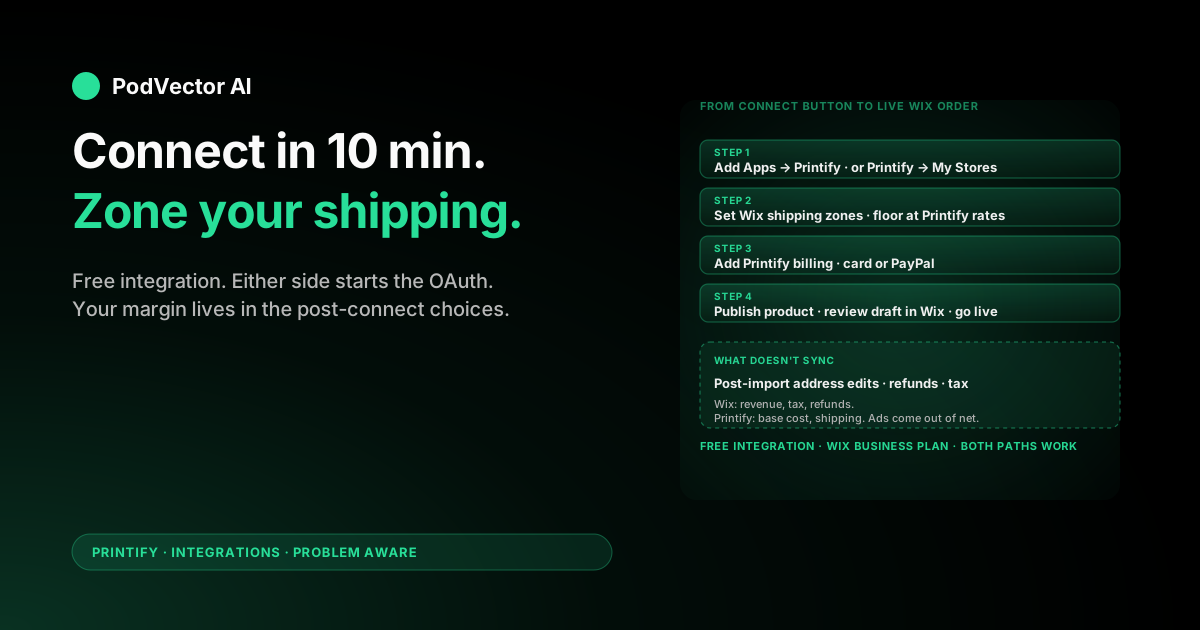
Quick Answer: The Printify–Wix integration connects in about 10 minutes. You can start either from the Wix Editor (Add Apps → Printify → Add to Site) or from the Printify dashboard (My Account → My Stores → Add new store → Wix), then authorize the apps to talk to each other.
Plan on another 15–20 minutes after the connect to set shipping, add a billing method in Printify, and publish your first product. After that, orders flow Wix → Printify automatically.
The integration is free. Costs come from your Wix plan (Business plan or higher to sell physical goods) and Printify's per-order product + shipping charges.
Before You Connect: Prerequisites
The Printify–Wix integration is free on both sides, but you can't sell physical products on a free Wix site. Confirm these four things before you touch the connect flow.
1. A paid Wix Business plan. The free plan and the basic site plans don't accept payments for physical goods. You need at least the Business Basic plan (or whatever Wix calls its lowest commerce tier in your region) so the storefront can take orders.
2. A Printify account. Free is fine to start. The Premium tier (currently $29.99/month) adds a per-product discount that pays for itself once you're past roughly 30–40 orders/month, but you don't need it on day one.
3. A configured Wix Store on your site. If you haven't added the Wix Stores app yet, do that first from your Wix dashboard — the Printify app expects to find an existing store to attach to.
4. A billing method (credit card or PayPal) ready for Printify. Wix charges your customer; then Printify charges you for the base cost + shipping when the order is sent to print. Without a card on Printify, every order will stall.
If you've used Printify with another sales channel before (Etsy, Shopify, Amazon), the integration model is similar but the connect flow is different. See our Etsy + Printify setup guide, the more detailed Etsy to Printify walkthrough, and how Printify works with Etsy for cross-references — Wix is closer to the Shopify model in that the storefront is yours, not a marketplace.
Method 1: Connect from Wix (Editor route)
This is the path most sellers take. You start inside Wix because that's where you're already building the storefront.
Step 1. Log in to your Wix dashboard and open the Editor for the site you want to connect.
Step 2. In the left sidebar of the Editor, click Add Apps (the icon looks like a puzzle piece in most current Wix layouts).
Step 3. Search "Printify" in the App Market.
Step 4. Click Add to Site on the Printify listing.
Step 5. Read the permission prompt and click Agree & Add. Wix is asking permission for Printify to read your store's product and order data and write back products and order updates.
Step 6. The Printify app opens inside Wix. Click Connect to Printify.
Step 7. Log in to your existing Printify account, or create a new one. If you create a new account, confirm the email — Printify won't let you push products to a store until the email is verified.
Step 8. Pick the Printify store profile to link with this Wix site. If this is your first time, Printify will name it "My new store" by default — rename it to match your brand so you don't get confused later.
You're connected. The Printify dashboard now shows your Wix site as one of its connected stores, and any product you push from Printify will land in the Wix Stores catalog as a draft.
Method 2: Connect from Printify (Dashboard route)
Use this if your Wix store already exists and you're adding Printify as a fulfillment source for an existing catalog.
Step 1. Log in to Printify at printify.com.
Step 2. Click your profile icon at the top right and choose My Account.
Step 3. In the left menu, click My Stores.
Step 4. Click Add new store.
Step 5. Find Wix in the list of sales channels and click Connect.
Step 6. Printify redirects you to Wix to authorize. Log in to Wix if you aren't already.
Step 7. Pick the Wix site to link if you manage more than one.
Step 8. Approve the permissions prompt. Wix installs the Printify app on the selected site automatically — you don't need to also add it through the Editor.
Step 9. From the dropdown on the Printify side, pick which Printify store profile to map to this Wix site, then click Continue.
Same end state as Method 1: a live two-way connection between one Printify store profile and one Wix site.
After Connecting: Set Up Shipping in Wix
This is where new Printify–Wix sellers lose money. Wix doesn't automatically know what Printify will charge you for shipping, so you have to decide how to recoup it.
You have three reasonable approaches:
Option A: Flat-rate shipping in Wix that covers Printify's domestic average. Quick to set up. Works if most of your customers are in one region. The risk: international orders blow up your margin because Printify's international shipping is 2–4x domestic.
Option B: Zone-based shipping that mirrors Printify's regional pricing. More setup work but more accurate. Group countries into 3–5 zones (US domestic, Canada, EU, UK, Rest of World) and set a flat or per-item rate per zone using Printify's published shipping table as your floor.
Option C: "Free shipping" priced into the product. You raise the listed price by the shipping cost and advertise free shipping. Conversion tends to be higher on free-shipping listings, but you have to be disciplined about which products this works for — heavy items (hoodies, blankets, mugs in bulk) eat the margin fast.
To configure: open Wix dashboard → Settings → Shipping & fulfillment → Edit shipping rules. Add regions, set the rate, save. Test by adding a product to cart and entering different shipping addresses — you should see the rate you expect.
For a deeper look at how Printify's shipping math affects your margin, see our breakdown of Printify's full cost stack and the smaller piece on sample/coffee-product shipping costs — those numbers should inform whichever option you pick.
After Connecting: Add a Billing Method in Printify
Wix takes payment from your customer. Printify takes payment from you when the order is sent to print. If Printify has no card on file, every Wix order will sit in "payment required" status and never ship.
Step 1. In Printify, go to My Account → Payments.
Step 2. Add a credit card or link a PayPal account.
Step 3. Turn on automatic order approval if you want orders to push to print automatically. Leave it off if you want to manually review each order (worth it for the first 10–20 orders so you can catch design errors before they ship).
One detail that bites new sellers: Printify charges you per order, not per shipment. If a single Wix order contains 3 items, Printify will charge you 3 base costs + the combined shipping at check-out time. Your card needs available credit for that — declined Printify charges pause the order.
Publish Your First Printify Product on Wix
The flow is: design in Printify → push to Wix → Wix imports as a draft → you review and publish.
Step 1. In Printify, click Catalog and pick a product (t-shirt, mug, poster — whatever you're testing first).
Step 2. Click Start designing. Upload your artwork or use the design tool.
Step 3. Pick your print provider. This is the single biggest cost-and-quality decision Printify gives you — providers vary on base price, ship time, available colors/sizes, and print quality. Order a sample from any provider before committing volume.
Step 4. Set the retail price. Printify shows the base cost in the same view; aim for at least 2.5x base for sustainable margin after Wix's transaction fee and your shipping subsidy.
Step 5. Click Save product, then Publish to Wix.
Step 6. Open your Wix dashboard → Catalog → Products. The new product will be there as a draft. Review the description, add additional photos if you want, and click Visible to publish it to the storefront.
That's a complete loop: design → publish → live on Wix → orderable.
What the Integration Syncs (and What It Doesn't)
The integration is two-way for some things and one-way for others. Knowing which is which prevents the most common "why didn't this update?" support tickets.
Synced Printify → Wix:
- Product title, description, images, variants, and pricing — when you push or update from Printify
- Inventory status (in stock / out of stock) for variants Printify has discontinued
- Order status updates (in production, shipped) and tracking numbers
Synced Wix → Printify:
- New paid orders, automatically pushed to Printify for fulfillment
- Order cancellations made before Printify sends the order to print
Not synced (this is where sellers get burned):
- Edits to a Wix order after it has been imported to Printify. If you change the shipping address in Wix after Printify has the order, Printify will not see the update.
- Custom shipping rules. If a Wix promo gives a customer free shipping, that does not affect what Printify charges you.
- Tax. Wix handles tax collection from the customer; Printify does not.
- Refunds. A refund issued in Wix does not automatically cancel the Printify order — if the order has already gone to production, you're paying for it regardless.
Costs to Expect Once You're Live
There is no integration fee. But the full cost stack of running a Printify + Wix store has four layers that show up monthly:
1. Wix plan fee. Currently $27/month for Business Basic when billed annually, more for higher tiers. This is fixed and unavoidable for accepting card payments.
2. Wix payment processing. Roughly 2.9% + $0.30 per US transaction through Wix Payments, similar through Stripe/PayPal if you choose those processors instead.
3. Printify per-order cost. Base product cost + shipping. This varies wildly by product and provider — a basic Bella+Canvas 3001 t-shirt runs roughly $9–11 base, while a sublimated all-over-print hoodie can be $30+.
4. Optional Printify Premium. $29.99/month for ~20% off base prices on most products. Math says it pays off once you're consistently over ~30–40 orders/month, depending on product mix.
Total: a small Printify–Wix store doing 20 orders/month at $25 average is grossing ~$500, with Wix taking ~$15 in fees, Printify taking ~$240 in base + shipping, and Wix's monthly fee at $27 — leaving roughly $218 before any ad spend. The lesson: at this scale, ad spend is the swing variable, not platform fees.
Troubleshooting Common Issues
The handful of issues that account for most Printify–Wix support tickets:
"Product won't publish to Wix." Almost always one of three things: (1) you haven't installed the Wix Stores app on the site, (2) the Printify product is missing a required field (price, weight, or a variant), or (3) you've hit the variant cap. Wix limits products to 1,000 variants — most issues are at far lower counts because of missing variant images.
"Wix order didn't sync to Printify." Check that the order is fully paid in Wix. Unpaid or pending orders don't push. If it's paid and still missing in Printify after 5 minutes, disconnect and reconnect the integration from Printify → My Stores → Wix. The connection occasionally drops after a Wix billing change.
"Printify charged my card for an order I refunded in Wix." Expected behavior. The refund in Wix is between you and the customer; Printify has already accepted the order for production. To cancel a Printify order you must do it in Printify before the order leaves the "On hold" status, which is usually within a few hours of import.
"Tracking numbers aren't showing up in Wix." Tracking syncs from Printify to Wix only after the print provider marks the order as shipped, which can be 3–7 business days after the order is received. If 10+ days have passed with no tracking, check the order detail in Printify — there may be a production issue (out-of-stock variant, art quality flag) that's holding it.
"International shipping is killing my margin." Re-check your shipping zones in Wix. The default Wix shipping setup often charges the same rate worldwide, while Printify's international rates can be 3–4x the US rate. Set explicit zones for the destinations you actually sell to.
What to Track After You Go Live
Most Printify–Wix sellers track revenue and call it a day. That's enough to know the business exists; it isn't enough to know what to do next. Five numbers actually drive decisions:
True per-order margin. Revenue minus Wix processing fee minus Printify base cost minus Printify shipping minus any ad spend allocated to the order. Wix shows revenue. Printify shows cost. Nothing puts them in the same view by default.
Margin by product, not just average. A 30% blended margin can be hiding three products at 50% and two at 10%. The 10% products eat ad budget and chew through your time.
Margin by provider. Printify will gladly route the same design to different print providers. The cheapest provider isn't always the best margin once you factor in defect/reprint rate.
Lead time by product. If a product averages 9 days from order to ship, your gift-season cutoff is earlier than competitors who average 4. That changes which products you push in November.
Repeat-customer rate. Wix tracks this for the storefront, but few sellers connect it back to which product they bought first. The "gateway" product that brings repeat buyers is rarely your bestseller — it's usually the one with the best print quality at the lowest price point.
For a fuller view of Printify's place in your overall stack, see the cluster hub at Printify integrations and the topic hub at Printify for POD sellers. The official Wix connect guide is also worth bookmarking for reference on the connect flow specifics, which Wix updates more often than third-party blogs catch.
FAQs
Is the Printify–Wix integration free?
Yes. Neither side charges for the integration itself. You'll pay for the Wix Business plan to accept payments and for Printify's per-order product + shipping costs, but the connection itself has no extra fee.
Do I need a Wix Business plan?
Yes, or higher. You cannot accept payments for physical products on the free or basic Wix plans. Business Basic is the lowest tier that works.
How long does setup take?
The connect step takes about 10 minutes. Add another 15–30 minutes to configure shipping, add a Printify billing method, and publish your first product. So plan on roughly one hour total for the full setup.
Can I connect more than one Wix site to one Printify account?
Yes. In Printify under My Account → My Stores, you can add multiple stores, including multiple Wix sites. Each Wix site links to a separate Printify store profile.
Can I sell on Wix and Etsy with the same Printify catalog?
Yes, but each sales channel is its own Printify store profile, and product changes don't automatically replicate across them. If you update a design, you push the update to each channel separately.
What happens if Wix and Printify show different inventory?
Wix is the source of truth for the customer-facing storefront. Printify's catalog is the source of truth for what can actually be produced. If a variant goes out of stock at the print provider, Printify marks it unavailable and the integration updates the Wix listing — but there can be a 1–2 hour lag.
Does Printify handle taxes on Wix orders?
No. Tax collection from the customer is handled by Wix (or your payment processor, depending on configuration). Printify charges you sales tax on the base cost in some US states where it has nexus, separately from what you collected from the customer.
What if a customer changes their shipping address after ordering?
If Printify has not yet sent the order to production, you can edit the address inside Printify. If production has started, the address is locked. Changes made in Wix after the order has imported do not sync to Printify, so always update the address on the Printify side.
Can I cancel a Wix order and have it cancel automatically in Printify?
Only if the cancellation happens before Printify has accepted the order for production — usually within a few hours of import. After that, you've already paid Printify for it.
Does the integration work with Wix's mobile editor?
Yes. The connect flow and product publishing both work from Wix's mobile editor, though the desktop editor is faster for catalog work.
Hand off the "why is my margin off?" question
Once Wix and Printify are connected, you have two data sources that should be one. Sales data lives in Wix; cost data lives in Printify; ad spend lives somewhere else again. Stitching them together every Sunday to figure out per-order margin gets old fast.
Victor is an AI employee for POD sellers. He pulls Wix, Printify, Meta, and Google into a single live data warehouse, then runs your ads and surfaces decisions in plain English — "the ‘Mountain Sunset’ hoodie is netting $4.20 after Printify and Meta, propose pausing" — and waits for your approval before acting. And put your POD ops on autopilot with approval gates.
Try Victor free