
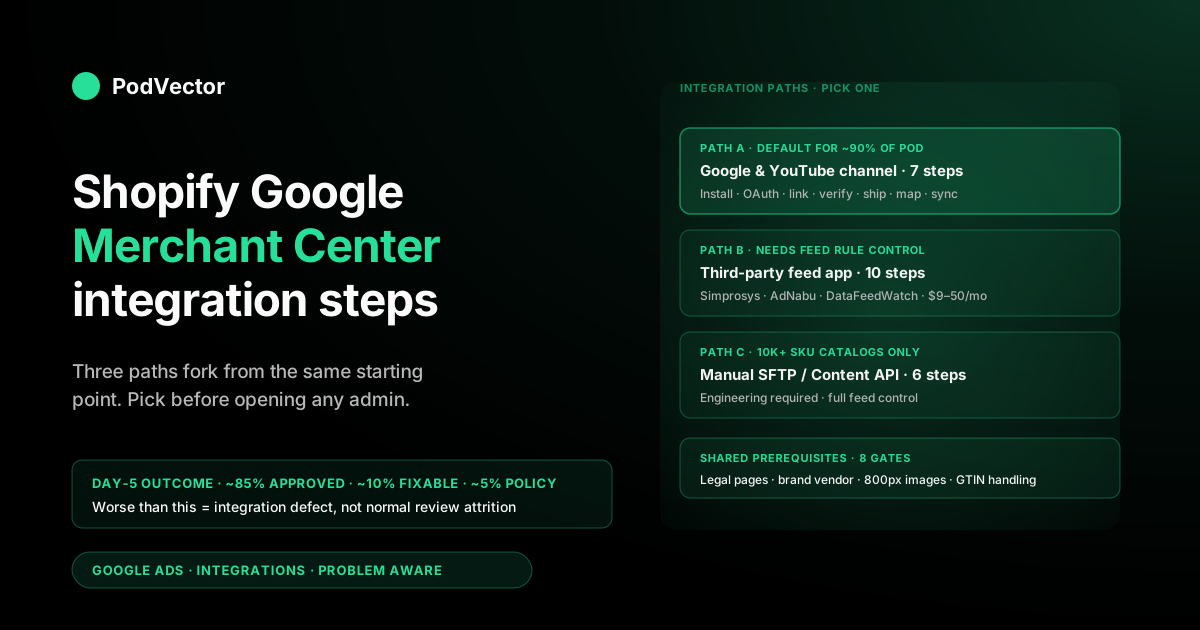
Quick Answer: Shopify and Google Merchant Center can be wired together by three different integration paths — the official Google & YouTube channel, a third-party feed app (Simprosys, DataFeedWatch, AdNabu), or a manual SFTP/Content API feed — and which steps you take depends entirely on which path you pick. For 90% of POD stores the official channel is the right answer; the steps run install → OAuth → link Merchant Center → verify domain → map shipping → map metafields → first sync.
Third-party apps follow a parallel ten-step track that adds explicit feed-rule control. Manual feeds are a different shape entirely and only make sense for catalogs above ~10,000 SKUs or stores running multi-country variant logic the channel can't model. This guide walks all three sets of integration steps in order, tells you which one matches your situation, and flags the POD-specific steps every method shares (variant explosion, GTIN handling, supplier branding, image resolution).
Three integration paths and how to pick yours
The phrase "Shopify Google Merchant Center integration" hides a fork. Three real integration paths exist, and the steps are different for each one — following the wrong sequence for your situation is how POD operators end up two weeks in with a half-synced feed and a confused Merchant Center account. Decide the path before opening either admin:
Path A — Official Google & YouTube channel. Shopify-published, free, ~7 integration steps, bidirectional sync, automatic domain verification, automatic shipping pull, automatic metafield mapping. Best for stores with 50–5,000 SKUs that want the integration to be one piece of plumbing rather than a thing to maintain. ~90% of POD stores belong here.
The trade-off is limited feed-rule control: if a Printify product imports with the wrong color attribute, the channel doesn't give you a "rewrite the feed value" knob the way a third-party app does. You either fix the source product in Shopify or accept the channel's interpretation.
Path B — Third-party feed app (Simprosys, DataFeedWatch, AdNabu, Multiple Google Shopping Feeds). Paid, ~10 integration steps, generally faster initial sync than the official channel, much richer feed-rule layer (rename categories, append text to titles, exclude SKUs by tag, map custom labels). Best for stores already getting decent Google Shopping volume that need to optimise titles or filters at the feed-rule layer rather than in Shopify product data. The trade-off is a monthly fee ($9–$50 typical) and one more system in the integration chain to monitor.
Path C — Manual SFTP or Content API feed. Free, ~6 integration steps, requires you to generate a CSV/XML or call the Content API yourself on a schedule. Best for stores with 10,000+ SKUs (where the channel's sync becomes slow), multi-country variant catalogs the channel can't model cleanly, or operators with engineering time who want full feed control. The trade-off is owning the failure modes: when the feed breaks at 2am you're the one debugging cron jobs.
For most readers the rest of this article means: read Path A in detail, skim Path B for awareness, ignore Path C unless you already know you need it. If you're not sure, default to Path A — you can switch later without losing your domain claim or product history (covered in the path-switching section below).
Shared prerequisites all three paths require
Before any path's first step, eight conditions need to hold on both the Shopify side and the Google side. None of them are optional — they're things every integration path will validate against, and skipping them produces failures that look path-specific but are actually upstream prerequisite issues. Spend ten minutes confirming all eight before opening any integration's setup wizard:
- Paid Shopify plan with at least one published product visible to Google. Trial-mode and password-protected stores can install integrations but can't activate feeds.
- All four legal pages published on the storefront. Privacy policy, refund/return policy, terms of service, contact information. Merchant Center's automated review checks for all four within 72 hours of any feed activation regardless of path.
- Google account dedicated to your brand. The first Google account that authorises into Merchant Center becomes the canonical owner; transferring later forces re-verification. Use a shared
@yourbrand.comaddress rather than a personal Gmail or an employee's address. - Merchant Center account either pre-created and configured, or willing to be auto-created with default settings (riskier). Path A and B can both auto-create one during their wizard if none exists. POD experience says: create it manually first.
- Shopify Vendor field set to your actual brand on every product. Path-independent. Vendor flows through to Google as the brand attribute; "Printify" or empty as the brand triggers identifier disapprovals across every path.
- Variant Barcode field empty for products without GTINs. Custom POD designs don't have UPC/EAN/ISBN. All three paths will respect
identifier_exists = nowhen Barcode is empty; populate it with garbage and you get a feed of invalid identifiers no matter which path delivered them. - Product images at 800x800 or larger. Merchant Center's image-quality minimum. Older Printify mockup templates output 600x600; switch to high-resolution mockups before integrating.
- Shipping zones in Shopify reflect actual POD fulfilment reality. Whatever path you pick will pull (Path A and B) or be fed (Path C) the shipping data that Merchant Center cross-checks against your storefront's shipping policy page. Mismatches mean blanket disapprovals.
Once those eight are clean, the integration step sequence becomes path-specific.
Path A — Official Google & YouTube channel: the 7-step integration
This is the default path and the one Shopify itself documents. Block out 30–45 minutes of uninterrupted time; the channel's setup wizard has an unforgiving state machine that doesn't recover well from half-completed steps.
Step 1: Install the channel. From Shopify admin, click the green plus icon next to "Sales channels" in the left sidebar. Search "Google & YouTube." The official Google-published app appears at the top of results — small Google logo on the listing tile, 200,000+ installs.
Click Add channel → Add sales channel → accept the permissions prompt. Installation takes about 30 seconds and lands you in the channel admin.
Step 2: Connect your Google account via OAuth. The channel admin opens to a guided wizard. The first screen prompts to connect a Google account — pick the brand-owned Google account you decided in prerequisites.
Grant every permission requested: read Google profile, manage Merchant Center, manage Google Ads conversion tracking, read YouTube channel. Granting Google Ads permission even if you're not running ads yet is correct — the same OAuth token covers both products and skipping it forces a re-OAuth later when you do run ads. If the OAuth pop-up closes without returning to the wizard, the cause is almost always Safari or Brave's third-party cookie blocking; do this step in Chrome.
Step 3: Link or create the Merchant Center account. Choose "Link to existing Merchant Center" if you pre-created one (recommended), or "Create new" if you're letting the channel auto-provision (faster but inherits the default-empty-config problems). Pick your existing Merchant Center from the dropdown — only accounts owned by the OAuth'd Google account will appear. Click Link.
Step 4: Verify and claim your domain. The channel auto-injects a verification meta tag into your storefront's <head> and claims the domain in Merchant Center. For ~95% of stores this completes in under five minutes.
If domain verification stays pending past five minutes, two causes: (a) custom theme strips the meta tag — fix by ensuring {{ content_for_header }} is present at the top of theme.liquid's <head> section; (b) a previous claim sits on a different Google account — fix by having whoever holds the prior claim release it from Search Console. Don't proceed past this step until verification shows green.
Step 5: Configure shipping mapping. The channel offers "Pull from Shopify" (default) and "Configure manually in Merchant Center." Pick Pull from Shopify. The channel reads your Shopify shipping zones and rates and creates matching shipping services in Merchant Center, overwriting any placeholder shipping you set up earlier. This is faster, more accurate, and self-updates when you change Shopify shipping later.
Step 6: Map metafields and product attributes. The wizard's last meaningful step. Walk through the field-mapping interface and connect Shopify metafields to Merchant Center's required attributes: color, size, material, age_group, gender, pattern.
These are what power the left-rail filters where unbranded organic Shopping traffic actually clicks from. POD-specific note: Printify and Printful imports often store color in a variant.option1 field rather than a metafield — the channel can read either, but you must explicitly point it at the right source during this step. Skipping the mapping doesn't break the integration but suppresses your impressions on filtered queries (which is most queries above the head-term tier).
Step 7: Trigger the first sync and exit the wizard. Click Save and exit. The channel begins its first product sync in the background.
POD stores with 50–500 SKUs typically see initial sync complete in under two hours; stores with 5,000+ designs across multiple product templates can take a full day. Sync status appears on the channel Overview tab as "X products synced, Y errors, Z disapproved." Do not re-run the wizard while sync is in flight; let it finish before making any further changes.
That's the full Path A integration. Seven steps, ~30–45 minutes, ends with a feed flowing into Merchant Center.
From here it's a 1–24 hour wait for first sync to finish and 3–5 business days for initial product review. For an alternative framing of this same flow that emphasises the order of operations across both Google's and Shopify's admins, see the phase-by-phase Shopify Google Merchant Center setup guide.
Path B — Third-party feed app: the 10-step integration
Third-party feed apps add three integration steps Path A bundles invisibly into the channel: explicit feed creation, explicit feed rule layer, explicit Merchant Center linking. The trade-off is more control over feed contents at the cost of more setup surface area. Numbers below are for Simprosys (the most-installed POD-friendly option); Multiple Google Shopping Feeds, AdNabu, and DataFeedWatch follow the same shape with cosmetic differences.
Step 1: Install the feed app from the Shopify App Store. Search Simprosys, AdNabu, or DataFeedWatch and click Install. Most third-party apps are free during a trial window (14 days typical) and price by SKU count after.
Step 2: Authenticate with Google via the app's OAuth flow. Same Google account you decided in prerequisites. Permissions requested: Merchant Center management, Content API access. Note that this OAuth grants the app's servers access, not just your browser session — the app keeps a refresh token and pushes feed updates on a schedule.
Step 3: Select the Merchant Center account. If you pre-created one, pick it from the dropdown. Most third-party apps don't auto-create Merchant Center accounts, so pre-creating it is mandatory rather than recommended.
Step 4: Create a primary feed. The app generates a feed file (XML or CSV) and registers it inside Merchant Center with a known URL, then schedules it to refresh every N hours. Configure: feed name, target country, target language, schedule frequency. Daily refresh is enough for most POD stores; hourly is overkill unless you're running real-time inventory updates.
Step 5: Map Shopify product fields to feed attributes. Where Path A hides this in a wizard, Path B exposes it as a full table. Required Merchant Center attributes (id, title, description, link, image_link, availability, price, brand, condition) all need a Shopify source field.
Optional but heavily-recommended: color, size, material, gender, age_group, pattern, gtin, mpn, identifier_exists. POD-specific: set brand to your store name (not Vendor field if Vendor is "Printify"), set identifier_exists to no for designs without GTINs, leave gtin and mpn empty for those rows.
Step 6: Configure feed rules. The actual reason most stores choose Path B. Feed rules let you transform the feed contents on the way out: append "— Free Shipping" to titles, exclude products tagged "draft," replace any "Tee Shirts" category with "Apparel > Tops," capitalise color names, force age_group to adult when missing.
POD stores typically need 3–6 feed rules to clean Printify import quirks: title casing, missing color metafield fallback, exclude SKUs with policy-flagged keywords, force brand to store name. Set the rules now; iterating on them later means the feed re-syncs everything affected.
Step 7: Verify and claim your domain in Merchant Center. The third-party app doesn't auto-claim the way Path A does. Go to Merchant Center → Tools & Settings → Business information → Website.
Enter your storefront URL and pick a verification method — the easiest is HTML tag, which you paste into Shopify's theme.liquid <head>, then click Verify. Domain claim happens after verification.
Step 8: Configure shipping in Merchant Center directly. Path B doesn't sync Shopify shipping automatically. Go to Tools & Settings → Shipping and returns → Add shipping service.
Configure per shipping country with rates that match what your storefront actually charges. Mismatches between your Merchant Center shipping configuration and your Shopify shipping policy page trigger disapprovals during initial review.
Step 9: Configure tax handling. US-based stores: declare states you collect tax in. EU/UK stores: typically declare "tax included in price" per country. Path B doesn't infer this from Shopify; you set it manually.
Step 10: Trigger the first feed fetch. Most third-party apps offer a "Submit feed now" button. Click it; Merchant Center pulls the feed URL the app exposed in Step 4.
First fetch takes 5–30 minutes depending on catalog size. From there the app keeps the feed refreshed on the schedule you set in Step 4. Initial product review still takes 3–5 business days regardless of path.
Ten steps versus seven. The extra three are the price of feed-rule control.
If your Shopify product data is already clean and your titles are already optimised, Path A's seven steps are enough and Path B is overhead. If your Printify imports leave you with raw "Bella+Canvas 3001 Unisex Short Sleeve Jersey Tee" titles you want to rewrite to "Vintage Sunset T-Shirt — Soft Cotton Tee," Path B earns its keep at Step 6.
Path C — Manual SFTP / Content API: the 6-step integration
Path C is the integration most articles ignore because it's the least common, but it's the right answer for catalogs above ~10,000 SKUs where Path A's sync becomes sluggish and Path B's per-SKU pricing tiers become expensive. Six steps total, and four of them are engineering work rather than admin clicks.
Step 1: Generate a Merchant Center-formatted product feed file. Either a delimited TXT/CSV (tab-separated, UTF-8) or an XML feed conforming to the Google Shopping Content API spec. Required columns and their formats are public.
POD-specific: produce one row per variant (not per product), with a unique id per variant, and group variants under a shared item_group_id equal to the parent product handle. This is what makes color/size selectors actually work in Google Shopping search results.
Step 2: Host the feed file at a stable URL or push via SFTP. Either a public HTTPS URL (Google fetches it on a schedule) or an SFTP push (you upload it to Google's SFTP server on a schedule). For POD shops, the public URL approach is simpler — host the file on your own infrastructure or generate it on demand from a Cloud Function pulling Shopify's product API.
Step 3: Register the feed inside Merchant Center. Tools & Settings → Feeds → Add primary feed. Pick "Scheduled fetch" if you went with public URL, or "Upload" if you're pushing via SFTP. Configure: feed name, target country, target language, fetch schedule, fetch URL or SFTP credentials.
Step 4: Verify and claim the domain. Same as Path B Step 7. Manual HTML tag or DNS TXT record, paste into Shopify, click Verify, then claim.
Step 5: Configure shipping, tax, and returns directly in Merchant Center. Same as Path B Steps 8–9 plus return policies. None of this comes from Shopify automatically — everything is hand-configured.
Step 6: Trigger the first feed fetch and validate. Click Fetch now in Merchant Center. The fetch report tells you what parsed, what didn't, and which rows had warnings.
Iterate on the feed-generation script until the fetch report is clean before moving on. Initial product review then takes the same 3–5 business days as the other paths.
Six steps but four of them assume you can write or commission code. If that assumption doesn't hold for your store, Path C isn't actually six steps — it's six steps plus an indeterminate amount of engineering work. Don't pick it because it sounds shorter.
POD-specific integration steps every method has to handle
Independent of which path you picked, four POD-specific situations need explicit integration steps that aren't covered in generic "connect Shopify to Google Merchant Center" tutorials. These are the gotchas that cause same-week disapprovals on otherwise correctly-integrated feeds:
Variant explosion handling. A single Printify t-shirt design with five colors and five sizes generates 25 variants. Without explicit configuration, that's 25 separate feed entries Google treats as 25 unrelated products.
Group them: in Path A and B, ensure variant grouping is enabled (item_group_id attribute populated from the parent product handle); in Path C, generate item_group_id in your feed script. A 100-design POD catalog without grouping shows up in Merchant Center as 2,500+ items, all competing against each other in the auction.
GTIN / MPN / brand attribute handling. Custom POD designs have no Global Trade Item Number, no Manufacturer Part Number, and a brand that's your store not Printify. Set identifier_exists = no at the integration level, leave GTIN and MPN blank, and set brand to your store name explicitly. The default state of the Vendor field on Printify imports is "Printify" or blank, which fails identifier requirements across all three paths.
Image source and resolution control. Printify's mockup library generates images at multiple resolutions; the default API-exposed image is sometimes 600x600, below Merchant Center's 800x800 minimum. Configure your Printify or Printful integration on the Shopify side to import the high-resolution mockup variant before the Google integration runs. Alternatively, in Path B you can use a feed rule to substitute image_link with a metafield pointing at a higher-res asset; in Path A and C you fix it in Shopify product data.
Print-time vs ship-time policy alignment. Printify's blank ships in 3–7 days but the print partner adds 2–5 days of production time. Your Shopify shipping policy needs to advertise the combined window (5–12 days), and that same combined window needs to be reflected in Merchant Center's shipping configuration.
POD operators routinely advertise the ship time and ignore the print time, then get flagged for misrepresentation when buyers compare expected vs actual delivery. Build a delivery-time matrix per supplier per region and enforce consistency across the storefront page, the Shopify shipping zones, and the Merchant Center shipping setup.
Post-integration: validation, monitoring, and what to measure
Integration finished doesn't mean integration working. Five validation checks across the first business week confirm the setup is real:
- Hour 1: Domain verified, feed fetch initiated, no integration-level errors on the channel/app dashboard.
- Hour 24: First sync complete, ≥95% of products in "synced" status, <10% feed-level errors.
- Day 3: Bulk approval review running, items moving from "pending" to "approved" in waves.
- Day 5: Approval split should resemble ~85% approved / ~10% fixable disapprovals / ~5% policy disapprovals for a clean POD catalog. Worse than that signals an integration defect (wrong attribute mapping, wrong shipping config, wrong return policy) rather than normal review attrition.
- Day 7: First impressions appearing in Merchant Center performance tab and (if you launched ads) Google Ads dashboard. Free-listing impressions take longer than ad impressions to appear — budget two weeks rather than one for organic Shopping traffic to register.
Once those five gates are clear, the question shifts from "is the integration healthy" to "is the integration profitable." The default Merchant Center and Shopify dashboards each tell half that story. Merchant Center shows impressions, clicks, and conversions but knows nothing about the COGS or fulfilment cost on each order.
Shopify shows orders and storefront conversion rate but doesn't natively split traffic-source profitability at the SKU level. Reconciling the two halves is where most POD operators lose visibility into whether Google Shopping — ads or free listings — is actually contributing to net profit after Printify or Printful unit cost is paid out.
The piece every standard integration tutorial leaves on the table is itemised cost subtraction. Your Shopify report says "Google paid: 84 orders, $4,200 revenue." It doesn't say that the 84 orders were 60% high-margin sticker SKUs (Printify cost: $1.20 against $4 retail) and 40% low-margin all-over-print sweatshirt SKUs (Printify cost: $32 against $42 retail). Blended profit on the $4,200 looks fine until you do the SKU math and realise the sweatshirt slice barely cleared Printify cost after Shopping click cost.
Victor — PodVector AI's AI agent for POD sellers — closes that gap by joining Shopify orders, Printify or Printful itemised line costs, and Google Ads spend in a warehouse, then answering profit-per-channel and profit-per-SKU questions in plain English. Ask "what was net margin on Google Shopping orders last week, after Printify cost?" and you get the number plus the SKU-level breakdown that produced it, in roughly 30 seconds. The same architecture answers the same question for any channel, any campaign, any window — without needing to maintain a spreadsheet that joins five exports.
Switching paths later without breaking the feed
One reason Path A is the right default: it's the easiest to switch out of if your needs change. The path-switching steps:
Path A → Path B (when you outgrow the channel's feed-rule limits). Install the third-party app first while the channel is still active. Authenticate it to the same Merchant Center account.
Use the app to register a supplemental feed initially — this overlays the channel's primary feed without conflicting. Confirm the supplemental rules behave correctly for a week, then in the third-party app toggle the feed type from supplemental to primary.
As the new primary takes effect, deactivate the channel's feed (don't uninstall the channel; you still want it for Google Ads conversion tracking and the YouTube surface). Domain claim and product history transfer automatically because both paths run through the same Merchant Center account.
Path A → Path C (when scale forces it). Generate your manual feed and host it. Register it as a supplemental feed initially in Merchant Center. Confirm parity with the channel's feed for two weeks. Switch to primary, then deactivate the channel's feed. Same domain-claim preservation logic.
Path B → Path A (when you simplify). Install the channel. Walk through its 7-step integration, linking to the same existing Merchant Center. The channel's first sync overwrites whatever the app was producing. Uninstall the third-party app afterwards.
The throughline: the integration target is the Merchant Center account, not the path. As long as your Merchant Center account itself is healthy — clean domain claim, clean policy compliance, clean approval history — you can swap the integration mechanism behind it without losing the trust signals Google has accumulated about your store. That's why getting the prerequisites right matters more than getting the path right.
For broader context on how the Merchant Center feed sits inside the larger Shopify-Google integration stack alongside Google Ads conversion tracking and the Performance Max campaign loop, see our complete Google Ads + Shopify integration guide. For the procedural how-to framing of just the channel install, see how to connect Shopify to Google Merchant Center step-by-step.
For Shopping ads strategy once the feed is live, see Google Shopping ads Shopify setup strategy for POD. The Integrations cluster hub indexes every connection in this part of the stack and the Google Ads topic hub indexes everything around campaign profitability for POD stores. Storegrowers' three-method comparison is a useful outside reference if you want a non-Shopify-published view of the same path-choice question.
FAQs
What are the Shopify Google Merchant Center integration steps in order?
Pick a path first — official Google & YouTube channel (7 steps), third-party feed app (10 steps), or manual SFTP/Content API feed (6 steps). For 90% of POD stores the channel is right: install → OAuth → link Merchant Center → verify domain → map shipping → map metafields → first sync. End-to-end ~30–45 minutes of click time, then 1–24 hours for first sync and 3–5 business days for initial approval review.
Do I have to use the Shopify Google & YouTube channel, or can I use a third-party app?
You can use either. The channel is free, official, and does ~90% of what most POD stores need.
Third-party feed apps (Simprosys, AdNabu, DataFeedWatch) cost $9–$50/month and add explicit feed rules for title rewriting, custom labels, and SKU exclusions — useful if your Printify-imported product data needs cleanup at the feed layer. Pick the channel by default; switch to a third-party app only when you have a specific feed-rule need it can't handle.
How long do the Shopify Google Merchant Center integration steps take to complete?
Click time: 30–45 minutes for Path A (channel), 60–90 minutes for Path B (third-party app), variable for Path C (manual feed) depending on engineering work. Then 1–24 hours for the first feed sync to land, then 3–5 business days for initial bulk product approval review. Budget one full week from "starting integration" to "first impression on a Google Shopping query."
What's the first integration step I should actually do?
Confirm the eight shared prerequisites: paid Shopify plan, four legal pages published, brand-owned Google account, Merchant Center pre-created, Vendor field set to brand, Barcode empty for non-GTIN products, images at 800x800+, shipping zones reflecting POD reality. Skipping prerequisites means whichever integration path you pick fails on its own validation steps and you waste an afternoon debugging the wrong layer.
Does the Shopify channel auto-create a Merchant Center account during integration?
Yes — if you don't link an existing one during Step 3 of the channel's wizard, it creates one with default settings on the Google account you OAuth'd. The auto-created account works but starts with empty business info, no shipping configured, no tax declared, no return policy. POD experience: pre-create Merchant Center manually and configure it before running the channel's wizard, so the channel links to a pre-cleaned account rather than auto-provisioning a half-configured one.
Which integration step trips up POD sellers most often?
Either Vendor field handling (default Printify imports leave Vendor as "Printify" rather than your store brand, which fails identifier checks) or domain claim conflicts (a previous Google account claimed the same domain and the meta tag verification stalls until that prior claim is released from Search Console). Both happen at integration time, both look like channel bugs, both are actually data/state issues upstream of the integration itself.
Can I switch integration paths later without breaking my feed?
Yes, if you do it through Merchant Center's primary/supplemental feed model. Add the new path's feed as a supplemental feed first, validate parity for a week or two, then switch the supplemental to primary and deactivate the old primary.
Domain claim, approval history, and product trust signals all transfer because they're attached to the Merchant Center account, not the integration mechanism. This is why Path A is the safest default — switching out of it is straightforward.
See profit per Google Shopping order, not just clicks and revenue
Once the Shopify Merchant Center integration is live and approved, the next question is whether the orders are profitable after Printify or Printful unit cost. Victor joins Shopify orders, supplier itemised costs, and Google Ads spend, then answers profit questions in plain English — ask "what was my net margin on Google Shopping orders this week?" and get the number plus the SKU-level breakdown in 30 seconds.
Try Victor free