
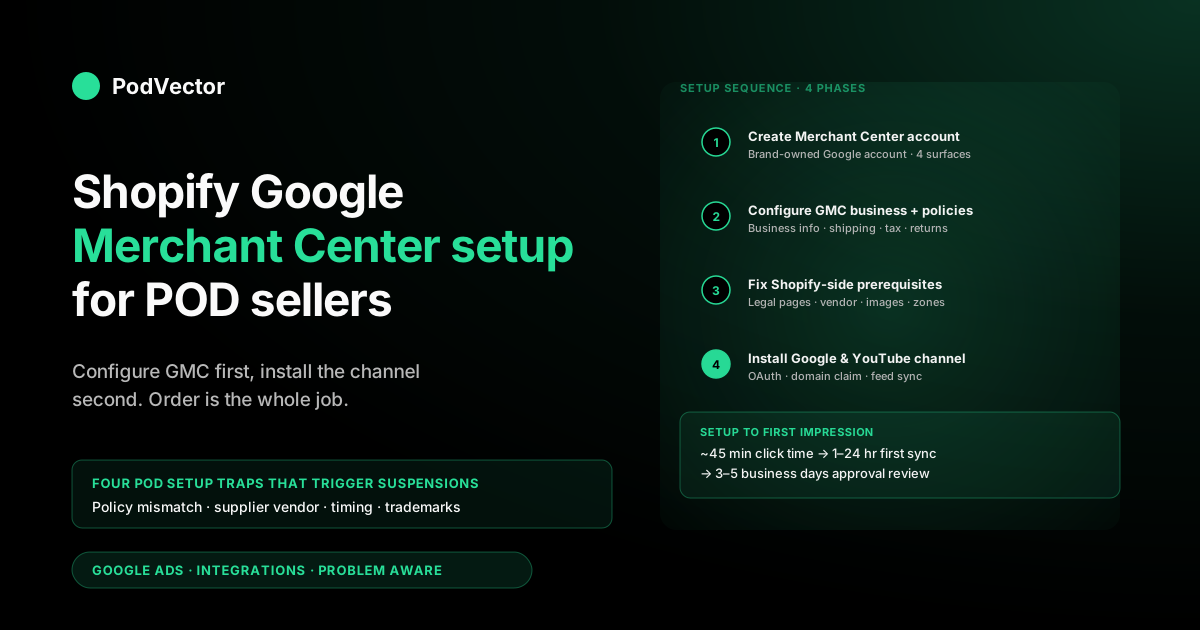
Quick Answer: Setting up Google Merchant Center (GMC) for a Shopify POD store is a two-sided job — you provision the GMC account on Google's side and install the Google & YouTube channel on Shopify's side, and the connection between them only behaves if both sides are configured correctly before they meet. Done in the right order, the whole setup takes ~45 minutes of click time, then 1–24 hours for the first feed sync and 3–5 business days for initial product approval review. This guide walks the full path: the GMC account creation and business-info screens nobody else covers in depth, the Shopify-side prerequisites that prevent same-day suspensions, the actual channel install, and the day-one and day-five health checks that tell you the setup is real. POD-specific gotchas (variant-heavy catalogs, no-GTIN designs, Printify shipping-time mismatches, image-resolution defaults) are flagged at every step.
Setup order of operations and why it matters
Most setup guides start at the Shopify channel install because that's where the user-facing button is. That's the wrong order for POD stores.
The Google Merchant Center side — account creation, business info, shipping rules, tax setup, returns policy — needs to be configured (or at least clean) before the Shopify channel reaches out to claim a domain and push a feed at it. If you install the channel first and let it auto-create a GMC account on top of half-configured Google business info, you end up with three avoidable problems: the GMC business name doesn't match your Shopify store name (which triggers a misrepresentation review), the GMC shipping rules default to "no shipping configured" (which disapproves every product), and the GMC returns policy defaults to nothing (which Google treats as missing-required-info as of 2024). All three suppress feed approval until you go back and fix them.
The correct setup sequence is: (1) create or claim your GMC account and configure it from the inside out, (2) fix the Shopify prerequisites that the channel will validate against, (3) install the channel and let it link to the now-clean GMC, (4) trigger the first sync and watch the day-five outcomes. Roughly 45 minutes of click time across the four phases, then waiting on Google's review queues. That ordering is what the rest of this guide covers, and it's the difference between a feed that lights up green on day five and a feed that spends two weeks in policy purgatory.
Pre-setup checklist: information and accounts you need first
Before opening either Shopify admin or Merchant Center, gather everything you'll be asked for during setup. Hunting for these mid-flow is how stores end up with mismatched data across the two systems:
- Google account that will own the GMC long-term. Use a shared
@yourbrand.comaddress rather than a personal Gmail. The first Google account that authorises into GMC becomes the canonical owner; transferring later forces a re-verification cycle. - Legal business name and address. Must match what's on your Shopify store's contact and refund policy pages. GMC's automated misrepresentation check compares them directly.
- Customer support email and phone number. Both fields are required on GMC's business-info screen. POD operators running solo often skip the phone number and get suspended; use a Google Voice number if you don't want a personal cell on file.
- Shipping policy details per country you ship to. Per region: cost (flat or weight-tiered), delivery-time range that matches actual Printify or Printful timing for that region's print partner, and any handling-time buffer.
- Tax handling per country. Either configured rates per region, "tax included in price" elections per region, or US sales-tax registrations you've completed. GMC requires some tax decision per shipping country.
- Return policy text. POD often has restrictive returns ("custom prints final sale"). That's allowed but it must be written explicitly — a missing return policy is treated as worse than a restrictive one.
- Privacy policy, terms of service, and contact page URLs on your Shopify store. All four legal pages need to be published before the channel claims your domain.
- The Google account credentials and 2FA device for the OAuth flow. Sounds obvious, but losing 2FA mid-install drops you back to the start.
If you've previously run Google Shopping through a different store platform, you may already have a GMC account that you'll want to link to rather than creating a new one. Check at merchants.google.com with your business Google account before creating a new GMC; existing accounts with clean history preserve your domain verification and approved-feed track record, both of which materially affect how fast new products clear review.
Step 1: Create the Google Merchant Center account
Go to merchants.google.com and sign in with the Google account you want to own the account long-term. If no GMC exists, you'll be prompted through a four-screen onboarding flow. If a GMC already exists on this account, you'll land in its dashboard — in which case skip to the next step.
The four onboarding screens ask for: business country, time zone, business name, and which surfaces you want products to show on (Shopping ads, free listings, YouTube, Google Lens). Tick all four surfaces. Free listings cost nothing to opt into, and the YouTube and Lens surfaces only show your products if customers search there — opting out doesn't speed anything up, it just narrows your distribution.
Don't skip the "business name" screen even though it lets you. Whatever you enter here becomes the merchant name customers see next to your products in Google Shopping, and changing it later requires re-review of your account.
Use the same business name that's on your Shopify checkout, your refund policy, and your store header. Mismatches between the GMC merchant name and the Shopify store branding are the single most common trigger for the misrepresentation suspension that catches new POD stores in their first week of running.
Once onboarding completes you land in the GMC dashboard, with empty product, performance, and diagnostics tabs. Don't try to add products yet; the channel will populate them automatically once you connect Shopify. The work right now is filling out the business-info side of GMC.
Step 2: Configure GMC business info, shipping, tax, returns
From the GMC dashboard, open the Tools & Settings (gear icon) menu. Five sub-screens need attention before you connect Shopify:
Business information. Confirm the legal name, address, customer support email, customer support phone, and customer support URL. The customer support URL should point to your Shopify store's /pages/contact page. All five fields are required as of GMC's 2024 policy update; previously some were optional.
Shipping settings. Even though the Shopify channel will later push shipping data automatically, GMC needs at least one shipping service configured before the channel can sync. Create a placeholder service for your primary shipping country with a flat rate that approximately matches your Shopify shipping — the channel will overwrite it on first sync but having something there prevents an empty-shipping disapproval during the brief window between domain claim and first sync.
Tax settings. US-based stores must declare the states they collect sales tax in (matching their Shopify tax registrations). EU/UK stores typically declare "tax included in price" per country. Get this right at setup time because tax mismatches between GMC and Shopify cause SKU-level disapprovals that are tedious to chase down later.
Return policies. GMC's return policy section asks for: return window in days, restocking fee, return shipping payer, return reasons accepted, and return method. POD-typical answers: 30-day window for non-customised products, no restocking fee, customer pays return shipping, defect-only return reasons accepted, return-by-mail method. If you sell genuinely custom designs (made-to-order with the customer's photo), declare those products as final sale via the return_label attribute later in the feed configuration.
Linked accounts. If you already have a Google Ads account you plan to run Shopping campaigns through, link it from the Linked Accounts screen now. Linking pre-channel-install means the channel's OAuth flow will detect the existing link and skip a step; linking post-install requires going back into both products to complete the handshake. The link itself doesn't activate any spending — it just establishes the relationship Google's auctioneer needs to recognise your feed as eligible for ads.
Save through each of those five screens, then close GMC and switch over to Shopify. The GMC side is now configured to receive a feed; the next phase is making sure the Shopify side is configured to send a feed that won't trip GMC's incoming validation.
Step 3: Fix the Shopify side before installing the channel
Eight conditions should hold on your Shopify store before you click Install on the Google & YouTube channel. Skipping any of them produces errors that look like channel bugs but are upstream data issues; fixing them after the install requires re-syncing the entire feed:
- Paid Shopify plan with at least one published product visible to Google. Trial-mode stores and password-protected storefronts can install the channel but feeds won't activate until the store is publicly accessible to Googlebot.
- Privacy policy, refund/return policy, terms of service, and contact information page published. GMC's misrepresentation policy auto-checks for these. Without all four, expect a store-level suspension within 72 hours of feed activation.
- Shipping policy that matches actual POD fulfilment timing. If your store says "ships in 2–3 days" but Printify's blank ships in 5–8 days, GMC's automated comparison flags the mismatch and disapproves products.
- Tax settings configured per shipping country. Each country you ship to needs Shopify Settings → Taxes either configured with rates or marked "tax included in price."
- Product Vendor field set to your brand on every product. Most POD product templates leave Vendor as blank, "Printify," or "Printful." Vendor flows through to GMC as the brand attribute, and a missing or wrong brand triggers identifier disapprovals.
- Variant Barcode field empty for products without GTINs. Custom POD designs have no UPC/EAN/ISBN. Leave Barcode empty so the channel can flag
identifier_exists = noautomatically rather than rejecting your feed for invalid identifiers. - Product images at 800x800 minimum, lifestyle mockups preferred. GMC's image-quality threshold is 800x800. Older Printify mockup templates output 600x600 — switch to the high-resolution mockup options before importing.
- Shipping zones reflect POD fulfilment reality. Printify orders fulfil from the partner facility nearest the customer; Shopify zones should enable every region your supplier prints in, with delivery-time ranges that match actual print partner timing per region.
One under-mentioned prerequisite that catches POD sellers specifically: confirm your Shopify product types and collections actually map cleanly to Google's product taxonomy. If you've named your product types "Tee Shirts" or "T's" rather than "T-Shirts," the channel's auto-taxonomy mapper will misclassify them and you'll get blanket category-mismatch warnings on hundreds of products at once. Walk through your Shopify product types in Settings → Catalog and standardise them to Google-recognisable names before installing.
Step 4: Install and configure the Google & YouTube channel
From Shopify admin, click the green plus icon next to "Sales channels" in the left sidebar. Search for "Google & YouTube." The official Google-published app appears at the top of results — it has the small Google logo on the listing tile and over 200,000 installs.
Click Add channel → Add sales channel → accept the permissions prompt. Installation takes about 30 seconds.
The channel admin opens to a guided setup wizard with five steps: connect Google account, link Merchant Center, verify domain, configure shipping mapping, configure feed attributes. Complete the wizard end-to-end on the first install rather than partial-completing — the channel's state machine is unforgiving about half-complete progress, and operators who close the tab mid-wizard often end up with a half-linked account that requires uninstalling and reinstalling to recover. Block out 30 minutes of uninterrupted time for this step.
At the "Connect Google account" screen, click Connect and pick the Google account that owns (or will own) the GMC you set up in Step 1. Grant every permission Shopify requests during OAuth: read Google profile, manage Merchant Center, manage Google Ads conversion tracking (granted even if you're not running Ads yet, because the same OAuth token covers both), and read YouTube channel.
The wizard advances automatically once OAuth callback completes. If the pop-up closes without returning to the wizard, the cause is usually browser pop-up or third-party cookie blocking — Safari and Brave with default settings block the postMessage callback. Either disable pop-up blocking for shopify.com for the install, or do this step in Chrome.
At the "Link Merchant Center" screen, choose "Link to existing Merchant Center" and select the GMC you set up in Step 1. The channel auto-claims your Shopify domain in GMC by injecting a verification meta tag into your storefront's <head>.
For ~95% of stores this completes in seconds. If domain verification stays pending past five minutes, the cause is almost always either a custom theme that strips the meta tag (fix: ensure {{ content_for_header }} is present at the top of theme.liquid's <head> section), or a previous claim sitting on a different Google account (fix: have whoever holds the prior claim release it from Search Console).
At the "Configure shipping" screen, the channel offers "Pull from Shopify" (default) and "Configure manually in GMC." Pick Pull from Shopify — it overwrites the placeholder shipping you created in Step 2 with your real Shopify shipping zones. At the "Configure feed attributes" screen, walk through the field-mapping interface and connect Shopify metafields to GMC's required attributes: color, size, material, age_group, gender, and pattern.
These metafields make your products eligible for Google Shopping's left-rail filters where unbranded organic Shopping traffic actually clicks from. Skipping this step doesn't break the integration but suppresses your impressions on filtered queries.
Save and exit the wizard. The channel begins its first product sync in the background. Move on to the verification phase.
Step 5: First sync, day-one and day-five health checks
The first sync to GMC takes 1–24 hours depending on catalog size: POD stores with 50–500 SKUs typically see initial sync complete in under two hours; stores with 5,000+ designs across multiple product templates can take a full day. Sync status appears on the channel Overview tab as "X products synced, Y errors, Z disapproved."
Day-one health check (1 hour after install). Open the channel Overview tab. Confirm: domain verification is green, sync status is "syncing" or "synced" rather than "error," and the channel's "Errors" tab shows feed-level issues only (not yet SKU-level).
Common day-one feed-level errors: missing shipping for a country in your zones, missing tax election for a country, brand attribute empty across the catalog, image URL returning 4xx (most often because the Shopify CDN was warming and a few images returned 404 transiently). Each of those blocks a slice of the feed; fixing them and triggering a re-sync from the Overview tab unblocks the next layer of products to enter review.
Day-five health check (5 business days after install). "Synced" and "approved" are different states and the distinction trips up most operators on day one. Synced means the product reached GMC's catalog.
Approved is a separate state that requires GMC's automated and (for some categories) manual review to pass, taking 3–5 business days for the initial bulk review. By day five you should have a clear "approved versus disapproved" split.
Day-five outcomes for a typical POD catalog with prerequisites met: ~85% approved, ~10% disapproved for fixable reasons (missing brand, image quality, shipping mismatch), ~5% disapproved for harder reasons (policy issues with the design itself, restricted-keyword titles, trademark-flagged SKUs). The 5% category is where you make hard product-portfolio calls about whether to fix or delist.
Most POD operators panic on day one when they see "Pending" against most of their catalog. That's expected. Wait until day five before troubleshooting at the SKU level — the bulk-review queue clears in waves and a SKU sitting in pending on day two might already be approved by day three.
POD-specific setup traps that cause same-day suspensions
Beyond the prerequisites above, four traps catch POD stores specifically and produce store-level suspensions within 72 hours of the channel going live. Avoiding them is cheaper than appealing them:
Trap 1: Refund policy inconsistent across surfaces. If your Shopify /policies/refund-policy page says "30-day return window" but the GMC return-policy field says "no returns" (or vice versa), GMC's automated check flags the mismatch as misrepresentation. Set both to identical text at setup time. The same risk applies to the shipping policy, the privacy policy, and the terms of service: any cross-surface inconsistency is a potential suspension trigger.
Trap 2: Generic "Printify" or "Printful" brand on products. If your products' Vendor field contains the supplier name rather than your brand name, customers searching your brand find products attributed to Printify (which Google then suspects of being a drop-shipper feeder store, a common GMC pattern flag). Bulk-update Vendor to your actual store brand before the first sync.
Trap 3: Misleading delivery times. A Shopify store advertising "fast 2-day delivery" while pulling from Printify's 5–8 day blanks is a misrepresentation case waiting to happen. POD timing varies by supplier, by region, and by product template — build a delivery-time matrix that reflects actual fulfilment data and use it for both your Shopify shipping policy and your GMC shipping settings. Don't aspirationally state delivery times you can't hit.
Trap 4: Trademarked design content. POD's design-marketplace templates make it easy to inadvertently sell designs containing third-party trademarks (sports team logos, character likenesses, branded slogans). GMC's image-recognition models flag these aggressively. Audit your top 100 SKUs for any borderline trademarks before going live and delist anything that's clearly someone else's IP — suspension for trademark infringement is harder to appeal than a misrepresentation suspension because Google has to involve the trademark holder.
The throughline: GMC treats the merchant-account level as the unit of trust, not the SKU level. One bad SKU rarely suspends the account, but accumulated patterns (mismatched policies + supplier-named vendor + trademark designs) push the account into the high-risk bucket where individual SKU disapprovals start cascading into store-level reviews. Clean setup prevents the cascade.
After the setup is live: what to actually measure
Once products are flowing and approved, the question stops being "is the feed healthy" and starts being "is the feed making us money." The default GMC and Shopify dashboards each tell half the story. GMC shows you impressions, clicks, and free-listing CTR but knows nothing about your COGS or fulfilment cost.
Shopify shows you orders and storefront conversion rate but doesn't natively split traffic-source profitability. The two halves don't reconcile out of the box, and the seam is where most POD operators lose visibility into whether Google Shopping — free listings or paid — is actually contributing to net profit after the Printify or Printful unit cost is paid.
The under-built piece in the standard tutorials is itemised cost subtraction at the SKU level. Shopify Reports tells you "Google paid: $4,200 revenue from 84 orders." It doesn't tell you that the 84 orders were 60% high-margin sticker SKUs (Printify cost: $1.20, retail: $4) and 40% low-margin all-over-print sweatshirt SKUs (Printify cost: $32, retail: $42). The blended profit on the $4,200 looks fine until you do the SKU-level math and realise the sweatshirt orders barely covered Printify cost after Shopping click cost.
Victor — PodVector AI's AI agent for POD sellers — closes that seam by joining your Shopify orders, your Printify or Printful itemised line costs, and your Google Ads spend in a warehouse, then answering profit-per-channel and profit-per-SKU questions in plain English. Ask "what was my net margin on Google Shopping orders last week, after Printify cost?" and you get a single number and the SKU-level breakdown that produced it, in roughly 30 seconds. The same architecture answers the same question for any traffic source, any campaign, any time window.
For the alternative perspective on this same setup — the integration walkthrough framed by method choice and operating cadence — see the Shopify-GMC integration guide, which covers the third-party feed app option in more detail. For broader context on how the GMC feed sits inside the larger Shopify-Google integration stack alongside Google Ads conversion tracking and the Performance Max campaign loop, see our complete Google Ads + Shopify integration guide.
The Integrations cluster hub aggregates every connection in this part of the stack, and the Google Ads topic hub indexes everything around campaign profitability for print-on-demand stores. Google's own primer on what GMC actually is — Shopify's official Merchant Center overview — is worth reading once for the platform-level features context.
FAQs
How long does the full Shopify Google Merchant Center setup take?
Plan for ~45 minutes of click time across the four phases (GMC account creation, GMC business-info configuration, Shopify prerequisites, channel install), then 1–24 hours for the first feed sync and 3–5 business days for initial product approval review. End-to-end from "I'm starting setup" to "first impression on a Google Shopping query," budget one full week.
Do I need to create the Google Merchant Center account before installing the Shopify channel?
No, technically — the Shopify channel can auto-create a GMC account during install. But yes for POD specifically: creating GMC manually first lets you configure business info, shipping placeholder, tax, and return policy correctly before the channel pushes a feed. Auto-created GMC accounts default to incomplete settings that suppress feed approval.
Is there a fee for setting up Google Merchant Center?
No. The GMC account is free, the Shopify Google & YouTube channel is free, free Shopping listings (the unpaid surface) cost nothing to participate in. The only paid piece is Google Shopping ads (Performance Max or Standard Shopping campaigns), which is opt-in and runs separately from the GMC setup itself. Most POD stores benefit from the setup even on the free-listing tier alone, before any ad spend.
What happens if I install the Shopify channel before configuring GMC?
The channel auto-creates a GMC account on top of your Google account with default empty configurations. Your products begin syncing into a GMC that's missing business info, shipping rules, tax declarations, and return policy.
Google's automated review queues those products against the missing-policy checks and disapproves most of them within 72 hours. Recovery requires going back into GMC and configuring everything you skipped, then waiting for re-review. Roughly a week of lost feed time vs. doing it in the right order from the start.
Can I use a personal Gmail to set up Google Merchant Center?
Technically yes, operationally no. The first Google account that authorises into GMC becomes the canonical owner; transferring ownership later forces a re-verification cycle.
Set up a shared @yourbrand.com address from day one (Google Workspace or any email provider with the brand domain) and use that as the GMC owner. Personal Gmails get stuck on the account when an employee leaves and become very hard to dislodge.
Do I need a verified business address to set up GMC for a POD store?
Yes — GMC's business-info screen requires a real address, and the misrepresentation check compares it to whatever's on your Shopify contact and refund pages. POD operators running from a home address can use that address (it doesn't have to be a commercial location), but it must be consistent across both surfaces. PO boxes are accepted in some countries but not all; for US stores a residential address is the safer setup.
How do I tell if my GMC setup actually worked?
Three signals on day five: the channel Overview tab shows "X synced, <5% errors," the GMC Diagnostics page shows fewer than 10% of items affected by issues, and at least one of your products appears when you do a brand-name search on Google with location set to one of your shipping countries. If all three are true, the setup is working. If diagnostics shows >30% items affected by issues five business days post-install, treat it as a setup defect rather than a normal review backlog and walk back through the prerequisites.
See profit per Google Shopping order, not just revenue
Once your Shopify Google Merchant Center setup is live and approved, the next question is whether the orders are actually profitable after Printify or Printful unit cost. Victor joins Shopify orders, supplier itemised costs, and Google Ads spend in plain English — ask "what was my net margin on Google Shopping orders this week?" and get the number and the SKU breakdown in 30 seconds.
Try Victor free