
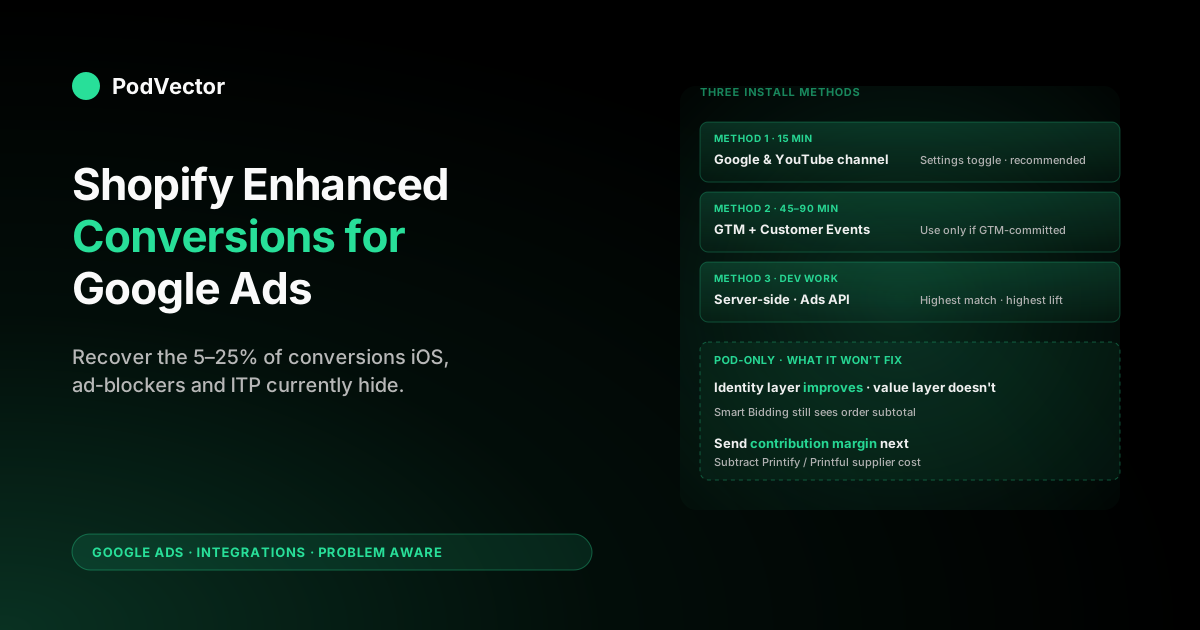
Quick Answer: Enhanced conversions for Google Ads send a hashed copy of customer first-party data (email, phone, name, address) from your Shopify checkout to Google so it can match conversions to ad clicks that the third-party pixel missed. The fastest setup is the Google & YouTube Shopify channel: accept Google's customer-data terms in your Google Ads admin, install the channel from Shopify admin, and toggle "Enhanced conversions" on inside its conversion-measurement settings.
Active time is about 15 minutes; matched-conversion lift starts showing in Google Ads after 24–48 hours. POD-specific gotchas worth knowing before you start: customer-data terms must be accepted before the toggle works, the Customer Events sandbox blocks document.cookie reads so client-side tag-manager workarounds break in 2026, and the conversion value Google Ads receives is still order subtotal — Smart Bidding will optimise toward thin-margin Printify SKUs unless you also fix the value layer.
What enhanced conversions actually are (and aren't)
"Enhanced conversions" is a Google Ads feature, not a Shopify feature. It supplements your existing conversion tag with a hashed copy of first-party customer data — email, phone number, first/last name, mailing address — captured at checkout and sent to Google alongside the conversion event. Google then SHA-256 matches that hashed data against signed-in Google users to attribute the conversion back to a click that the third-party cookie pixel lost.
It is not a replacement for the standard conversion tag. The standard pixel still has to be installed and firing; enhanced conversions piggyback on it. If your purchase pixel isn't already working, fix that first — see setup conversion tracking for Google Ads + Shopify for the base install. This guide assumes that's done.
Three things enhanced conversions do not do, that POD operators routinely assume they will:
- They don't recover offline conversions. If a customer sees the ad, copies the URL, and orders 12 days later from a different device, enhanced conversions won't catch that — it's still a third-party-cookie problem. Offline conversion import is the separate feature for that.
- They don't change the conversion value. The enhanced layer adds identity data, not economic data. Smart Bidding still optimises on whatever value your purchase tag sends, which by default is order subtotal — see the value-layer section below.
- They don't bypass cookie consent banners. If the customer rejected marketing cookies, the conversion doesn't fire and there's nothing to enhance. Enhanced conversions help with passive privacy losses (ITP, ad blockers, cleared cookies); they don't help with active consent rejection.
What they do do, reliably, is recover attributable conversions that Safari's ITP, Chrome's Privacy Sandbox enforcement, and ad-blocker pixel-stripping currently make invisible to Google Ads. According to Shopify's enhanced conversions guide, accurate conversion tracking is crucial for optimising advertising spend precisely because of these privacy-driven erosion sources. For a POD store running paid Search, recovering even a meaningful slice of those dark conversions usually justifies the 15-minute setup many times over.
Why POD stores need enhanced conversions more than most
The general ecommerce case for enhanced conversions is that you're losing attributable conversions to privacy-driven pixel erosion. That's true everywhere, but the erosion isn't uniform. POD apparel stores skew toward demographic segments where pixel loss is materially worse than the ecommerce average.
- Niche audiences run higher iOS share. Band merch, anime, gaming, alt-fashion, and pop-culture POD niches index heavily toward iOS versus the ecommerce baseline. Apple's ITP truncates third-party-cookie attribution windows aggressively, so a Google Ads click on an iPhone is far less likely to be matched without enhanced conversions than the same click on an Android device.
- Ad-blocker installation rates are higher. Younger demographics that POD niches over-index on run ad blockers at notably higher adoption than general ecommerce. Standard pixels are often the first thing those blockers strip. As Analyzify notes, accurate conversion tracking is especially critical given the combined impact of iOS, Safari ITP, and ad blockers.
- Conversion volumes are smaller per SKU. A POD store running a few hundred conversions a month across hundreds of variants needs every signal it can get for Smart Bidding to learn. Losing a meaningful share of conversions per month means the algorithm sees fewer signals; on lower-volume stores, that gap is the difference between Maximise Conversion Value and "out of learning."
- Customer-acquisition costs are higher than retention CPAs. POD repeat-purchase rates trail traditional retail, so the marginal conversion you recover from enhanced conversions is disproportionately a new customer rather than a returning one. New customers are who Smart Bidding most needs to learn against.
The cluster pillar — the complete guide to Google Ads + Shopify integration for POD — covers how enhanced conversions sit alongside Customer Match, Performance Max, and Merchant Center feed sync. This guide focuses on the install and verification.
Enhanced conversions also interact directly with how well Google can model your conversion rate optimisation efforts — better attribution means smarter bidding against your CRO wins, not just your raw traffic.
Prerequisites: five checks before you toggle anything
Each of these takes under a minute and saves you an afternoon of "the toggle is greyed out" or "data isn't showing up" debugging.
- Customer-data terms accepted. Google Ads → Admin (gear icon) → Account access → Account-level settings → Customer data terms. Read, agree, save. Without this, the enhanced-conversions toggle will appear to enable but won't actually fire data, and Google won't tell you why for 24–48 hours.
- Standard conversion tracking already firing. Open Google Ads → Goals → Conversions → click your Purchase action. Status should read "Recording conversions" with a count under 30 days. If it says "No recent conversions" but you've had paid orders, fix the base pixel before adding enhanced conversions — they can't enhance a tag that isn't firing.
- Conversion source is "Website". As noted by WeltPixel's 2026 setup guide, enhanced conversions for web work on Website-source actions only. If your conversion is sourced from "Google Analytics 4" or "Imported", you're on a different path (see Method 3 below or Google's GA4 enhanced-conversions doc).
- Shopify checkout is the standard checkout. Custom
checkout.liquidon legacy Plus stores can interfere with the Customer Events sandbox where the channel app runs. Most stores have already migrated to the new checkout extensibility model — if you haven't, finish that migration first. - One pixel, one source. If you have both the Google & YouTube channel installed and a manual
gtagintheme.liquid(or a third-party "Google Ads enhanced conversions" Shopify app), pick one and remove the others before enabling. Two enhanced-conversion sources for the same conversion action produce conflicting hashes and Google quietly drops both. We've seen this eliminate all enhanced-conversion lift for stores that bolted on a "premium" tracking app on top of the official channel.
Method 1 (recommended): Google & YouTube channel toggle
This is the path we recommend for the vast majority of POD stores. According to WeltPixel's 2026 guide, since 2024 Shopify's native Google channel handles enhanced conversions for purchase events automatically. Google and Shopify maintain it jointly, the OAuth flow handles consent and customer-data-terms verification, and it's the only path where the customer-data variable is wired to the right Liquid fields automatically. Active time: 15 minutes.
Step 1: Open the channel's conversion-measurement settings. Shopify admin → Google & YouTube channel → Settings (or "Conversion measurement" link in the dashboard). If you don't have the channel installed yet, see connect Google Ads to Shopify first — enhanced conversions sit on top of the base channel install.
Step 2: Find the Google Ads section. Inside the conversion-measurement panel, scroll to "Google Ads settings". You should see your linked Google Ads account ID and a list of conversion actions the channel manages. Confirm the customer ID matches the one shown at the top of your Google Ads UI — picking the wrong account is the most common silent failure mode.
Step 3: Turn on enhanced conversions. Per Shopify's setup guide, go to Goals → Conversions → Settings, expand the "Enhanced conversions" section, and select "Turn on enhanced conversions." A modal appears summarising what data will be sent (hashed email, phone, name, address) and asking you to agree to Google's customer-data terms. If you accepted them in the prerequisites step, this modal still appears — agree again here; this is the channel-app-level consent, separate from the account-level one.
Step 4: Confirm the events and destinations. Shopify shows you a table mapping Shopify events (Purchase, Begin Checkout, Add to Cart, Page Viewed) to Google Ads conversion actions. By default only Purchase has enhanced conversions enabled — leave it that way unless you have a specific reason. Begin Checkout enhanced data is rarely worth the consent surface.
Step 5: Confirm and save. Click "Confirm" twice (Shopify wants to make sure you mean it). The toggle goes green; the channel pushes the configuration to Google Ads within 1–2 minutes; first matched conversions appear in Google Ads reporting after 24–48 hours.
That's the install. The Customer Events sandbox where this runs is a Shopify-managed iframe that has access to checkout's customer object, hashes the email/phone/name/address fields client-side using SHA-256, and POSTs them to Google's gtag endpoint alongside the standard conversion event.
You don't see the code; Shopify and Google maintain it. Practically, this means future Google Ads schema changes get patched server-side without you redeploying anything.
Method 2 (fallback): Google Tag Manager + Customer Events
Use Method 2 only if you already run a Google Tag Manager container for other tags (Meta CAPI, Pinterest, GA4 events) and want to keep all firing logic in one place. The functional outcome is identical to Method 1; the maintenance burden is meaningfully higher because you own the user-data variable wiring.
Two things changed for this method between 2024 and 2026 that older tutorials get wrong:
- You can no longer use the "Edit Code" / theme.liquid path. Shopify's checkout extensibility migration moved checkout out of
theme.liquid. Tutorials that tell you to paste the gtag user-data script intocheckout.liquidreference a file that no longer exists on stores migrated after August 2024. The supported path is a Customer Events pixel. - The Customer Events sandbox blocks
document.cookiereads. Older GTM-on-Shopify recipes read the GA_gacookie or Google Ads_gcl_awclick ID viadocument.cookieinside the Customer Events handler. That call returns an empty string in 2026 — Shopify hardened the sandbox in late 2025. Use theanalytics.subscribeevent payload'sclientIdandsessionfields instead.
Step 1: Confirm enhanced conversions is enabled at the conversion-action level in Google Ads. Goals → Conversions → click your Purchase action → Settings → "Turn on enhanced conversions for web" → choose "Google Tag Manager" as the implementation method. Save. (If the toggle is greyed out, the customer-data terms aren't accepted yet — fix that first.)
Step 2: Create the user-provided data variable in GTM. In your GTM container → Variables → New → "User-Provided Data" type. Set "Type" to "Manual configuration".
Add fields for email, phone number, first name, last name, street, city, region, postal code, country. For each, leave the value field empty for now — we'll populate them from the Customer Events payload in step 4.
Step 3: Update your Google Ads conversion-tracking tag. Edit the existing Google Ads Conversion Tracking tag in GTM. In the "Include user-provided data from your website" section, select the variable you just created. Save.
Step 4: Wire the Shopify Customer Events pixel. Shopify admin → Settings → Customer events → Add custom pixel. Name it "GTM Enhanced Conversions Bridge". In the code box, subscribe to checkout_completed:
Set the pixel's permission to "Customer privacy: Marketing" so it respects consent. Save and connect.
Step 5: Build a GTM trigger on the enhanced_conversion dataLayer event and attach it to your Google Ads conversion tag. Publish the GTM container. Test with the GTM preview mode against a sandbox order before going live.
Total active time: 45–90 minutes if you've never set up a Customer Events pixel before, 15–25 minutes if you have. Method 1 remains the right call for stores without an existing GTM commitment.
Method 3 (advanced): server-side via Google Ads API
The API path sends conversion data and the hashed user-data layer directly from your server to Google Ads, bypassing the browser entirely. It's the most resilient path against ad blockers, ITP, and cookie consent — the data leaves your server and never touches the customer's browser. It's also the most operationally expensive: you need OAuth credentials for the Google Ads API, a developer token, and somewhere to run the upload (a Shopify app, a Cloud Run job, an Airflow DAG).
As WeltPixel's server-side guide explains, identity fields are hashed with SHA-256 server-side, phones are normalized to E.164 first, and only matched records are used to report conversions. For most POD stores under 5,000 orders/month, Method 1 captures the large majority of the lift Method 3 captures with a fraction of the effort. We don't recommend going to Method 3 unless you've already exhausted the value-layer fix (next section) and need to tighten attribution further.
When you're ready, the cleanest entry point is Google's uploadClickConversions endpoint with the userIdentifiers array. The Shopify-side trigger is a webhook on orders/paid that fires the upload after fulfillment data is finalised. See Google's official enhanced conversions documentation for the full API reference.
Verify the data is actually flowing
Don't trust the toggle. Verify three things in the first 72 hours:
- Diagnostics tab in Google Ads. Goals → Conversions → click your Purchase action → Diagnostics tab. As WeltPixel's verification guide notes, the data quality indicator shifts from Poor to Fair to Good as the match rate improves. Within 24–48 hours of your first paid-ad-driven order after enabling, you should see a "Recent activity" panel with metrics like "User-provided data quality", "Match rate", and any field-level warnings (missing email, malformed phone, etc.). A match rate below a third of conversions typically indicates a wiring issue — usually the email field isn't being populated.
- Conversion lift in the conversions report. Reports → Predefined → Conversions → All conversions vs. Conversions. After 7 days you should see a small but persistent gap where "All conversions" exceeds "Conversions" — that gap is roughly the enhanced-conversion attribution recovery (it includes other recovery sources, but enhanced conversions is the biggest one for most stores).
- Smart Bidding learning indicator stops fluctuating. Less obvious, more strategic: in the campaign view, the "Bid strategy status" column should stabilise at "Learning complete" or "Optimising" within 14 days post-enable, even on lower-volume campaigns. If it bounces between "Learning" and "Limited by conversions" weekly, your conversion volume is still too low — see the Begin Checkout micro-conversion option in the channel settings.
Don't sweat day-one verification. The data starts flowing immediately, but Google's match-rate calculation uses a 7-day rolling window, so the diagnostics panel takes 24–48 hours to populate. Resist the urge to toggle, untoggle, and retoggle if the panel is empty at hour 6 — that resets the window.
Common errors and how to fix them
- "Enhanced conversions toggle is greyed out." Customer-data terms aren't accepted at the account level. Fix: Google Ads admin → Account access → Account-level settings → Customer data terms.
- "Match rate is very low or zero after 48 hours." Either the email field isn't being populated, or you have two enhanced-conversion sources (channel + manual) producing conflicting hashes. Fix: pick one source. If on the channel, uninstall any third-party Google Ads enhanced-conversion Shopify app and any manual
gtagintheme.liquid. If on GTM, confirm the user-data variable is referencing populated dataLayer fields. You can check status under Goals → Conversions → Summary, as WeltPixel's guide recommends. - "Conversions are double-counting." Both channel and GTM are sending the same conversion. Fix: in the Google & YouTube channel's conversion-measurement settings, untick "Send conversion events" for events GTM is sending. The channel's enhanced-conversion layer can stay on for events the channel owns; GTM owns its own events end-to-end.
- "Enhanced conversions enabled but conversions dropped." Almost always a consent-mode change. Look at "Settings → Customer privacy" in Shopify admin — if you tightened consent after enabling, the conversion fire path is now blocked at the consent layer for users who haven't accepted. The enhanced-conversion toggle didn't cause the drop; the consent change did. Fix is unrelated to enhanced conversions.
- "
No conversion data receivedwarning in Google Ads diagnostics." Customer-data terms accepted but the user-data variable in GTM is empty (Method 2 path). Fix: confirm your Customer Events pixel is firing and writing to dataLayer; use GTM preview mode against a real test order rather than a synthetic event.
The value layer: enhanced conversions don't fix margin
Here's the part most setup tutorials skip. Enhanced conversions improve the match rate — they don't change what each matched conversion is worth. The value sent to Google Ads is still order subtotal by default, which on a Shopify + POD store is gross revenue before Printify or Printful supplier cost.
What that means in practice: a hoodie order with strong contribution margin and a hoodie order with thin contribution margin look identical to Smart Bidding. With enhanced conversions on, both match more reliably, and Smart Bidding optimises toward whichever variant converts more reliably — usually the lower-margin, lower-priced one. Enhanced conversions, on their own, can accelerate margin erosion by improving the signal quality on the wrong objective.
Before you can answer the margin question properly, it helps to understand where your store actually stands — check out the net profit margin benchmarks for POD stores and the average checkout completion rate benchmarks so you know which lever moves the needle most. For more on AOV-focused tactics that compound with better Smart Bidding signals, see increasing AOV with AI.
Two ways to fix the value layer, in increasing order of operational lift:
- Send a margin-adjusted conversion value. Instead of
checkout.subtotal_price, compute (subtotal − supplier cost − shipping subsidy − transaction fee) per line item and send that as the conversion value. Method 2 (GTM) gives you control here; Method 3 (API) gives you better control because supplier-cost data lives server-side. Method 1 (channel app) doesn't currently expose this hook. - Switch to value-based bidding on a refund-adjusted goal. Combined with offline conversion uploads (where you tell Google Ads about refunds 7–14 days post-order), this lets Smart Bidding optimise toward profit signals rather than revenue signals. The setup work is non-trivial; the ROAS lift on a higher-volume POD store can be meaningful once clean data accumulates.
Both fixes live further down the funnel than this article — if you're starting fresh on Shopify + Google Ads, get enhanced conversions on first, verify match rate, then come back for the value layer once you have 4–6 weeks of clean conversion data to work with.
Beyond the install: what to do with the data
The conversion-action diagnostics page is one part of the answer. The other part is connecting Google Ads spend back to fulfilled-order profit so you can answer questions Google Ads itself can't — "what's my actual blended margin on the campaigns Smart Bidding promoted last week?", "which audience segment converts at the highest contribution margin, not the highest volume?", "do my Printful orders close at higher absolute margin than Printify orders even though the unit cost is higher?"
This is the work Victor does by sitting on top of your Shopify, Printify, Printful, and Google Ads data in a live data warehouse and answering plain-English questions against the joined-up view. Enhanced conversions makes the Google Ads side of that picture more accurate; Victor makes the joined-up picture queryable. They compound. One important caveat: Google Ads attribution flows into Victor's read layer only when your campaigns have the correct ValueTrack tokens set — without them, Google-channel POAS figures can be silently incomplete, so verify your token setup alongside the enhanced-conversions enable.
If you're also running Meta campaigns alongside Google, see the Google Ads vs Facebook Ads cost comparison for POD sellers to understand how the two channels interact and where enhanced conversions gives you the bigger edge. And for retention — the side of the funnel enhanced conversions can't touch — see how Klaviyo browse abandonment flows recover the orders Google Ads attribution never sees.
For more on the agentic workflow that connects ads, fulfilment, and profit, see agentic AI for ecommerce: what it looks like for POD sellers and the Google Ads topic hub at /articles/google-ads. For the broader integrations cluster (Merchant Center sync, Customer Match, attribution windows), see the cluster hub at /articles/google-ads/integrations.
External reference: Shopify's official enhanced conversions guide is the canonical source for setup mechanics; Google's help-centre article on enhanced conversions updates faster but lacks the Shopify-specific framing.
FAQs
Should every Shopify POD store turn on enhanced conversions?
If you're spending meaningfully on Google Ads and your Shopify checkout collects email at the start (which is the default), yes. The consent-surface tradeoff is almost always positive once you're generating regular paid traffic. The more you spend, the more recovered conversions compound into Smart Bidding improvements.
Does enhanced conversions require a developer?
Method 1 (Google & YouTube channel) does not — it's a settings toggle and the OAuth handshake. Method 2 (GTM) requires comfort editing GTM and writing a short Customer Events pixel in JavaScript; most Shopify operators can do it after one walkthrough. Method 3 (API) requires a developer.
Will enabling enhanced conversions change my historical conversion data?
No. The feature only affects conversions that fire after enable. Historical reports and Smart Bidding learning data are unchanged.
Do I need to update my privacy policy when I enable enhanced conversions?
Yes. Your privacy policy should disclose that hashed first-party data is shared with Google for ad measurement.
Shopify's default privacy-policy template generator covers this if you regenerate it after enabling; if your privacy policy is hand-written, add a paragraph under "Third-party services" referencing Google's user-data terms. Consult your own counsel for jurisdictional specifics — GDPR and CCPA have different consent thresholds for hashed PII.
Does enhanced conversions work with Google Analytics 4?
Yes, but it's a different setup path. GA4 has its own user-provided data feature; if your Google Ads conversion source is "GA4 imported" rather than "Website", you enable enhanced conversions inside the GA4 conversion configuration, not the Google Ads one. Most POD stores benefit from running both: Website-source conversions for direct Google Ads optimisation, GA4-source for cross-channel attribution.
What if my store has multiple domains or subdomains?
The channel app handles single-domain Shopify stores by default. If you have a marketing subdomain (e.g. blog.yourstore.com on a separate platform) and customers move from there to yourstore.com for checkout, set up Google Ads cross-domain tracking (Linker) on the gtag — this is a separate setting in the Google Ads conversion-action UI under "Tag setup → Cross-domain measurement". Enhanced conversions itself doesn't change behaviour across domains; it only enhances whichever conversions actually fire.
How long until I see ROAS improvement after enabling?
Match-rate data shows in 24–48 hours. Smart Bidding takes 7–14 days to learn against the new signal density. Measurable ROAS lift in your campaign reports typically takes several weeks to be confident-significant on a POD store — the lower your monthly order volume, the longer the noise floor requires to clear.
Can I enable enhanced conversions without accepting customer-data terms?
No. The terms acceptance is the legal precondition for hashed customer data leaving Shopify and entering Google's servers. The toggle physically won't fire data without it. As Trackbee's 2026 setup guide confirms, accepting customer data terms is always Step 1, before any other configuration.
How does this interact with Printify vs. Printful fulfillment costs?
Enhanced conversions don't touch your cost data — but they make the attribution picture accurate enough that cost differences between suppliers actually matter to your bidding. If Printful's higher unit cost is offset by lower return rates or higher perceived quality, you need clean conversion attribution to see that signal. See the Printify vs. Printful vs. Gelato comparison for the fulfillment-side tradeoffs, and the Etsy-to-Shopify dropshipping guide if you're bridging multiple sales channels alongside Google Ads.
Ask Victor what your enhanced-conversion data is actually doing for margin
Setup is the easy part. The harder question — "is enhanced conversions on this campaign actually lifting margin-adjusted ROAS, or just nominal ROAS?" — needs your Google Ads spend, Shopify orders, and Printify/Printful supplier costs joined up in one place. That's exactly what Victor does: he reads your live Shopify, Google Ads, Printify, and Printful data, then answers in plain English. Ask in plain English, get the answer in seconds.
Try Victor free