
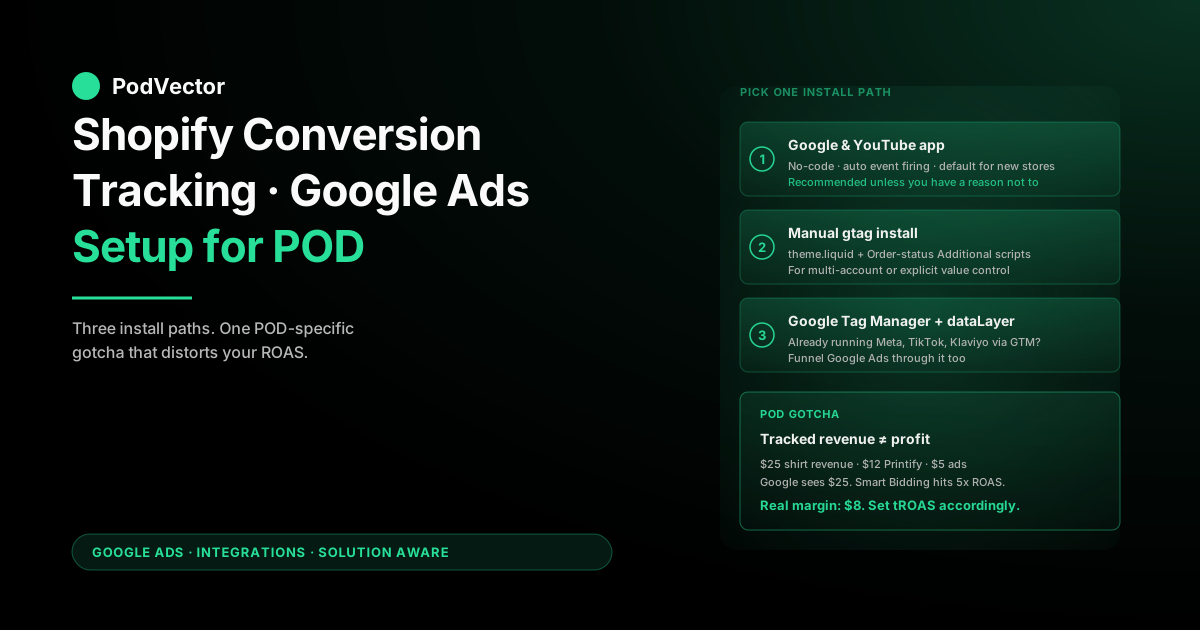
Quick Answer: Set up Shopify conversion tracking for Google Ads with the free Google & YouTube app — it installs the Google tag and syncs purchase, add-to-cart, and begin-checkout events to your Ads account with no code.
If you install manually, know that Shopify retired the order-status "Additional scripts" box in August 2025. Custom purchase tracking now goes through a customer-events pixel instead.
For POD sellers, the harder problem comes after setup: tracked revenue isn't profit until Printify or Printful fulfillment is subtracted. This guide covers the install plus the POD-specific gotchas that distort ROAS.
Why conversion tracking matters more for POD
If you sell native products with a 60% gross margin, sloppy conversion tracking costs you efficiency. If you sell print-on-demand with a 25–35% gross margin, sloppy conversion tracking can make every campaign look profitable when it's actually losing money — or worse, kill a winning campaign because Google's bidder doesn't see the conversions.
Three POD-specific reasons this matters:
- Margins are thin. A $25 t-shirt with a $12 Printify cost leaves $13 gross. A $4 attribution gap on a $25 conversion is 30% of your margin, not 16% of your revenue.
- Returns and chargebacks land late. Shopify reports a sale on day 1. Printify ships on day 3–7. The customer disputes on day 30. Without conversion-value adjustments, Google keeps optimizing toward sales that already reversed.
- Smart Bidding needs clean signal. tROAS, Maximize Conversion Value, and Performance Max all assume the value you report is real. Garbage in, garbage out — at speed.
The fix isn't more tracking software. It's getting the basic install right and feeding it values that match your actual P&L. This guide walks the install, then covers what changes for POD.
What to track on a Shopify POD store
Google Ads supports five conversion-action categories: website actions, phone calls, app installs, offline conversions, and local actions. For a Shopify POD store, you only care about website actions. Within that bucket, the events that move bidding decisions are:
- Purchase (primary conversion — this is the one Google bids toward)
- Begin checkout (secondary — useful for funnel diagnostics, not bidding)
- Add to cart (secondary — same)
- Page view of product detail (optional — only useful for remarketing audiences)
- Newsletter signup or account creation (optional — list-building campaigns only)
Set Purchase as your only primary conversion. Mark everything else as secondary. If you mark Add-to-Cart as primary, Google will optimize toward cart adds — which is cheap and easy and unprofitable. This is the single most common Smart Bidding mistake POD sellers make.
Method 1: Google & YouTube app (recommended)
If you're starting from zero and don't already have a tag-management workflow, this is the path. It's officially supported by both Google and Shopify, requires no code, and handles the global site tag plus event firing automatically.
- Install the Google & YouTube app from the Shopify App Store. Open Shopify admin → Apps → search "Google & YouTube" → install.
- Connect your Google account. Use the Google account that owns (or has admin access to) your Google Ads account and your Google Merchant Center.
- Link Google Ads. Inside the app, navigate to the Marketing section and choose to connect Google Ads. Pick the Ads account you want conversions reported to.
- Confirm conversion actions. When you link, Google auto-creates three default actions: Purchase, Add to Cart, Begin Checkout. Purchase is set as the account default primary. Verify in Google Ads under Goals → Conversions → Summary — Google documents the mapping in its official Google & YouTube app setup guide.
- Confirm the tag is firing. Open your storefront in an incognito window with the Tag Assistant Chrome extension running. You should see the Google Ads conversion tag and the GA4 tag fire on page load.
That's the entire client-side install. If you only need basic ROAS reporting and you're running standard search and shopping campaigns, this is sufficient. The app also handles consent mode v2 by default if you have a cookie banner connected.
If you're also wiring up Merchant Center, feeds, and remarketing in the same sitting, our full Shopify–Google Ads integration guide for POD sellers covers the whole connection, not just conversion tracking.
Method 2: Manual Google tag install
If you've already removed the Google & YouTube app, or you want explicit control over which events fire and when, install the global site tag manually. This is also the path if you need to run multiple ad-account conversion IDs (e.g., a second Google Ads account for a different brand on the same Shopify store).
- Create the conversion action in Google Ads. Go to Goals → Conversions → New conversion action → Website. Enter your store domain. Select Purchase. Set value to Use different values for each conversion. Choose a count of One per click (you don't want one customer buying twice in 30 days to count as two attributed conversions).
- Get your Conversion ID and Conversion Label. After saving, Google shows them under "Install the tag yourself." They look like
AW-1234567890andaBcDeFgHiJ. - Install the global site tag in
theme.liquid. In Shopify admin → Online Store → Themes → Edit code. Opentheme.liquid. Paste the gtag.js snippet immediately after the opening<head>tag. This covers every pre-checkout page. - Add the purchase event as a custom pixel. The old route — pasting a script into the Order Status page's "Additional scripts" box — was retired by Shopify in August 2025 and those scripts no longer run. The replacement is a customer-events pixel (a small script Shopify runs in a secure sandbox around checkout). Go to Settings → Customer events → Add custom pixel, name it, and paste:
The pixel editor takes plain JavaScript — noconst script = document.createElement('script'); script.src = 'https://www.googletagmanager.com/gtag/js?id=AW-1234567890'; script.async = true; document.head.appendChild(script); window.dataLayer = window.dataLayer || []; function gtag(){dataLayer.push(arguments);} gtag('js', new Date()); gtag('config', 'AW-1234567890'); analytics.subscribe('checkout_completed', (event) => { const checkout = event.data.checkout; gtag('event', 'conversion', { 'send_to': 'AW-1234567890/aBcDeFgHiJ', 'value': checkout.subtotalPrice.amount, 'currency': checkout.currencyCode, 'transaction_id': checkout.order.id }); });<script>tags — and loads its own copy of gtag because the sandbox can't see your theme's tag. UsesubtotalPricerather thantotalPriceso Google Ads optimizes against pre-shipping, pre-tax revenue — which is what your margin is calculated against anyway. - Connect and save the pixel, then test a real order. Place a $1 test order. Verify in Google Ads under Conversions that the action shows "Recording conversions" within 24 hours.
Manual install gives you the most control but also the most chances to break it. If a Shopify theme update overwrites theme.liquid, your site-wide tag goes silent until you reinstall — though the custom pixel survives theme updates. Set a calendar reminder to test conversion firing the first of every month.
Method 3: Google Tag Manager + dataLayer
If you already use GTM for other tracking (Meta Pixel, TikTok Pixel, Klaviyo events, etc.), funnel Google Ads through it too. The benefit: one place to manage tags, one place to debug, consistent firing rules across platforms.
- Create a GTM container at tagmanager.google.com if you don't have one. Note the container ID (
GTM-XXXXXXX). - Install GTM in
theme.liquidfollowing Google's two-snippet install — one in<head>, one immediately after<body>. This covers pre-checkout pages only. - Load GTM at checkout via a custom pixel. Checkout and the thank-you page are sandboxed — your theme's GTM container doesn't run there, and the old Additional Scripts field is gone. In Settings → Customer events → Add custom pixel, load the container and push the purchase event:
(function(w,d,s,l,i){w[l]=w[l]||[];w[l].push({'gtm.start': new Date().getTime(),event:'gtm.js'});var f=d.getElementsByTagName(s)[0], j=d.createElement(s),dl=l!='dataLayer'?'&l='+l:'';j.async=true;j.src= 'https://www.googletagmanager.com/gtm.js?id='+i+dl;f.parentNode.insertBefore(j,f); })(window,document,'script','dataLayer','GTM-XXXXXXX'); analytics.subscribe('checkout_completed', (event) => { const checkout = event.data.checkout; window.dataLayer.push({ 'event': 'purchase', 'ecommerce': { 'transaction_id': checkout.order.id, 'value': checkout.subtotalPrice.amount, 'currency': checkout.currencyCode, 'items': checkout.lineItems.map((item) => ({ 'item_id': item.variant.product.id, 'item_name': item.title, 'price': item.variant.price.amount, 'quantity': item.quantity })) } }); }); - Inside GTM, create a Google Ads Conversion Tracking tag. Trigger it on the custom event
purchase. Map the conversion value to{{DLV - ecommerce.value}}and transaction ID to{{DLV - ecommerce.transaction_id}}. - Publish the GTM container. Test with a $1 real checkout, not just GTM's Preview mode — the sandboxed pixel environment doesn't fully cooperate with Preview, so confirm the conversion lands in Google Ads.
GTM is more setup up-front but pays back when you add a fourth or fifth pixel. It's also the foundation for server-side tracking — covered briefly in the FAQs below — which becomes relevant once iOS privacy and ad blockers start eating into your client-side conversion volume.
Enabling Enhanced Conversions
Enhanced Conversions sends hashed customer data (email, name, phone) alongside the purchase event so Google can match conversions across devices and browsers, especially when third-party cookies fail. For POD, this typically recovers 5–15% of conversion volume that would otherwise be invisible to Smart Bidding.
If you're using the Google & YouTube app, Enhanced Conversions is enabled by default in 2026 — confirm under Goals → Conversions → Diagnostics. If you installed manually, you'll need to either upgrade to gtag with user-provided data, or send hashed customer data via the Google Ads API. We covered the full enable-and-verify flow in our Shopify enhanced conversions setup guide for POD sellers — same store, same tag, different setting.
How to verify tracking is firing
"Recording conversions" in Google Ads doesn't always mean tracking is correct. It means tracking is firing. There's a difference, and POD sellers tend to find out the hard way three months in. Verify three things:
- Conversion volume matches Shopify orders. Pull last 7 days of Shopify orders. Pull Google Ads "All conversions" for the same window — and know how Google Ads' default attribution model decides which orders get credited. They won't match exactly (some orders won't be ad-attributed), but Google should be reporting somewhere between 30% and 90% of your total Shopify orders depending on your paid traffic share. If it's reporting 5%, your tag is broken or firing twice. If it's reporting 110%, you have duplicate conversions firing.
- Conversion value matches order subtotals. Average order value in Google Ads should equal your Shopify subtotal AOV within ±5%. If Google's AOV is 30% higher, you're tracking
total_price(which includes shipping/tax) instead ofsubtotal_price. - Conversions don't fire on order-status refreshes. Open a recent order's status page and refresh five times. In Google Ads' "All conversions" report, that order should still show 1 — not 5. If it shows 5, you're missing a transaction-ID dedupe. Add
transaction_idto your event payload (covered in Method 2 above).
Run this verification monthly. The single biggest cause of POD ad accounts spiraling on a Tuesday is conversion tracking that broke on a Sunday theme update.
POD-specific gotchas that distort your ROAS
This is the section the generic Shopify tracking guides skip. If you only sell POD products, these matter more than the install steps above.
Track revenue, not profit — but know the difference
Google Ads will only ever see the conversion value you report, which is your Shopify revenue. It does not see Printify or Printful's fulfillment cost.
So a tROAS target of 3.0 means "$3 in revenue per $1 ad spend" — not $3 in profit. For a typical POD store running 35% gross margin (after fulfillment, before ads), tROAS 3.0 actually means roughly break-even before fixed costs.
Set tROAS targets in revenue terms but evaluate campaigns in profit terms. Most POD sellers under-target because they don't translate the math.
Returns and chargebacks reverse late
POD orders ship later than native ecommerce orders, which means returns and chargebacks land later too. A campaign that looks profitable on day 7 can flip on day 35 once chargebacks land — often after Google Ads' default attribution window has already closed on the click. If you're using Smart Bidding, Google's optimizer is already 30 days into spending against the inflated ROAS by then.
The fix is conversion-value adjustments via the Google Ads API or offline conversion imports — uploading negative values when chargebacks land. The Google & YouTube app does not do this for you.
Personalization and customizable products
If you sell customizable products, the SKU on the line item may not match the SKU you bid against. Make sure your dataLayer pushes the parent product_id, not the variant ID, so audience-based bidding has a stable identifier.
Multiple stores, one Google Ads account
POD sellers commonly run two or three Shopify stores from one Google Ads account. Each store needs its own conversion ID/label pair, and your tag firing logic needs to scope to the correct store. The Google & YouTube app handles this if each store is connected to the same Ads account; the manual install does not by default.
What to do once tracking is live
Conversion tracking is plumbing. The actual question is: now that the data is flowing, what should you change in your campaigns? Three things, in order:
- Switch eligible campaigns to Smart Bidding. Once you have ~30 conversions in 30 days, Maximize Conversion Value with a tROAS target outperforms manual CPC for most POD search and shopping campaigns. The full strategic playbook lives in our Google Ads playbook for POD sellers.
- Connect Merchant Center if you haven't. Conversion tracking is for measuring purchases. Merchant Center is for showing products in Shopping ads in the first place. Walk through it in our Connect Google Merchant Center to Shopify guide.
- Reconcile real profit, not just reported revenue. Google Ads can tell you "this campaign drove $5,000 in conversion value." It can't tell you that after Printify cost, shipping, and ad spend, you actually netted $400. That reconciliation is where most POD sellers spend a Sunday afternoon in a spreadsheet.
The third one is what we built Victor for. Victor connects to your Shopify, Google Ads, and Printify or Printful accounts, works out true after-fulfillment profit per campaign, then acts on it — pausing losers, shifting budget toward winners — with your approval before every material change.
Conversion tracking gets the signal into Google. Victor puts the signal to work.
For the rest of the stack, the Google Ads integrations library has every Shopify connection guide, and our Google Ads hub for POD sellers covers strategy, ad types, and attribution.
FAQs
Do I need both the Google & YouTube app and a manual tag install?
No, and you shouldn't run both — you'll get duplicate conversions. Pick one method. The app is recommended unless you have a specific reason to install manually (multiple ad accounts, custom GTM setup, server-side tracking).
How long until I see conversions in Google Ads after setup?
The conversion action status will switch from "No recent conversions" to "Recording conversions" within 24 hours of the first real purchase firing the tag. If 48 hours pass with no status change, your tag is not firing — go back and verify with Tag Assistant.
Should I use total_price or subtotal_price as the conversion value?
Use subtotal_price for POD. It excludes shipping and tax, which lines up better with your real margin math. If you bid against total_price, you're optimizing partly toward shipping fees, which Google can't influence.
Can I use Google Tag Manager instead of the Google & YouTube app?
Yes — Method 3 above. GTM is the right call if you're already running other pixels (Meta, TikTok, Klaviyo events) through it. For a single-pixel POD store, the app is simpler.
What's server-side tracking and do I need it?
Server-side tracking sends conversion data to Google from your server (or a tagging server) instead of the customer's browser. It's more accurate because ad blockers and iOS privacy can't strip it.
You probably need it if your client-side conversion volume is <50% of your actual Shopify orders. For most POD stores doing <$50k/mo, the standard client-side install is fine to start.
How do I track conversions on the Shopify checkout if I'm not on Shopify Plus?
Both the Google & YouTube app and the custom pixel in Method 2 work on every Shopify plan — Plus is not required. The old "Additional scripts" field under Settings → Checkout was retired in August 2025 on all plans; custom pixels under Settings → Customer events are the replacement, and they fire on the sandboxed checkout and thank-you pages regardless of plan.
Why is Google Ads showing fewer conversions than Shopify shows orders?
Three usual culprits: (1) some Shopify orders aren't ad-attributed (organic, direct, email), so they're correctly excluded; (2) ad blockers and tracking prevention strip the conversion event in the browser — enhanced conversions on Shopify and server-side tracking both help; (3) the tag isn't firing on every order — verify with Tag Assistant on a real checkout.
What's the difference between Conversion Tracking and Google Analytics 4?
Google Ads Conversion Tracking feeds Smart Bidding directly. GA4 is for analysis. You can import GA4 conversions into Google Ads, but the recommended setup for POD is to track conversions natively in Google Ads (via the gtag or app) and use GA4 for cross-channel reporting separately.
Tracking live? Hand the campaigns to an employee.
Conversion tracking gets clean data into Google Ads. Victor puts it to work. He runs your Google and Meta campaigns, reallocates spend toward the products that still clear a profit after Printify or Printful costs, and asks for your approval before every material change.
Try Victor free