
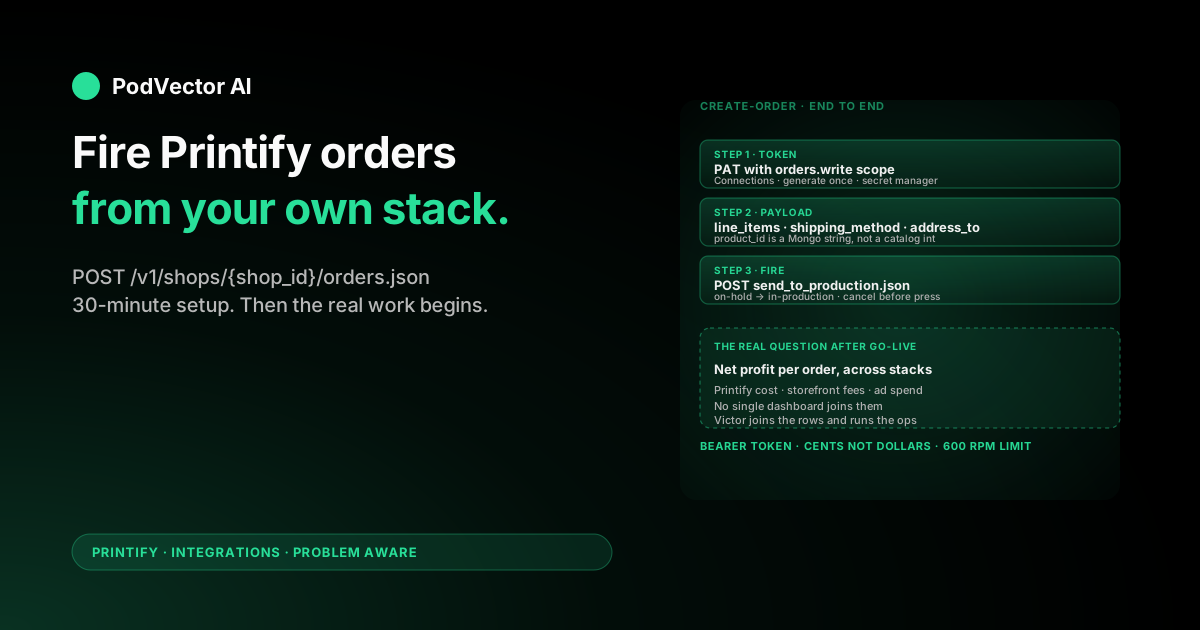
Quick Answer: Printify's create-order endpoint is POST /v1/shops/{shop_id}/orders.json. You send a JSON body with external_id, line_items, shipping_method, send_shipping_notification, and an address_to block, authenticated with a Bearer token that has the orders.write scope.
Setup takes about 30 minutes if you already have a Printify account: generate a Personal Access Token with order-write permissions, grab your shop ID, then POST a draft order from cURL or your backend before flipping send_to_production to fire it for real.
Once the pipe is live, the hard problem is reading per-order COGS, shipping, and fulfillment status across Printify, your storefront, and your ad platforms — so you actually know which orders are profitable. That's the layer most sellers underbuild.
What the create-order endpoint actually does
The Printify Orders API lets you submit fulfillment orders programmatically instead of clicking through the dashboard. The create-order call accepts a JSON body describing what to print, where to ship it, and how fast — Printify then queues it for the print provider you configured on the product.
This matters most in three situations: a custom storefront that isn't on Etsy or Shopify, a Zapier-style automation that triggers fulfillment from a different platform, or a wholesale workflow where orders arrive by email or CSV and you batch them out.
The endpoint itself is documented in the official Printify API reference at developers.printify.com. That spec is the source of truth for field names and response codes. This guide walks through the practical setup most sellers stumble on — token scopes, shop ID lookup, and the payload shape that actually fires a production order.
If you're newer to the Printify ecosystem, the Printify topic hub covers everything from the catalog model to Premium pricing, and the Printify integrations hub indexes every connection pattern — API, storefront sync, and third-party automation.
Prerequisites before you call it
You'll need four things lined up before the first request will succeed:
- A Printify account with at least one store connected. Even API-driven orders need a "store" to attach to — usually a "Custom" store if you're not on Etsy or Shopify.
- At least one published product in that store. The create-order endpoint references existing product and variant IDs; it doesn't create new SKUs on the fly.
- A Personal Access Token (PAT) with the
orders.writescope. Step 1 below. - Your shop ID. Step 2.
For testing, keep a sample product around that prints a cheap blank — a single-color sticker or a basic mug — so your debug runs don't burn $20 a try in production cost.
Step 1: Generate an API token with order scopes
From your Printify dashboard, click your profile avatar in the top-right corner and pick Connections. Scroll to the API tokens section.
- Click Generate new token.
- Name the token something meaningful — for example, "fulfillment-bot-prod" or "zapier-orders".
- Select the scopes. For the create-order endpoint, the minimum scope set is:
shops.read— to look up your shop IDorders.read— to confirm orders went throughorders.write— to actually create and submit them
products.readif you also need to look up product variant IDs at runtime. - Click Generate. Copy the token immediately — Printify only shows it once. If you lose it, you regenerate.
Store the token in your platform's secret manager. Never commit it to a repo. The token grants full order-creation rights on your account, which means anyone holding it can burn through your payment method.
OAuth 2.0 is also supported if you're building a platform that manages orders for multiple Printify merchants. For single-account integrations, the Personal Access Token is the faster path.
Step 2: Find your shop ID
Every order is scoped to a specific shop. You need that shop's integer ID before you can call the create-order endpoint.
The fastest way is a quick GET to the shops list endpoint:
curl -X GET "https://api.printify.com/v1/shops.json" \
  -H "Authorization: Bearer YOUR_TOKEN" \
  -H "Content-Type: application/json"
You'll get back a JSON array, one entry per connected store:
[
  {
    "id": 12345678,
    "title": "My POD Storefront",
    "sales_channel": "custom_integration"
  }
]
That id field is what goes in the URL of every subsequent call. Store it as an env var so you don't have to look it up again.
If you have multiple stores (one Etsy, one Shopify, one custom), each has its own shop ID, and orders submitted to a given shop sync back to that storefront's order history. Pick the right one — submitting to the wrong store will create a Printify-side order with no buyer-facing record.
Step 3: Build the order payload
This is where most setup failures happen. The payload has six top-level fields, and getting any of them subtly wrong returns a 422 that doesn't always say what's broken.
Here's the minimum viable shape:
{
  "external_id": "your-internal-order-id-001",
  "label": "Order #001",
  "line_items": [
    {
      "product_id": "5d39b159e7c48c000728c89f",
      "variant_id": 17887,
      "quantity": 1
    }
  ],
  "shipping_method": 1,
  "send_shipping_notification": false,
  "address_to": {
    "first_name": "Jane",
    "last_name": "Doe",
    "email": "jane@example.com",
    "phone": "+1-555-123-4567",
    "country": "US",
    "region": "CA",
    "address1": "123 Market St",
    "address2": "",
    "city": "San Francisco",
    "zip": "94103"
  }
}
Field-by-field, here's what each one is for and what to watch out for:
external_id— your internal identifier for the order. Printify echoes it back on every webhook so you can correlate. Make it unique per order; reusing it doesn't dedupe, but it makes debugging miserable.label— a human-readable label that shows up on the Printify dashboard. Usually your shop's order number.line_items— array of items to fulfill. Each item needsproduct_id(the published product's ID, not the catalog blueprint ID) andvariant_id(the specific size/color/SKU).quantityis per item. You can mix multiple products and variants in one order — they ship together if the print provider can fulfill all of them.shipping_method— integer.1is standard,2is priority (faster, more expensive),3is express,4is economy. Not every method is available for every product or country — check the response for shipping method errors.send_shipping_notification— boolean. Iftrue, Printify emails the buyer a shipped-confirmation when the print provider hands off to the carrier. If you're already sending your own emails, set this tofalseto avoid double-emailing.address_to— full shipping address.countryis the 2-letter ISO code.regionis the state/province code (US, CA, AU) or full name (most other countries).address1andcityare required;address2can be empty string but not null.
To pull the variant_id values for a product, GET /v1/shops/{shop_id}/products/{product_id}.json and look at the variants array. Each entry has the variant ID and its full title (color + size).
Step 4: Make the call (cURL + Node)
The simplest version, with cURL:
curl -X POST "https://api.printify.com/v1/shops/YOUR_SHOP_ID/orders.json" \
  -H "Authorization: Bearer YOUR_TOKEN" \
  -H "Content-Type: application/json" \
  -d @order.json
Where order.json is the payload from Step 3 saved to disk.
The same in Node.js, using fetch:
const order = {
  external_id: "your-internal-order-id-001",
  label: "Order #001",
  line_items: [
    { product_id: "5d39b159e7c48c000728c89f", variant_id: 17887, quantity: 1 }
  ],
  shipping_method: 1,
  send_shipping_notification: false,
  address_to: {
    first_name: "Jane",
    last_name: "Doe",
    email: "jane@example.com",
    phone: "+1-555-123-4567",
    country: "US",
    region: "CA",
    address1: "123 Market St",
    address2: "",
    city: "San Francisco",
    zip: "94103"
  }
};

const res = await fetch(
  `https://api.printify.com/v1/shops/${SHOP_ID}/orders.json`,
  {
    method: "POST",
    headers: {
      "Authorization": `Bearer ${PRINTIFY_TOKEN}`,
      "Content-Type": "application/json"
    },
    body: JSON.stringify(order)
  }
);

const data = await res.json();
console.log(data.id); // the new Printify order ID
A successful response returns a JSON object with the new Printify id, a status of "on-hold", and an itemized cost breakdown:
{
  "id": "5d65c6ac01da0a000799fda3",
  "external_id": "your-internal-order-id-001",
  "status": "on-hold",
  "total_price": 2499,
  "total_shipping": 499,
  "total_tax": 0,
  "line_items": [ ... ]
}
Prices are in cents — that total_price: 2499 means $24.99. Easy field to misread when you're tying revenue back to cost.
Importantly, the order is now on hold, not in production. Printify gives you a window to cancel, edit, or confirm before charging your payment method and sending to the print provider. Step 5 is where you actually fire it.
Step 5: Fire the order into production
There are two paths from "on hold" to "in production":
Path A — auto-send to production on creation. Add "send_shipping_notification" and the implicit auto-submit flag by calling a slightly different shape. The cleanest way is the dedicated endpoint:
curl -X POST "https://api.printify.com/v1/shops/YOUR_SHOP_ID/orders/ORDER_ID/send_to_production.json" \
  -H "Authorization: Bearer YOUR_TOKEN"
Path B — keep orders on hold for a manual review queue. Don't call send_to_production. The order stays in your Printify dashboard at Orders → On hold, and you (or a human teammate) approves before fulfillment.
For a custom storefront where you trust the upstream signal, auto-send-to-production is the right default. For wholesale or high-ticket print, the review queue saves you from a bad address spec or a duplicate fulfillment.
You can also POST to /v1/shops/{shop_id}/orders/{order_id}/cancel.json to cancel before production starts. Once production begins, cancellation is print-provider-dependent — some let you cancel within a few hours, most don't once the press has been set up.
Step 6: Track what matters once orders flow
Once orders are flowing through the API, the failure mode shifts from "the call isn't working" to "I have no idea which orders are profitable."
The Printify response gives you production cost and shipping cost. Your storefront knows the gross revenue and any platform fees. Your ad platform (Meta or Google) knows what you paid to acquire that buyer. Net profit per order lives across all three — and none of those dashboards joins them.
What sellers usually do at this stage:
- Stash the Printify response in a local database, keyed by
external_id - Stash the storefront order data the same way
- Run a weekly join in a spreadsheet — fees deducted, ad spend allocated, net profit per order
That works at 50 orders a month. It collapses at 500.
This is the seam where Victor, PodVector's AI employee, steps in — if your storefront runs on Shopify. Victor pulls live data from Printify, your Shopify store, and your Meta and Google ad accounts into one live view, then answers questions in plain English: "Which product had the lowest margin after Meta ads last week?" or "Which variant is shipping slowest from which provider?"
More importantly, Victor isn't just a dashboard. He can act with your approval — flagging Meta or Google campaigns that lose money on the orders they generate, surfacing Printify variants whose shipping cost spiked, and reshaping Shopify listings that aren't converting. Every material action goes through an approval gate before he runs it.
For the API setup itself, you don't need any of this. Get the first 10 orders flowing first. But when the operational reporting becomes a weekly chore, that's the signal to wire up real cross-platform tracking.
If Printify Premium is on your radar for the per-order cost reduction once you're at scale, our breakdowns of the Printify Premium monthly cost and the Premium plan price breakdown compare the membership against the production-cost savings at different volumes.
Common errors and how to debug them
401 Unauthorized. Your token is wrong, expired, or missing the orders.write scope. Regenerate from Connections and check the scope checkboxes.
404 Not Found on the shop ID. Either the shop ID is wrong, or the token doesn't have access to that shop. Re-run the GET /v1/shops.json call and confirm the integer matches.
422 Validation error on line_items. The most common cause: you used the catalog blueprint ID instead of the published product ID. Catalog IDs look like integers ("145"). Published product IDs are MongoDB-style strings ("5d39b159e7c48c000728c89f"). The endpoint wants the second.
422 Validation error on variant_id. The variant isn't enabled on that product, or it's enabled but out of stock at the chosen print provider. GET the product and verify the variant appears with is_enabled: true.
422 on shipping_method. The method (1–4) isn't available for the destination country or the product type. Default to 1 (standard) and only deviate when you've confirmed availability.
422 on address_to.region. US addresses need the two-letter state code ("CA", not "California"). Canadian and Australian addresses also use codes. Most others use the full region name.
429 Too Many Requests. Printify rate-limits the API to roughly 600 requests per minute. If you're firing orders in a tight loop, add exponential backoff or batch them with a small delay between calls.
The order goes on-hold but never moves to production. You didn't call send_to_production and your account isn't set to auto-send. Either call it explicitly, or change the shop's auto-send default in Settings → Order options.
FAQs
Does the create-order endpoint cost anything to call?
The API call itself is free. You only pay when an order moves to production — that's when Printify charges your payment method for the product cost plus shipping. Orders that stay on-hold or get cancelled before production cost nothing.
Can I create an order without a connected storefront?
Yes, but you still need at least one store of type "Custom integration" in Printify. Add it from Manage my stores → Add new store → Other. That gives you a shop ID to send orders against, without requiring an Etsy or Shopify connection.
How do I include personalization or print-on-demand custom artwork per order?
If the product was built with a "personalization" placeholder, the create-order payload accepts a print_provider_id-aware print_areas override at the line-item level. The cleaner pattern is to create one product per design variant up-front and reference the right product ID at order time. Per-order custom artwork is supported but adds complexity to the payload shape.
How long after I call the endpoint does the order go into production?
The order is created instantly. It sits in "on hold" until you (or auto-send) push it to production. From there, the print provider's queue determines when the press starts — typically 24 to 72 hours for in-stock items.
Does Printify dedupe orders if I send the same external_id twice?
No. Two POSTs with the same external_id create two separate Printify orders. If your storefront might retry, build idempotency on your side: check whether you've already submitted that order before calling.
Can I get a sandbox or test mode?
Printify doesn't expose a separate sandbox environment. The standard approach is a low-cost product (a sticker or single-color mug) plus the cancel endpoint — create the order, verify the response shape, cancel before it ships. Keep your test product gated to "auto-send disabled" so you don't accidentally print a hundred test stickers.
What's the difference between this and the storefront-native integrations?
If you're on Etsy or Shopify, Printify's native integration already syncs orders for you the moment a buyer pays — you never call the create-order endpoint. The API is for everything else: custom storefronts, automation platforms, wholesale, and migrations. For Etsy-side setup, see our guides on linking Etsy to Printify, linking Printify to Etsy, and linking the two for production.
What happens to the order if the print provider rejects it?
The order status flips to "action-required" in the Printify dashboard, and you'll see a reason — most often a print-area issue or a variant out of stock. Your webhook (if you have one configured) fires with the new status. You can edit and resubmit, or cancel and re-create.
Let Victor run your POD ops with your approval
Once orders flow through the create-order endpoint, the real work is reading per-order profit across Printify, your storefront, and your ad platforms. If your storefront runs on Shopify, Victor joins those sources into one live view and answers the questions that matter in plain English.
And Victor doesn't stop at reporting. He reads your Meta and Google ad results, updates Shopify listings, and flags Printify variants whose costs shifted — every action gated by your approval before he ships it.
Try Victor free