
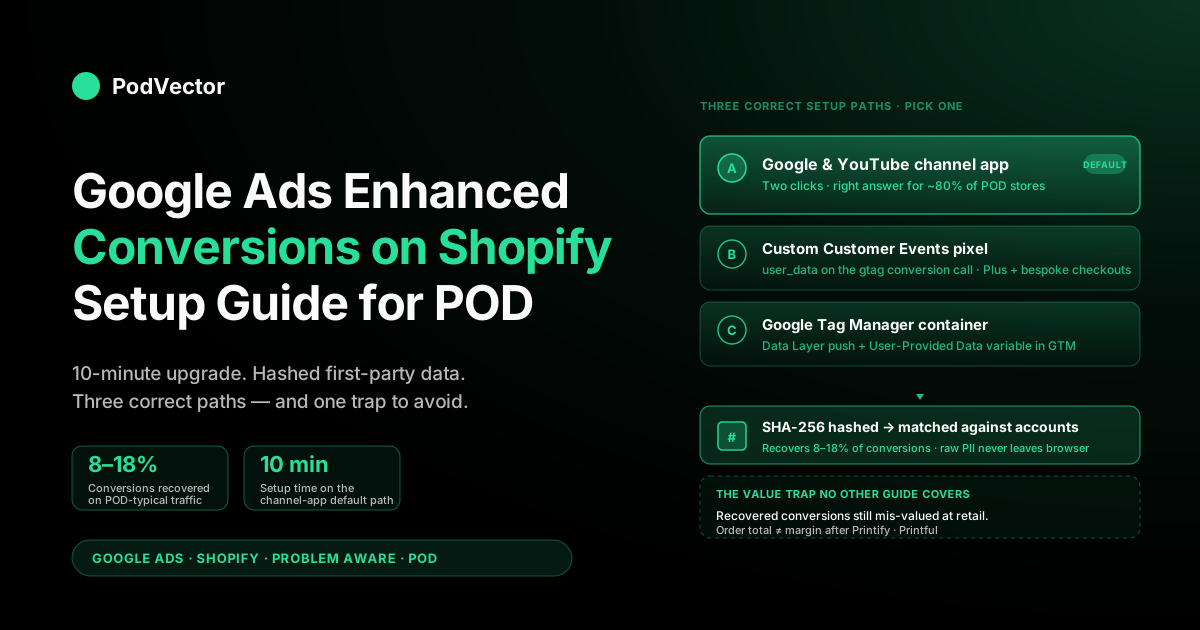
Quick Answer: Enhanced conversions on Shopify is a 10-minute upgrade that ships hashed customer email and address fields with each Google Ads Purchase event so Google can recover the 8–18% of conversions that cookie deprecation, iOS Mail Privacy Protection, and cross-device journeys would otherwise hide. Two correct setup paths in 2026: enable the toggle inside the Google & YouTube Shopify channel app (the right answer for ~80% of POD stores), or wire the user_data object into a custom Customer Events pixel (the right answer when channel app constraints don't fit).
The piece every other guide skips: enhanced conversions recover the count of attributed conversions but they don't change the value, and a Printify or Printful store reporting full retail revenue as conversion value is feeding Smart Bidding a number that's 35–50% too high — recovered or not. This guide walks the setup, the verification, and the POD-specific value calibration that turns recovered conversions into accurate ROAS signal.
Why enhanced conversions matter for a POD store
The standard Google Ads conversion pixel attributes a sale to an ad click by reading the GCLID parameter from a cookie that was set when the user first clicked the ad. That cookie can vanish six different ways: third-party cookie blocking in Safari and Brave, the privacy-first defaults shipped in iOS 17 and forward, cross-device journeys where the click happened on mobile and the purchase happened on desktop, aggressive ad blockers that strip the GCLID parameter from the destination URL, browser session expiration on a slow research-then-buy cycle, and the user clearing cookies between visits.
When the cookie is gone, the conversion is invisible to Google Ads even when the sale clearly came from an ad. Reported ROAS drops, Smart Bidding's training data degrades, and the campaign looks worse than it actually is.
Enhanced conversions plug the leak with hashed first-party identifiers. At checkout, your Shopify store already knows the customer's email address and shipping details.
The enhanced-conversions pixel hashes those values in the browser using SHA-256 — so the underlying personally identifiable data never leaves the user's device unhashed — then ships the hashes to Google alongside the conversion event. On Google's end, those hashes are matched against the equivalent hashes generated for logged-in Google account holders.
When the match succeeds, Google can rebuild the click-to-conversion attribution even when the GCLID cookie itself is missing. Reported conversion count and value go back up to where they should have been all along.
For POD stores running Google Shopping or Performance Max campaigns, the recovery rate inside the first 30 days of enabling enhanced sits in the 8–18% range across the accounts we audit. For a store spending $20K/month on Google Ads at a reported 2.4× ROAS, an 11% recovery is the difference between $48K and $53K of attributed revenue, and — more importantly — the difference between Smart Bidding training on accurate signal versus systematically underbidding because a chunk of conversions look like organic traffic. The opportunity cost of not enabling enhanced compounds week over week as Google's bidding model tunes itself against artificially low ROAS data.
This guide assumes you already have basic Google Ads conversion tracking working on your Shopify store. If you don't, start with the Shopify Google Ads conversion tracking setup guide first — enhanced conversions are an upgrade on top of working conversion tracking, not a replacement for it.
Prerequisites: the four things that must be true first
Before you flip the enhanced-conversions toggle, four conditions need to hold. Skipping any one of them produces silent failure modes that take longer to diagnose than the setup itself.
1. Admin access on the Google Ads account. Manager access is not enough — enabling enhanced conversions requires accepting the Customer Data Terms, and only an account-level admin can do that. If the toggle is greyed out when you try to flip it, this is almost always why.
2. Working basic Purchase conversion tracking. Open Goals → Conversions → Summary in Google Ads. Your Shopify Purchase conversion action should show "Recording conversions" with traffic flowing through inside the last 7 days. If it shows "No recent conversions" or "Inactive," fix that before adding the enhanced layer.
3. Privacy policy that mentions sharing hashed customer data with advertising partners. Most Shopify stores already cover this with a generic third-party-data clause, but verify the language is there. If you operate in the EU or UK, the cookie banner copy should also reflect this — Google's Customer Data Terms specifically require it, and the Diagnostics tab will eventually flag accounts where consent posture and pixel behavior don't line up.
4. Consent Mode v2 wired up if you operate in the EU, UK, or California. Enhanced conversions only fire when the ad_user_data and ad_personalization consent signals are granted.
Cookiebot, OneTrust, Iubenda, and Klaviyo's built-in consent banner all support the v2 spec. The wiring is non-optional in those geographies, and enhanced conversions on a non-Consent-Mode-v2 store in those markets will throw a "Customer Data Terms violation" warning on the Diagnostics tab within two weeks of go-live.
One additional POD-specific prerequisite that nobody else lists: confirm your supplier cost-per-SKU is documented somewhere structured before you spend an afternoon perfecting enhanced conversions. Recovering 14% more conversions while still reporting full retail price as conversion value is mathematical progress, but it's the same systematic margin signal leak just at higher volume. We come back to this in the value trap section.
Path A: Google & YouTube channel app (the default)
If your Shopify store uses the Google & YouTube channel app for conversion tracking — which is the right default for most POD stores under roughly $200K MRR — turning on enhanced conversions is two clicks. The channel app handles the hashing, the consent integration, and the gtag.js field mapping for you. Three steps:
Step 1: Accept the Customer Data Terms in Google Ads
In Google Ads, go to Admin → Account access → Account settings → Customer data terms. Read the page once (it's roughly two screens of plain English about how Google handles the hashed data and the matching), then accept.
The enhanced-conversions toggle won't be available in any conversion-action settings until this is done. If the option is greyed out after acceptance, you're almost certainly logged in as a manager-level user instead of admin — switch to an account-admin user and the rest of the flow opens up.
Step 2: Enable enhanced conversions on the Purchase conversion action
Goals → Conversions → Summary → click into your Shopify Purchase conversion action → Diagnostics tab → "Enhanced conversions for web" → toggle on → choose "Google tag" as the integration method. Google then asks how you want to provide the customer data; for the Google & YouTube channel app, the answer is "automatic detection from the page." The Shopify-managed gtag implementation already exposes the email and shipping address fields in a structure Google's tag can find without any code changes on your end.
Google relocates this control more often than any other setting in the product, so don't panic if the layout above doesn't match what you see. As of mid-2026 the toggle also lives under Goals → Conversions → Settings → "Enhanced conversions" (an account-level switch that applies to all web conversion actions), and the per-action toggle sits inside the conversion action's Settings section as well as the Diagnostics tab. Enable it in either place — the flag is the same underlying setting.
Step 3: Confirm Shopify knows enhanced is on
Back in Shopify admin, open the Google & YouTube channel → Settings → Conversion tracking. You should see "Enhanced conversions: enabled" displayed.
The channel app polls Google Ads for this flag and adjusts the customer-events pixel payload accordingly. If it doesn't show enabled within 30 minutes, disconnect and reconnect the Google Ads link — the OAuth token refresh forces a re-sync and resolves about 80% of these stuck-state cases.
After 24–72 hours of normal Purchase volume, the Diagnostics tab in your Purchase conversion action will flip to "Receiving data" with a percentage match rate displayed. We get into what that match rate should look like in the match rate section.
The deeper walkthrough of every option inside this flow lives in Google Ads enhanced conversion setup on Shopify — the same setup story with more screenshots of edge-case dialogs.
Path B: Custom Customer Events pixel (when Path A won't fit)
The manual path exists for stores that can't or shouldn't use the Google & YouTube channel app — typically Shopify Plus stores with checkout customizations the channel pixel mishandles, stores already invested in a custom Customer Events pixel with bespoke tracking logic, or stores that need explicit control over the conversion payload for compliance review. For a standard POD store on standard Shopify checkout, Path A is faster and more reliable; this section is for the cases where you have a genuine reason.
Step 1: Verify your existing Google Ads pixel is firing
Customer Events → your existing Google Ads custom pixel → confirm it shows "Connected" status. The enhanced-conversions parameters are an addition to your existing gtag('event', 'conversion', {...}) call, not a replacement for it. If the basic Purchase event isn't firing correctly first, fix that before adding the enhanced layer — you'll only compound the diagnostic complexity.
Step 2: Add the user_data object to the conversion payload
Inside your Customer Events pixel, find the line that calls gtag('event', 'conversion', {...}) on the checkout_completed event subscription. Add a user_data object to the same payload, populated from the live Shopify checkout context. The high-leverage fields, in priority order:
email_address— mapped fromcheckout.emailaddress.first_name,address.last_name— fromcheckout.shippingAddress.firstName/lastNameaddress.street,address.city,address.region,address.postal_code,address.country— from the correspondingcheckout.shippingAddressfieldsphone_number— fromcheckout.shippingAddress.phone(optional, but bumps match rate by 2–4 points)
The hashing happens automatically. Google's gtag.js detects a user_data object on a conversion event, applies SHA-256 hashing to each value before transmission, and sends only the hashes. Don't pre-hash anything yourself — pre-hashed payloads trigger a different gtag code path with stricter validation rules that's easy to misconfigure.
Step 3: Save and verify with Tag Assistant
Save the pixel, run a real test order through your live store, and use the Google Tag Assistant Chrome extension on the order-confirmation page. Tag Assistant should show: Conversion event fired, "Enhanced conversions data attached" with a green checkmark, and the list of detected match-candidate fields. If Tag Assistant shows the conversion event but no enhanced-conversion data, the most common cause is that your Customer Events pixel reads from init.data instead of the live checkout context — Shopify exposes both for compatibility, but only the live checkout object has populated address fields at the moment checkout_completed fires.
Path C: Google Tag Manager web container
For stores running a Google Tag Manager web container (often layered on top of Customer Events for stores running multiple ad-platform pixels through a single GTM hub), the setup happens inside GTM. The architecture: a Data Layer push on the order-confirmation page exposes the customer email and address to GTM, and a Google Ads Conversion Tracking tag with enhanced conversions enabled reads those Data Layer variables and attaches the hashed identifiers to the outbound conversion.
Step 1: Push customer data to the Data Layer on the thank-you page
In Shopify, the cleanest implementation is a small additional script in the checkout's "Order status page additional scripts" field that pushes email, shipping_first_name, shipping_last_name, shipping_street, shipping_city, shipping_postal_code, and shipping_country to window.dataLayer with an event name like purchase_with_user_data. Use Shopify's Liquid templating ({{ checkout.email }}, {{ shipping_address.first_name }}, and so on) to populate the values server-side before the page renders.
Step 2: Create Data Layer Variables in GTM
In your GTM container, create a Data Layer Variable for each customer-data field — dlv.email, dlv.shipping_first_name, and so on. These get referenced by the conversion tag in the next step.
Step 3: Configure the Google Ads Conversion Tracking tag
Edit your existing Google Ads Conversion Tracking tag (or create one). In the tag settings, enable "Include user-provided data from your website" and select "New variable" → User-Provided Data variable type.
Map each Data Layer Variable from Step 2 to the corresponding User-Provided Data field in the dropdown. Set the trigger to fire on the purchase_with_user_data Data Layer event.
Step 4: Preview and publish
Use GTM's Preview mode to run a real test order through. The Tag Assistant integration in Preview will show whether the User-Provided Data Variable was successfully populated and attached to the outbound conversion. If any field shows as undefined, your Data Layer push is firing before Shopify Liquid has populated the value — move the script lower in the order status page additional scripts field so it executes after the Liquid context is fully resolved.
A note on server-side forwarding apps. A growing number of Shopify conversion-tracking apps (and Google's own server-to-server rollout for Shopify stores) now read the checkout customer data, hash the fields per Google's spec, and forward the conversion server-side — no browser pixel, no GTM container to maintain. For a POD operator this is worth considering only if you're already fighting ad-blocker or iOS payload loss that Paths A–C can't fully close, since server-side forwarding is immune to client-side blocking. It's not a different feature — it's the same enhanced-conversions match on a more resilient transport. The setup, verification, match-rate, and value-calibration discipline in this guide all still apply; you're just moving where the hashed payload originates.
Verifying enhanced conversions are firing correctly
Three checks separate "I flipped the toggle" from "enhanced conversions are actually working in production":
Check 1: Diagnostics tab shows "Receiving data" and a Good data-quality rating. Goals → Conversions → click into your Shopify Purchase conversion action → Diagnostics tab. Inside 24–72 hours of the first qualifying purchase, the Enhanced conversions row should read "Receiving data" with a numeric match rate displayed below it. Google also assigns the conversion action an overall data-quality rating that climbs through three states as the match rate settles — Poor (critical warnings or a match rate too low to model against), Fair (data is flowing but a field is missing or consent is denying a meaningful share of events), and Good (healthy match rate, no warnings). "Good" is the target; anything stuck at Poor or Fair after 72 hours points at one of the failure modes below.
Check 2: Tag Assistant on a real order-confirmation page. Install the Google Tag Assistant Chrome extension, place a real test order on your live store (you can refund yourself afterwards — Shopify's Bogus gateway does not reliably trigger the full Customer Events pipeline), and on the order-confirmation page open Tag Assistant. Look for the Google Ads Conversion event with a green "Enhanced conversions data" indicator and the matched-fields list (typically: email, first name, last name, street address, postal code, country).
Check 3: Conversion uplift visible in 14–30 days. Compare the 14 days before and 14 days after enabling enhanced. Reported Purchase conversions and conversion value should both rise — typically 8–18% on POD-typical traffic, weighted toward the higher end of that range if your traffic skews iOS or international. If you see no uplift after 14 days, you likely have a payload issue (Tag Assistant will catch it) or a consent issue (Diagnostics tab will warn you within 7 days).
What a healthy match rate looks like for POD traffic
The match-rate percentage on the Diagnostics tab is the share of conversion events where Google was able to match at least one hashed identifier to a logged-in Google account. It's not the same as the recovery rate (the actual lift in attributed conversions); it's an upstream input to that calculation. It's also the main lever behind the Poor/Fair/Good data-quality rating from the verification step — a match rate in the healthy band earns "Good," a marginal one earns "Fair," and a payload or consent problem drags it to "Poor."
For a U.S.-heavy POD Shopify store:
- 60–80% match rate: healthy. This is the band most POD stores land in once Path A or Path B is correctly configured.
- 40–60% match rate: usable, but worth investigating. Often a sign that your traffic mix skews international (lower Google account login rate in some regions) or that your CMP is denying
ad_user_datafor a meaningful share of users. - Below 40% match rate: almost always a configuration problem rather than a real ceiling. The two most common causes: pixel reading from a stale checkout context (returns empty strings for address fields, which Google can't hash to anything matchable), or Consent Mode v2 mis-wired such that consent denial blocks the entire payload instead of just the personalization signal.
If your store sells internationally, expect a lower headline match rate — Google account login penetration varies by country, and the matchable population is structurally smaller in markets where Apple ID or local equivalents dominate. A 55% match rate on a U.K.-heavy store is functionally the same as a 75% match rate on a U.S.-heavy one.
The value trap: why recovered conversions still mislead Smart Bidding
This is the section every other Shopify enhanced-conversions guide skips, and it's the part that matters most for a POD store. Enhanced conversions recover the count of attributed conversions.
They do not change the value attached to each conversion. If your Shopify store has been shipping order total — i.e., full retail revenue — as the conversion value to Google Ads, then enhanced conversions just recover more conversions that are still mis-valued at retail instead of contribution margin.
For a Printify- or Printful-fulfilled store, the gap between revenue and contribution margin is large enough that bidding against revenue produces systematically wrong decisions. A typical POD T-shirt example: $26.95 retail price, $11.20 Printify variable cost (base + print + variant fee), $4.85 shipping, $0.78 transaction fee, $0.65 platform fee.
Contribution margin per unit: roughly $9.47, or 35% of retail. Google's Smart Bidding does not know this. It sees $26.95 of conversion value land on a click and concludes the click was 2.85× more valuable than it actually was.
The downstream effect is that target ROAS bidding, configured against retail-value conversions, will always overpay. A target ROAS of 4.0× set against retail value translates to an effective contribution-margin ROAS of roughly 1.4× — break-even at best, loss-making after fixed costs. Stores that scale Performance Max or Standard Shopping campaigns hard against retail-value conversions tend to discover this six months in, when topline revenue keeps climbing but the bank balance plateaus.
The fix has two parts. First, replace the conversion value sent in the Purchase event with contribution margin instead of order total. This requires a per-SKU cost lookup at checkout time — feasible inside a Customer Events pixel if you have cost data available client-side, much cleaner via a server-side conversion using the Google Ads API where you can join order data against a cost table at calculation time.
Second, set your Smart Bidding target ROAS against contribution-margin ROAS rather than revenue ROAS. The target number changes (a 1.5× contribution-margin ROAS is the new "we're growing the business profitably" benchmark), but the bidding decisions Google makes against it are now actually profit-maximizing rather than revenue-maximizing.
This is where Victor helps POD stores. Victor looks at your Shopify orders, your Printify and Printful product costs, your shipping costs, and your Google Ads spend all together. Then he tells you, in plain English, which campaigns are actually making you money after costs.
Asking "what's our contribution margin ROAS on the U.S. Performance Max campaign over the last 14 days?" produces a number that's 35–50% lower than the headline ROAS Google Ads displays — and it's the number that should be driving your bid adjustments. Victor answers; the employee roadmap is to have Victor adjust the bid targets in Google Ads directly when the contribution-margin ROAS drifts outside guardrails. For deeper context on why retail-value reporting silently kills POD profitability, see the complete guide to Google Ads + Shopify integration for POD.
Consent Mode v2 for Shopify stores in EU/UK/California
If any meaningful share of your Shopify traffic comes from the EU, UK, or California, Consent Mode v2 is not optional — it's the mechanism by which Google reconciles user consent state with conversion-event behavior. Enhanced conversions specifically depend on the ad_user_data consent signal being granted. When a user denies marketing consent through your CMP, the enhanced-conversions payload is stripped from the outbound event before transmission, and Google falls back to its modeled-conversions estimate to fill the gap.
The Shopify-friendly CMPs that support Consent Mode v2 cleanly: Cookiebot, OneTrust, Iubenda, and the consent banner built into Klaviyo's checkout extension. All four publish Shopify-specific install guides that handle the gtag consent-state initialization correctly.
The implementation gotcha that bites operators: setting the consent defaults to denied at page load (correct), but failing to update the consent state when the user accepts (incorrect). The result is enhanced-conversions data being stripped from every event regardless of what users actually consented to. The Diagnostics tab will eventually flag this as "low match rate due to consent denial," but it can take 14+ days to surface.
For stores that aren't currently using a CMP and have non-trivial EU/UK/California traffic, the right next step is installing one before enabling enhanced conversions, not after. The Customer Data Terms acceptance has compliance implications that get easier to defend with a CMP audit trail in place from day one.
Five common failure modes and how to fix them
Failure 1: "Customer Data Terms not accepted" warning persists after acceptance. You accepted as a manager-level user instead of an account admin. Switch to an account-admin user, accept again, then disconnect and reconnect the Shopify Google channel link to force a re-sync. Resolves within 30 minutes.
Failure 2: Diagnostics tab shows "No data" 72+ hours after enabling. Most often: your Purchase conversion action is firing through a different conversion ID than the one you enabled enhanced on. Check that the channel app is configured to use the same Purchase conversion action you enabled enhanced for, not a duplicate created during a previous setup attempt.
Failure 3: Match rate stuck below 30%. Either Consent Mode v2 is mis-wired (denying ad_user_data for users who actually consented) or your Customer Events pixel is reading from init.data instead of the live checkout context. Run Tag Assistant on a real order-confirmation page; the matched-fields list will show empty strings if the second issue applies.
Failure 4: Enhanced conversions enabled but no conversion uplift after 30 days. Likely your traffic mix doesn't have enough of the gap that enhanced is designed to fix — heavily desktop-Chrome-on-Windows traffic with Google account login already has near-100% cookie attribution, so enhanced has nothing to recover. This isn't a problem to fix; it's a signal that your tracking was already healthy.
Failure 5: Enhanced conversions enabled, conversions recovered, but ROAS still drifts down over time. The value trap. Enhanced is doing its job on conversion count; the value attached to each conversion is still wrong because you're shipping retail revenue instead of contribution margin. Read the value trap section, and consider a server-side Google Ads API conversion path that can attach the calibrated value at upload time.
FAQs
Does enabling enhanced conversions on Shopify break my existing Google Ads conversion tracking?
No. Enhanced conversions are an additive layer on top of your existing Purchase conversion action — they ship additional fields with each event, they don't replace the underlying conversion mechanism. If your basic Purchase tracking works before you flip the toggle, it keeps working after.
How long until I see the conversion uplift in Google Ads?
The Diagnostics tab flips to "Receiving data" within 24–72 hours of the first qualifying purchase. The conversion-uplift signal in your reporting takes 14–30 days to stabilize because Google's modeling uses a multi-week lookback window. Don't make bidding-strategy decisions based on the first 7 days of post-enable data.
Do enhanced conversions work with Google Consent Mode v2 in the EU?
Yes, and they require it. When a user grants ad_user_data and ad_personalization consent through your CMP, enhanced conversions fire normally.
When the user denies consent, the payload is stripped before transmission and Google falls back to modeled conversions. The two systems are designed to interoperate; what they're not designed to tolerate is a CMP misconfiguration that defaults to denied without ever updating to granted on accept.
Can I enable enhanced conversions without the Google & YouTube channel app?
Yes — Path B (custom Customer Events pixel) and Path C (GTM web container) both work. The channel app is the path of least resistance for stores that don't have a specific reason to avoid it; manual paths are correct when you need explicit control over the payload.
Does enhanced conversions fix the value of my conversions or just the count?
Just the count. The conversion value attached to each event is whatever your existing pixel sends — Shopify's default is order total. For POD stores running on Printify or Printful, that order total is materially higher than contribution margin, and Smart Bidding optimizes against it as if it were profit. See the value trap section for the calibration approach that turns recovered conversions into accurate ROAS signal.
What's the relationship between enhanced conversions and Customer Match audiences?
They share the same hashed-identifier infrastructure but serve different purposes. Enhanced conversions improve attribution accuracy by matching hashes against existing logged-in account holders at conversion time.
Customer Match builds remarketing audiences from hashed customer lists you upload separately. Enabling enhanced conversions does not automatically populate Customer Match audiences; you upload those through a different flow under Audience Manager.
Does this guide apply to Shopify Plus stores with custom checkout extensions?
Path A still works for most Shopify Plus stores — the Google & YouTube channel app is checkout-extension aware. When custom checkout components rearrange the email/address fields in ways the channel pixel doesn't recognize, fall back to Path B (custom Customer Events pixel) where you can map the live checkout context directly to the user_data object and bypass the field-detection step entirely.
Where does this fit in the broader Google Ads + Shopify integration story?
Enhanced conversions are one layer in the integration stack. The full picture — Merchant Center feeds, Shopping campaigns, conversion tracking, audiences, and the cross-channel attribution that depends on all of them — lives in our Google Ads + Shopify integrations cluster and the broader Google Ads topic hub. For Google's own canonical reference on the conversion-tracking foundation that enhanced sits on top of, see the Google Ads Help: conversion tracking with the Google & YouTube app on Shopify.
Recover the conversions, calibrate the value, then ask Victor what's actually profitable
Enhanced conversions fix the conversion count Google sees. Victor fixes the answer to the question that actually matters: which campaigns are growing your real profit and which are scaling unprofitable revenue. He brings together your Shopify orders, Printify and Printful supplier costs, and Google Ads spend, and explains it in plain English.
Try Victor free