
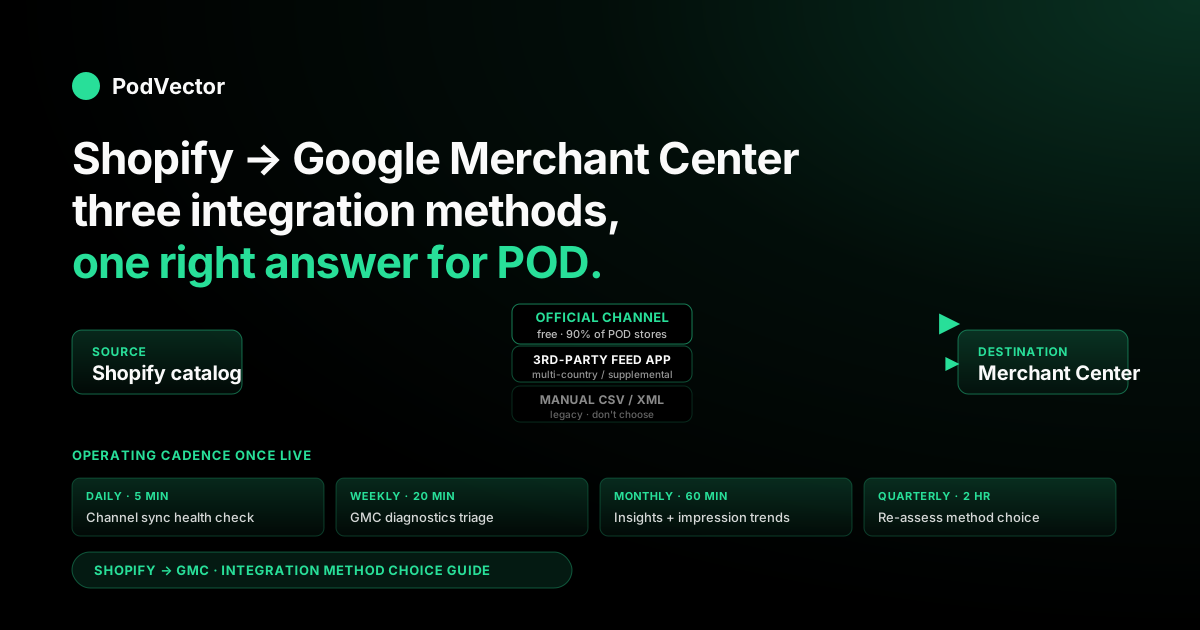
Quick Answer: The Shopify ↔ Google Merchant Center (GMC) integration is the data pipeline that turns your Shopify catalog into a Google Shopping feed. In 2026 there are three legitimate ways to wire it: the official Google & YouTube channel (free, supported, right answer for ~90% of POD stores), a third-party feed app like DataFeedWatch or Simprosys (right when you're running multi-country variants or supplemental feeds), and a manual scheduled CSV/XML feed (right almost never — brittle, slow, and ineligible for automatic itemisations). This guide walks through method selection, the official channel install end-to-end, the post-setup operating cadence (daily, weekly, monthly tasks), and the four POD-specific feed defects that suppress impressions even after products are technically "approved."
Three integration methods and which one fits your POD store
Before you click anything, decide which integration method you're committing to, because switching later means re-verifying the domain, re-establishing feed history, and resetting some of GMC's quality signals. Three choices are realistic for POD sellers in 2026:
Option 1: The official Google & YouTube sales channel. Free, owned by Google rather than a third-party developer, and the path Google's documentation references when its support team troubleshoots problems. The channel handles OAuth, feed sync (every 30 minutes for deltas, daily for full refresh), GMC account linking, and Performance Max integration in one install.
It's the right default for any POD store under roughly $200K MRR with a single primary fulfilment market. About 90% of POD stores should use this and never reach its limits.
Option 2: A third-party feed management app — DataFeedWatch, Simprosys, Feedonomics, or Mulwi. These apps add capabilities the official channel doesn't expose: multi-country supplemental feeds with currency and language transformations, custom feed rules (e.g., append "Custom Print" to titles for products tagged "personalised"), Bing Shopping and Pinterest catalog sync from the same product data, and bulk attribute editing without round-tripping through Shopify metafields.
They cost $30–$200/month depending on SKU count. The decision criterion: if you sell into more than two markets with different languages, or run more than one ad surface (Google + Microsoft, or Google + Pinterest), a feed app stops being a luxury and starts being infrastructure.
Option 3: Manual CSV or XML feed upload — you export Shopify product data, transform it to GMC's required schema, and upload (or schedule fetch) into Merchant Center. This was once the only option and is still technically supported.
Don't choose it. The official channel's automatic itemisation, real-time inventory sync, and price-mismatch auto-detection are all unavailable for manually uploaded feeds. The only reason a POD seller would land here is if their store is on a platform that can't run the channel (rare on Shopify) or if a misconfigured agency talked them into it years ago.
The rest of this guide assumes you've chosen Option 1, the official channel. If you're sure you need Option 2, the channel still installs first (because GMC requires a domain claim and the channel handles it cleanly), then you connect the third-party app on top as a supplemental feed. Don't skip the channel just because a feed app salesperson said you don't need it.
What to fix in Shopify before installing the channel
Eight conditions should hold on your Shopify store before you click "Install" on the Google & YouTube channel. Skipping any of them produces errors that look like channel bugs but are upstream data issues; fixing them after the fact requires re-syncing the entire feed:
- Paid Shopify plan with at least one published product visible to Google. Trial-mode stores and password-protected storefronts can install the channel but feeds won't activate until the store is publicly accessible to Googlebot.
- Privacy policy, refund/return policy, terms of service, and contact information page published. GMC's misrepresentation policy auto-checks for these. Without all four, expect a store-level suspension within 72 hours of feed activation.
- Shipping policy that matches actual POD fulfilment timing. If your store says "ships in 2–3 days" but Printify's blank ships in 5–8 days, GMC's automated comparison flags the mismatch and disapproves products.
- Tax settings configured per shipping country. Each country you ship to needs Shopify Settings → Taxes either configured with rates or marked "tax included in price."
- Product Vendor field set to your brand on every product. Most POD product templates leave Vendor as blank, "Printify," or "Printful." Vendor flows through to GMC as the brand attribute, and a missing or wrong brand triggers identifier disapprovals.
- Variant Barcode field empty for products without GTINs. Custom POD designs have no UPC/EAN/ISBN. Leave Barcode empty so the channel can flag identifier_exists = no automatically.
- Product images at 800x800 minimum, lifestyle mockups preferred. GMC's image-quality threshold is 800x800. Older Printify mockup templates output 600x600 — switch to the high-resolution mockup options.
- Shipping zones reflect POD fulfilment reality. Printify orders fulfil from the partner facility nearest the customer; Shopify zones should enable every region your supplier prints in, with delivery-time ranges that match actual print partner timing per region.
One under-mentioned prerequisite that catches POD sellers specifically: confirm your Shopify product types and collections actually map cleanly to Google's product taxonomy. If you've named your product types "Tee Shirts" or "T's" rather than "T-Shirts," the channel's auto-taxonomy mapper will misclassify them and you'll get blanket category-mismatch warnings on hundreds of products at once. Walk through your Shopify product types in Settings → Catalog and standardise them to Google-recognisable names before installing.
Installing the official Google & YouTube channel
From Shopify admin, click the green plus icon next to "Sales channels" in the left sidebar. Search for "Google & YouTube." The result page shows the official Google-published app at the top. Click Add channel → Add sales channel → accept the permissions prompt. Installation takes about 30 seconds.
The channel admin page opens to a guided setup wizard that runs through OAuth, GMC linking, domain verification, shipping configuration, and taxonomy mapping in a single five-step flow. Complete the wizard end-to-end on the first install rather than partial-completing — the channel's state machine is unforgiving about half-complete progress, and operators who close the tab mid-wizard often end up with a half-linked account that requires uninstalling and reinstalling to recover. Block out 30 minutes of uninterrupted time for the install rather than starting it between meetings.
Two third-party apps in the Shopify App Store will look like alternatives to the official channel during your search: "Google Shopping Feed" by Simprosys and "Google & YouTube" listings by various developers. The official one is published by Google itself with the small Google logo on the listing tile and over 200,000 installs.
It's free; the Simprosys app has a paid tier. If you've already chosen the third-party route per the method-choice section, install the official channel first, then add the third-party app as a feed enhancement layer. If you're going official-only, ignore the third-party listings entirely.
Connecting Google account and linking Merchant Center
The wizard's first step is "Connect Google account." Click Connect → an OAuth pop-up opens → pick the Google account you want to own (or that already owns) the Merchant Center account. Two judgment calls happen in the next 60 seconds that are hard to reverse:
Which Google account becomes the GMC owner? The first Google account you authorise becomes the canonical owner if no GMC exists yet. If you'll later need a shared @yourbrand.com address as the owner of record (because the personal Gmail you used for the trial isn't appropriate for an established business), set that up now before clicking through the OAuth flow. Switching ownership later forces a re-verification cycle and resets some performance history.
Link to existing GMC or create new? If your authorised Google account already has access to a Merchant Center (because you ran Google Shopping previously through WooCommerce, BigCommerce, or a manual feed), the channel offers a "Link to existing Merchant Center" option. Link rather than create when the existing GMC has clean history — you preserve performance data, domain verification, and approved feed history. Create new when the existing GMC has accumulated suspensions or policy violations you'd rather not inherit.
Grant every permission Shopify requests during OAuth: read Google profile, manage Merchant Center, manage Google Ads conversion tracking (granted even if you're not using Google Ads yet, because the same OAuth token covers both), and read YouTube channel. The wizard advances automatically once the OAuth callback completes.
If the pop-up closes without returning to the wizard, the cause is usually browser pop-up or third-party cookie blocking — Safari and Brave with default settings block the postMessage callback. Either disable pop-up blocking for shopify.com for the install, or do this step in Chrome and switch back afterwards.
The conversion-tracking side of OAuth gets configured the first time you install the channel even if you're not running ads yet. That's intentional: when you eventually link a Google Ads account, the channel can wire conversion tracking automatically without re-authorising. We cover the Ads-side of this handshake separately in the step-by-step Shopify-to-GMC connection guide and the conversion-tracking pipeline in our enhanced conversions setup walkthrough.
Configuring the feed: shipping, taxonomy, attributes
After OAuth and account linking, the channel auto-claims your Shopify domain in GMC by injecting a verification meta tag into your storefront's <head>. For ~95% of stores this completes in seconds. If domain verification stays pending past five minutes, the cause is almost always either a custom theme that strips the meta tag (fix: ensure {{ content_for_header }} is present at the top of theme.liquid's <head> section), or a previous claim sitting on a different Google account (fix: have whoever holds the prior claim release it from Search Console or contact GMC support).
Once domain verification is green, configure shipping. The channel offers two paths: "Pull from Shopify" (default) and "Configure manually in GMC." For POD stores the default Shopify-pull is correct — whatever shipping zones you configured in Shopify get carried to GMC automatically.
Walk through every country your store ships to and confirm both the cost and the delivery-time range match real Printify or Printful timing for that region. Mismatches between stated and actual delivery time are the second-most-common cause of POD store suspensions after the misrepresentation policy.
Next is product taxonomy. The integration auto-maps Shopify product type and collection metadata to Google's product category taxonomy.
For most POD products this is approximately right: t-shirts get Apparel & Accessories > Clothing > Shirts & Tops; mugs get Home & Garden > Kitchen & Dining > Tableware > Drinkware; phone cases get Electronics > Communications > Telephony > Mobile Phone Accessories; canvas prints get Home & Garden > Decor > Artwork > Posters, Prints & Visual Artwork; tote bags get Apparel & Accessories > Handbags, Wallets & Cases > Tote Bags. Review the auto-mapped categories under Catalog → Products in the channel admin, sorting by "Google product category" to spot anomalies. Override the wrong ones via the channel's product detail view rather than editing in GMC directly — per the integration's directionality, GMC-side overrides get wiped on the next sync from Shopify.
Finally, attribute mapping. The channel exposes a "Field mapping" view where every GMC attribute (color, size, material, age_group, gender, pattern, etc.) shows a dropdown for which Shopify field or metafield should populate it.
The metafields most worth mapping for POD: color, size, material, age_group, gender, and pattern (graphic, solid, plaid, etc.). Filling these makes your products eligible for Google Shopping's left-rail filters, which is where unbranded organic Shopping traffic actually clicks from. Skipping them doesn't break the integration but it does suppress your impressions on filtered queries.
First sync, approval timeline, and what "synced" really means
With domain, shipping, taxonomy, and attributes configured, the channel begins its initial product sync to GMC. The first sync takes 1–24 hours depending on catalog size: POD stores with 50–500 SKUs typically see initial sync complete in under two hours; stores with 5,000+ designs across multiple product templates can take a full day. Sync status appears on the channel Overview tab as "X products synced, Y errors, Z disapproved."
"Synced" and "approved" are different states and the distinction trips up most operators on day one. Synced means the product reached GMC's catalog. Approved is a separate state that requires GMC's automated and (for some categories) manual review to pass, taking another 3–5 business days for the initial bulk review. So the first 1–24 hours give you a "products synced" count; days 1–5 give you the "approved versus disapproved" split.
Most POD operators panic on day 1 when they see "Pending" against most of their catalog. That's expected. Wait until day 5 before troubleshooting at the SKU level.
While the sync runs, monitor the channel admin's "Errors" tab for feed-level issues that block whole categories of products from even reaching the catalog. Common day-zero errors: missing GTIN exemption flag, invalid shipping configuration for a country in your shipping zones, missing tax for a country, brand attribute empty, image URL returning 4xx (most often because the Shopify CDN was warming and a few images returned 404 transiently). Each of these blocks a slice of the feed; fixing them and triggering a re-sync from the Overview tab unblocks the next layer of products to enter review.
Day-five outcomes for a typical POD catalog with the prerequisites met: ~85% approved, ~10% disapproved for fixable reasons (missing brand, image quality, shipping mismatch), ~5% disapproved for harder reasons (policy issues with the design itself, restricted-keyword titles, trademark-flagged SKUs). The 5% category is where you make hard product-portfolio calls about whether to fix or delist.
Operating cadence: what to check daily, weekly, monthly
The integration isn't a one-time setup. Once it's live, treat the GMC channel admin and the Merchant Center diagnostics page like any other operational dashboard with a recurring cadence:
Daily (5 minutes). Open the channel Overview tab. Confirm the sync is green — no error banners, no surge in disapproved-product count, no "feed paused" notice.
The most common day-to-day breakage is a single popular SKU getting disapproved overnight (usually for a newly flagged image or a price mismatch when you ran a flash sale). The 5-minute daily check catches it before it costs you a day's worth of impressions on that product.
Weekly (20 minutes). Open Merchant Center directly → Diagnostics. Filter to "Items affected: any." Walk through the issue list and triage: fix the bulk-fixable issues (image quality, missing attribute, mismatched availability) by editing the source in Shopify and triggering a manual sync.
Acknowledge but don't necessarily fix the long-tail issues (one-off policy warnings on individual SKUs — sometimes the right call is to delist that SKU). Also weekly: check the "Performance" tab for impression and click trends. A drop of more than 30% week-over-week without an obvious cause usually means a feed-level issue, not a market issue.
Monthly (60 minutes). Run the Merchant Center "Insights" report against your top-selling SKUs — what queries are they showing for, what's the price competitiveness benchmark, what's the click-share trend. Also monthly: re-audit your shipping zones and delivery-time ranges against actual fulfilment data from Printify or Printful (timing drifts as suppliers change print partners). If you ran any new product launches in the prior month, walk the new SKUs' day-five approval status individually rather than relying on rolled-up catalog stats.
Quarterly (2 hours). Review whether the official channel is still the right method choice. As your store grows you may cross the threshold where a third-party feed app's capabilities pay for themselves — usually around the point you're running into one of three signals: you're expanding into a second language market, you're starting to need supplemental feeds for promotional pricing, or you're spending more than 5 hours per week on manual feed cleanup that a feed app's rules engine could automate.
Four POD-specific feed defects that quietly kill impressions
Approval is necessary but not sufficient. A product can be technically approved in GMC and still get almost no Shopping impressions because of feed defects that don't trigger a disapproval but downgrade the product's eligibility in Google's auctions. Four defects are specifically common in POD catalogs:
Defect 1: Generic product titles. POD designers often title products with the design concept rather than the product attributes Google needs ("Mountain Sunset" rather than "Mountain Sunset Unisex Crewneck T-Shirt | Cotton | Hiking Apparel"). Google's title-relevance scoring gives heavy weight to product type, material, gender/age, and use-case keywords.
A POD store that switches from concept-only titles to the structured format above typically sees a 40–80% impression lift within two weeks, with no other changes. Build a title template per product type and apply it via Shopify's bulk product editor or a metafield-driven Liquid template.
Defect 2: Single-image listings. Google Shopping rewards multiple images per product (up to 10 supported). POD stores that publish only the front mockup leave the multi-image slot empty.
Add at least three images per SKU: front mockup, back/detail mockup, and a lifestyle photo (from Printify's lifestyle template library or a separately commissioned shot). The lifestyle image is the most impactful for click-through-rate; without it your products look like generic catalog shots rather than something a real person would wear.
Defect 3: Misaligned product type vs. Google product category. Even when GMC's auto-mapper picks the right Google category, your Shopify product type field (which Google uses as a secondary signal for query matching) is often something operator-internal like "Apparel" or "Print Product" rather than a customer-language term. Set product types to terms a customer would search ("Unisex T-Shirt," "Coffee Mug," "Canvas Wall Art"), not internal taxonomy.
Defect 4: Missing or wrong gender / age_group / size_system attributes. Apparel and footwear in GMC require gender (male/female/unisex), age_group (adult/kids/toddler/baby), and size_system (US/UK/EU/etc.) attributes. Most POD products are unisex adult US-sized but the channel's defaults often leave these blank. Blank values don't trigger disapproval but they make the product ineligible for filtered queries like "men's t-shirt size XL." Set them via a Shopify metafield or directly in the channel's field-mapping view.
The throughline across all four defects: GMC is not just an approve/reject gate, it's a relevance-scoring engine, and POD feeds tend to underperform on the relevance dimension more than on the policy dimension. Fixing the four above is more impactful for impression volume than chasing the long tail of policy warnings on individual SKUs.
Measuring whether the integration is paying off
Once products are flowing and approved, the question stops being "is the feed healthy" and starts being "is the feed making us money." The default GMC and Shopify dashboards each tell half the story. GMC shows you impressions, clicks, and free-listing CTR but knows nothing about your COGS or fulfilment cost.
Shopify shows you orders and storefront conversion rate but doesn't natively split traffic-source profitability. The two halves don't reconcile out of the box, and the seam is where most POD operators lose visibility into whether Google Shopping — free listings or paid — is actually contributing to net profit after the Printify or Printful unit cost is paid.
The under-built piece in the standard tutorials is itemised cost subtraction at the SKU level. Shopify Reports tells you "Google paid: $4,200 revenue from 84 orders." It doesn't tell you that the 84 orders were 60% high-margin sticker SKUs (Printify cost: $1.20, retail: $4) and 40% low-margin all-over-print sweatshirt SKUs (Printify cost: $32, retail: $42). The blended profit on the $4,200 looks fine until you do the SKU-level math and realise the sweatshirt orders barely covered Printify cost after Shopping click cost.
Victor — PodVector AI's AI agent for POD sellers — closes that seam by joining your Shopify orders, your Printify or Printful itemised line costs, and your Google Ads spend in a warehouse, then answering profit-per-channel and profit-per-SKU questions in plain English. Ask "what was my net margin on Google Shopping orders last week, after Printify cost?" and you get a single number and the SKU-level breakdown that produced it, in roughly 30 seconds. The same architecture answers the same question for any traffic source, any campaign, any time window.
For broader context on how the GMC feed sits inside the larger Shopify-Google integration stack alongside Google Ads conversion tracking and the Performance Max campaign loop, see our complete Google Ads + Shopify integration guide. For the alternative ordering of the same setup — if you're starting from the GMC side rather than Shopify — the GMC→Shopify integration walkthrough covers the inverse perspective.
And the Integrations cluster hub aggregates every connection in this part of the stack. For POD-specific costs and margin tracking that this measurement section depends on, the Google Ads topic hub indexes everything around campaign profitability for print-on-demand stores.
FAQs
How long does the Shopify Google Merchant Center integration take to set up?
The hands-on configuration takes 20–30 minutes for a single-market POD store with the prerequisites met. The first feed sync runs in 1–24 hours after install.
Initial product approval review takes 3–5 business days. Plan for the full pipeline to take a week from "click install" to "first impression on a Google Shopping query," not the 30 minutes the install wizard implies.
Is the official Google & YouTube channel free?
Yes. The channel itself is free, the GMC account it links to is free, and free Shopping listings (the unpaid surface) cost nothing to participate in.
The only paid piece is Google Shopping ads (Performance Max or Standard Shopping campaigns), which is opt-in and runs separately from the integration itself. Most POD stores benefit from the integration even on the free-listing tier alone, before any ad spend.
Can I run both the official channel and a third-party feed app?
Yes, and it's the standard pattern once you outgrow the official channel's limits. The official channel handles the primary feed, domain verification, and account linking.
The third-party app supplies supplemental feeds (e.g., promotional pricing for a sale period, multi-language variants) layered on top of the primary. You don't replace the channel with a third-party app; you augment it.
Why do my products say "synced" but show no impressions in Google Shopping?
Three causes, in order of frequency. (1) Synced isn't the same as approved — check the channel's "Approved" count, not its "Synced" count, and wait at least five business days for initial review. (2) Approved isn't the same as competitive — if your titles, images, or attributes are weak (see the four defects in this guide), products show up but rarely win the auction. (3) Your shipping or tax setup isn't valid for the country a user is searching from, in which case the product is approved for some countries but excluded from others.
What happens to the integration if I change Shopify themes or domains?
Theme changes are usually safe as long as the new theme renders {{ content_for_header }} at the top of theme.liquid, because the domain verification meta tag lives in that block. Domain changes (moving from a .myshopify.com staging domain to a custom domain, or from one custom domain to another) require re-verifying the new domain in GMC and re-running the channel's domain claim. Plan domain changes around a low-traffic window because the feed pauses until the new domain is verified.
How does this integration relate to Google Ads conversion tracking?
They're separate pipes that share an OAuth token. The Merchant Center integration handles the product feed; Google Ads conversion tracking handles purchase event reporting back to your Ads account.
The official channel sets up both during install if you grant the conversion-tracking permission during OAuth. If you didn't grant it (or you installed the channel before adding Google Ads), you can re-authorise from the channel's settings and the conversion pipe activates without re-installing the channel.
Should POD sellers use the official channel or a third-party app?
The official channel for ~90% of POD stores. Switch to a third-party app (or layer one on top) when you have specific signals: multi-country/multi-language feeds, supplemental promotional pricing feeds, Bing or Pinterest catalog needs alongside Google, or 5+ weekly hours of manual feed cleanup that rules-based automation could absorb. Don't switch preemptively; the official channel is meaningfully better than its reputation in the third-party-app marketing copy.
See profit per Google Shopping order, not just revenue
Once your Shopify-GMC integration is live and approved, the next question is whether the orders are actually profitable after Printify or Printful unit cost. Victor joins Shopify orders, supplier itemised costs, and Google Ads spend in plain English — ask "what was my net margin on Google Shopping orders this week?" and get the number and the SKU breakdown in 30 seconds.
Try Victor free