
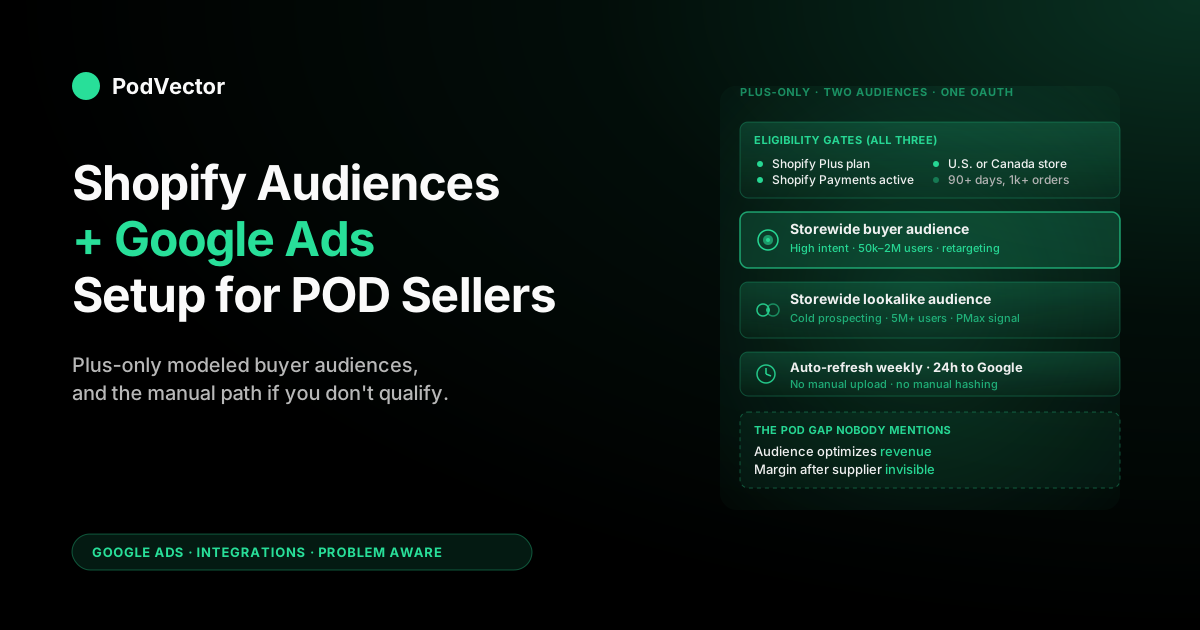
Quick Answer: Shopify Audiences is a Shopify Plus-only feature that auto-generates first-party audience lists from your store's purchase history and exports them as Customer Match audiences into Google Ads. The integration takes about 15 minutes through Apps → Audiences → Google → Generate audiences → Connect, after which Google receives two automatically refreshed audiences (a buyer-lookalike and a high-intent shopper segment) within 24 hours.
The setup is straightforward but it's gated by three eligibility rules — Plus plan, Shopify Payments enabled, and a U.S. or Canadian store address — that exclude most POD operators on Basic and Advanced plans. This guide walks the eligibility check, the connection flow, the audience-quality verification, and the manual Customer Match alternative for stores that don't qualify for the native integration.
What Shopify Audiences actually exports to Google Ads
Most operators reach this article from a Shopify rep or a Reddit thread that describes Shopify Audiences as "free retargeting lists from Shopify to Google Ads." That's directionally correct but compresses out the details that determine whether the feature is worth setting up. Here's what's actually going on under the hood.
Shopify Audiences is a feature inside the Shopify Apps panel that uses pooled, anonymized purchase data from across the Shopify network — not just your store — to build modeled audience segments and export them into your connected ad platforms. As of the 2024 Google Ads expansion, the feature ships two automatically generated audiences into Google Ads on every refresh:
- A storewide buyer audience. A modeled list of users likely to purchase from your store based on your historical buyer profile compared against the Shopify network's purchase signals. This is the high-intent retargeting and acquisition list — typically 50,000 to 2 million users depending on your category — and it's the one that does most of the work in Performance Max and Demand Gen campaigns.
- A storewide lookalike audience. A broader prospecting audience built from users with purchase patterns similar to your existing buyers but who haven't bought from you specifically. This is the cold-acquisition layer; it's bigger (often 5 million-plus) and lower-intent than the buyer audience, but useful as a top-of-funnel input to Smart Bidding.
Both audiences refresh automatically — Shopify recalculates them as your store accumulates new purchase data and the Google Ads-side audience updates within 24 hours of each refresh. You don't manage these as Customer Match lists in the traditional sense; Shopify handles the hashing, the upload, the policy compliance, and the refresh schedule. From your perspective inside Google Ads, they appear as two named audiences in your audience library, ready to attach to any campaign.
What Shopify Audiences is not: it isn't a replacement for first-party Customer Match using your own customer email list. The two are complementary, not redundant.
Your own Customer Match list (synced via the Google & YouTube channel app) contains your actual confirmed customers — narrow, high-confidence, perfect for retargeting and exclusions. Shopify Audiences contains modeled buyers based on network data — broader, lower-confidence, better for prospecting.
Run both. They sit in different places in the funnel.
Eligibility checklist (read before you start)
Shopify Audiences is gated behind three eligibility requirements that exclude most POD stores on Basic and Advanced plans. If you don't pass all three, skip to the manual Customer Match path below — there's no workaround on the Audiences side.
- Shopify Plus plan. Audiences is a Plus-tier feature. Basic, Shopify, and Advanced plans don't see the Audiences app in their Apps panel. The Plus minimum starts at $2,300/month, which prices most independent POD operators out unless they're already running over $1M/year in Shopify revenue. (For the small subset of POD operators who are on Plus — typically those running multiple brands or licensed merch programs — this is one of the more useful Plus-only features.)
- Shopify Payments enabled and processing. The audience-modeling pipeline requires Shopify Payments to be your active payment processor, not Stripe-direct, PayPal-only, or a third-party gateway. The reason is that the network-level purchase data Shopify uses to model audiences flows through Shopify Payments specifically; orders processed through other gateways don't contribute to the data pool and don't get attribution back. If you're on Plus but using a non-Shopify payment processor, contact your Shopify success rep before starting — switching processors carries downstream complications around saved cards and existing subscription customers.
- U.S. or Canadian store address. The feature is geographically restricted to merchants based in the United States or Canada. Country of buyer doesn't matter (you can sell internationally), but your store's registered country in Shopify admin must be U.S. or Canada. EU, UK, and APAC merchants don't have access yet — Shopify has signaled expansion plans, but as of the 2024 Google Ads launch, the feature remained U.S./Canada-only.
One additional soft requirement worth knowing: Shopify Audiences performs better with at least 90 days of order history and 1,000+ orders in the modeling window. Brand-new stores on Plus can technically activate Audiences but the resulting modeled segments are too small to be useful for the first month or two until data accumulates. If you're in week one of a Plus migration, set up the integration now but don't expect meaningful audience sizes until month three.
Pre-flight: Google Ads account state
Four things should be true on the Google Ads side before you click anything in the Audiences app. Skipping any of them produces errors mid-flow that look like Shopify problems but are actually Google account-state problems.
- An active Google Ads account, not a manager (MCC) account. The OAuth scope requires direct access to a customer-level Google Ads account — manager-level access alone isn't enough. If your Google Ads access is via an agency MCC, get a delegated admin role on the underlying account before continuing, or ask the agency to complete this step from their side.
- Customer Match Policy accepted. Inside Google Ads → Admin → Account access → Account settings → Customer Data Terms. If you skip this, the Shopify Audiences upload will fail at the policy-acceptance step. Takes 30 seconds the first time.
- An admin role on the Google Ads account for the Google identity you'll authorize. The Google account you use to sign into the OAuth pop-up must have admin or owner role on the target Google Ads customer ID. Standard or read-only roles produce a confusing "no accounts available" empty state in the dropdown.
- The Google & YouTube channel app already installed in Shopify. Shopify Audiences relies on the Google & YouTube channel for the underlying account link — Audiences uses it as the authentication path rather than maintaining a separate OAuth grant. If you haven't installed the channel app yet, do that first using our connect Shopify to Google Ads guide, then come back to this Audiences setup.
Step 1: Activate Shopify Audiences inside the Apps panel
From your Shopify admin, click Apps in the left sidebar, then look for "Audiences" in the installed apps list. If it's there, click into it; if it's not, click "Visit Shopify App Store," search "Shopify Audiences," and click Install. The app is free, owned by Shopify directly (not a third-party developer), and installs in roughly fifteen seconds.
On first open, the app shows a welcome screen with two prerequisite confirmations: that Shopify Network Intelligence is activated on your store, and that you've reviewed the data-sharing summary. Network Intelligence is the underlying data-pooling feature that makes audience modeling possible — it's enabled by default on most Plus stores, but if it's been deactivated for compliance or audit reasons, you'll need to reactivate it here. The toggle is reversible at any time.
The data-sharing summary is worth reading once even if you'll click through. The short version: your store's purchase data (hashed customer identifiers, product categories, order timestamps) gets pooled with other Plus stores' data to train the modeling pipeline.
You don't see other stores' raw data and they don't see yours; the only output is the modeled audience segments described above. If your legal team has flagged data-pooling arrangements as a compliance concern, this is the screen where the decision happens.
Step 2: Connect your Google Ads account
Inside the Audiences app, click the Google tab at the top, then click "Generate audiences" if this is your first time, or "Connect" if you're returning to add a new ad platform. A Google OAuth pop-up appears asking you to sign in and grant audience-management permissions to Shopify.
Three permissions are requested:
- Read your Google profile. Used to display your account email so you can confirm which Google identity is connected. No data flows beyond display.
- Manage Customer Match audiences. The big one. This is what lets Shopify create and refresh audience segments inside your Google Ads account.
- Read Google Ads account info. Lets Shopify list which Google Ads customer IDs are accessible from your authenticated Google identity, so you can pick the right one in the next dropdown.
After granting permissions, you'll see a dropdown listing every Google Ads customer ID your authenticated Google account has admin access to. If you have more than one — separate brand accounts, dev/prod splits, multiple clients — verify the 10-digit customer ID against the one shown at the top of your Google Ads UI before confirming.
Account names in the dropdown are user-supplied and unreliable; the customer ID is the source of truth. Pick the wrong account here and audiences ship to the wrong place; recovering means disconnecting, re-authorizing, and waiting another 24 hours for the audiences to repopulate in the correct account.
The final screen asks you to accept Google's Customer Match Policy. Click Accept terms, then Export audiences.
The connection is now established. The first audience export typically completes within a few hours, but the Google Ads-side audience-readiness state can take up to 24 hours to flip from "populating" to "ready for use." Don't be alarmed by the empty audience size during the warm-up window.
Step 3: Choose which audiences to export
The default behavior is to export both Shopify-generated Google audiences (storewide buyer and storewide lookalike). For most POD operators on Plus, this is the right choice — there's no benefit to exporting only one — but the toggle exists if you have specific reasons to limit the data-sharing surface.
Things to know about the default audiences before you decide:
- Audience size is a function of your category, not your store. A POD store in the apparel-and-graphics-tees space sees larger Shopify Audiences than one in the much-smaller mug-and-drinkware niche, because the network's underlying purchase pool is larger in apparel. Audience sizes range from roughly 50,000 to 5 million users depending on category. Don't compare yourself to a Shopify case study — compare yourself to your category's typical audience size.
- Refresh cadence is automatic and not user-configurable. Shopify recalculates the audiences at its own schedule (roughly weekly for most stores) based on accumulated purchase data. You can't force a refresh from the UI. The Google Ads-side audience state updates within 24 hours of each Shopify-side refresh.
- You don't see the underlying user list. Unlike a manual Customer Match upload where you can see the file you uploaded, Shopify Audiences exports are opaque — you see the audience name and size in Google Ads, but not the constituent identifiers. This is by design (the modeled audience includes hashed users from across the network, not just your own customers) but it's a difference from manual Customer Match worth knowing.
Once you've confirmed your audience selection, click Export. The Shopify-side state moves to "Exporting…" then "Export complete," and the Google Ads-side state moves to "Populating" then "Active" over the following 24 hours.
Step 4: Verify the audiences arrived in Google Ads
The export completed in Shopify. The next 24 hours decide whether it actually populated in Google Ads. Three checks, in order of escalating concern.
Check 1: Audience presence (verify within 4 hours)
Inside Google Ads, go to Tools → Shared library → Audience manager → Your data segments. You should see two new entries with names like "Shopify Audiences — Storewide Buyer" and "Shopify Audiences — Storewide Lookalike," each tagged with the source label "Customer Match." If they're not showing up after 4 hours, return to Shopify Audiences and confirm the export completed (not just initiated) on the Shopify side.
Check 2: Audience size readiness (verify within 24 hours)
Click into each audience entry. The size column will show "Populating" for the first few hours, then transition to a numeric size estimate.
For the audience to be usable in campaigns, the size needs to be above Google's minimum match threshold — 1,000 users for Search and Shopping campaigns, 100 users for Display, YouTube, and Demand Gen. POD-category audiences typically clear the 1,000-user threshold in the first refresh; if yours hasn't, the most common cause is that your store hasn't accumulated enough orders for the modeling pipeline to produce a meaningful segment. Wait two more weeks of order accumulation and recheck.
Check 3: Match-rate sanity check (verify within 48 hours)
Audience size is the count of identifiers in the audience; match rate is the fraction of those that successfully matched against active Google users. A healthy match rate for Shopify Audiences runs 50–80%, which is typical for any first-party Customer Match list and well within Google's recommended range. Match rates below 30% suggest a hashing or formatting issue on the Shopify side and warrant reaching out to Shopify support — but in practice, this almost never happens because Shopify handles the hashing centrally and matches the format Google expects.
Using Shopify Audiences inside Google Ads campaigns
The audiences are populated. Now they need to be attached to the right campaigns. Three placement patterns work well for POD stores:
- Performance Max — audience signal, not targeting. Inside any Performance Max campaign → Audience signals, add the storewide buyer audience as a signal. Google uses signals to seed the algorithm's exploration; it doesn't restrict targeting to the signal. This is the highest-leverage placement because Performance Max is where most POD acquisition spend goes, and a high-quality audience signal materially shortens the algorithm's learning phase.
- Demand Gen — observation or targeting. The lookalike audience pairs well with Demand Gen's YouTube and Discover surfaces. Use it in observation mode first (no bid adjustment, just reporting) to see how it performs against your existing audience mix, then move to targeting once you've validated.
- Search retargeting — buyer audience as RLSA. Attach the storewide buyer audience to your branded Search campaigns at observation initially, then layer a +20% bid adjustment once you confirm the audience is converting at a higher rate than non-audience traffic. POD branded Search campaigns historically see 1.5x to 2.5x lift on RLSA-modified bids when the underlying audience is high quality.
One placement pattern to avoid: don't use Shopify Audiences as the sole audience for a cold-prospecting Search campaign. The audience is modeled, not deterministic, and Search campaigns with hard audience restrictions deliver worse than the same campaigns running broad with audience signals layered in. Treat Shopify Audiences as a steering input, not a hard targeting constraint.
For the broader campaign-architecture question — how Shopify Audiences fits alongside Smart Bidding, conversion tracking, and feed strategy — see our complete Google Ads playbook for POD sellers.
If you're not on Shopify Plus: the manual Customer Match path
Most independent POD operators aren't on Plus. The good news is that the value Shopify Audiences delivers — sending hashed customer data into Google Ads as Customer Match audiences — can be replicated manually using your store's customer export. The trade-off is that you're working with your own customers only (not the network-modeled buyer pool), and refresh is manual rather than automatic.
The flow:
- Export your Shopify customer list. Shopify admin → Customers → Export → All customers → CSV. The file lands in your inbox within a few minutes.
- Format the file for Google Ads Customer Match. Trim to the columns Google accepts: email, phone (E.164 format), first name, last name, country code, postal code. Drop the other columns. Save as a fresh CSV.
- Upload to Google Ads. Tools → Audience manager → click the plus icon → Customer Match → Upload a file manually. Name the segment ("My Store — All Customers" or similar), select "data type: emails, phones, addresses combined," and upload. Click Upload and create.
- Wait 24–48 hours for matching. Google hashes the data on upload, matches against active users, and surfaces the audience size and match rate within 48 hours.
- Refresh on a schedule you set. Most POD operators re-upload monthly. The audience persists in Google Ads between uploads; re-uploading replaces the prior segment with the latest customer list.
Manual Customer Match doesn't give you the network-modeled lookalike audience that Plus stores get from Shopify Audiences, but Google Ads has its own lookalike modeling that runs on top of any Customer Match seed list. Once your manual upload is populated, you can right-click it inside Audience manager and select "Create similar audience" — Google produces a lookalike segment on its side using its own modeling. The result isn't quite as targeted as Shopify Audiences (which leverages cross-store purchase signals), but it gets you 70% of the way for $0 of additional Shopify spend.
Three POD-specific data gaps the default integration leaves behind
Shopify Audiences is a good feature. It's not a complete picture of your audience layer, especially for POD economics where supplier costs and per-design profit margins create attribution noise that pure-revenue audiences miss.
Gap 1: The audience optimizes against revenue, not contribution margin
The buyer audience Shopify exports is built from your historical buyers — but it doesn't distinguish high-margin buyers (those who bought your $24 mug at $4 supplier cost) from low-margin buyers (those who bought your $32 hoodie at $19 supplier cost). For a typical POD store running a 60% revenue-margin item alongside a 35% revenue-margin item, the modeled audience treats both buyer cohorts identically, which means Smart Bidding using this audience signal optimizes against revenue rather than contribution dollars. The fix isn't on the audience side — it's on the conversion-value side, and we cover it in our enhanced conversions setup guide.
Gap 2: Refresh cadence doesn't match POD design-launch cycles
Shopify Audiences refreshes weekly. POD stores running active design-launch programs ship new SKUs daily and often see entirely new buyer demographics for a hot design (a graphic-tee design picked up by a niche subreddit can pull in a buyer profile completely different from your historical pattern).
The weekly refresh means a hot-design audience signal lags actual buyer behavior by 5–7 days, which is most of the design's hot window. Layer manual Customer Match uploads on the rapid-response cadence (weekly at minimum, daily during launch weeks) to compensate.
Gap 3: Cross-channel buyers don't carry through
If you sell the same designs through Etsy, Amazon Merch, and your Shopify store, Shopify Audiences only models from the Shopify-purchased buyers. The much larger pool of Etsy and Amazon Merch buyers (which for many POD operators is 60–80% of total revenue) is invisible to the audience pipeline.
There's no clean fix here — Etsy and Amazon don't expose customer data — but it's worth knowing the audience signal you're sending to Google Ads represents a fraction of your actual buyer universe. For a more unified view of cross-channel performance, this is exactly the problem Victor was built to solve, and it's the angle we lean into when operators ask why their Google Ads numbers don't reconcile with their full-store P&L.
Troubleshooting the five most common failures
"Audiences app doesn't appear in my Apps panel"
You're not on Shopify Plus, your store country isn't U.S. or Canada, or you're not using Shopify Payments. Confirm all three eligibility rules in Shopify admin → Settings. If all three are met and the app still doesn't appear, contact your Shopify Plus success rep — there's occasionally a 24–48-hour propagation delay after a Plus upgrade before Audiences becomes visible.
"OAuth pop-up closes without completing the connection"
Browser blocking the postMessage callback. Safari and Brave with default settings frequently break the OAuth handoff. Switch to Chrome or Firefox for this step; the connection persists across browsers once established.
"Google Ads dropdown is empty during account selection"
The Google identity you authenticated with doesn't have admin role on any Google Ads accounts. Either you signed in with the wrong Google account (e.g., personal Gmail instead of company account), or your role on the target account is Standard rather than Admin. Confirm role inside Google Ads → Admin → Access and security.
"Audiences exported in Shopify but don't appear in Google Ads after 24 hours"
Most often: Customer Data Terms not accepted on the Google Ads side, which silently blocks the audience from publishing. Accept the terms, then return to Shopify Audiences and click "Re-export" to retry. Less commonly: the wrong Google Ads customer ID was selected during connection — verify the customer ID matches your active account.
"Audience size shows 0 or below the minimum threshold"
Your store hasn't accumulated enough order history for the modeling pipeline. Shopify Audiences needs roughly 90 days and 1,000+ orders to produce a meaningfully sized segment.
If you're a new Plus migration, wait a few weeks and recheck. If you've been on Plus for over a year and still see this, the issue is more likely a category-specific data sparsity problem — reach out to Shopify support for a category-fit diagnosis.
FAQs
Does Shopify Audiences cost extra on top of Shopify Plus?
No. The feature is included in the Plus subscription at no additional cost. The only charges flowing through are the Google Ads spend you put behind campaigns that use the audiences — which would be running anyway.
Can I use Shopify Audiences if I'm based outside the U.S. or Canada?
Not yet. The feature is geographically gated to merchants registered in the U.S. or Canada as of the 2024 Google Ads expansion. Shopify has signaled international expansion is on the roadmap but hasn't published a date. Non-eligible regions can still use the manual Customer Match path described above.
What's the difference between Shopify Audiences and the Customer Match list from the Google & YouTube channel app?
The Google & YouTube channel app syncs your own hashed customer list into Google Ads as a standard Customer Match audience. Shopify Audiences uses Shopify's network-level data pool to generate modeled buyer and lookalike audiences that include identifiers from across the Shopify network, not just your customers. Run both — they sit in different funnel positions.
How often does Shopify Audiences refresh the data sent to Google Ads?
Roughly weekly, based on Shopify's internal modeling cadence. The Google Ads-side audience updates within 24 hours of each refresh. The cadence isn't user-configurable.
Is Shopify Audiences GDPR-compliant?
Shopify handles hashing and policy compliance centrally and the audiences ship as Customer Match (which has its own GDPR consent framework on the Google side). However, the feature is currently U.S./Canada-only at the merchant level, which sidesteps most EU compliance questions in practice. Once Shopify expands to EU merchants, expect the consent and policy setup to require additional steps.
Can I export Shopify Audiences to Meta and Google Ads simultaneously?
Yes. The Audiences app supports both connections in parallel — three Meta audiences and two Google audiences are auto-generated when both ad platforms are connected, and they refresh independently.
What happens if I disconnect the Google Ads account from Shopify Audiences?
The audiences in Google Ads stop refreshing but remain in your audience library at their last-known size for 540 days (Google's standard Customer Match retention window), then expire. The Shopify-side connection is reversible at any time without affecting the underlying customer data.
Stop guessing which audience signal is actually moving the needle
Shopify Audiences exports a buyer signal. Smart Bidding optimizes against revenue. Your Printify supplier deducts cost. Three numbers, three systems, no clean way to ask "which audience drove the most contribution dollars last week." — Victor connects your Shopify, Google Ads, and Printify accounts in plain English so you can ask exactly that, in plain English, and get the answer in seconds. Free trial, no credit card.
Try Victor free