
Quick Answer: COGS in Shopify is the direct cost of producing and delivering a product, calculated from the Cost per item value you enter on each product variant. For POD sellers, that field is a starting point — not the answer. True fulfillment cost includes the blank product, print or embroidery fee, destination-based shipping charged by the provider, any supplier discounts or premium-plan adjustments, and the impact of post-fulfillment refunds. Use Shopify's native profit reports as a control baseline, reconcile them against actual Printify or Printful charges, and make pricing and ad decisions from the real number. Victor — PodVector AI's AI employee — reads those order-level economics and proposes price, SKU, and market actions for you to approve and run.
If you only need the definition, this guide covers it below. For the wider profit picture, see The Complete Shopify POD Profit Guide and The Complete Guide to Profit Tracking for Shopify POD Stores. Shopify's own profit report documentation explains the native Cost per item and profit-report baseline; this guide covers the POD-specific gap that generic Shopify COGS guides miss.
What COGS Means in a Shopify POD Store
Cost of Goods Sold is the direct cost of producing and delivering a product to a customer. As Shopify's own blog notes, COGS is "more than an accounting term — it's a critical metric that directly measures your business's production costs and impacts your profitability." In a traditional Shopify store, that number is usually stable — you buy inventory at a known unit cost, mark it up, and the math is clean.
Print-on-demand breaks that model in three ways. First, you never hold inventory, so "unit cost" is the supplier's charge at the moment an order is placed — you pay COGS per order, not upfront. Second, that charge has multiple layers: the blank garment, the print or embroidery fee, and a shipping charge that varies by destination. Third, both Printify and Printful adjust prices throughout the year — sometimes on individual SKUs, sometimes across a whole catalog — which means a COGS figure you captured in January is almost guaranteed to be wrong by April.
For a Shopify POD seller, accurate COGS tracking isn't a back-office accounting chore. It's what separates stores that scale from stores that quietly lose money on every third order.
One more nuance worth noting: Shopify's definition of COGS — "the cost of materials and labor directly related to the production of retail products" — was built around stocked inventory. The standard COGS formula (Beginning Inventory + Purchases − Ending Inventory) doesn't map cleanly onto POD, where you have no beginning or ending inventory. POD sellers need a per-order approach rather than a period-inventory approach.
Where COGS Shows Up in Shopify
Shopify's native path is straightforward: add Cost per item to each product or variant, then use the Profit reports under Analytics > Reports. According to Shopify's Help Center, "profit is reported only for products and variants that had cost recorded at the time they were sold" — which means any variant with a blank cost field shows as 100% gross profit in native reports.
Shopify's profit reports are built around net sales, COGS, gross profit, and gross margin. As one analytics guide puts it, "revenue shows size; margin shows efficiency" — a product with lower revenue but higher margin can be the healthier line. The Profit by Product report and the Gross Profit column on individual orders both rely on the recorded Cost per item.
For a standard stocked store, that is a good starting point. For POD, it is only a control report. A single static variant cost cannot represent which provider fulfilled the order, which print method was used, whether the order shipped domestically or internationally, or whether the provider changed pricing after the design launched.
The practical rule: populate Cost per item so Shopify's reports do not show inflated gross profit, but do not let that field make the final pricing or ad decision for a POD SKU.
One important caveat: Shopify's Cost per item field — the one merchants enter manually on a product variant — is not the same as the actual Printify or Printful charge for a completed order. Tools that read the Shopify seller-entered cost field and label it "supplier cost" can misstate your COGS confidently. Always verify any COGS figure against your actual provider order history, not just your Shopify product settings.
The POD COGS Formula
The working formula for one POD order is:
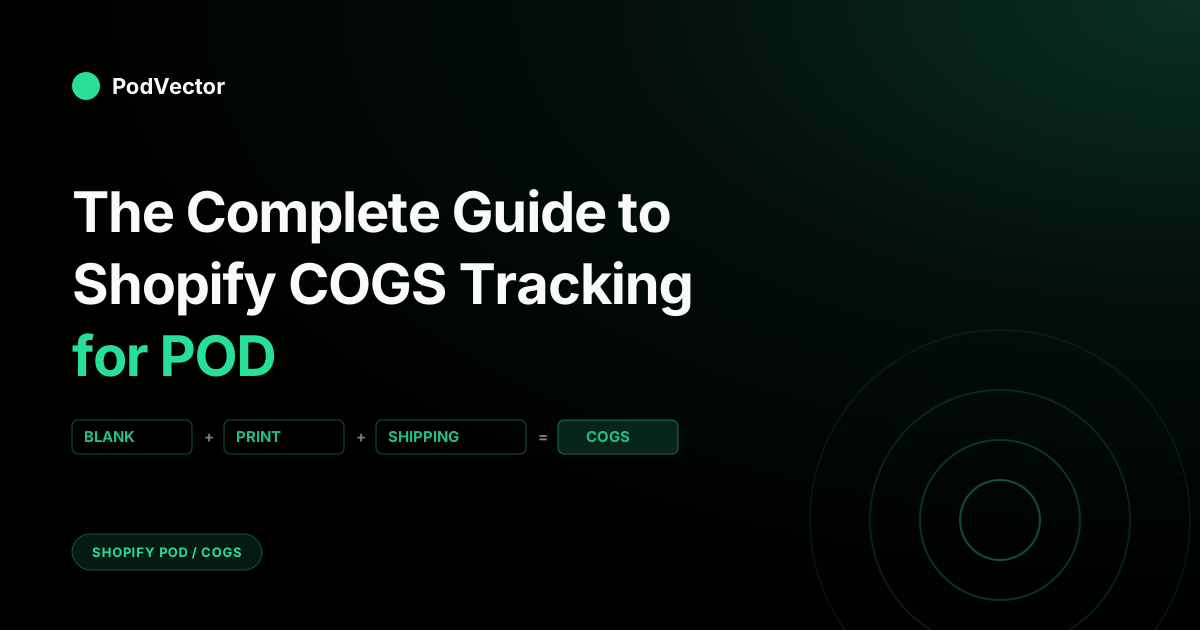
COGS = Blank Product Cost + Print / Embroidery Fee + Shipping Charged by Provider
For orders that are later refunded after the provider has already produced and shipped, the COGS is still real — you paid it. Those orders must show up with their full negative profit in your tracking.
For deeper per-product cost breakdowns, see How Much Does Printful Cost Per Month and Printful Shipping Prices: Full Breakdown for POD Sellers.
Why destination shipping changes everything
Shipping charged by Printify or Printful is not a flat rate — it changes by destination country. A domestic US shipment and a shipment to Germany for the same SKU can differ by several dollars in provider-billed shipping cost. A store that prices for "average" shipping and runs ads to any country is leaking margin on every international order. Track COGS by destination, not just by SKU.
Why Shopify's "Cost per Item" Field Isn't Enough
Shopify gives every product variant a Cost per Item field. Once populated, Shopify uses it in the Finance Summary, the Profit by Product report, and the Gross Profit column on individual orders. For a brand shipping a fixed SKU from a warehouse, that field is enough.
For POD, it has three gaps that matter:
- It's a single number per variant. There's no field for "blank + print" versus "shipping," and no way to record destination-based shipping. Whatever you enter becomes the COGS for every order of that variant, worldwide.
- It doesn't update itself. When Printify changes pricing on a popular blank, nothing in Shopify changes. Your gross profit reports keep using the old number until you manually edit each variant.
- It misses Printify Premium / Printful volume discounts. If you use Printify Premium for a discount on blanks (see Printify pricing and discount breakdown), or choose an expedited shipping option, those deltas don't flow into Shopify automatically.
The field is still worth populating — it's the minimum viable COGS tracker, and it powers Shopify's native profit column. But if the Cost per Item field is your only COGS source, your Shopify Gross Profit is an estimate, not a fact.
How to Populate Cost per Item at Scale
The Cost per item field is easy to miss — it sits in the Pricing section of each product, is not required, and many merchants discover they've been running without it for months. Shopify's bulk editor makes filling it in much faster than opening every product individually:
- Go to Products in your Shopify admin.
- Check the box at the top to select all products on the page. If you have more than fifty, click the "Select all [X] products in your store" link that appears.
- Click the Bulk edit button.
- In the bulk editor, click the Columns button (top right) and check Cost per item under Pricing.
- A new column appears. Fill in your best static estimate per variant — typically your domestic blank + print cost, excluding shipping.
- Click Save.
For stores with thousands of SKUs or COGS data managed in an external file, Shopify also accepts a product CSV import with a Variant Cost column — this is faster than the bulk editor at very large scale.
Remember: any number you enter here is a snapshot. Revisit your top SKUs after every major Printify or Printful pricing announcement, and verify against completed order data rather than the provider's current catalog — catalog prices and order-billed prices can differ once discounts, print facility routing, and plan tiers are applied. For Printify integration specifics, see the Printify API integration setup guide.
Tracking COGS Manually with Spreadsheets
Most sellers who outgrow the Shopify field move to a spreadsheet workflow. Done well, it's accurate. Done casually, it lies. A working setup looks like this:
Data sources to combine
- Shopify order export (Orders → Export → CSV) — gives you order number, SKU, country, line total, and discount.
- Printify or Printful order history export — gives you the actual provider charge per order including blank, print, and shipping.
- Shopify Payments / Stripe / PayPal settlement reports — so you can later subtract transaction fees (not part of COGS, but needed for net profit).
Spreadsheet columns that matter
- Shopify order ID
- Provider order ID (Printify or Printful)
- SKU
- Destination country
- Blank + print cost charged by provider
- Shipping charged by provider
- COGS (sum of columns 5 and 6)
- Gross revenue
- Gross profit (revenue − COGS)
Pivot on SKU to find your real per-product margin, pivot on country to find which destinations are dragging margin down, and pivot on week to see the trend. If you want the full manual walkthrough including refunds and ad spend, the step-by-step POD profit calculation guide covers the extended version.
Where manual tracking breaks
It isn't the math — it's the keep-up. Every week you need to re-export, re-match order IDs (Printify's order number isn't the same as Shopify's), re-key any exceptions, and rebuild the pivots. At high order volumes the spreadsheet stops working and starts hiding errors. As one analyst notes, manual COGS tracking with multiple expense categories "is both time-consuming and error-prone" — costs fluctuate, and a missed update compounds silently across every downstream margin report.
Operating COGS with Victor
Victor is PodVector AI's AI employee for Shopify POD sellers. He keeps an eye on your Shopify store, Meta Ads, Google Ads, Printify, and Printful. He spots when a cost change should change your next move, and shows you that move as a card so you can approve it before anything runs.
What that gives you, as a Shopify POD operator:
- Order-level COGS from actual fulfillment data — including destination shipping, supplier discounts, and price changes — not only a stale Cost per item field.
- Margin decisions by SKU, country, ad source, and day — the pivots you would build manually, translated into operator decisions.
- Plain-English questions with action proposals — ask which SKUs lost money to international shipping last month, then review the price, collection, or market change Victor recommends.
- Approval-first execution — Victor proposes the move, shows the evidence, and runs the approved Shopify action after you confirm it. Write actions today include repricing products to a target margin (single or bulk), setting up discounts, adjusting free-shipping thresholds, and organizing collections. <<<<<<< Updated upstream
- Weekly Health Report — Victor's proactive surface is a Weekly Health Report analyzing the prior week's economics; everything else is query-driven. =======
- Weekly Weekly Health Report — Victor's proactive surface is a Weekly Health Report analyzing the prior week's economics; everything else is query-driven. >>>>>>> Stashed changes
This matters because COGS in POD is a time-based order problem, not a one-time lookup. The same SKU can have different true costs in January, March, and August. A static spreadsheet captures whatever you last typed in; Victor watches for the cost shift and turns it into an approval-ready operating move.
That move might be a price increase on a hoodie that slipped below margin, a flag that international orders are losing money, a recommendation to stop promoting a design with refund-adjusted negative profit, or a proposal to unpublish variants that no longer clear your threshold.
A few honest limits worth knowing: PodVector AI pulls your Printify and Printful costs directly, before you make your first sale — so even a brand-new store with no orders yet can get a true margin answer. Printify and Printful catalog costs aren't pulled on their own; Victor works from the itemized cost tied to each order. And the number you type into Shopify's own Cost per Item field is not always the same as the real order cost — Victor uses your actual order costs, so it's worth double-checking any cost figure against your provider's order history if something looks off.
For sellers evaluating alternatives, see the best TrueProfit alternatives for POD sellers and The POD Seller's Guide to AI for Shopify.
Five COGS Mistakes POD Sellers Make
1. Averaging shipping across destinations
The biggest single error. Plugging a flat domestic shipping estimate into Shopify's Cost per Item means every US order may be costed reasonably, but every EU or international order is under-costed by several dollars. Your gross profit on international orders looks better than reality, and you'll scale the wrong campaigns.
2. Forgetting the Shopify transaction fee isn't COGS
Shopify Payments, Stripe, and PayPal fees are real costs, but they're operating expenses, not COGS. Mixing them in distorts your gross margin benchmark and makes it impossible to compare products apples-to-apples. Keep them in operating profit (see What Is Operating Profit in POD?).
3. Ignoring refunded-but-fulfilled orders
If a customer refunds after Printify has already produced and shipped the item, you paid COGS and lost the revenue. That order's "profit" is negative, and it needs to show up in your tracking that way. Shopify's native profit reports don't handle this cleanly — covered in The Hidden Costs That Kill POD Profits.
4. Not updating for provider price changes
Printify and Printful both adjust catalog pricing periodically. If your Cost per Item fields haven't been reviewed recently, every margin report you've run may be overstating profit. Re-check your top SKUs after any provider announcement. According to Shopify's own COGS documentation, a realistic cost number requires accounting for supplier price changes — not just the invoice price you entered at launch.
5. Using gross margin targets from non-POD stores
Traditional e-commerce gross margins are typically higher than POD because the supplier handles production on demand. POD gross margins run lower because that production cost hits every order. Benchmarking against the wrong baseline pushes you to price in a way your niche won't bear — or to under-price because you think POD "should" be cheaper. For a direct comparison of how provider costs affect margins, see Printify vs Printful Pricing: Which Is Best for POD Sellers.
How Accurate COGS Changes Pricing
Every pricing decision downstream of COGS multiplies the error. If your COGS is off, your break-even ROAS calculation is off, your profit on ad spend (POAS) target is off, and the price you need to charge to survive Meta CPMs is off.
Sellers who lock down COGS tracking first — before they scale ads, before they expand SKUs, before they negotiate with agencies — make faster pricing moves because they trust their numbers. The ones who don't end up making decisions based on Shopify's estimate and learning the truth from Stripe deposits 30 days late.
Victor's repricing proposals are built on this principle: he reads the actual order-level COGS from completed fulfillments, not the Shopify cost field, before proposing any price change. When you approve a reprice, you're approving a move grounded in what the provider actually charged — not what you last typed into a variant setting months ago.
For how COGS feeds into your ad attribution math, see Google Ads Data-Driven Attribution Explained for POD Sellers and Amazon Attribution & Google Ads Explained for POD Sellers.
COGS Benchmarks for POD Products
The benchmarks below are directional guides based on mid-to-late 2026 Printify and Printful pricing structures. Actual costs vary by provider, print facility location, shipping destination, and plan tier — always verify against your own order history before making pricing decisions.
- Unisex cotton tee (Gildan 5000): COGS typically represents a large share of a retail price in the low-to-mid $20s — domestic shipping included
- Unisex premium tee (Bella+Canvas 3001): Higher blank cost than Gildan; domestic COGS is meaningfully lower as a share of retail at a higher price point
- Pullover hoodie (Gildan 18500): One of the most common high-COGS SKUs; international shipping can push the total fulfillment cost significantly above the domestic figure
- All-over-print (AOP) tee: AOP blanks are noticeably more expensive than standard DTG — margin is tightest here
- Ceramic mug (11oz): Lower blank cost relative to retail price gives mugs among the better gross margins in POD catalogs
- Poster (18×24): Flat and lightweight; shipping costs are low relative to blank cost, which can yield favorable margins
If COGS as a share of your retail price is so high that a reasonable ad spend leaves no net margin, no amount of traffic will fix it — you need to raise prices, switch blanks, or concentrate on domestic markets until the unit economics work. If it looks unusually low, check for a missing shipping line item before celebrating.
For full product-level analysis, see POD Profit Margins Explained and Printify's Most Profitable Products.
How to Reduce COGS Without Killing Quality
Five levers that actually move the number, ranked by impact:
- Switch to Printify Premium or a Printful volume tier. On most popular SKUs, the blank discount can pay back the subscription past a modest monthly order threshold. For details, see Printify pricing and discount breakdown.
- Move high-volume SKUs to the cheaper provider. Printify and Printful price the "same" garment differently. Review your top SKUs every quarter and reprice where the delta is meaningful. See Printify vs Printful Pricing: Which Is Best for POD Sellers for a side-by-side breakdown.
- Concentrate ads on domestic regions until COGS justifies international. International shipping can substantially increase COGS on the same SKU. Only spend on those markets once the product and price support it — and use channel attribution data to verify which markets are actually profitable.
- Switch to cheaper blanks where the niche won't feel it. Not every buyer needs a premium blank. For niches where softness isn't the sell, a lower-cost base garment can preserve margin without sacrificing conversion.
- Raise price before you cut cost. A modest price increase usually hits the bottom line harder than an equivalent cost cut, with less execution risk. Test it on your highest-converting SKUs first.
COGS and Data Reconciliation
Accurate COGS tracking depends on your numbers actually agreeing across platforms. In practice, they often don't — and the gap is where margin quietly disappears. A few reconciliation problems POD sellers run into regularly:
- Printify revenue doesn't match Shopify. Timing differences, currency rounding, and partial refunds all create gaps. See Printify revenue doesn't match Shopify for the common causes and fixes.
- Stripe revenue or order counts differ from Shopify. Payment timing and dispute handling create reconciliation gaps that affect your net profit picture. See Stripe revenue doesn't match Shopify and Stripe orders don't match Shopify.
- Meta or Facebook Ads order counts differ from Shopify. Attribution window mismatches are the most common cause. See Facebook Ads orders don't match Shopify, Meta Ads conversions don't match Shopify, and the guide on Google Ads' default 30-day conversion window.
- Channel attribution is unclear. If you can't tell which ad channel drove an order, you can't calculate POAS or allocate COGS correctly by traffic source. See channel attribution for the right setup.
Reconciliation isn't optional — it's the last line of defense between a COGS figure you built carefully and a profit number that's still wrong because one platform's data is off. Victor reads Shopify, Meta Ads, Google Ads, Printify, and Printful simultaneously, so reconciliation gaps surface as part of the normal analysis rather than as surprises at month-end.
One gap specific to Google Ads: merchants missing ValueTrack tokens in their destination URLs get NULL attribution for Google-sourced orders, which means Google-channel POAS can be silently wrong even when your COGS figures are accurate. See Google Ads Data-Driven Attribution Explained for the correct token setup.
FAQs
Does Shopify automatically calculate COGS for POD?
No. Shopify uses whatever value you manually entered in the Cost per Item field. It doesn't pull live costs from Printify or Printful, doesn't adjust for destination-based shipping, and doesn't update when providers change their prices. Per Shopify's Help Center, "profit is reported only for products and variants that had cost recorded at the time they were sold" — for POD, treat the Shopify field as a floor, not a ceiling.
Should shipping be included in COGS?
For print-on-demand, yes — the shipping charge that Printify or Printful bills you for the order is a direct cost of fulfilling that specific order, so it belongs in COGS. Customer-facing shipping fees you collect belong in revenue. The net of the two is your true shipping impact on margin.
How often should I update COGS?
If you track manually, re-check Printify and Printful pricing on your top SKUs at least once a month, and after any provider pricing announcement. If you use Victor, COGS monitoring is driven by actual completed-order data and cost changes can surface as approval-ready operating recommendations through your Weekly Health Report or on demand.
What's the difference between COGS and operating expenses?
COGS covers costs that only exist because a specific order happened — the blank, print, and shipping. Operating expenses (OpEx) exist regardless of orders — Shopify subscription, apps, ad spend, payment processing fees, and other software. Gross profit = revenue − COGS. Operating profit = gross profit − OpEx.
Can I use Shopify's profit reports without populating Cost per Item?
Only in a degraded form. Without Cost per Item, Shopify's Gross Profit column is blank, and the Finance Summary treats every order as 100% profit. Populate the field with your best static estimate even if you use a separate tool for accurate COGS — it at least keeps Shopify's native reports from showing inflated numbers.
Do Printify and Printful sales tax charges count as COGS?
Sales tax charged to you by the provider on the blank is part of the fulfillment cost for that order, so it's fair to include it in COGS for profit-tracking purposes. Sales tax you collect from customers is a pass-through — not revenue, not COGS. Talk to your accountant for how to classify it for tax filings specifically.
How does COGS tracking differ on Shopify vs Etsy for POD?
On Shopify you own the entire stack, so COGS tracking requires combining Shopify order data with provider data. On Etsy, the platform captures more order metadata natively, but the same Printify/Printful cost breakdown still has to be layered on. The formula is identical. The plumbing is different. Note that PodVector AI's Victor can see your Shopify orders, but he does not see Etsy orders directly; if you route Etsy orders through Shopify you can use the send Etsy orders to your Shopify store setup to bring them into the same view.
Why does my COGS tool show different costs than my Printify dashboard?
The most common cause is that the tool is reading Shopify's seller-entered Cost per item field rather than itemized charges from completed Printify orders. Those are two completely different numbers. Always confirm which data source your tool is reading — and if it's the Shopify field, treat its COGS output as an estimate, not a fact.
What's the standard COGS formula, and why doesn't it work for POD?
The standard formula is: Beginning Inventory + Purchases − Ending Inventory = COGS. It was built for businesses that hold stock. POD stores have no beginning or ending inventory — every unit is produced on demand. The right approach for POD is a per-order cost model: blank + print fee + provider shipping = COGS for that order. Aggregate across orders to get period COGS.
Turn Shopify COGS Into Approved Actions
Victor reads Shopify, Meta Ads, Google Ads, Printify, and Printful, identifies where COGS is changing your margin, and proposes price, collection, and SKU actions for you to approve and run — no spreadsheet required.
Try Victor Free