
If you already run a store, you do not need another "click Add New Store" walkthrough. You need the integration configured so that orders sync cleanly, your custom product images survive a republish, and you can see the profit on every order. This guide covers the mechanics every basic tutorial gets right, then the operating settings they leave out.
How the Printify–Shopify connection actually works
Printify is not a single factory. It is a marketplace of independent print providers, each with its own base cost, shipping table, and production speed. When you connect it to Shopify, two things flow in opposite directions automatically.
Publishing pushes a product — mockups, title, description, variants, and retail prices — from Printify into your Shopify catalog as a live listing. Orders flow the other way: a Shopify sale for a Printify-fulfilled item imports into Printify, enters the approval flow, and once fulfilled, the tracking number syncs back to Shopify, which triggers Shopify's own shipping-notification email.
That bidirectional sync is the whole point. The configuration decisions below determine whether it works for you or against you.
Connect Printify to Shopify: the two paths
There are two ways in, and they land in the same place.
From the Printify side
Log in to Printify, open Manage my stores → Add new store, choose Shopify, and enter your store URL. Shopify asks you to authorize the Printify app. Approve it, and the channel connects.
From the Shopify side
Install Printify: Print on Demand from the Shopify App Store, then log in to (or create) your Printify account when prompted. Same authorization screen, same result.
Either path connects one Printify account to one Shopify store. If you run multiple storefronts, repeat the process per store — each connection is independent. For the full product-publishing walkthrough, see our guide on how to add products from Printify to Shopify.
Set the order approval window before you publish anything
This is the single most important setting in the integration, and almost no connection tutorial mentions it. When a Shopify order lands in Printify, it does not go straight to the printer. It waits in an approval window per your store setting. Printify lists four options in its official order-settings documentation: Manual, automatically in one hour, automatically in twenty-four hours (the default), or automatically at a fixed time each day (Printify Help Center).
That window is your safety buffer. It is the period in which you fix an address typo, kill a duplicate order, honor a "wrong size!" email, or hold a fraud-smelling order. The default gives you roughly a day.
The deadline that matters is not "before it ships" — it is before it enters production. Printify's own rule: changes and cancellations are only possible before an order enters production, and once a provider starts manufacturing, the process cannot be reversed (Printify Help Center). A high-ticket-support store should widen the window to manual or a daily batch. A speed-first store can shrink it to one hour and accept the tradeoff. Decide on purpose.
Shipping: what syncs, and what you have to push
Shipping is where the integration quietly leaks money. Shipping profiles are applied when you publish or republish, per product — they do not sync continuously. Printify's own provider-switch instructions tell you to re-publish with the Shipping profile box checked after any provider change (Printify Help Center), which means the rate your customer sees is only as current as your last publish.
The practical rule: after any provider change or price edit, republish and re-check the shipping profile, then verify the live rate in your Shopify shipping settings. Skipping this is how sellers end up charging the old provider's shipping rate on a product they switched weeks ago.
The custom-mockup trap when you republish
Printify offers selective publishing — field-level checkboxes that control which details overwrite your Shopify listing. If you have replaced Printify's default mockups with your own product photography in Shopify, leaving the Mockups box checked on a republish wipes your custom images and reverts them to the Printify defaults.
Printify's own managing-products guide spells it out: uncheck Mockups to avoid reverting your images (Printify guide). This is one of the most common self-inflicted wounds for an established store. Before every republish, decide which system owns each field — and uncheck everything you do not want overwritten.
Print provider selection and Printify Choice
For the same blueprint, providers differ on base cost, shipping origin, available colors and sizes, print method, and production speed. Printify surfaces a per-provider performance score that is updated weekly and factors recent error and reprint data, so you can compare providers before committing a best-seller (Printify blog). Printify's network is commonly described as roughly ninety-plus print providers across dozens of countries (Merchone).
If you would rather not manage provider selection per region, Printify Choice auto-routes each order on a balance of price, quality, and speed using only top-scored providers, and re-routes to the next-closest provider at the same price when one stocks out — with no separate fee (Printify Help Center). Note the surcharges on Choice shipping: Printify's Choice shipping page lists an added charge to European countries and a multi-day add for Alaska, Hawaii, and US territories (Printify). Choice is great for stock-out protection; skip it if you have deliberately locked one provider for color consistency across a catalog.
The number the setup guides never show: per-order profit
Every "how to connect" article stops at "orders are automated." None of them tell you whether those orders make money. Here is the calculation the integration itself never surfaces.
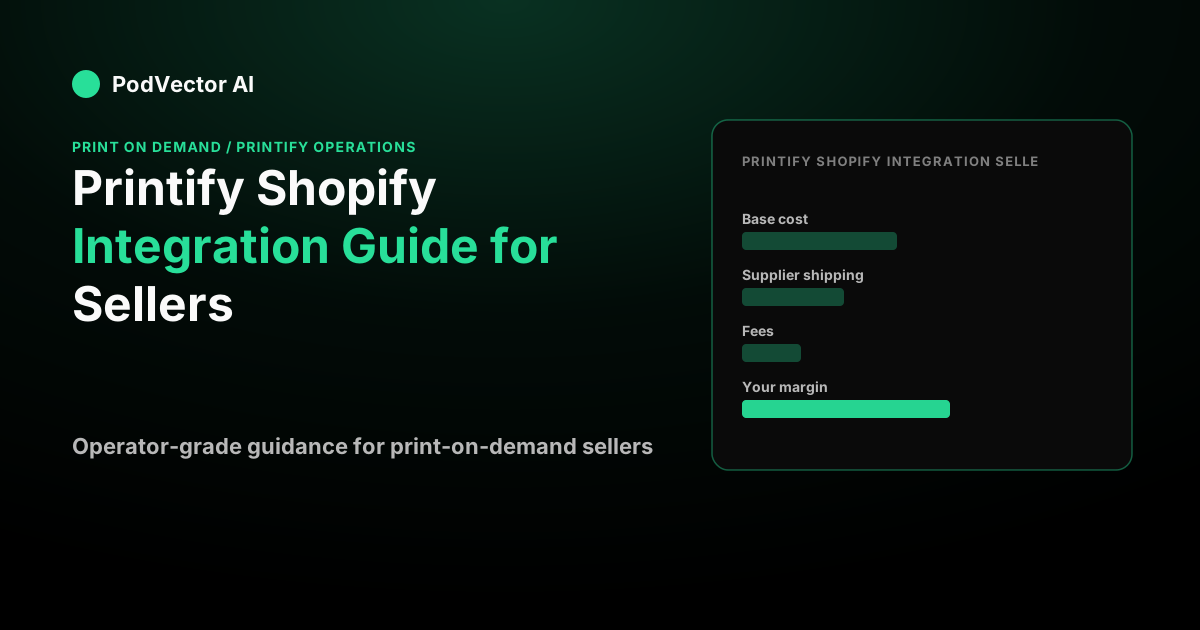
Say you sell a tee at a $29.00 retail price. Your Printify base cost is $9.50 and the provider's shipping is $4.75, so your landed product cost is $14.25. Shopify Payments takes roughly 2.9% plus $0.30 on a US card, which is about $1.14 on this order. You run Meta ads at $3,000 a month and do 420 orders, so your blended ad cost per order is $3,000 ÷ 420 = $7.14.
Now the real math: $29.00 − $14.25 − $1.14 − $7.14 = $6.47 per order. At 420 orders, that is about $2,717 a month in actual profit — not the $12,180 in revenue your Shopify dashboard celebrates. Change providers and add a dollar to base cost, or let ad cost per order drift to $9, and that $6.47 can go negative while the revenue line still climbs.
Production and delivery timing also shape your refund and chargeback rate, which eats the same margin. Printify states typical production of two to seven business days, US shipping of two to five business days, and international of five to twenty (Printify blog). Your customer-facing promise is the sum of production plus shipping — quoting only the shipping leg is the root of most "where is my order" tickets.
This is exactly the work PodVector AI's Victor — an AI employee for POD sellers — takes off your plate. Victor sees every Shopify order, every Meta and Google ad dollar, and every Printify supplier cost together, so he computes the true per-order profit on each product. He creates and publishes Printify products, approves or cancels orders inside the approval window, switches print providers when margin slips, pauses the losing ad set, and reprices the thin-margin SKUs — across Shopify, Meta Ads, Google Ads, Printify, and Klaviyo. Victor is not a dashboard; he does the operating work.
Switching providers without rebuilding the listing
One of Printify's structural advantages is that you can change the provider on a live product without losing the listing. On a product, use More actions → Replace, pick a new provider (or Printify Choice), and the product URL, reviews, and SEO history are preserved on the Shopify side (Printify Help Center).
What the Replace flow does not guarantee is identical variants, print placement, margin, or shipping. A new provider may not stock every color the old one did, base cost changes your margin at the same retail price, and the design can sit differently in a new print area. After any switch, review the design and mockups, re-set retail prices for the new base cost, and republish with the shipping profile checked. When inventory looks off after a switch, our note on why inventory is not tracked between Shopify and Printify explains the made-to-order model behind it.
For the full operating playbook — catalog build-out, order triage, and provider strategy — start with the Printify operations guide, and when you are deciding which products to scale, our breakdown of Printify's best-selling products pairs well with the profit math above.
FAQs
Does Printify sync inventory to Shopify?
Not in the way a traditional retailer expects. Printify products are made to order, so there is no stock count to track — a provider going out of stock on a variant is the real constraint, not a quantity. Printify pushes product details and order status, and tracking syncs back to Shopify, but you manage variant availability at the provider level, not through a shared inventory number.
Can I edit or cancel a Shopify order after it reaches Printify?
Only before it enters production. During the approval window you can edit the address, change a variant, or cancel outright. Once the status hits "Sending to production," editing is closed, and a canceled order cannot be resubmitted — your only path is to duplicate it and send the duplicate (Printify Help Center).
Do Printify shipping rates update automatically in Shopify?
Treat them as applied at publish time, not continuously synced. Printify's guidance has you re-publish with the shipping profile checked after a provider change (Printify Help Center), so any time you switch providers or change a product, republish and confirm the rate in your Shopify shipping settings.
Why did my custom product photos disappear after I updated a product?
You republished with the Mockups box checked, which overwrote your Shopify images with Printify's default mockups. Use selective publishing and uncheck Mockups whenever you only mean to update prices or variants (Printify guide).
When does Printify charge me — at checkout or later?
They are two separate events. Your customer pays your store at checkout; Printify charges you later, when the order is submitted to production (by default about twenty-four hours after it arrives), drawing your Printify balance first and then your linked card (Printify Help Center). Build your cash-flow view around the gap between the two.
How do I know if my Printify products are actually profitable on Shopify?
Subtract landed product cost, payment-processing fees, and blended ad cost per order from your retail price — as in the worked example above. Revenue is not profit, and the integration does not compute this for you. Victor connects your Shopify, ad, and Printify data to surface true per-order profit so you can act on the products quietly losing money.